How to use saved Gmail templates with YAMM
A saved template is a Gmail feature that allows you to keep your Gmail draft as a template and reuse it multiple times when sending mail merges.
How to use Gmail templates in Gmail
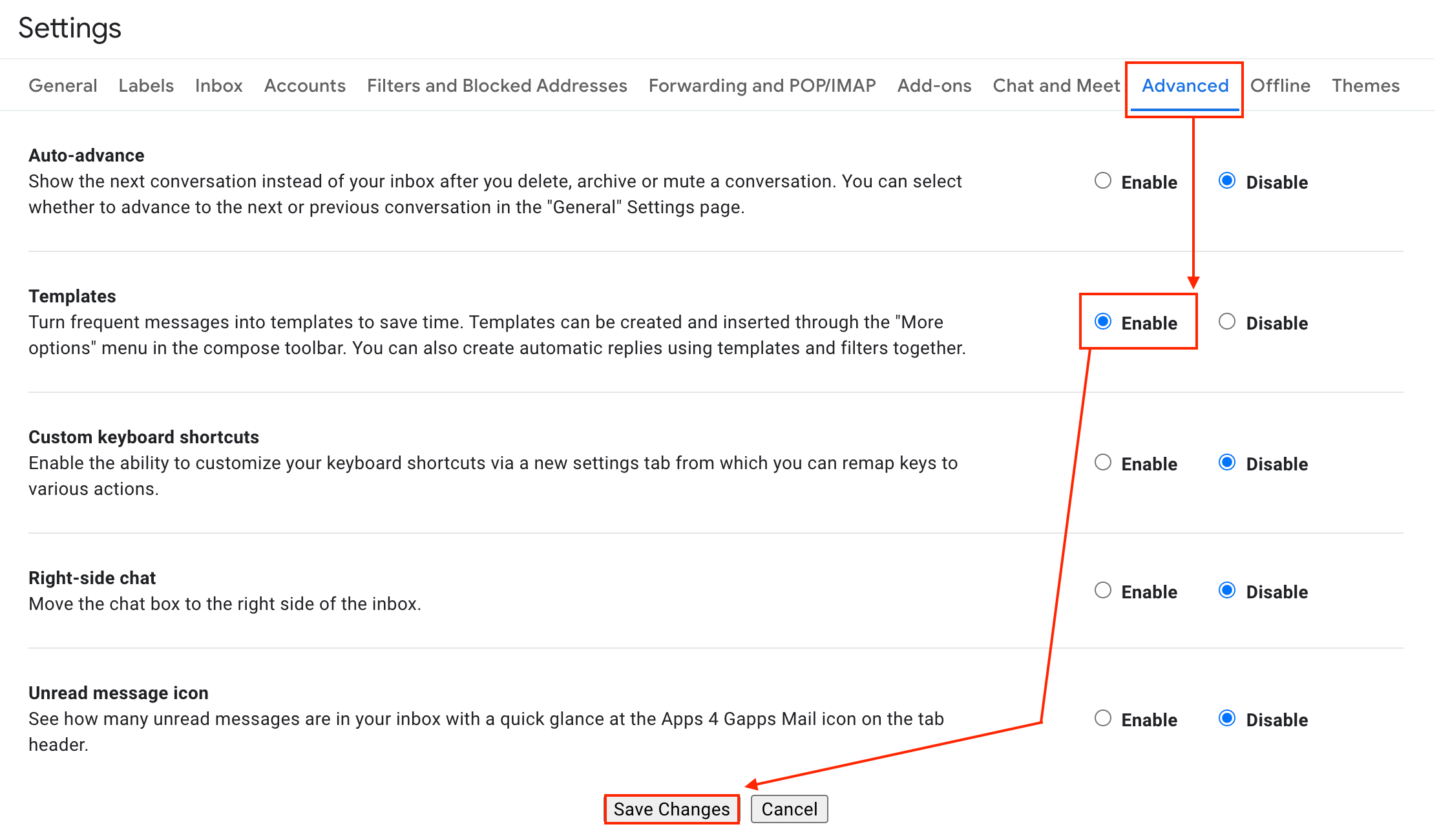
First, from your Gmail account, ensure you have enabled Templates in Gmail Settings.
Create your draft in your Gmail account.
Please note that saved templates do not include attachments. We also recommend not having an email signature in your template to avoid any duplication.
Once your draft is ready, to save it as a template:
-
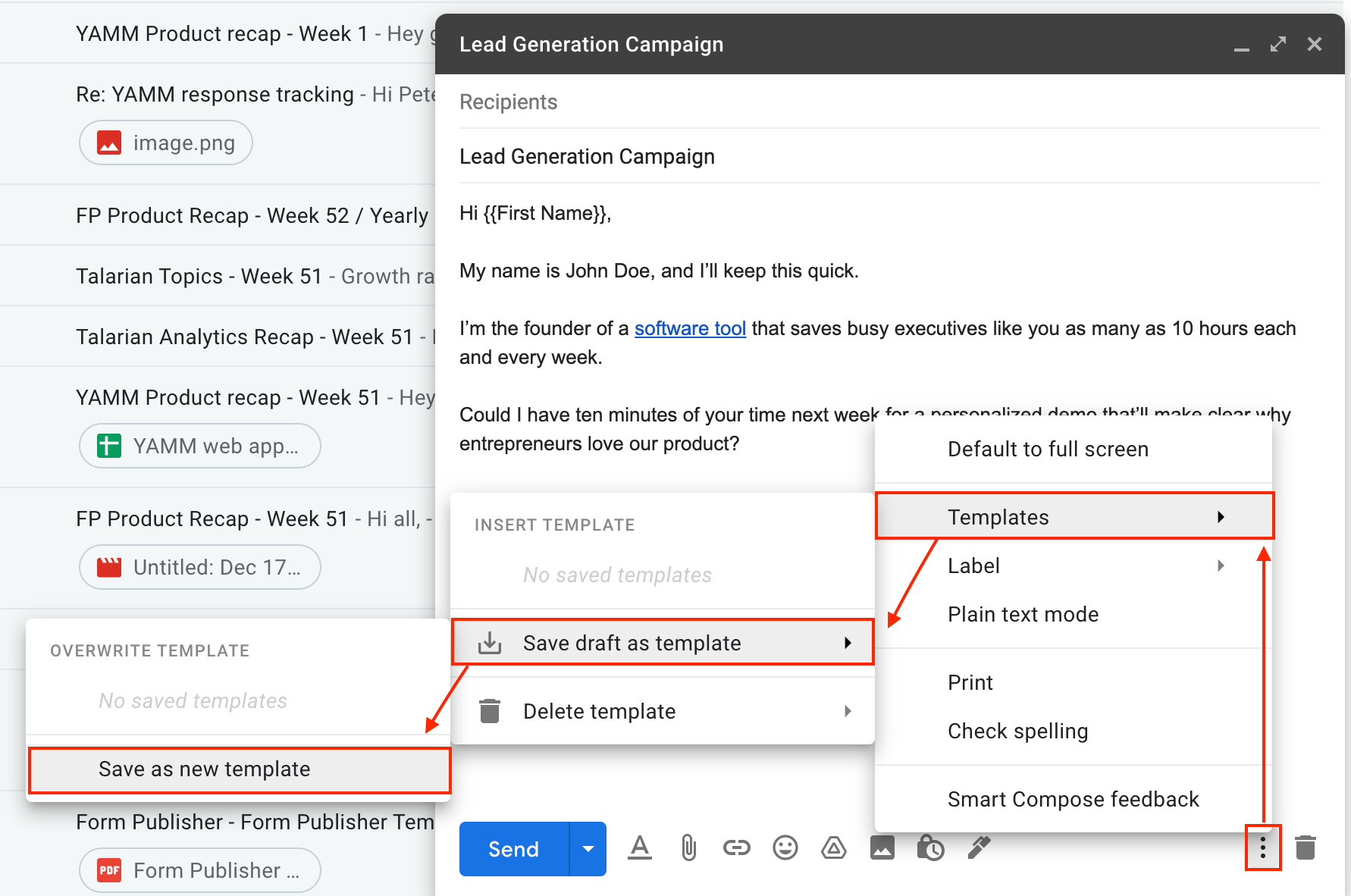
Click the three dots next to the bin icon
-
Select Templates
-
Click Save draft as template
-
Click Save as new template
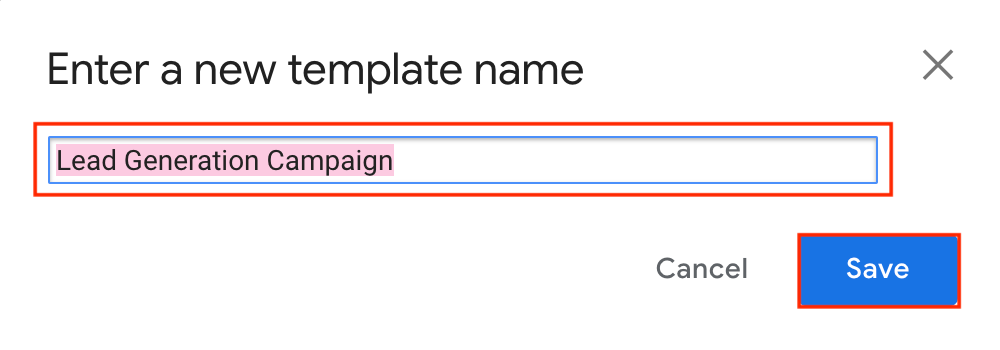
A pop-up appears. Enter a new template name (by default, Gmail displays your draft's subject line) and click Save.
Please note that you are also changing its subject line when you change the template's name.
That's it! Your draft is saved as a template in your Gmail account.
How to send a mail merge with a saved Gmail template
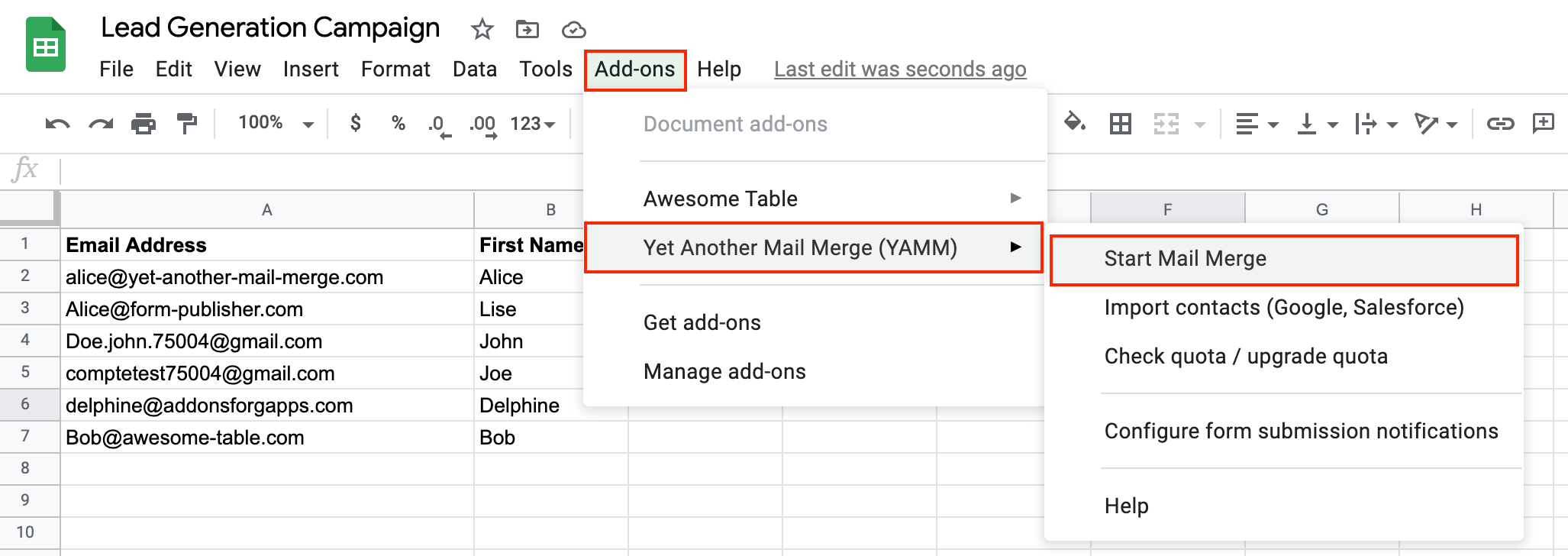
Open a Google spreadsheet and list your recipients.
Once your spreadsheet is ready, click Yet Another Mail Merge from the Add-ons menu. Click Start Mail Merge.
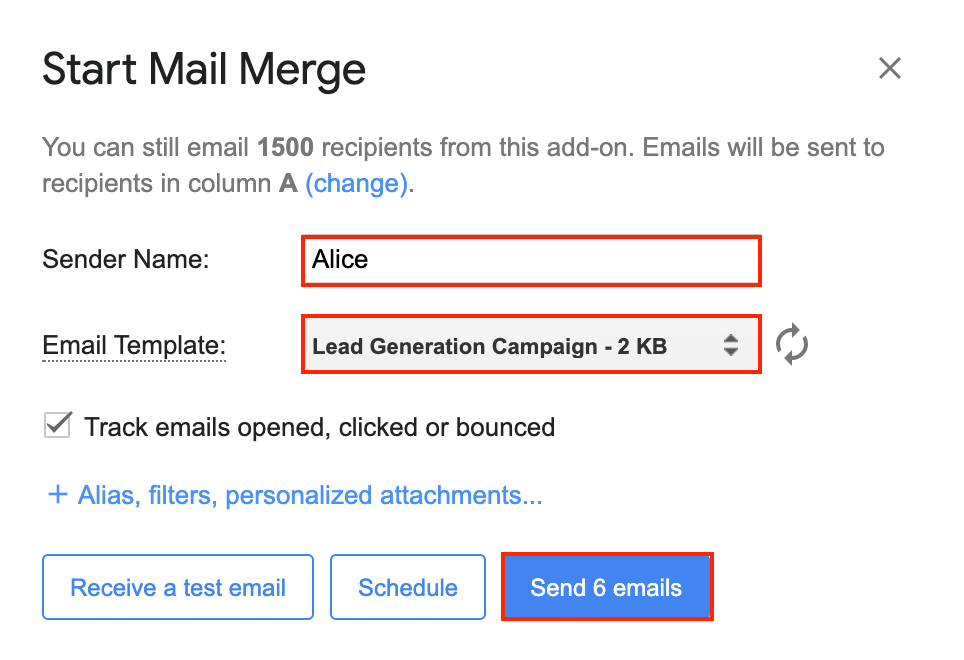
A pop-up appears. Choose a Sender Name and select your Email Template.
Click Send.
That's it! Your YAMM mail merge has been sent with your Gmail template.