Track responses to alias or reply-to accounts
If you send a mail merge with an alias or have configured a different reply-to address, responses will not arrive at the email address from which the mail merge is sent.
To track all responses, you must configure your aliases and reply-to addresses to forward to the email address from which the mail merge is sent.
Procedure
-
Log in to your second Gmail account (your alias account or your "reply-to" account).
In our example, our primary account is support@yet-another-mail-merge.com, and our secondary account is alice@yet-another-mail-merge.com.
-
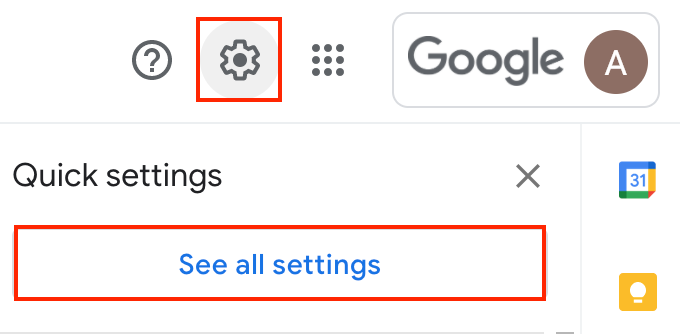
From the top-right corner, click the Settings icon and click See all settings.
-
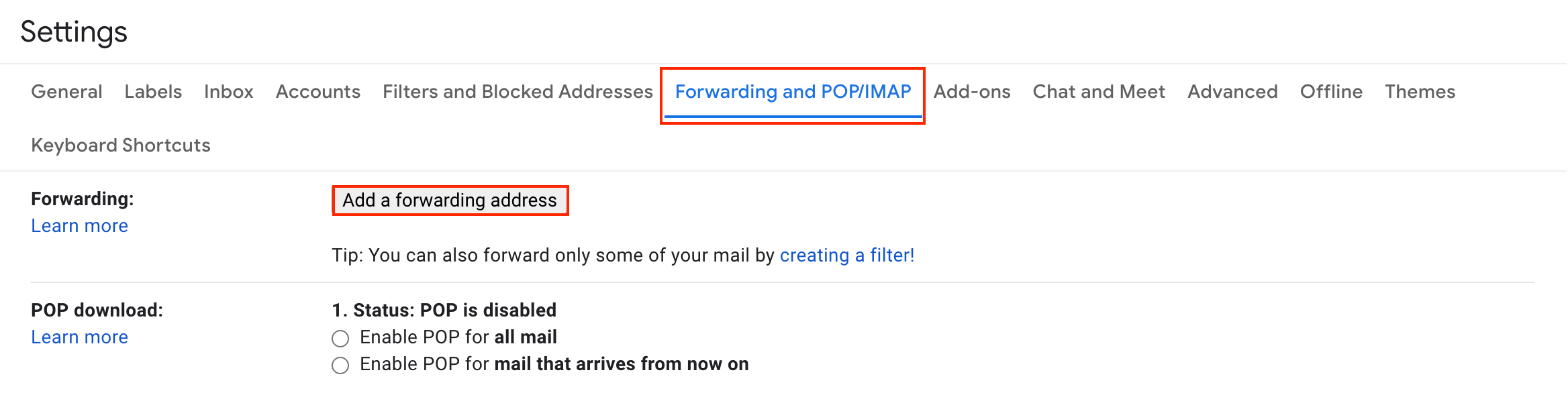
Click the Forwarding and POP/IMAP tab and click the Add a forwarding address button.
-
Enter the primary email address (in our example: support@yet-another-mail-merge.com) and click Next.
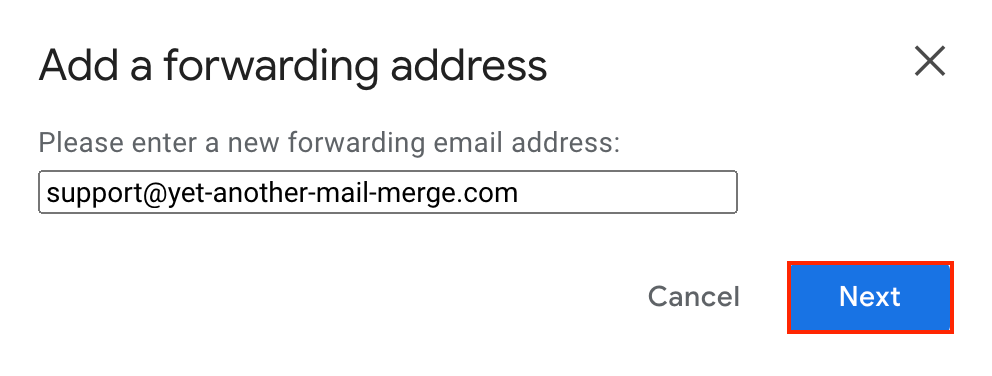
A pop-up window requests confirmation of the forwarding email address.
-
Click Proceed.
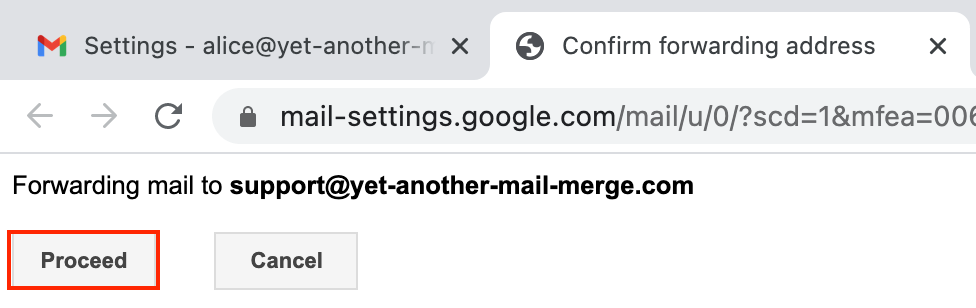
If your alias or reply-to address are in a domain different from the email address of the mail merge, Gmail sends an additional confirmation email which you must open and accept. For example:
-
Email address of the mail merge: support@yet-another-mail-merge.com
-
Alias or reply-to address: alice@yamm.com
-
-
Select Forward a copy...
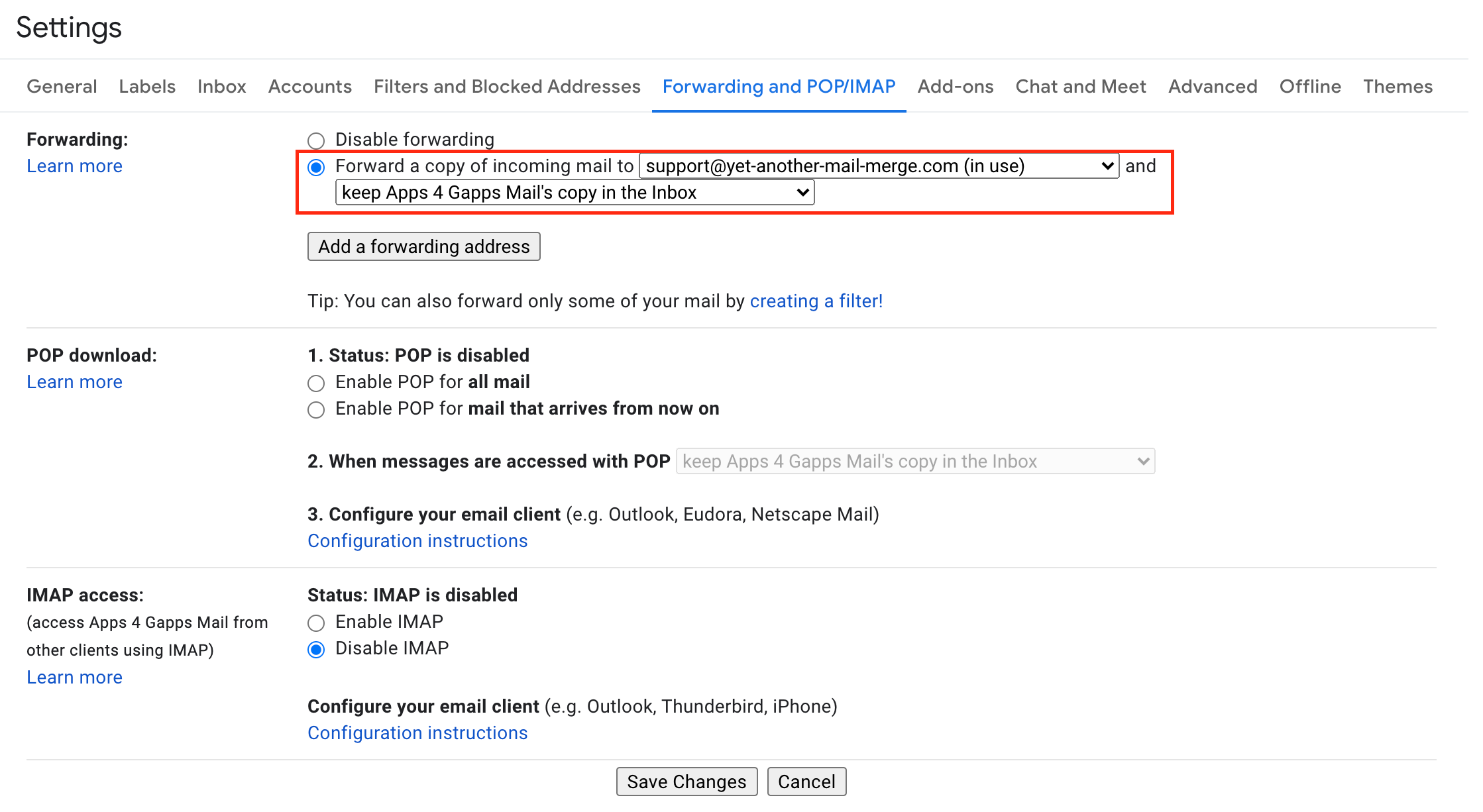
-
Click Save changes.
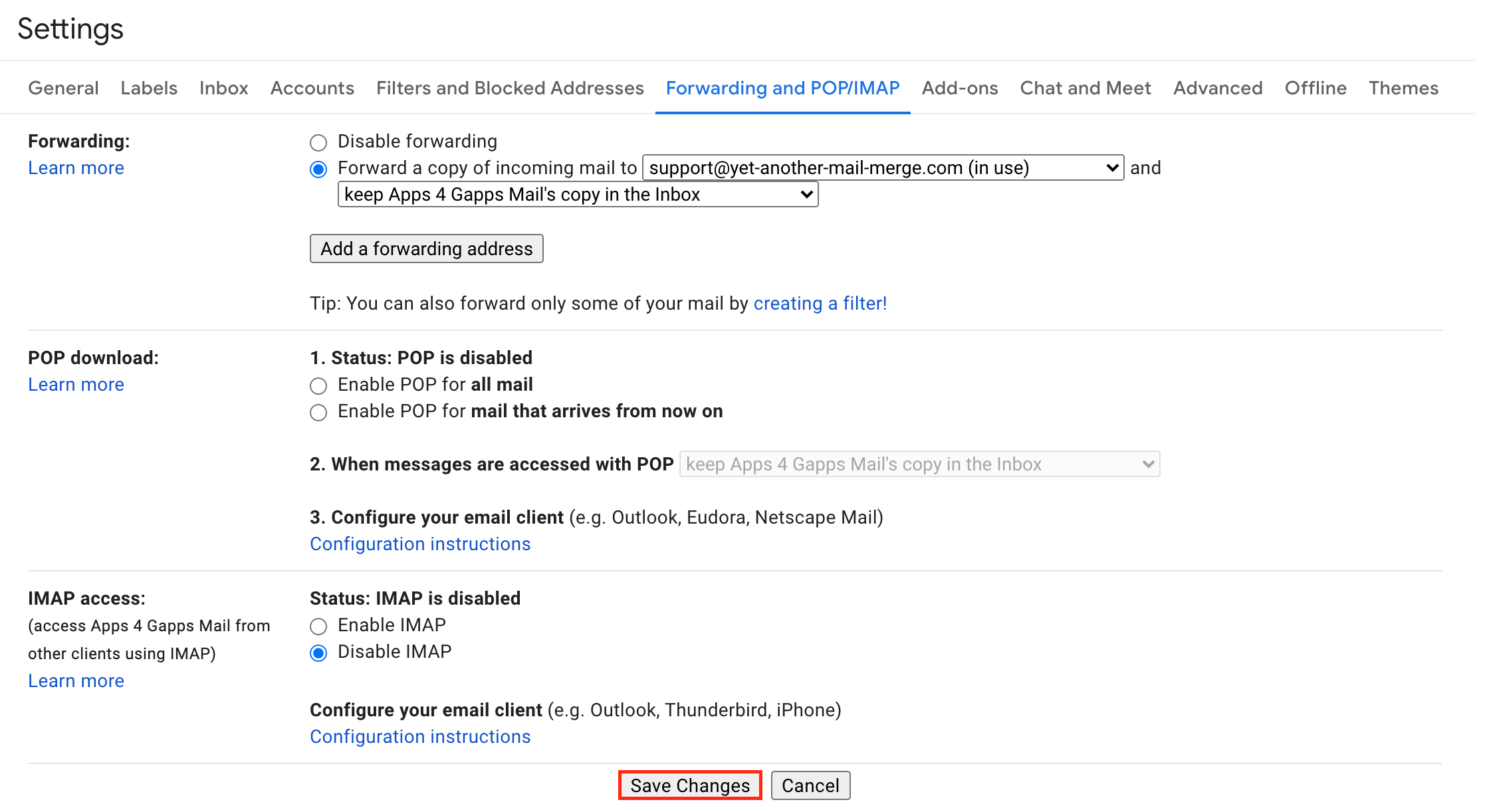
Result
The Gmail settings of the configured alias or reply-to address are now set to forward all incoming email to the email address from which the mail merge was sent.
Responses sent to the alias or reply-to address will then be correctly detected by the YAMM tracker.