Schedule mail merges for later delivery
You can schedule batch deliveries in advance by specifying the date and time to send your emails.
Prerequisites
-
To schedule mail merges, you must have a Pro plan for YAMM.
-
You must prepare a contacts list in a Google sheet and an email template in Gmail before starting the procedure.
Procedure
-
In Google Sheets, open the Google sheet that contains your contacts list.
-
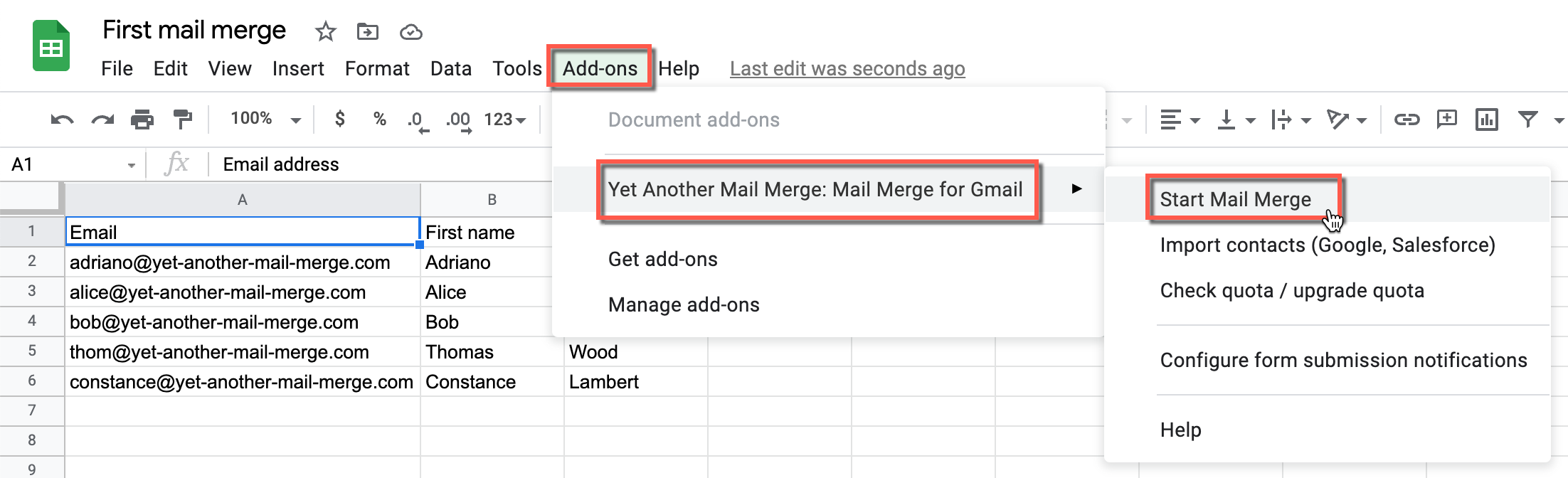
Select Add-ons > Yet Another Mail Merge: Mail Merge for Gmail > Start Mail Merge.
-
Click Schedule.
In the Start Mail Merge pop-up that appears, the Track emails opened, clicked or bounced checkbox is selected by default.
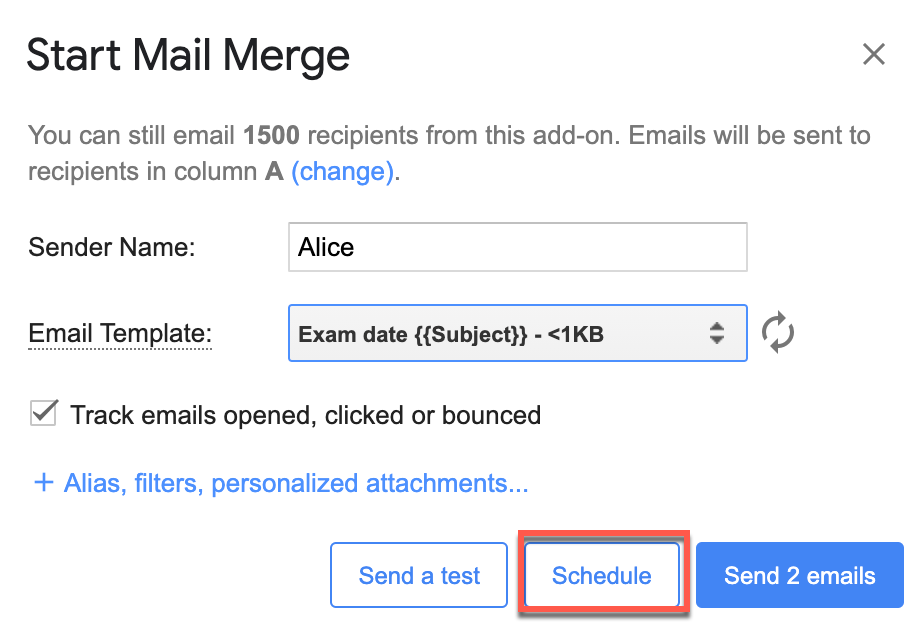
The scheduling options appear in the Start Mail Merge window.
-
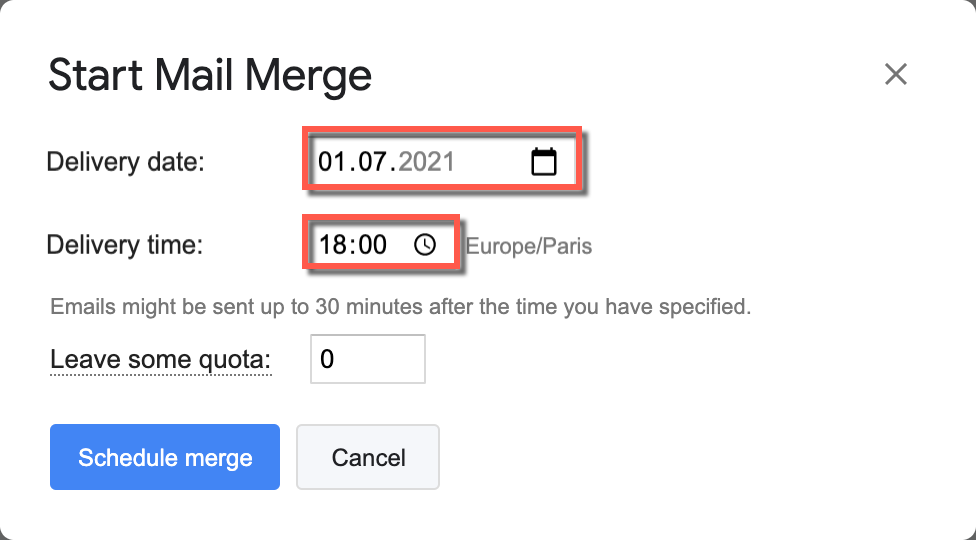
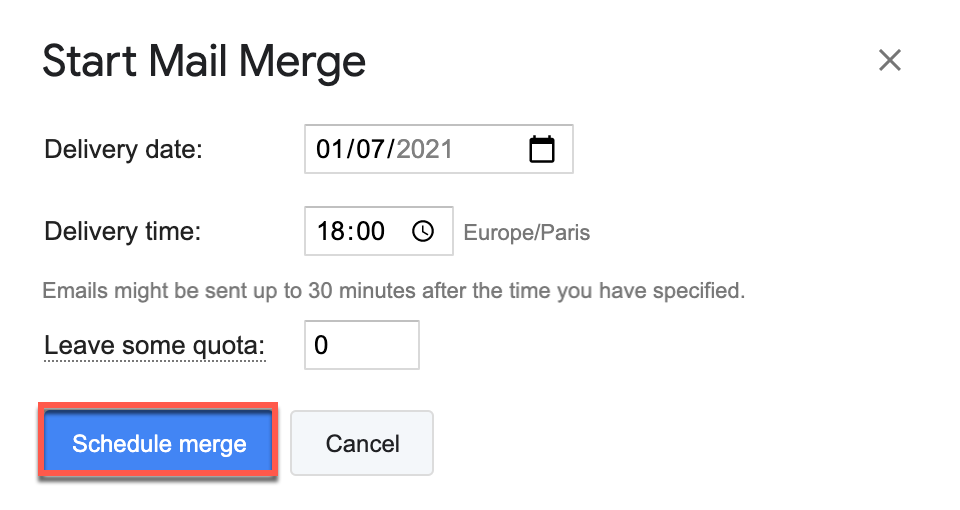
Select a date and time for when you want your mail merge to be sent.
You can schedule mail merges up to 2 weeks in advance.
-
(Optional) Leave some Gmail account quota to send other emails after the scheduled mail merge. For example, if you currently have 20 recipients remaining in your Gmail quota and want to keep 10 after the scheduled mail merge is sent out, you can enter 10 in the Leave some quota field. At the scheduled time, the mail merge will proceed to send emails until the specified number of 10 recipients remain in your Gmail account quota.
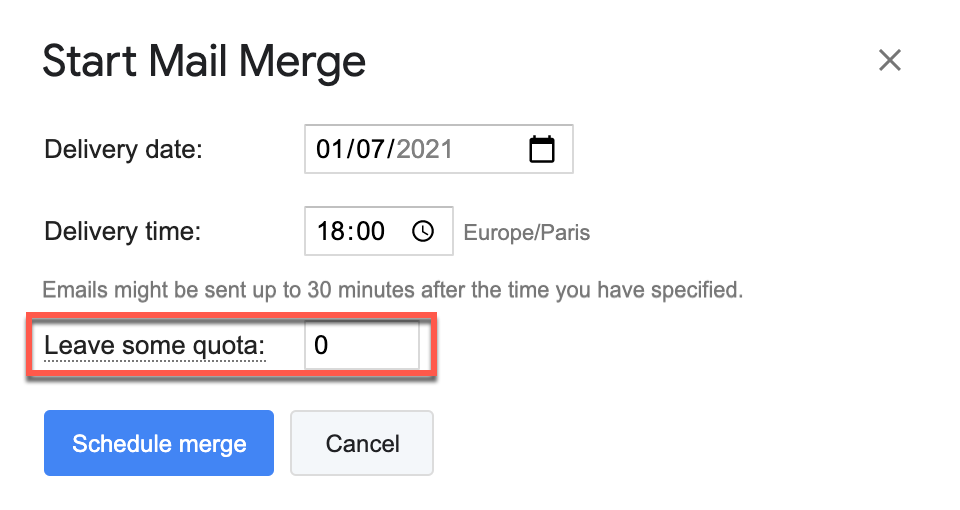
The delivery time is an estimated time. YAMM can only check your Google sheet every 30 minutes, so your emails might be sent out up to 30 minutes after the time you specified.
-
Click Schedule merge.
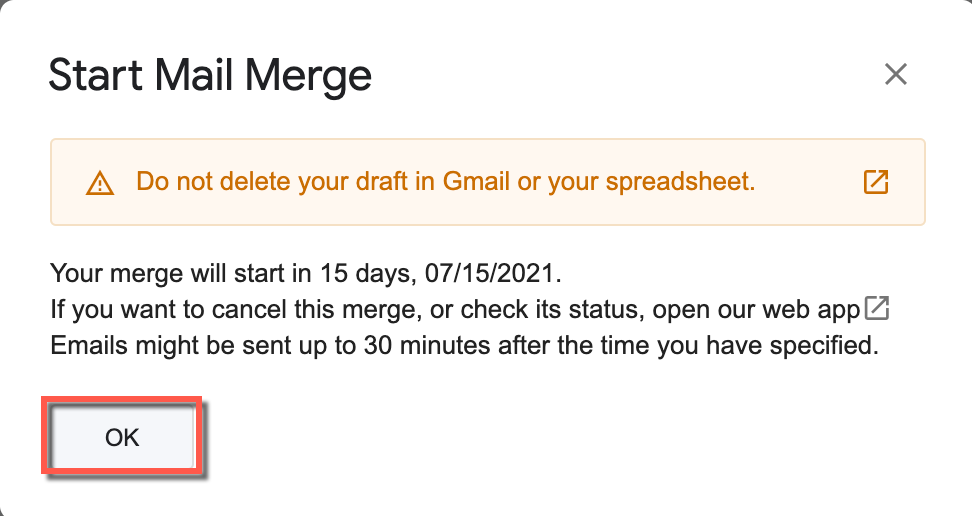
A confirmation of your scheduled mail merge appears. You can check the status or cancel your mail merge in the YAMM dashboard.
Result
YAMM checks your Google sheet every 30 minutes. As a result, the scheduled mail merge can be sent out up to 30 minutes after the time you specified.
In your Google sheet, the Scheduled status appears under the Merge status column. When the mail merge is sent to a recipient, the recipient status in the Status column changes to EMAIL_SENT.
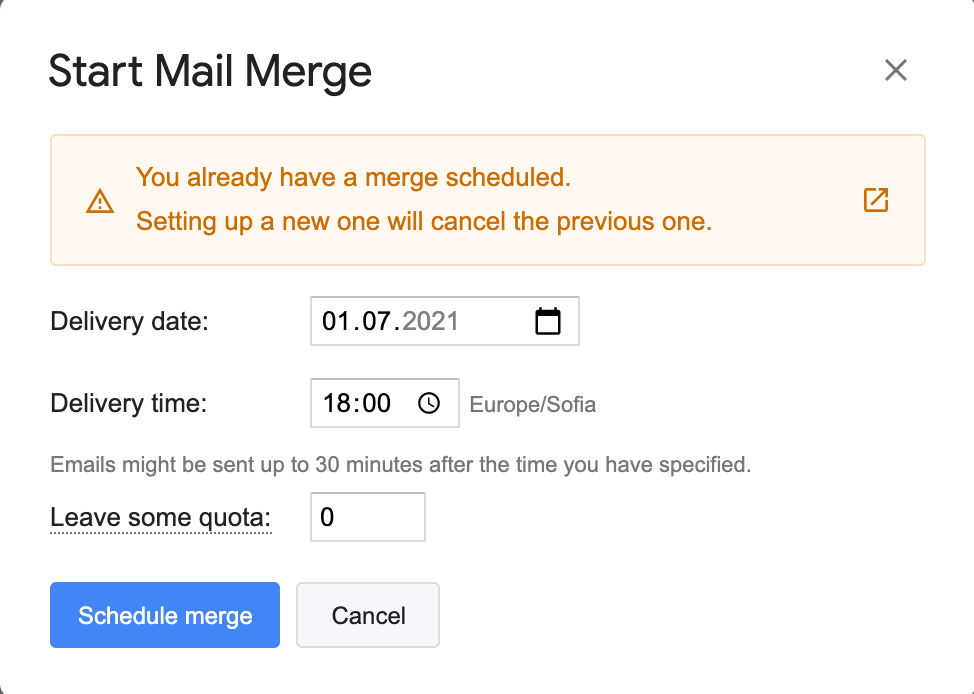
You can schedule only one mail merge at a time. If you try to schedule more than one, a warning appears. If you click Schedule merge again, the previously scheduled merge is cancelled (even if you can still see SCHEDULED on the first one, under Merge status).
Related articles