Import your contacts from Copper (Prosperworks CRM)
Learn how to import your contacts from Copper (Prosperworks CRM) into Google Sheets to send a mail merge with Gmail from your spreadsheet.
Method 1: Use ‘Copper CRM Custom Report Builder’ add-on
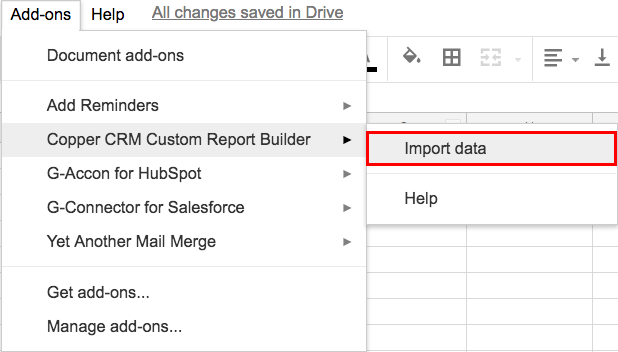
From your spreadsheet, go to Add-ons > Copper CRM Custom Report Builder > Import data.
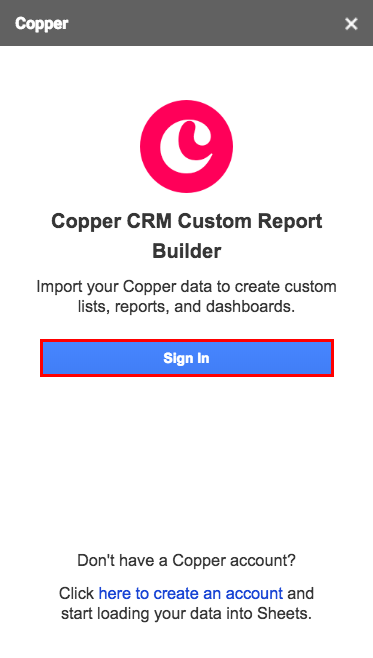
A new window opens. Click Sign In.
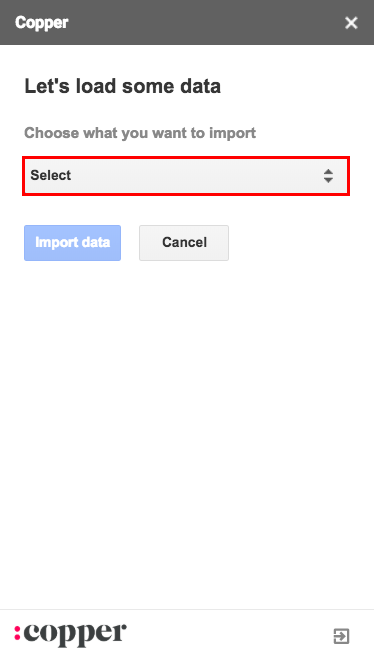
Then, select what you want to import.
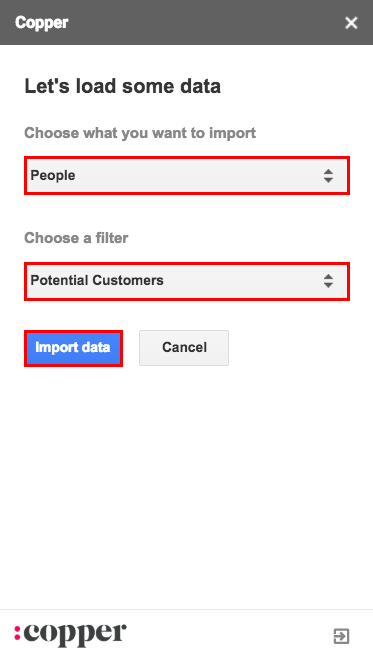
In our example, we decided to import the data from People and the filter Potential Customers. Click Import data.
That’s it! You have imported your contacts from Copper into your Google Sheet. You are now ready to use YAMM to email your contact list!

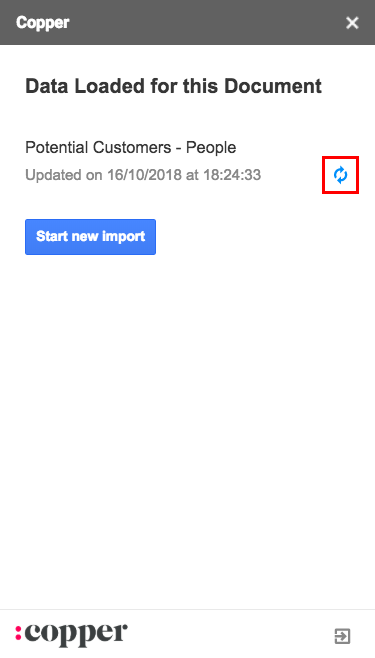
If you remove, add or edit your list of contacts from your Copper account, you can update data directly from your spreadsheet.
Method 2: Import an Excel file in your spreadsheet
To import your Copper contact list in your spreadsheet, you have to export it to a .xlsx file.
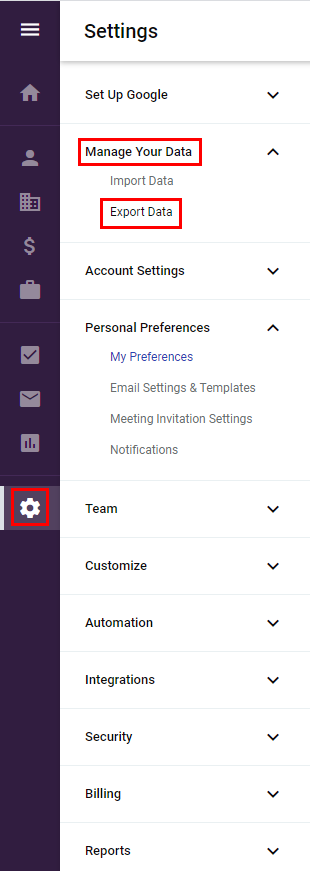
Click on the Gear icon > Manage Your Data > Export Data.
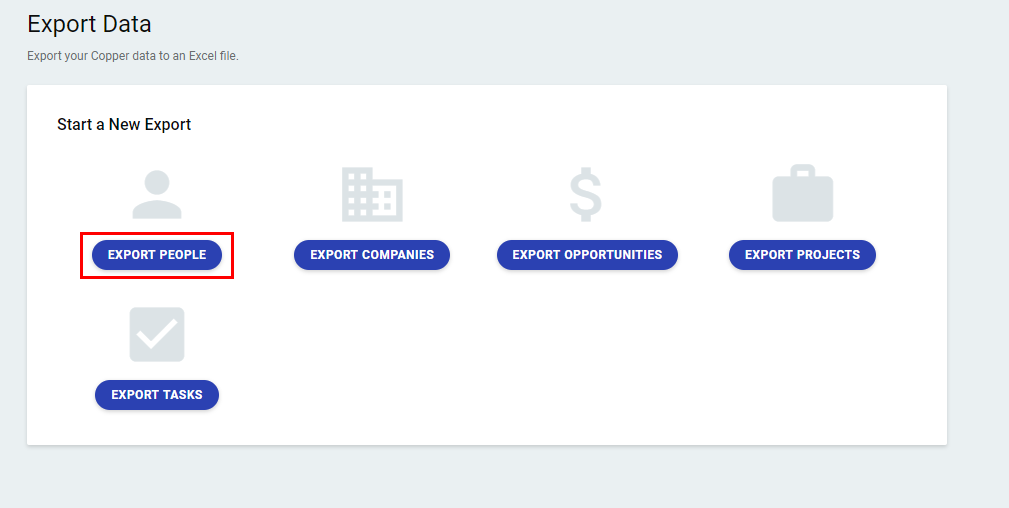
In our example, we selected Export People.
A pop-up appears to inform you that Copper saved your request: Export started. You’ll receive an email to download the file when it’s ready.
Check your inbox. It can take up to 2 or 3 minutes to receive the generated file.
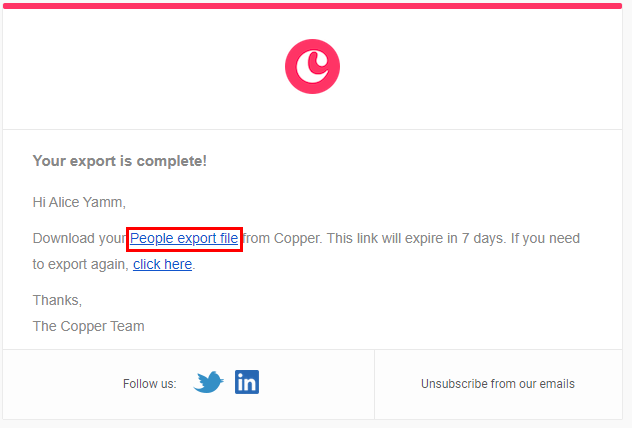
Then, click on the link People export file.
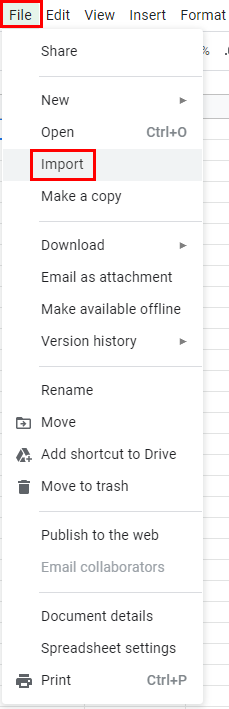
Go back to your spreadsheet. Click File> Import.
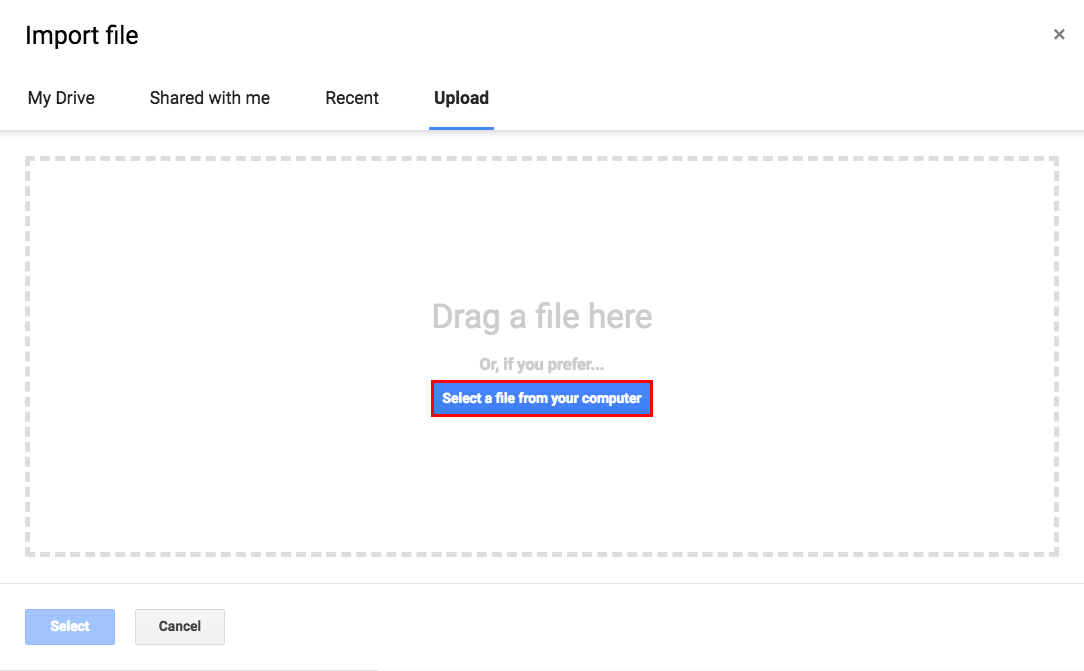
Click Upload > Select the file from your computer. Then, select your Excel file.
Your contact list is imported from Copper to your spreadsheet. You are now able to send your emails with YAMM!
