Integrate Copper (Prosperworks CRM) with your mail merges in Gmail
This article will show you how to record all your email campaigns sent from Gmail and Google Sheet in your Copper account (formerly ProsperWorks CRM). Copper lets you build advanced reports and graphs in Google Sheets.
Copper CRM provides the option to record all your emails sent through Gmail directly in Copper. You can access at a glance all the Gmail conversations you had with your prospects or clients.
Please read the following steps to learn how to log your Gmail email campaigns into Copper.
1. Link your Copper account to your Gmail inbox
Once you signed up for Copper with your Gmail account, the Gmail sync is automatically activated. Copper CRM synchronizes your Gmail emails from the last 90 days or up to 1,000 emails, depending on your Gmail inbox size.
Read the following article to know how to install Copper CRM Custom Report Builder add-on into your Gmail account.
2. Retrieve your Copper bcc email address
To log your YAMM email campaigns into Copper, you'll need to send your mail merge to each recipient with a special bcc email address.
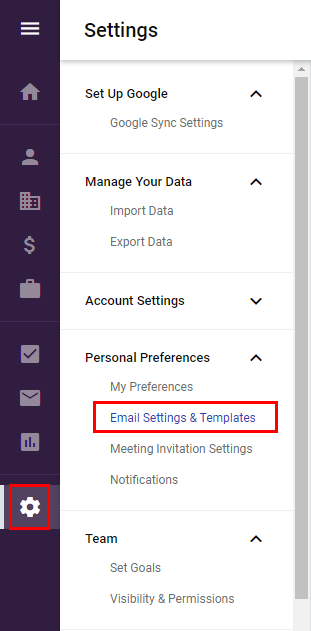
From your dashboard, click on the gear icon. Then, click Email Settings & Templates.
Then, scroll down the page and configure the settings depending on your expectations.
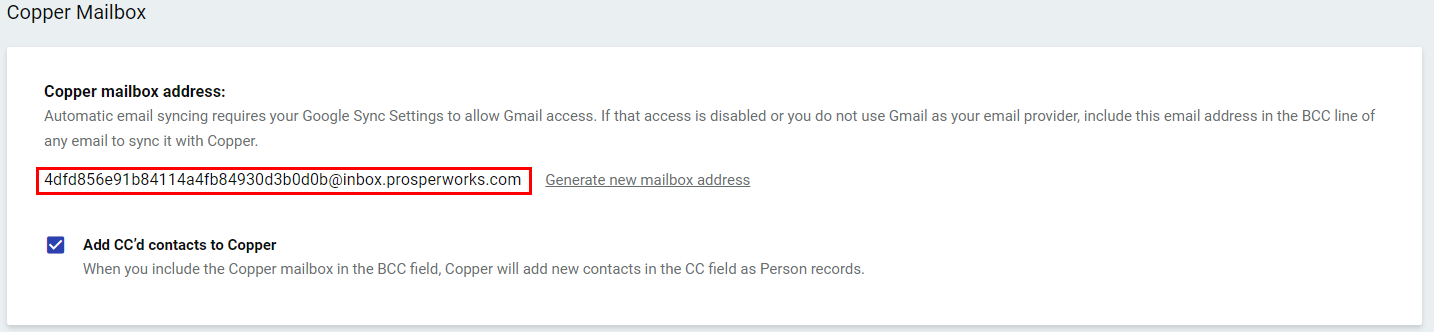
At the bottom of the page, under the Copper Mailbox section, you can find your bcc address. This is the special email address you’ll have to add as a bcc recipient in your spreadsheet.
Select the email address > Right click > Click Copy.
3. Configure your contact list in your Google Sheet
List all your recipients in your Google Sheet (or Import contacts from your Copper account).
Then, paste the special bcc address under a bcc column, as shown below.

Learn more: Add cc or bcc recipients in your emails.
4. Start your mail merge using YAMM
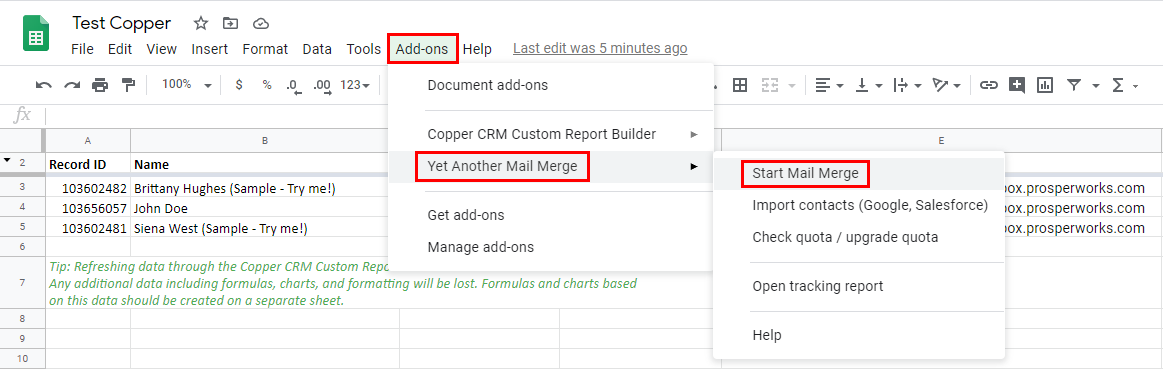
Once your spreadsheet and Gmail draft are ready, run YAMM as usual. Click Add-ons > Yet Another Mail Merge > Start Mail Merge.
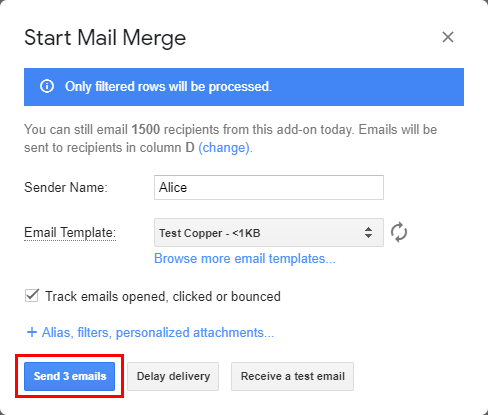
Then, select your draft > click Send emails.
5. Go back to your Copper account to check the email logs
If there’s a match between the recipients from your spreadsheet and the email addresses from your Copper contacts, you’ll be able to see the emails in the contacts’ profile.
From your dashboard, scroll down and click on a contact under Recently Contacted People.
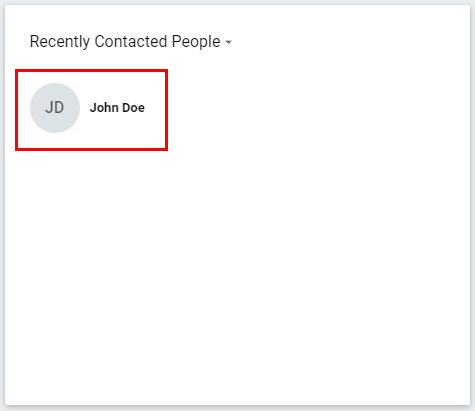
Finally, you can see the email under the contact’s profile.
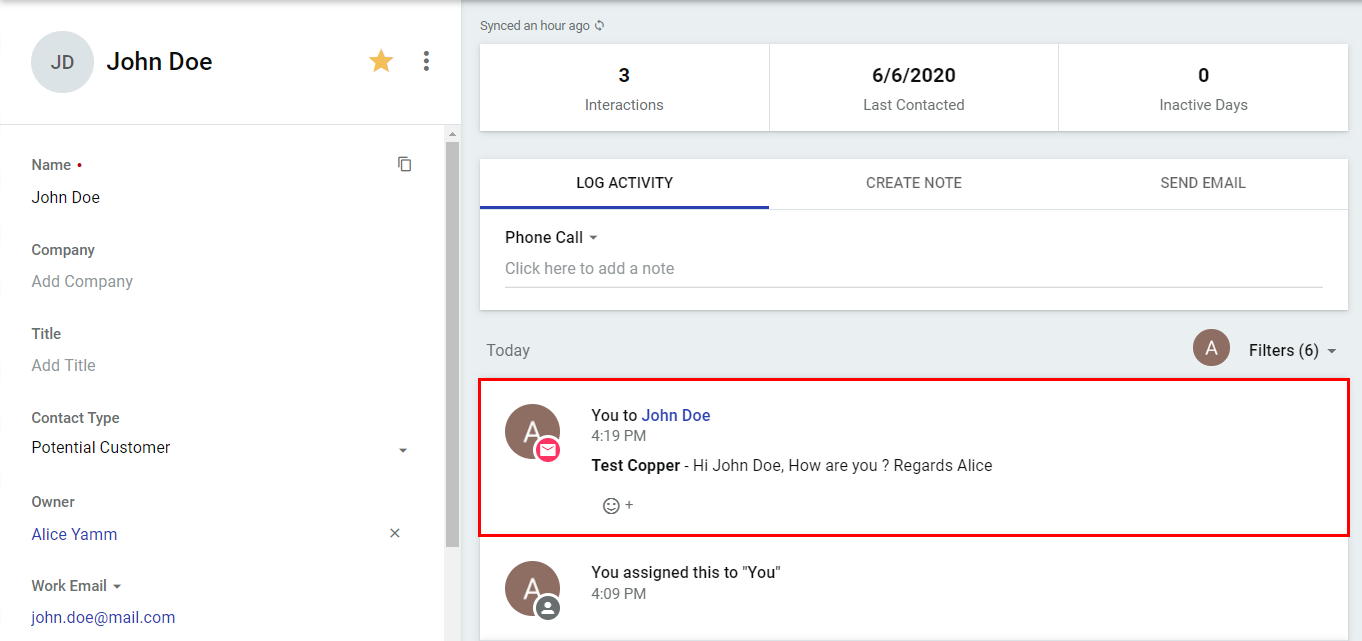
It can take a few minutes to record all your emails! If you don't see them, please wait a bit longer.