Integrating Salesforce CRM with your Gmail email campaigns
This article will show you how to record all your email campaigns sent from Gmail and Google Sheet in your Salesforce account. As a result, all Gmail conversations with your sales leads will be automatically saved into Salesforce.
Salesforce lets you log your email campaigns sent from Gmail into your Salesforce account. You will then be able to access all the Gmail conversations you had with your prospects or clients at a glance.
The following steps will explain how to save all emails sent with YAMM in Salesforce.
1. Enable ‘Emails to Salesforce’
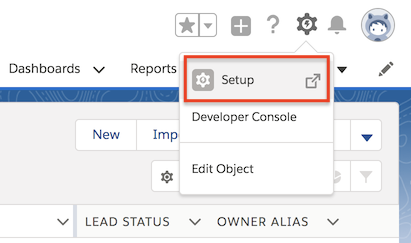
To do so, click on the top right corner icon > Setup.
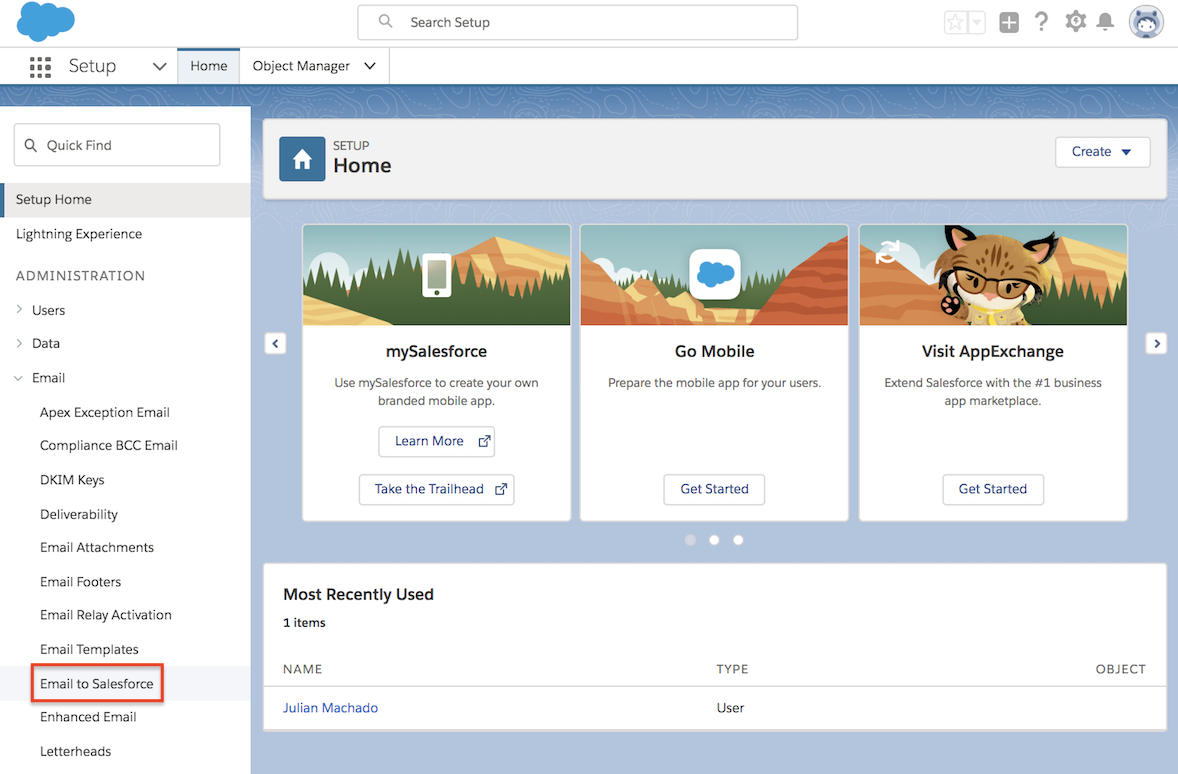
Then on the left sidebar, click Email > Email to Salesforce.
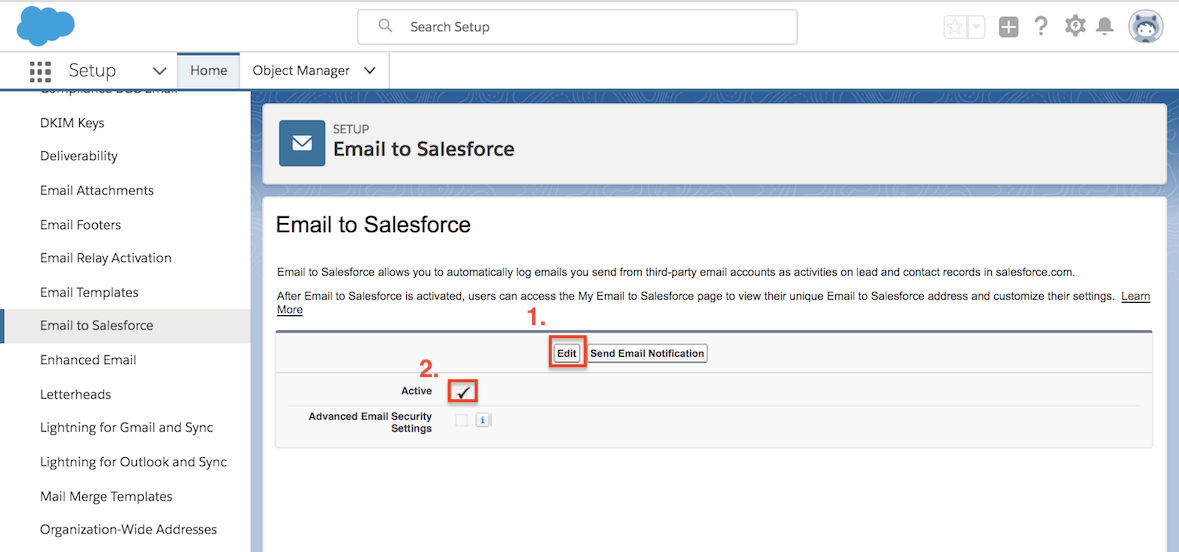
Finally, click on Edit > Select Active.
Click Save. A popup window entitled 'Send Notification Email to Users' appears.
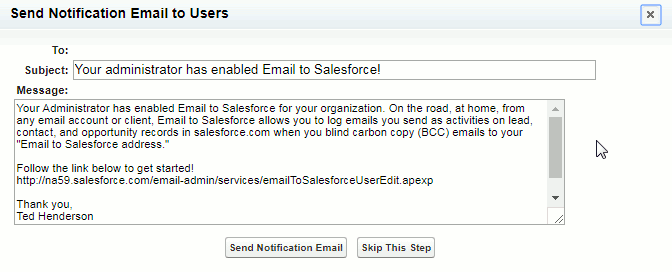
If other users from your company are registered with your Salesforce account, click Send Notification Email to alert them by email. Click Skip This Step otherwise.
2. Logout and login again to your Salesforce account
For the moment, Salesforce doesn't give you an option to refresh your settings quickly.
You will then have to logout from your Salesforce account, and log in again to update your settings menu.
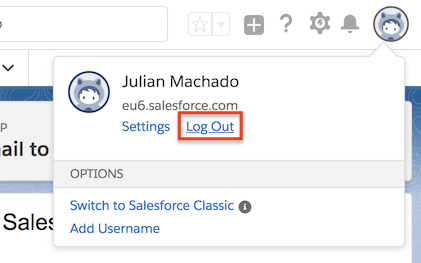
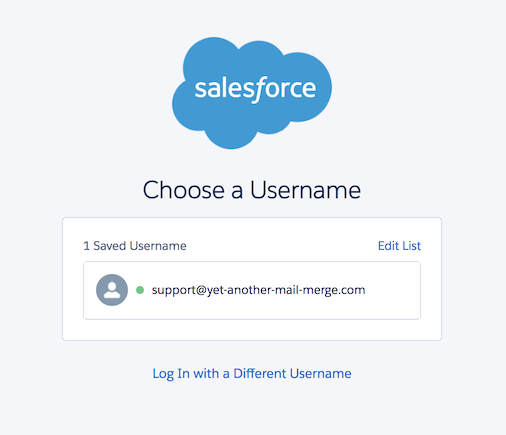
3. Go to your settings to locate the 'Email' menu option
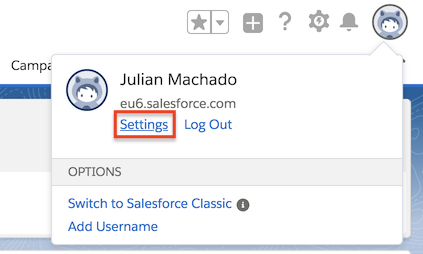
A menu on the left side will display. Click on Email > My Email to Salesforce.
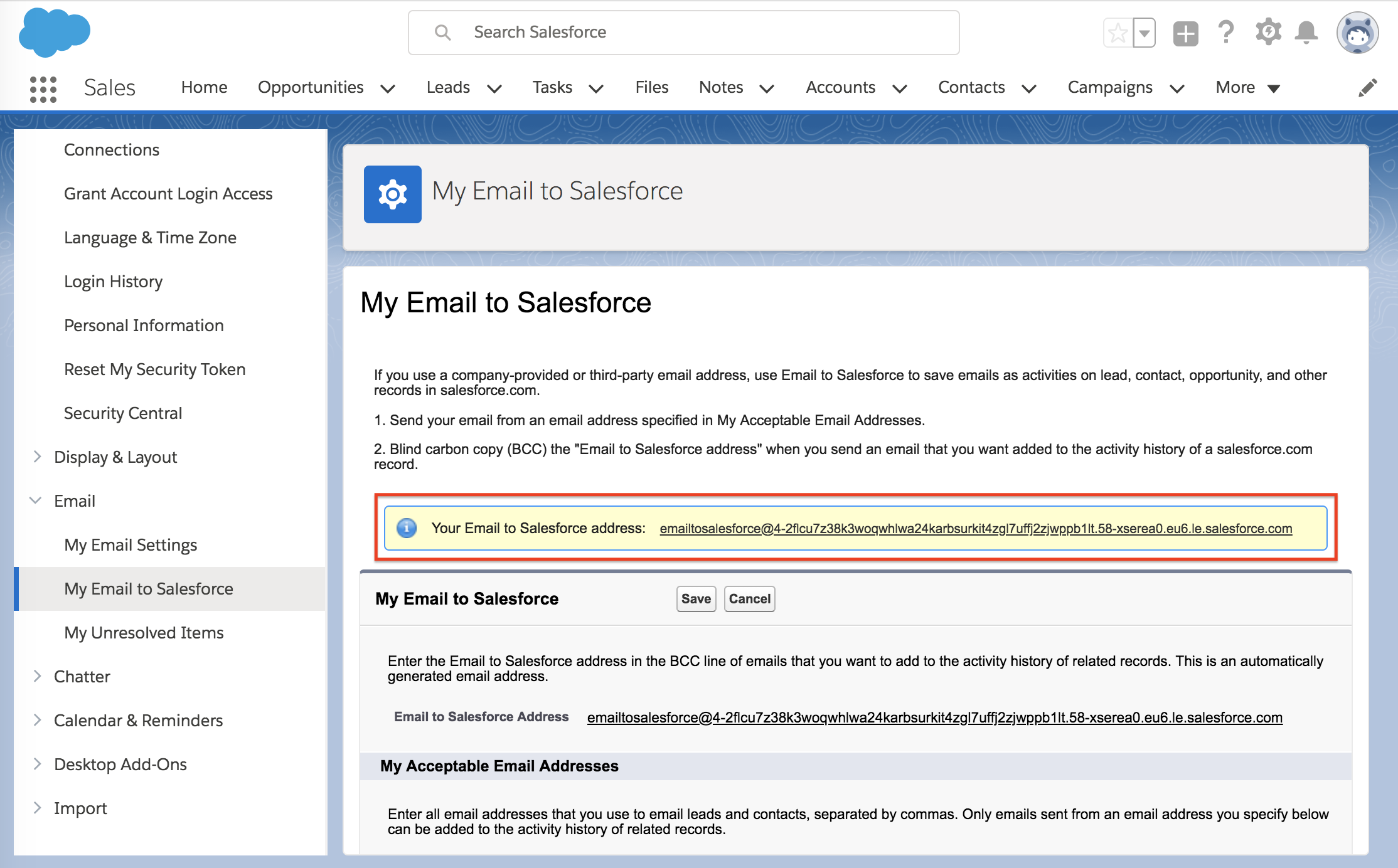
You’ll find your Email to Salesforce address in the yellow box.
This is the unique email address you’ll have to add as a bcc recipient in your spreadsheet.
In My Acceptable Email Addresses, enter all email addresses you use to email leads and contacts, separated by commas. Only emails sent from an email address you specify below can be added to the activity history of related records:

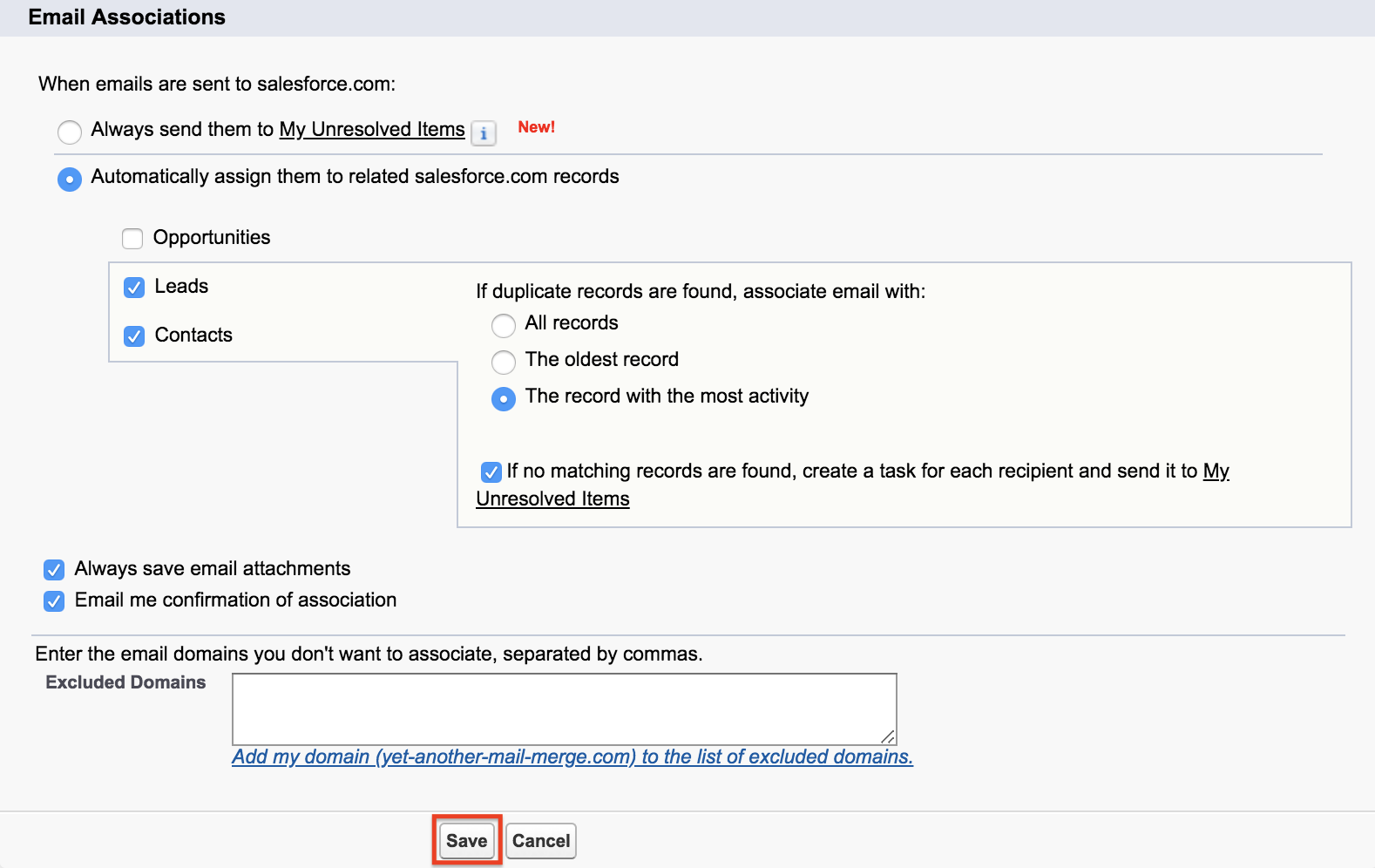
You can then choose your Email Associations settings. Don’t forget to click Save.
4. Configure your contact list in your Google Sheet
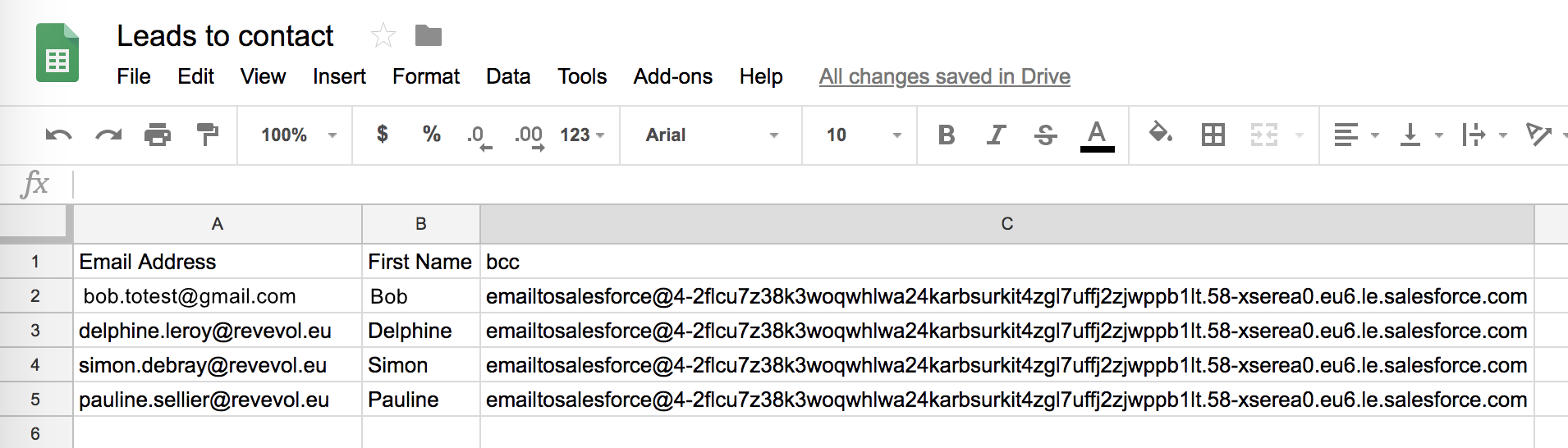
List all your recipients in your Google Sheet (or import contacts from your Salesforce account), add the special Email to Salesforce address under a bcc column, as shown below.
Learn more about cc/bcc recipients on the following article Add cc/bcc recipients in your emails
5. Start your mail merge using YAMM
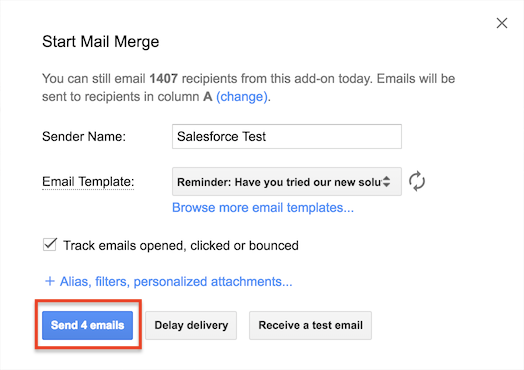
Once your spreadsheet and Gmail draft are ready, run YAMM Add-ons > Yet Another Mail Merge > Start Mail Merge.
6. Go back to your Salesforce dashboard to check the email logs
If there’s a match between the recipients from your spreadsheet and the email addresses from your leads/contacts, you’ll be able to see the emails in the leads’ profile, under Activity.
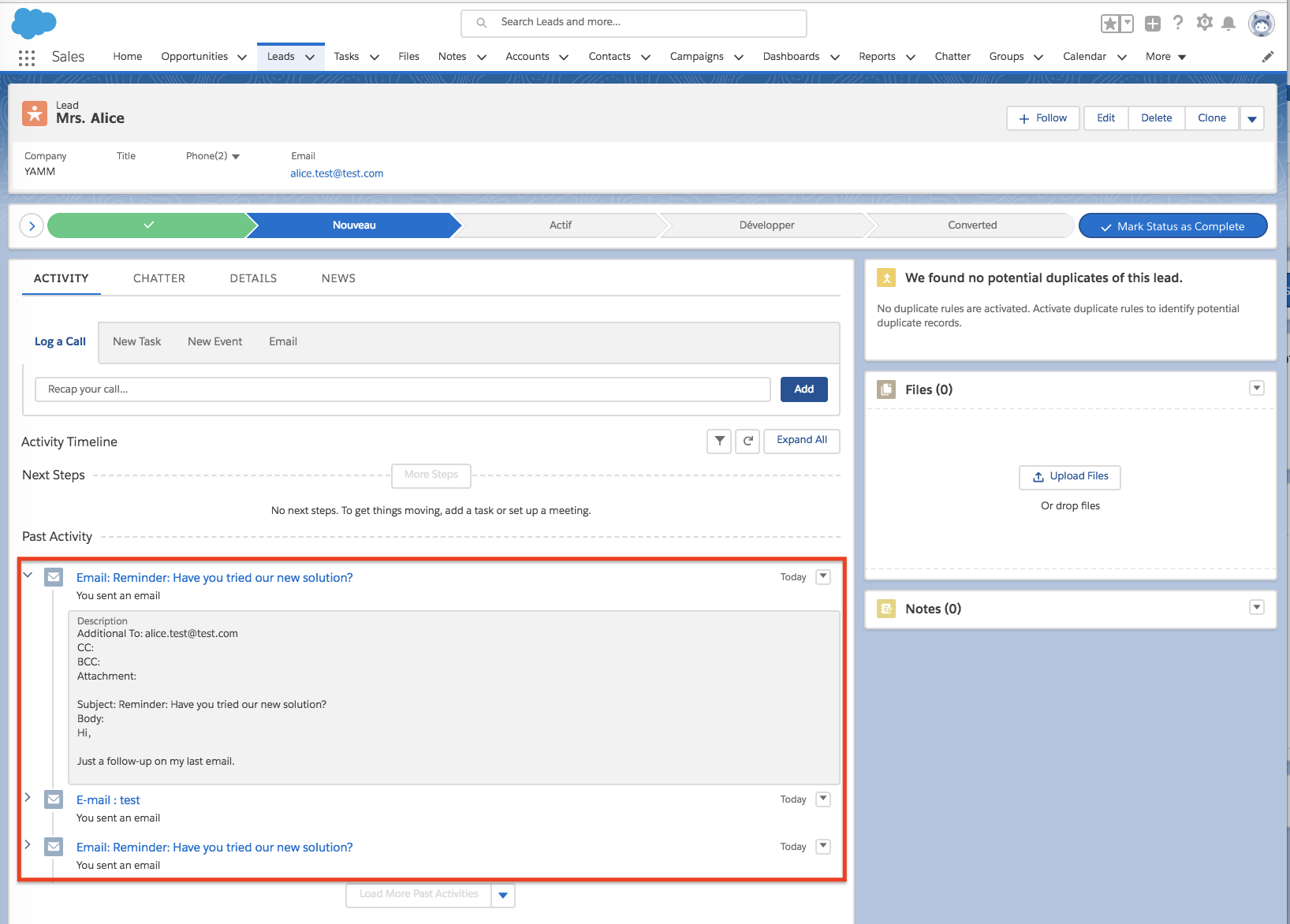
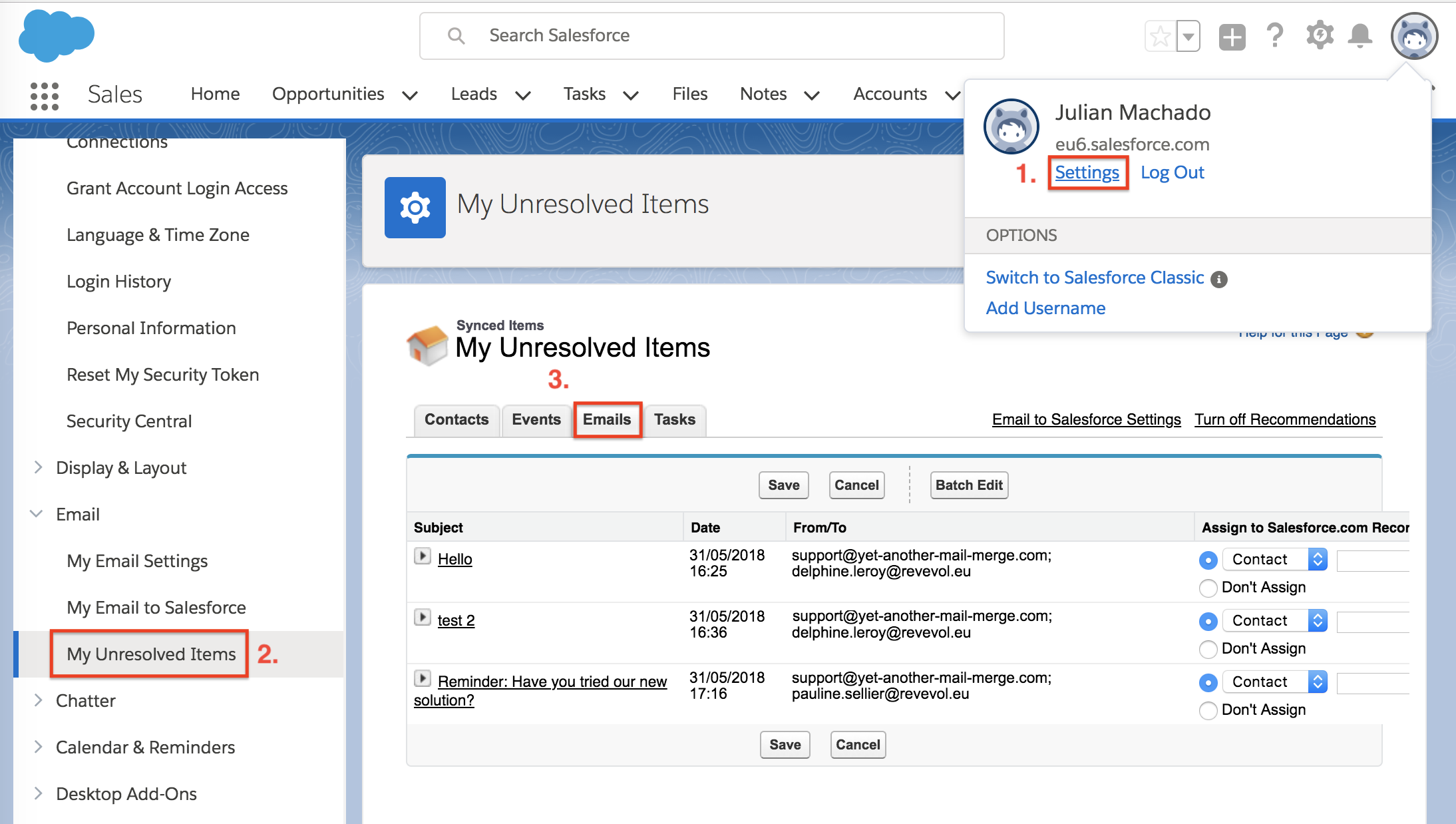
If not, then you’ll retrieve the emails under Settings > Email > My Unresolved Item > Emails.
It can take a few minutes to record all your emails! If you don't see them, please wait a bit longer.