How to Add a Gmail Account to iPhone and Android
3 min read
Table of contents
Whether you're switching devices or simply integrating your email for seamless communication, this guide will show you how to add a Gmail account to your iPhone or Android device. If you’re ready for a simplified and unified email experience on your smartphone, let’s dive in!
How to add a new email address to Android and iPhone
Whether you’re using an Android device or an iPhone, the steps to add a new email address remain the same.
Step 1: Open the Gmail app
Tap the Gmail App icon to open Gmail on your device.
Step 2: Tap profile picture
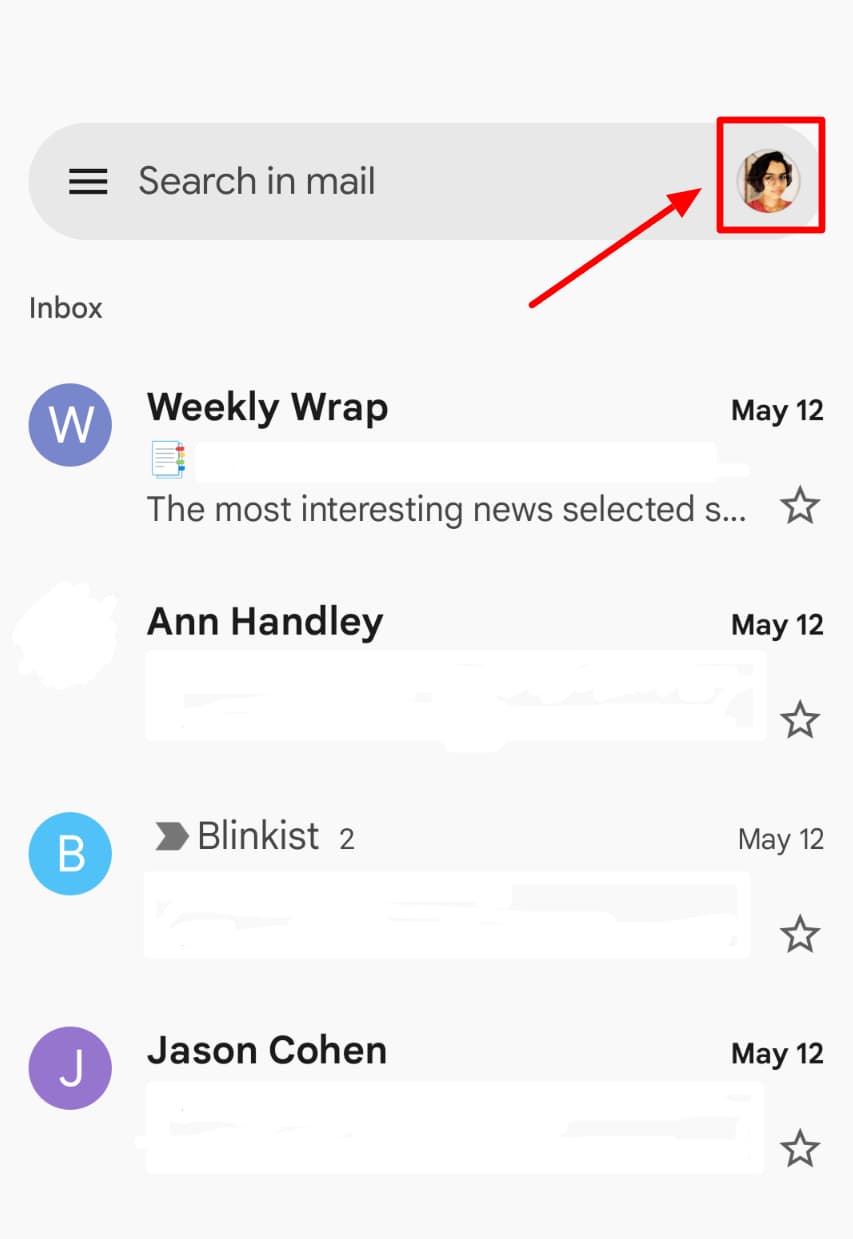
Once your Gmail app is open, tap on your profile picture in the top right corner.
Step 3: Add another account
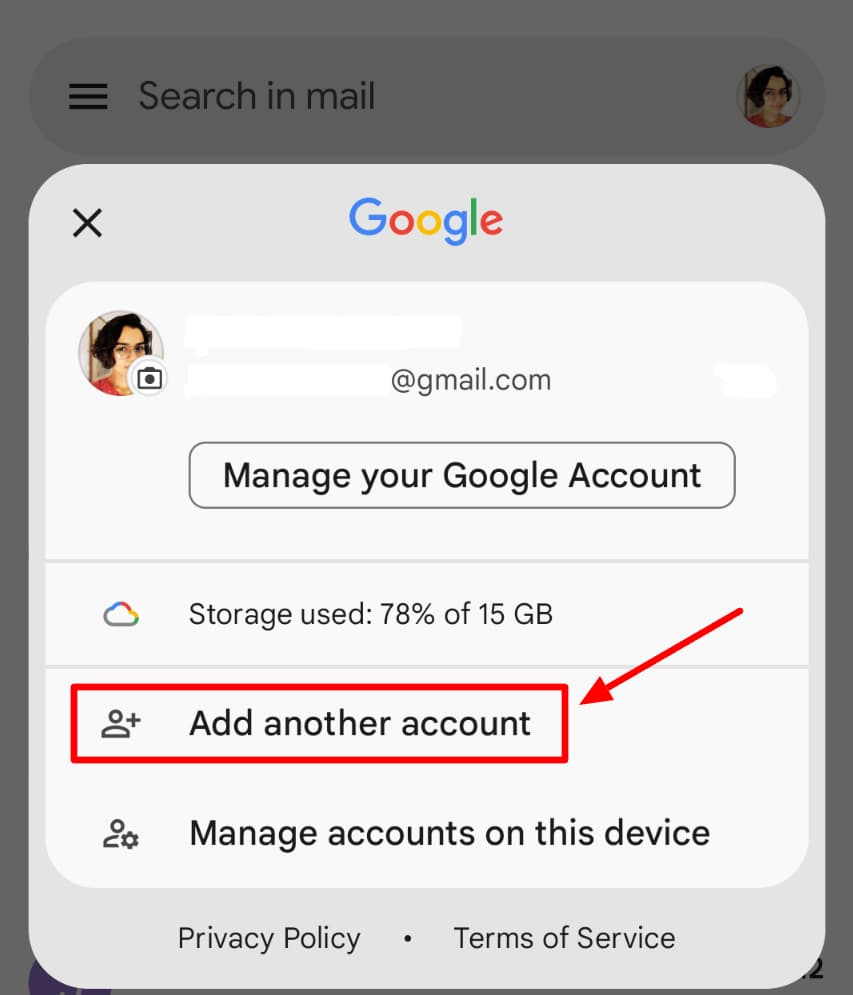
Click on ‘Add another account’ in the window that pops up.
Step 4: Follow the on-screen instructions
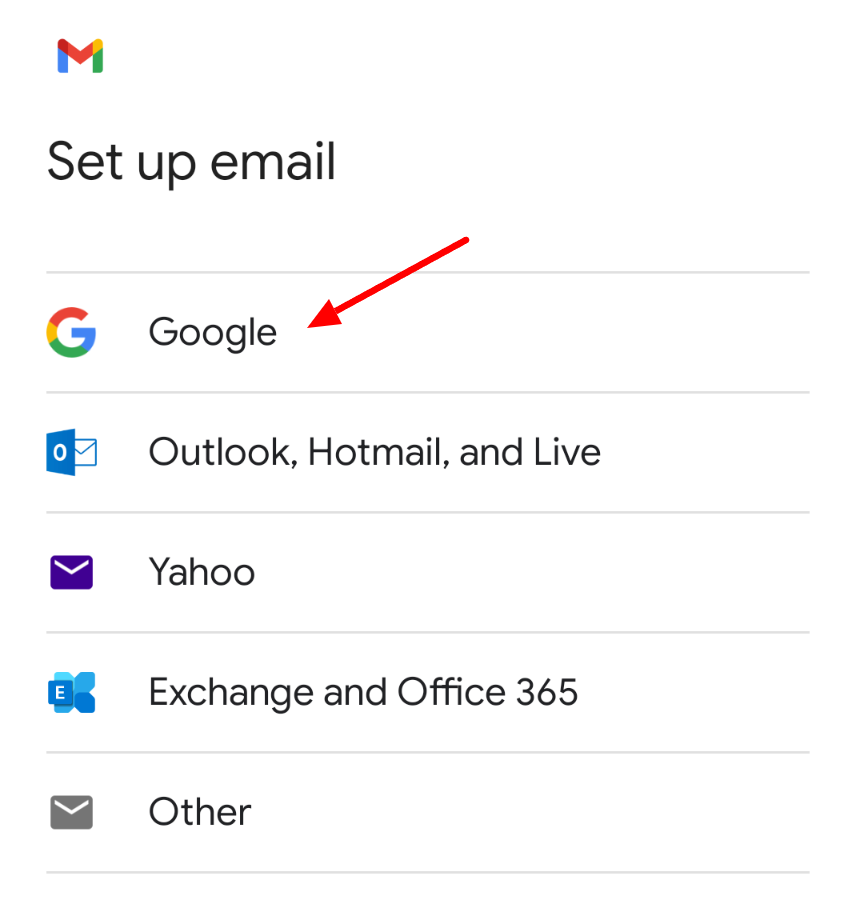
Now, you can click ‘Google’ to add another Gmail account to your Android or iPhone device. Google may require you to authenticate your identity with the security features set up and supported on your phone.
Notice that Google also allows you to add accounts of other email service providers. Click on the service provider you want to add and follow the instructions.
How to remove a Gmail account on Android and iPhone
Here’s how you can remove a Gmail account that’s already been added to your Android or iPhone device:
Step 1: Tap profile picture on the app
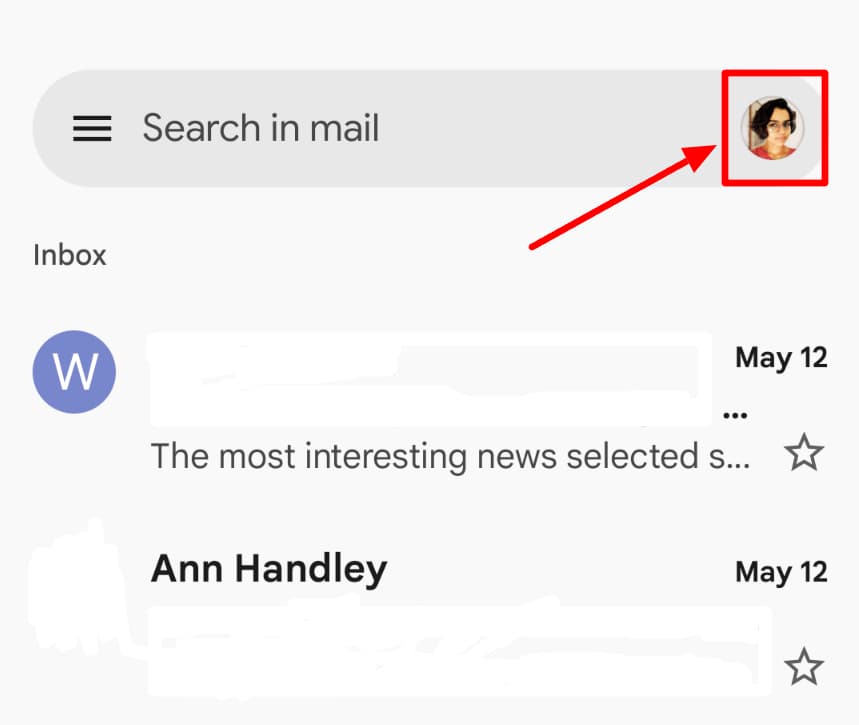
In your Gmail App, tap on your profile picture in the top right corner.
Step 2: Manage accounts on device
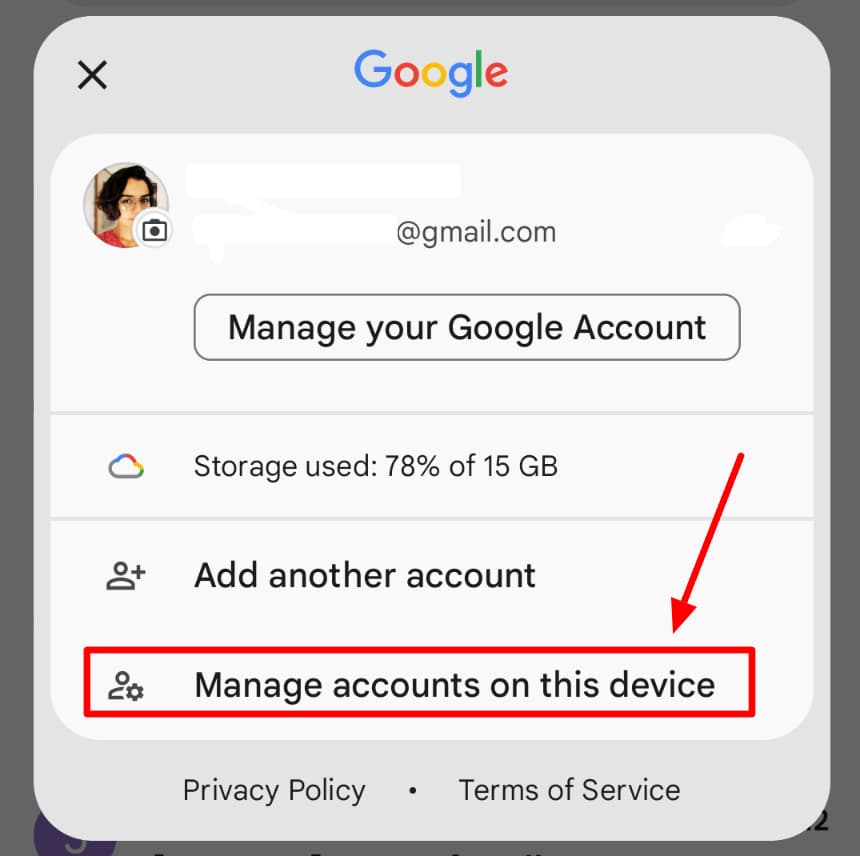
Tap ‘Manage accounts of this device’ in the pop-up window.
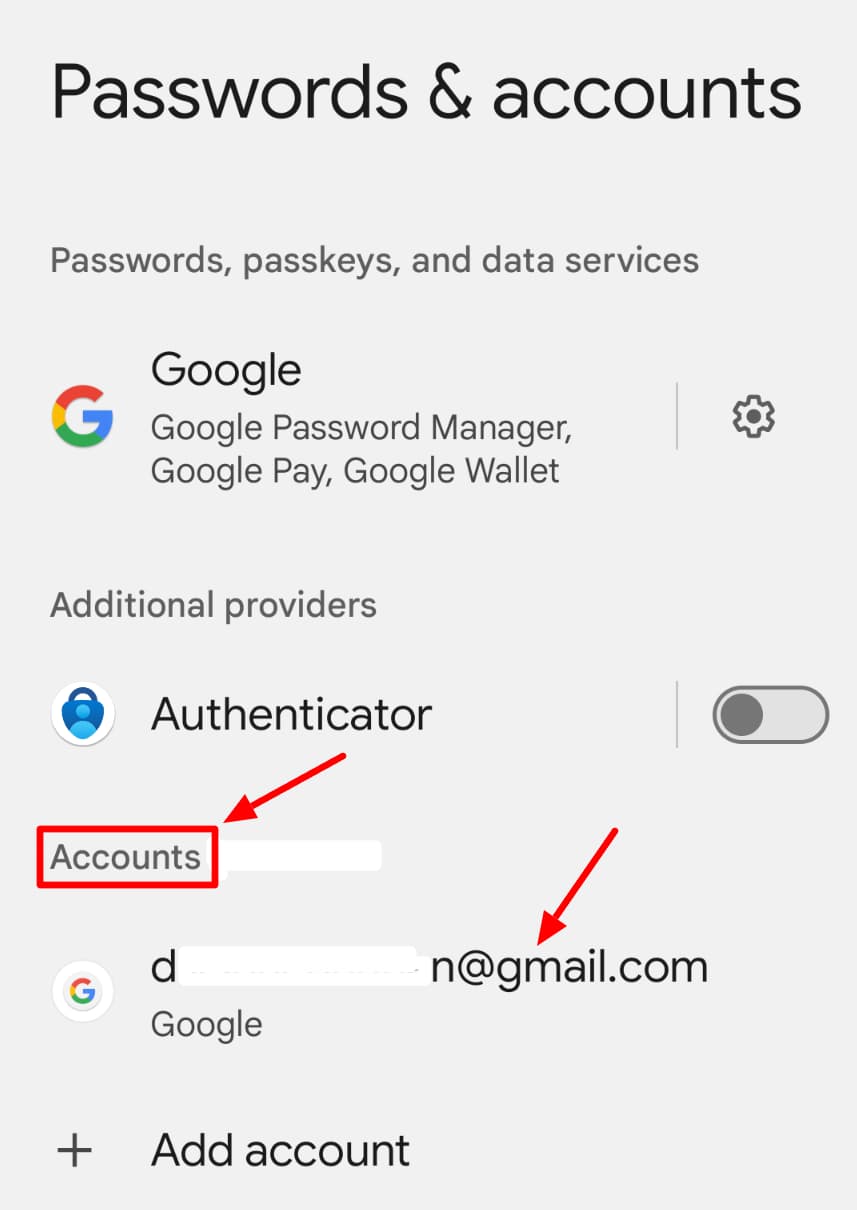
In the next window, click on the Gmail account you want to manage under 'Accounts.' Google will show you all the accounts added to the device.
Step 3: Choose to remove account
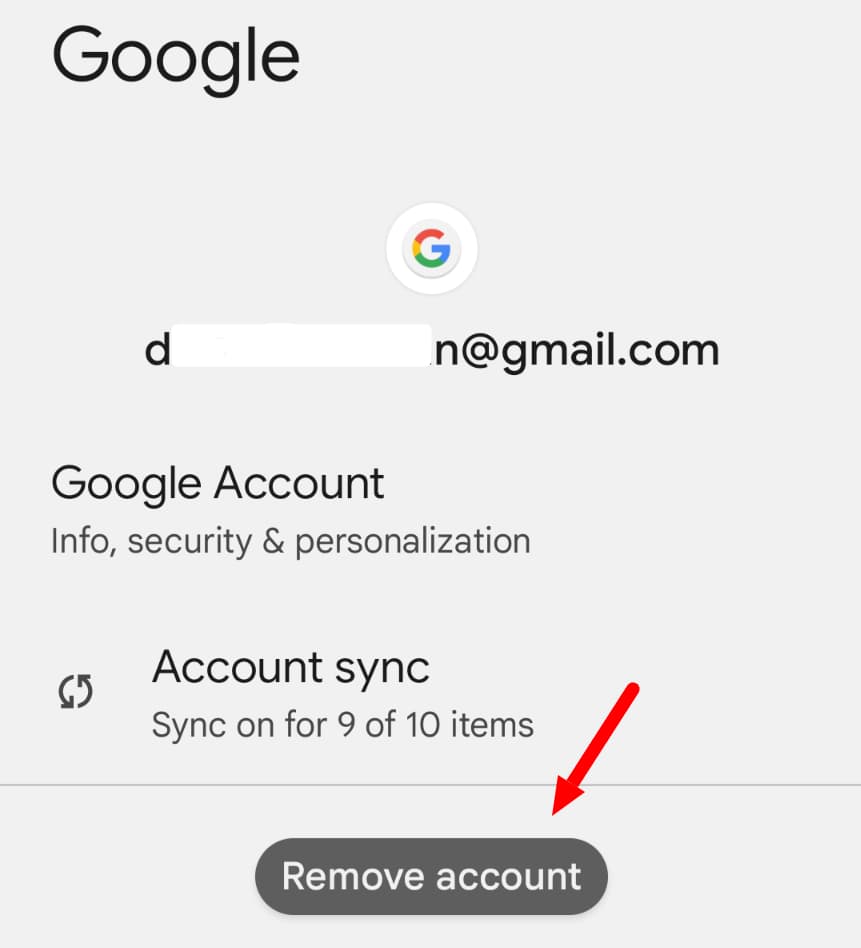
Check to see if you’ve selected the correct account, and then tap ‘Remove account’ in the next window. With that, you’ve successfully removed the Google account.
How to switch email accounts in Gmail app
Gmail is a highly functional and intuitive platform that allows you to switch between your Gmail accounts in the Gmail app easily.
If you want to switch to another Gmail account, all you need to do is tap your profile picture in the top right corner of the Gmail. If you have already added a Gmail account, it’ll show up here. Tap on the account to select it, and you’re done!
Find every Gmail tutorial you need on the YAMM blog
If you found that helpful, you’ll love what the YAMM blog has to offer. Whether you're new or experienced, you can find easy-to-follow guides on composing emails, managing accounts, and lots more on the YAMM blog.
You can get step-by-step instructions, helpful tips for increasing productivity, and fixes for common issues. If you want to level up your Gmail game, check out the YAMM blog now!