Tips: Share your draft with another account
YAMM lets you easily share your draft with your colleagues, who will receive your template directly in their Gmail draft folder. Follow this tutorial to learn how to share your Gmail draft.
Following an update Google made to Gmail, it is no longer possible to share your draft by copying/pasting the draft URL from your Gmail account. The only way to share your draft is to access the HTML code from your Google account.
1. Open your draft in Gmail
Sign in to your Gmail account and open your draft. In our example, we want to share a draft containing an image.
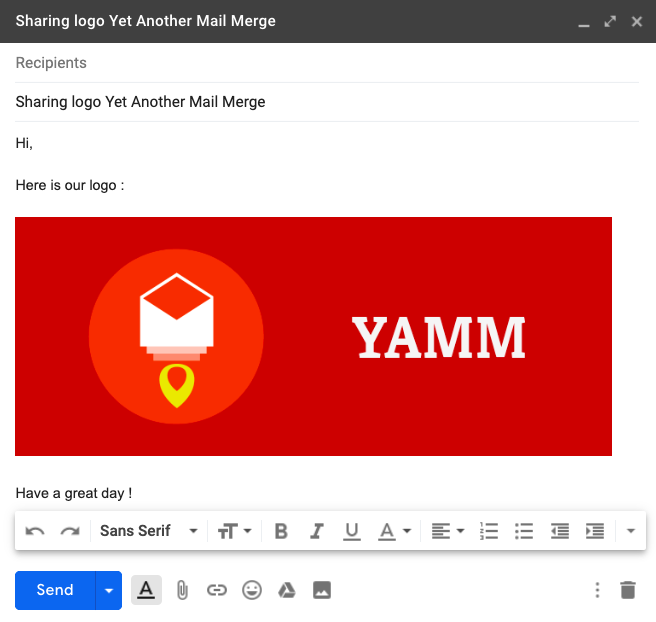
2. Inspect your draft from your Google account
Right-click your draft and select Inspect.
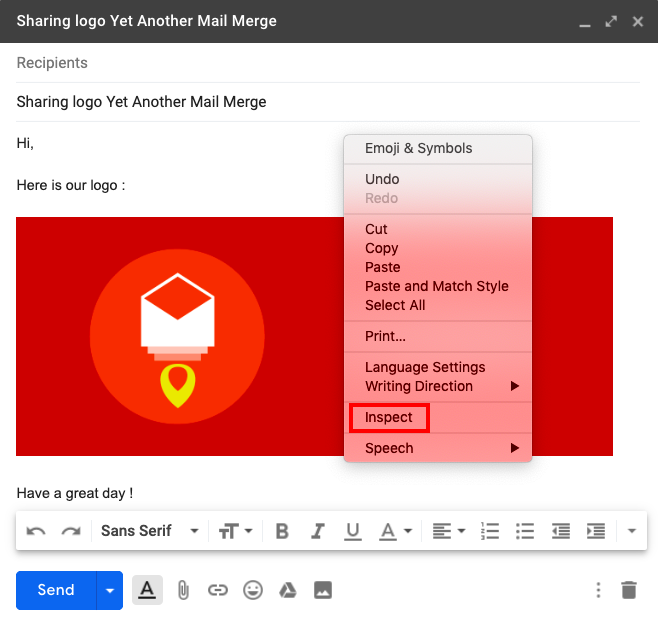
A right sidebar or a new window appears. This contains all the HTML code related to your Gmail account.
3. Select and copy the HTML code
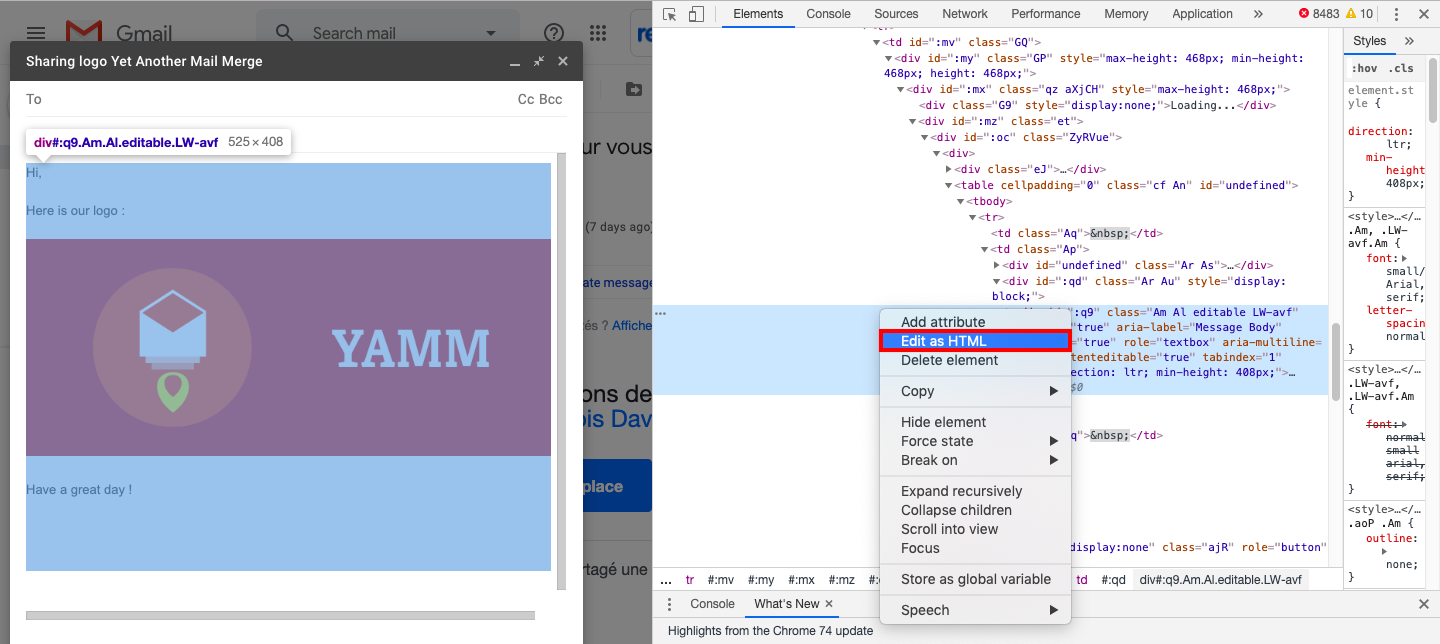
If you right-clicked your draft to inspect, it automatically opens the Element tab and selects the HTML line related to your draft.
You can find the line that starts with: <div id=":q9" class="Am AL editable LW-avf"
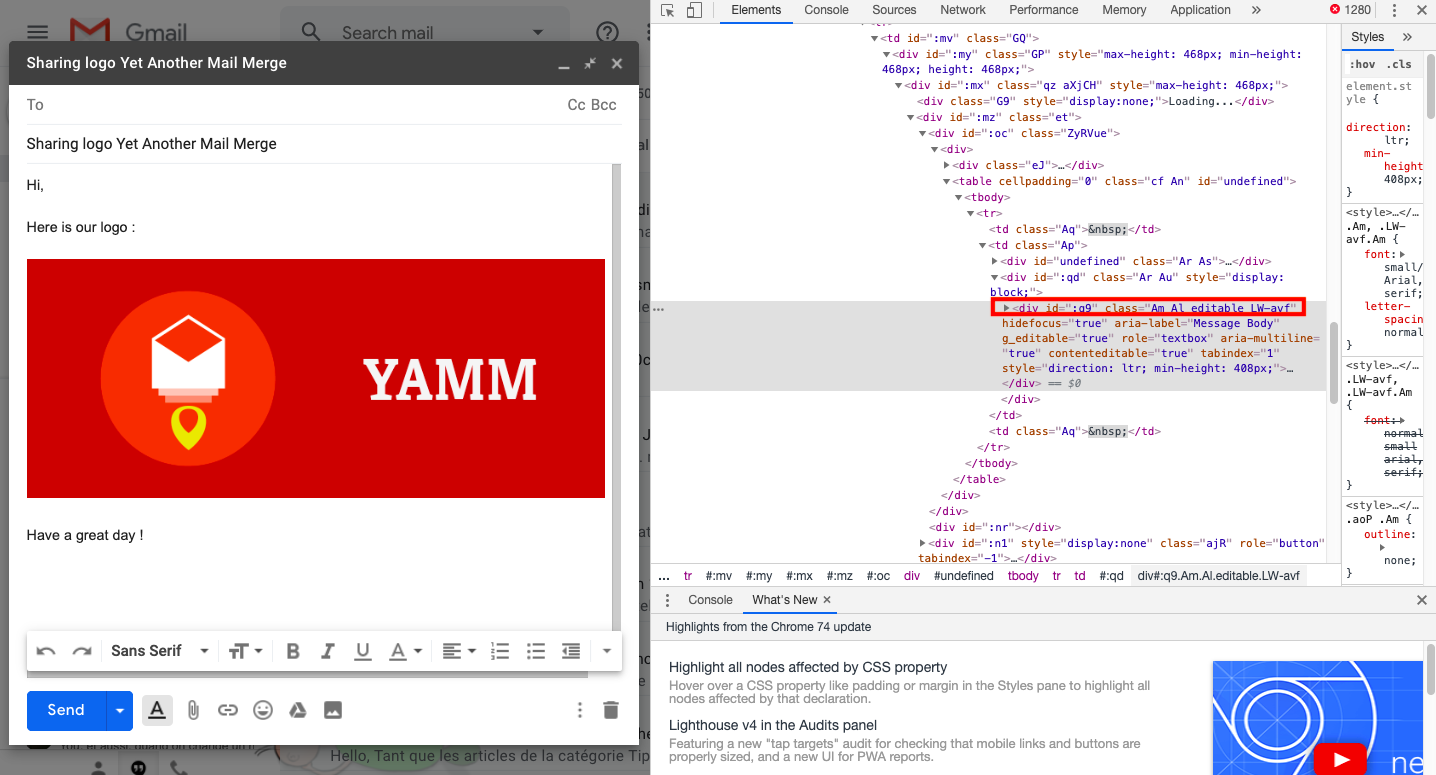
Click the line. The block becomes blue when it is selected.
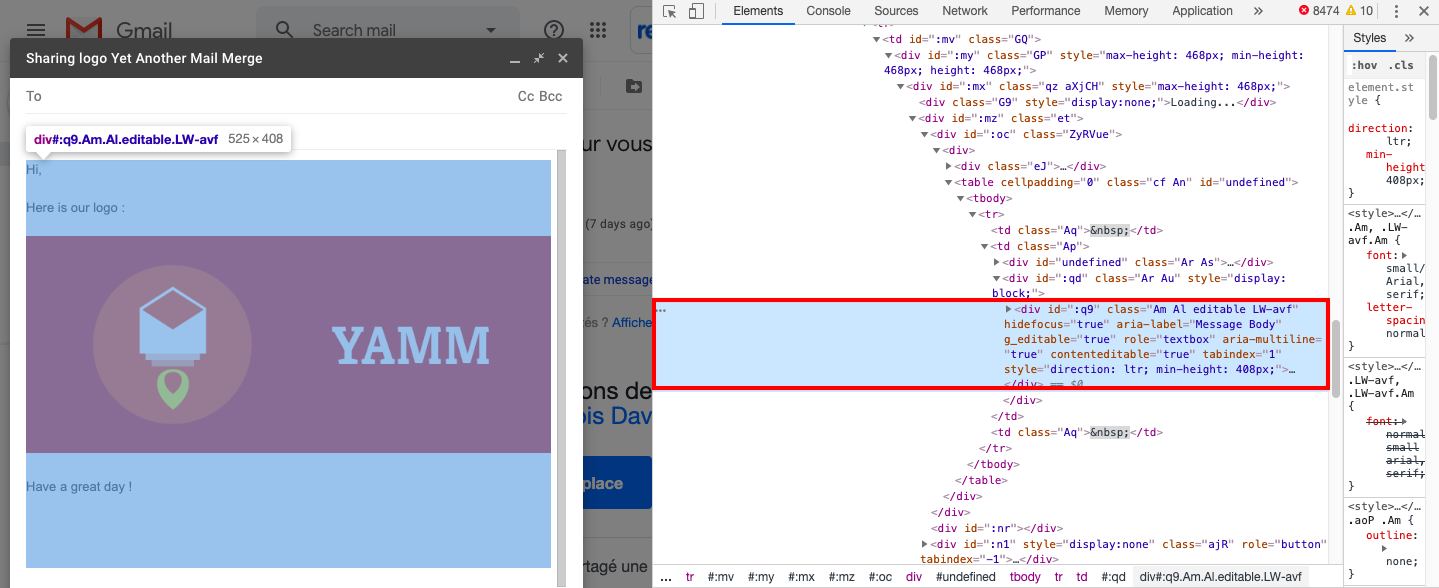
Then right-click and select Edit as HTML.
A text block appears. Select the HTML code from the block. Then right-click and select Copy.
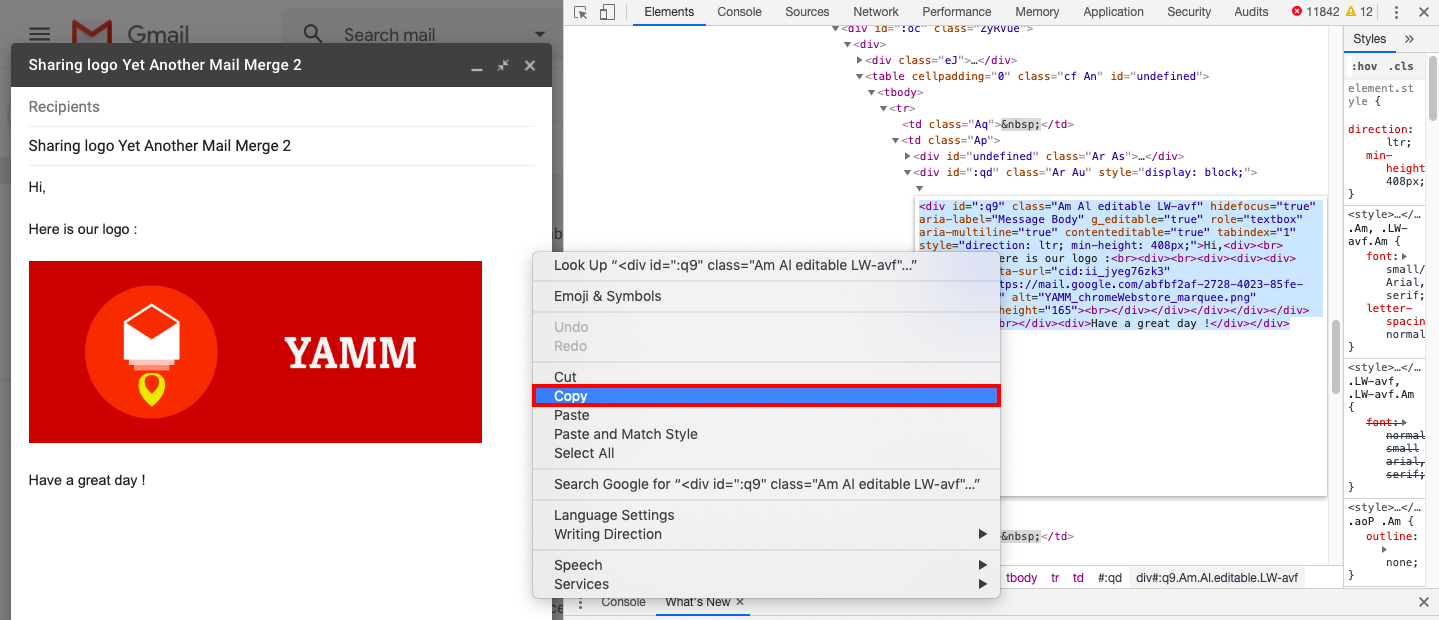
If you want to follow the tutorial with our example, copy the HTML code below and paste it in a completely new draft from your Gmail account.
<div id=":q9" class="Am Al editable LW-avf"
     hidefocus="true" aria-label="Message Body"
     g_editable="true" role="textbox"
     aria-multiline="true" contenteditable="true"
     tabindex="1" style="direction: ltr; min-height: 408px;">
  Hi,
  <div><br></div>
  <div>
    Here is our logo:
    <div><br>
      <div>
        <div>
          <div>
            <div>
              <img data-surl="cid:ii_jyeg76zk3"
                   src="blob:https://mail.google.com/bbed028a-55ec-4e24-9a7c-deaf4dedb2c9"
                   alt="YAMM_chromeWebstore_marquee.png"
                   width="412" height="165"><br>
            </div>
          </div>
        </div>
      </div>
    </div>
  </div>
  <div><br></div>
  <div>Have a great day !</div>
</div>
If you don't have any images in your draft, the HTML code of your draft is copied, and you can share it with your colleagues. To do so, paste the code into a completely new draft. Then send the email with YAMM. Learn more: Send your first email campaign with YAMM and Gmail
4. Host your images before sharing your draft
Your images must be public if you want to share them with other Google accounts. We recommend using websites such as Imgur, Flickr or Google photo. In our example, we used Imgur.
Learn more about how to display your Google photos: My images are not displayed in my emails
Once you have copied and pasted the HTML code of your draft into a completely new email, you need to change your image URL.
Click the following link to upload your image and create a public URL: Imgur.
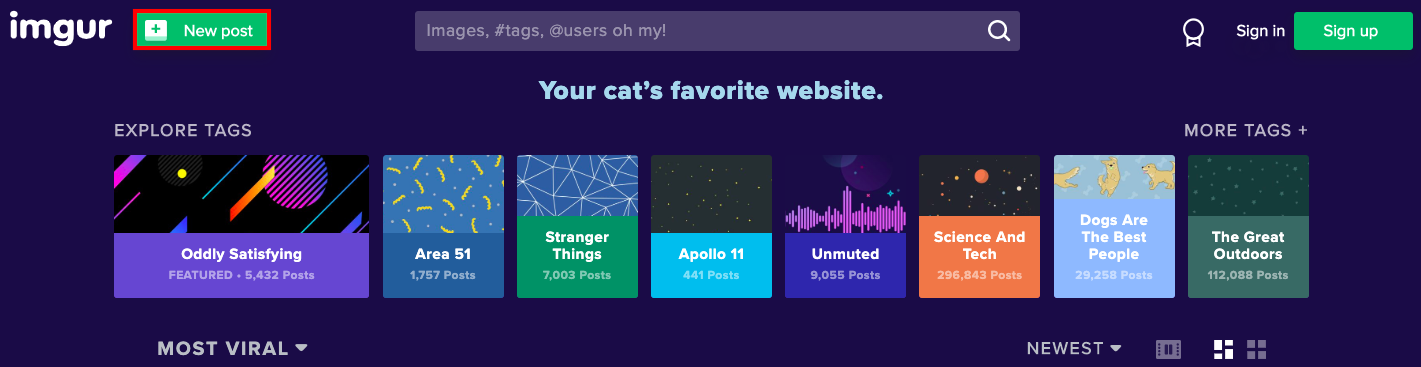
Click New post.
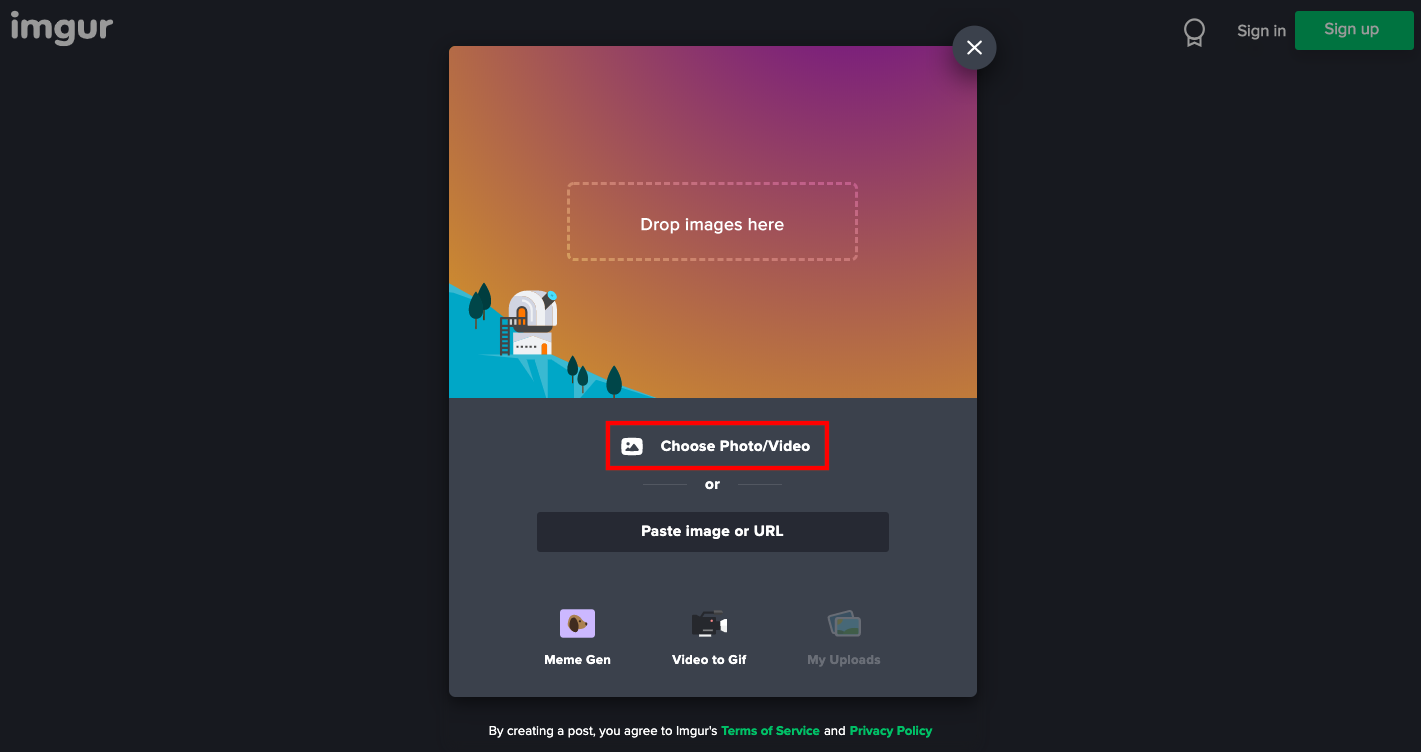
You can drop your images directly or click Choose Photos/Videos.
Select your images from your computer. Then right-click and select Copy Image Address.
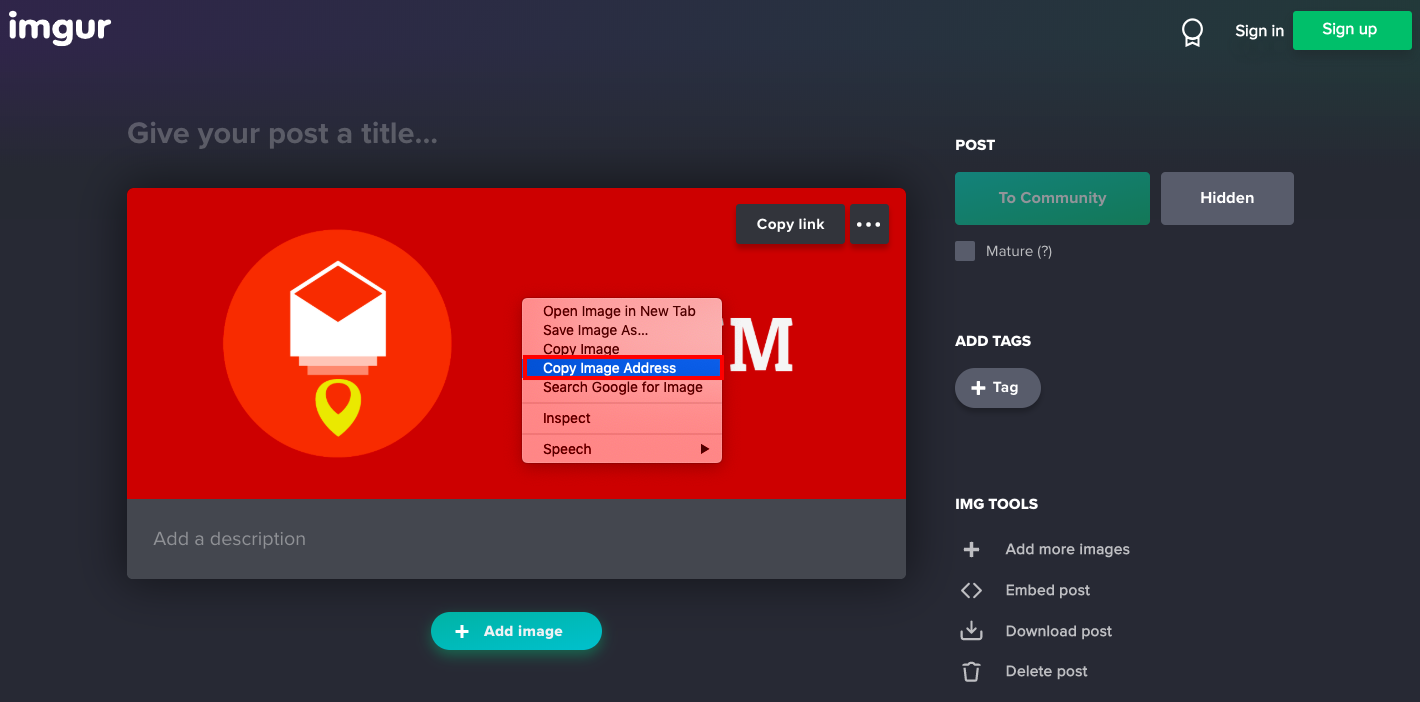
The public link of your image is copied.
5. Update the HTML code to share it with your colleagues
Go back to the new draft where you previously pasted the entire HTML code from your Gmail account.
Delete the previous image URL from the HTML code (everything in quotation marks, event "blob:").
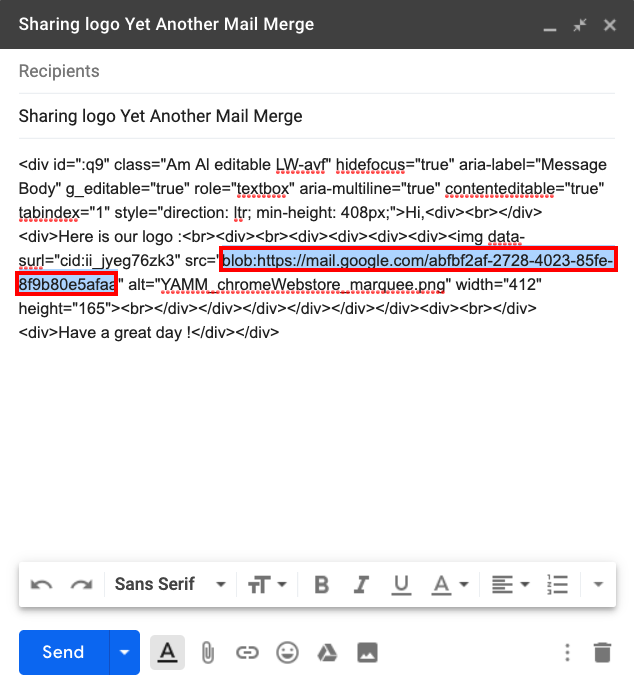
Right-click inside the quotation markers and select Paste.
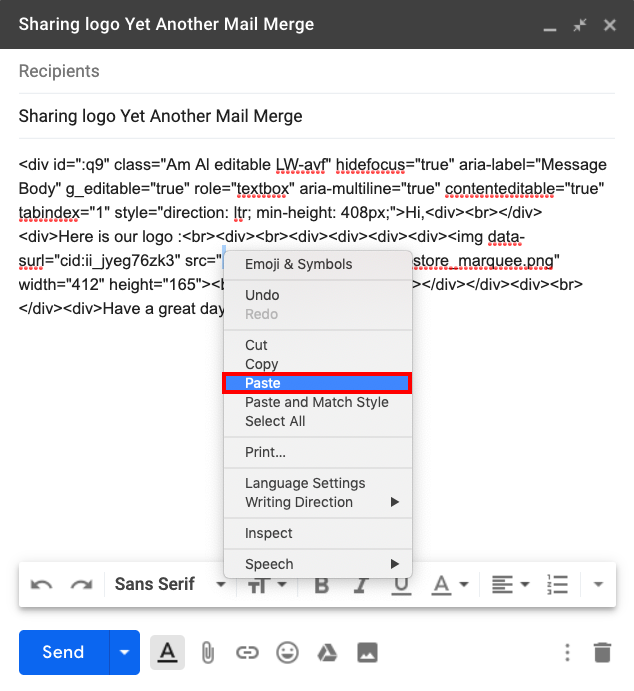
The HTML code is updated.
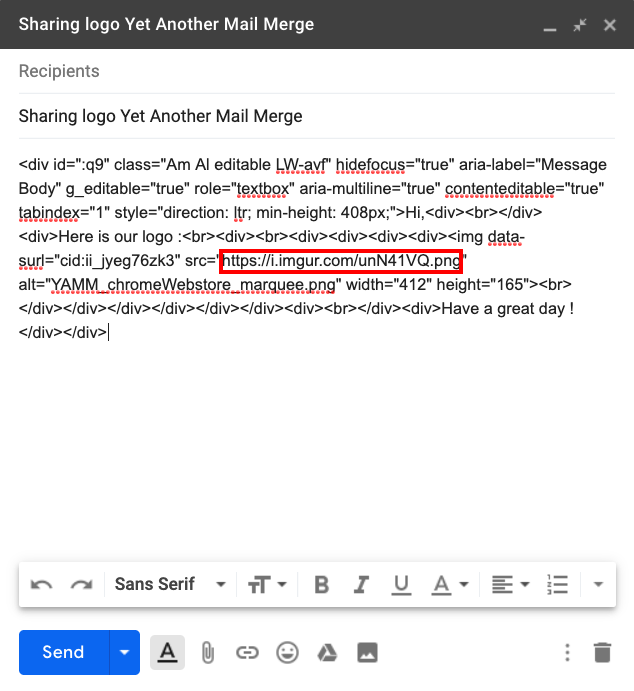
You can customize your draft from the HTML code. Learn more: Customize your template using your browser HTML/CSS editor
6. Send your draft as a test
Click the More actions button at the bottom right of your draft and select Plain text mode.
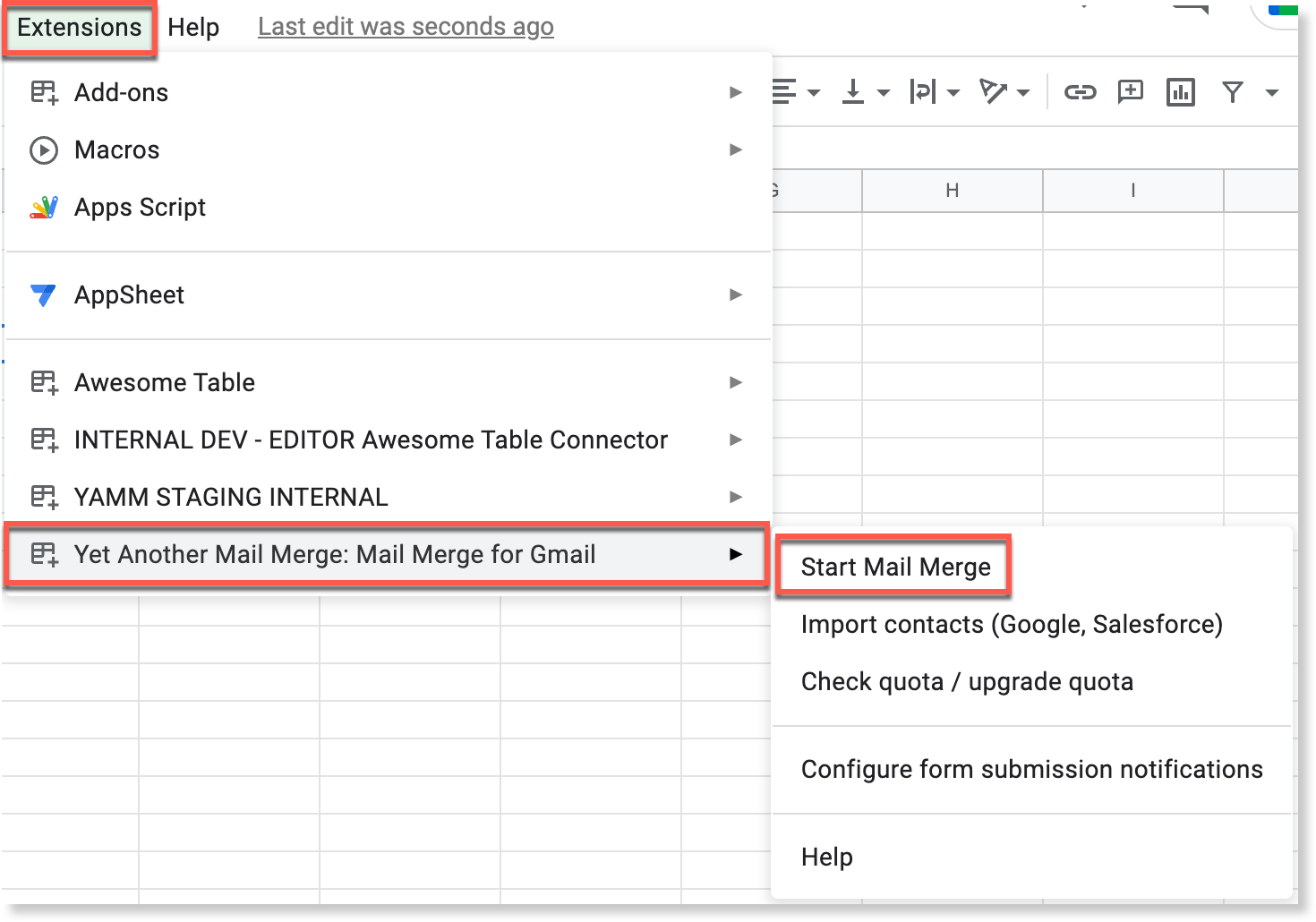
Open a Google Spreadsheet and write your email address. Then click Extensions > Yet Another Mail Merge: Mail Merge for Gmail > Start Mail Merge.
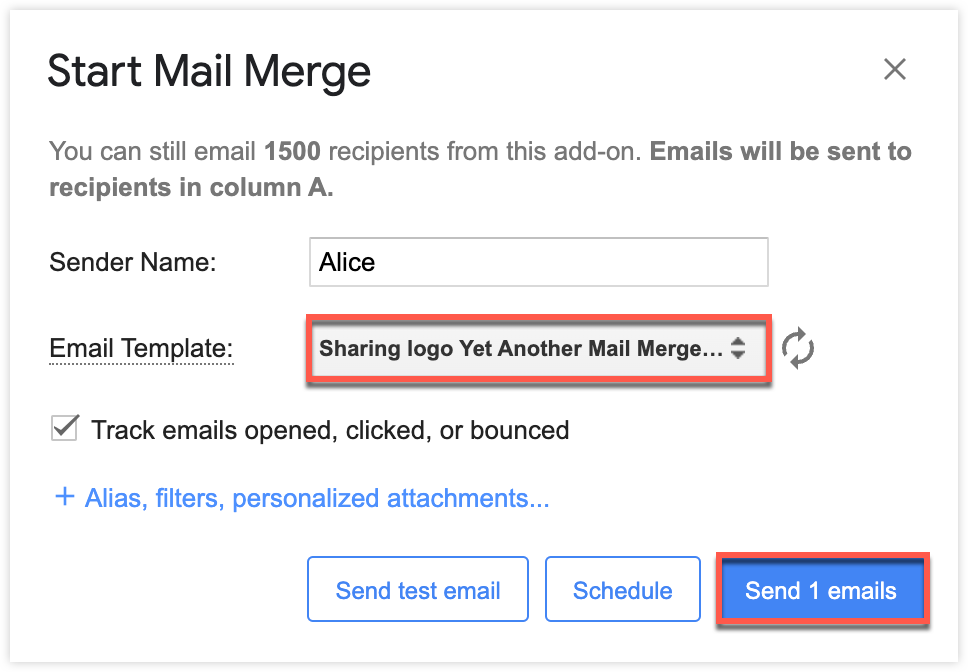
Select the draft template and click Send emails.
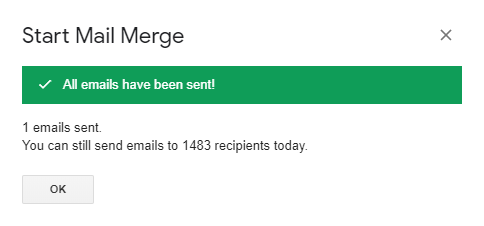
A confirmation message appears.
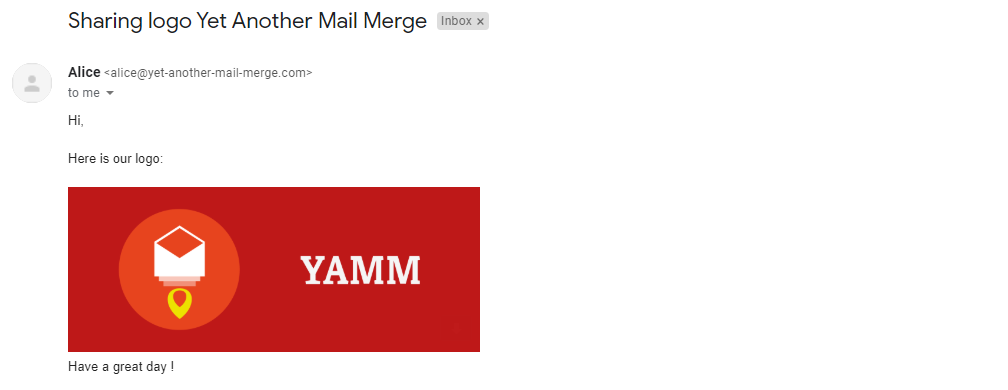
Go to your inbox from the recipient's account. Your email has been correctly received.
If you want to send a Gif or a video, the method is the same. However, the video can't exceed 60 seconds on Imgur.