Create your template in Google Docs and import it in Gmail
If you want to send beautiful emails, you can create a template in Google Docs, then copy it into Gmail. YAMM keeps all the formatting from your template and sends it to your recipients. This article explains how to do this.
Send a beautiful campaign with a Google Docs template
- Create a template in Google Docs
- Import your template in Gmail
- Good knowledge of Google Docs
- Send regular mail merges with YAMM
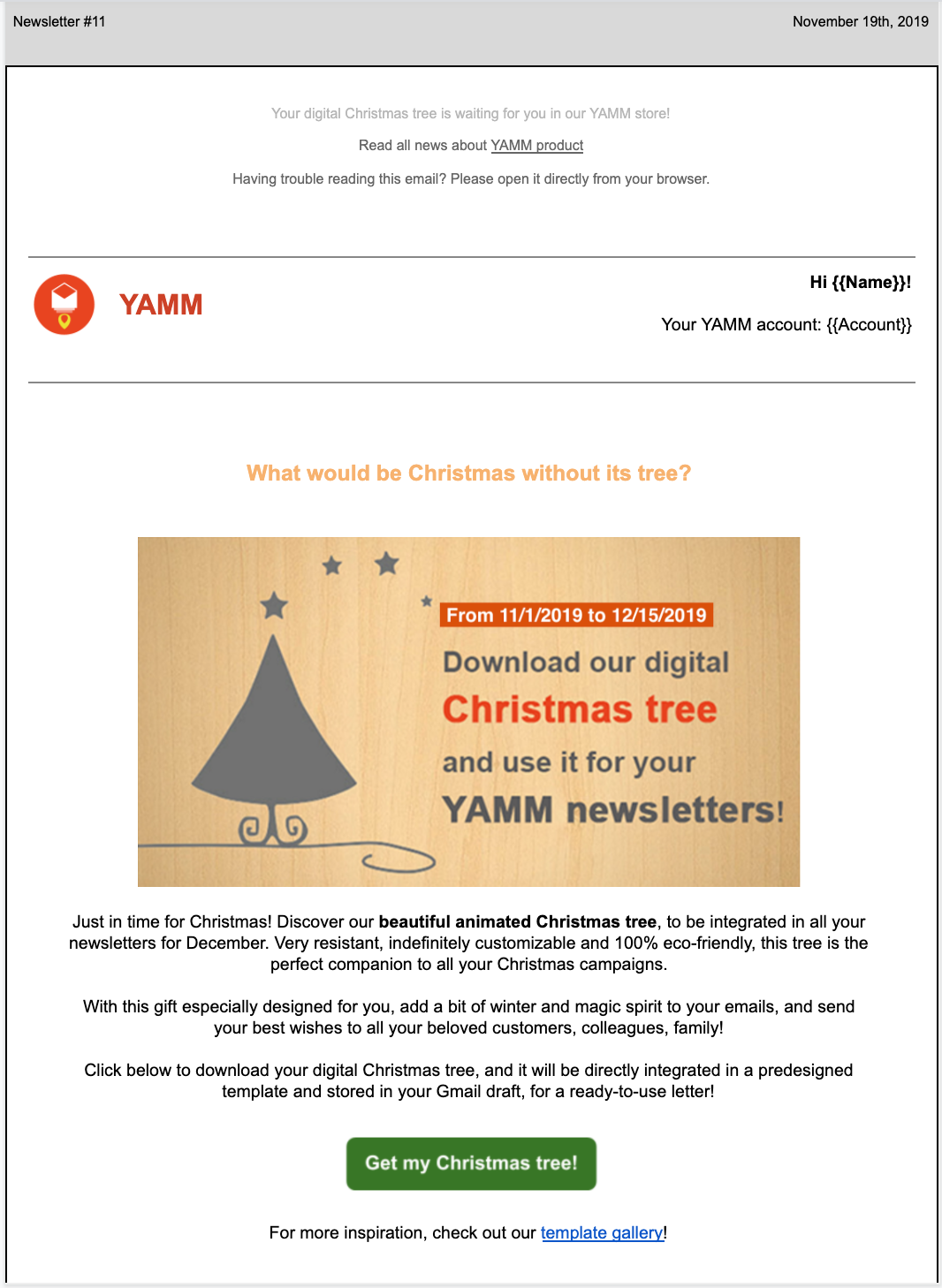
- The YAMM Team sends you a newsletter with a special gift for Christmas.
- You download the gift and send your own campaign to your colleagues, friends.
1. Create your template in Google Docs
If you want to try with our newsletter example, click the following button .
Then, select File > Make a copy.
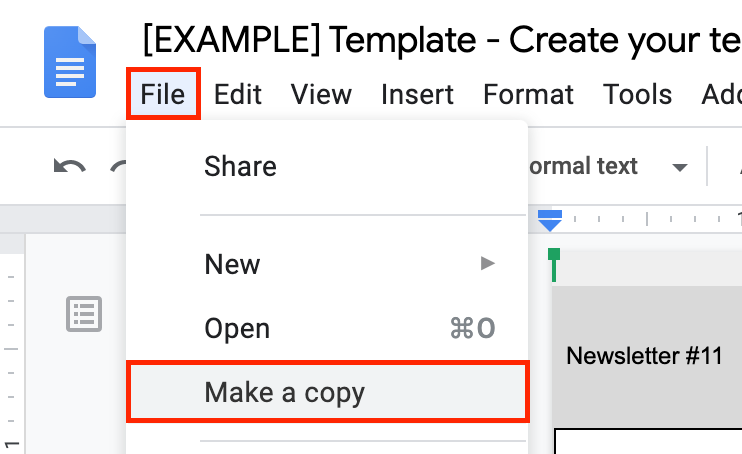
Copy template
Alternatively, open a new Google document, and start writing your template.
1.1. Prepare the canvas (optional)
For more comfort and flexibility, we recommend reducing all the margins down to 0. Select File > Page setup.
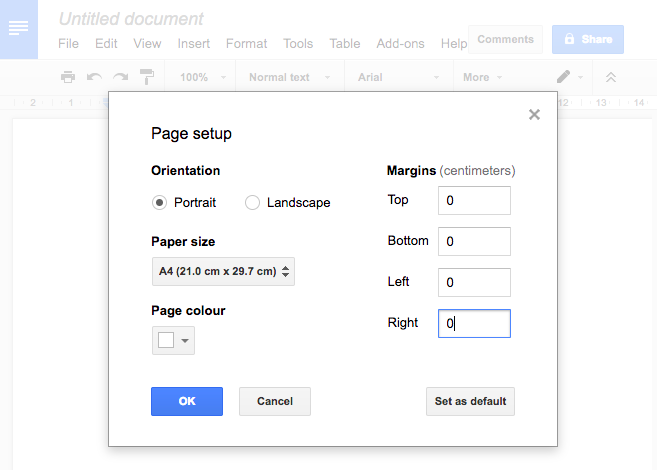
This step is optional. You can choose to narrow the width of your template by adding more margins.
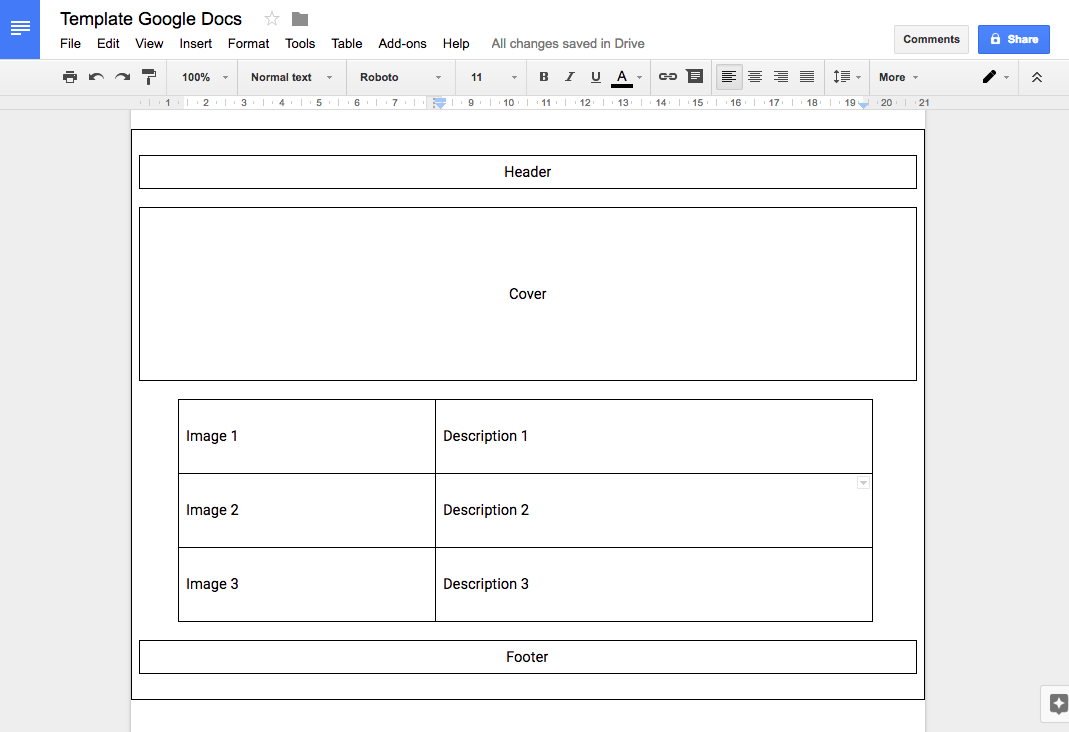
1.2. Build the backbone of your template
Follow these guidelines to make sure that the formatting of your template isn't modified when you copy/paste it into Gmail
-
Avoid using spaces for formatting; instead, use tables.
-
If you have a background color, create a main single cell container for the document.
1.3. Design your template
Now that you have the backbone of your template, you can add some colors, images, texts, etc.
For example, here's an overview of our newsletter.
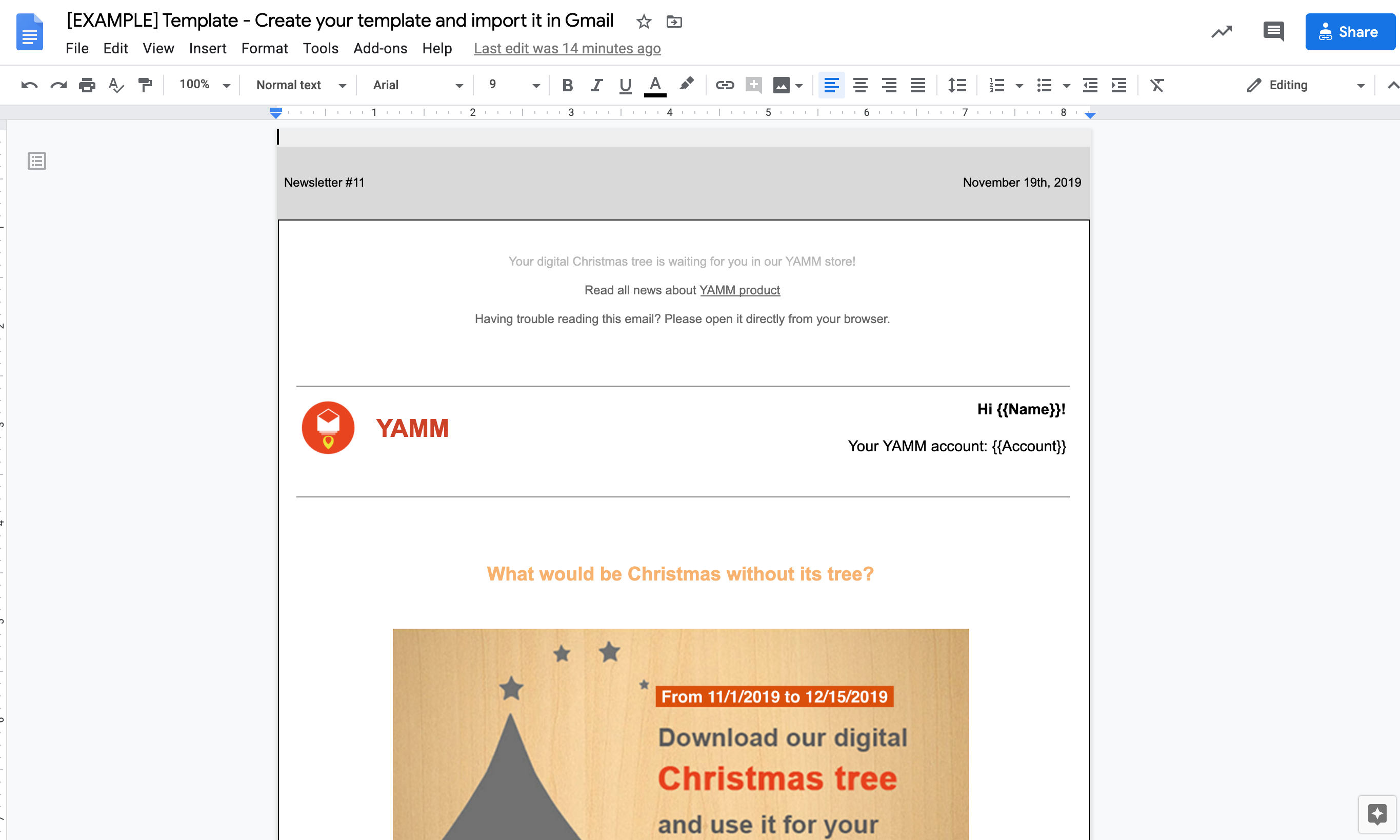
You can import images from your PC, but YAMM doesn't currently support Google Drawings.
Your template is now ready to be imported in Gmail.
2. Import your template in Gmail
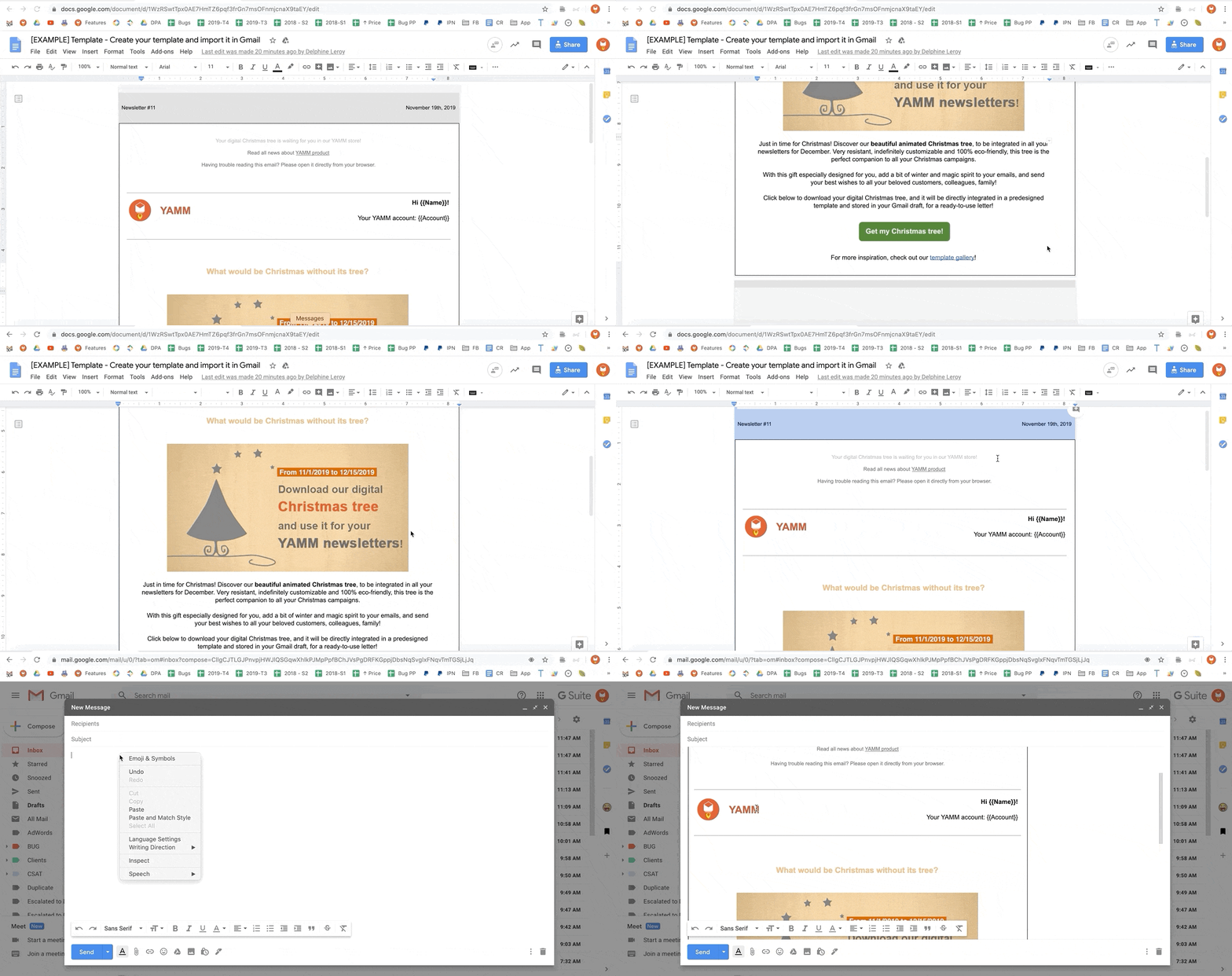
Select the content of your template from your Google document and copy it.
In Gmail, compose a new message. Paste the content of your template into the body of your message.
3. Send your newsletter through YAMM
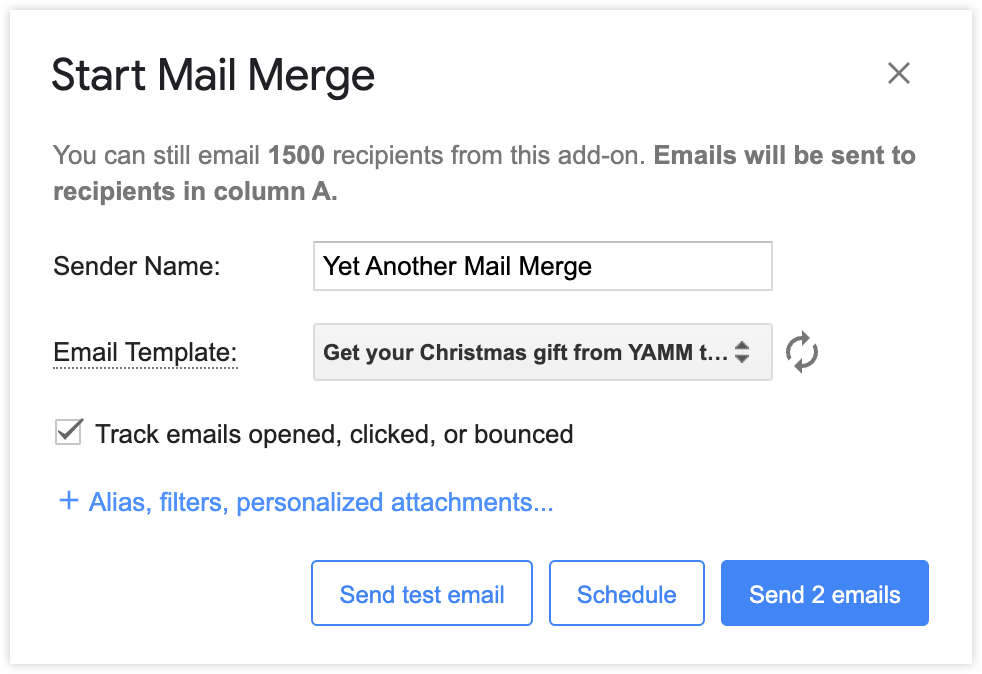
Select your template in YAMM and hit the Send emails button as you would usually do.
Your recipients will get your nicely formatted newsletter in their inbox.
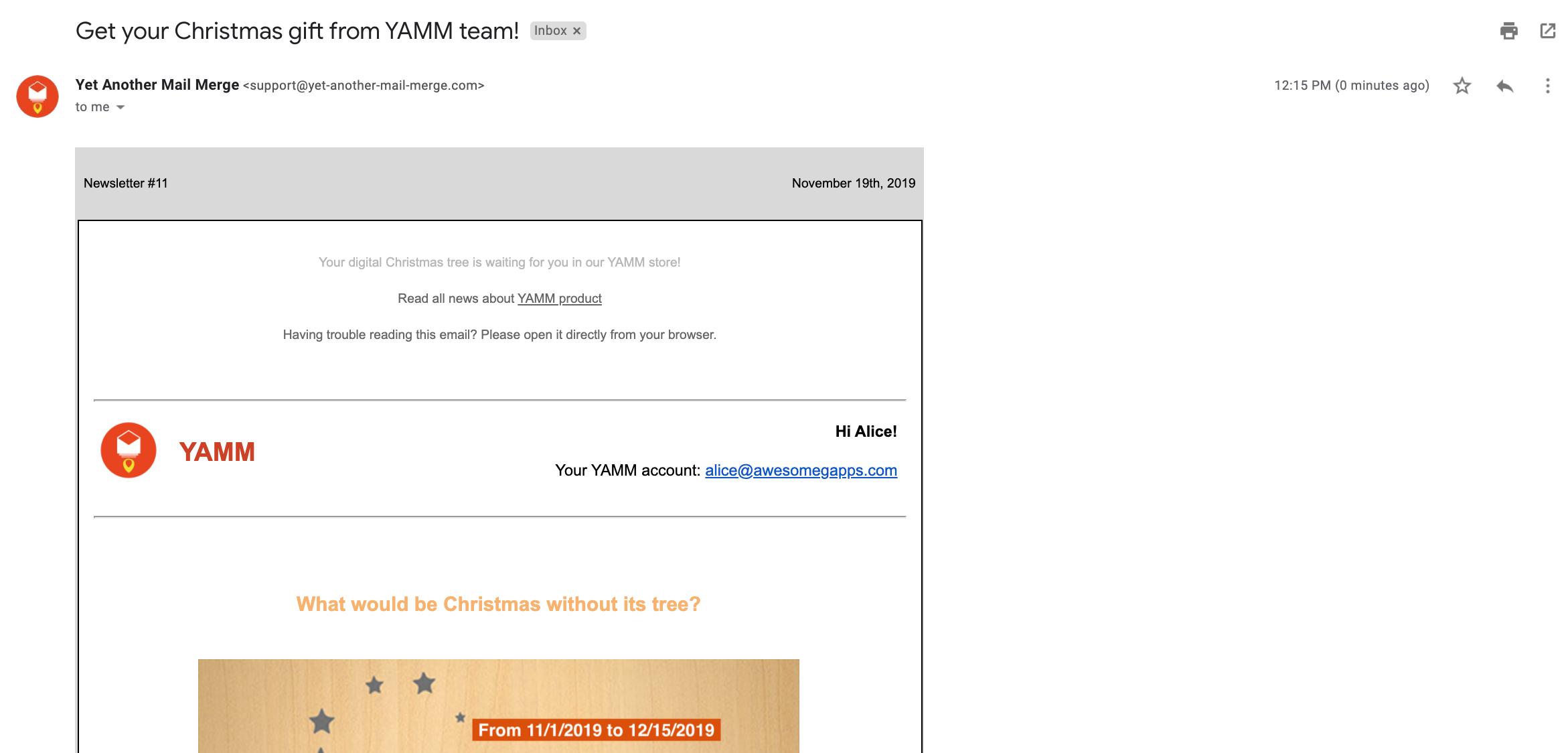
By combining Google Docs with YAMM, you can create pretty newsletters in a few clicks. As long as you are not using complex elements, YAMM will keep all the formatting in your email sent.
You must compose your entire template directly in Google Docs. Please, do not copy/paste any elements from another source (such as another web page) to your document, or you might get formatting issues when you send it with YAMM.
Also, some elements from Google Docs are not currently supported by YAMM, such as the different column displays and Google Drawings. To make sure that your emails are correctly displayed, try to keep your template as simple as possible by inserting only basic elements like text, images, tables, etc.