Create a simple draft email template in Gmail for your mail merge
With YAMM, it is easy to send a mail merge. You will need a Google account and some creativity. No technical skill is required! Then, let YAMM do the rest for you.
1. Compose a draft in Gmail
First, you need a draft Gmail template. Create your own template in Gmail: click Compose in Gmail, and write the email that you want.
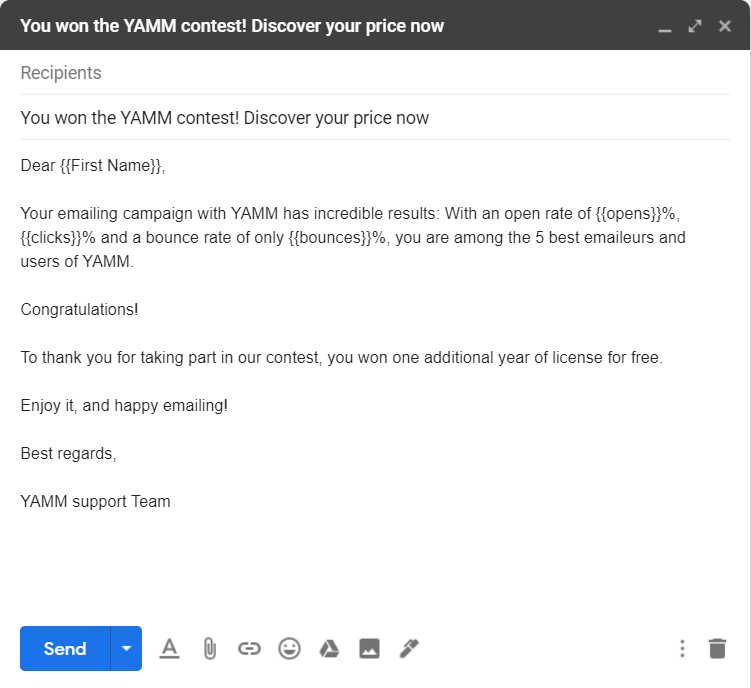
Then save your email in your Drafts folder.
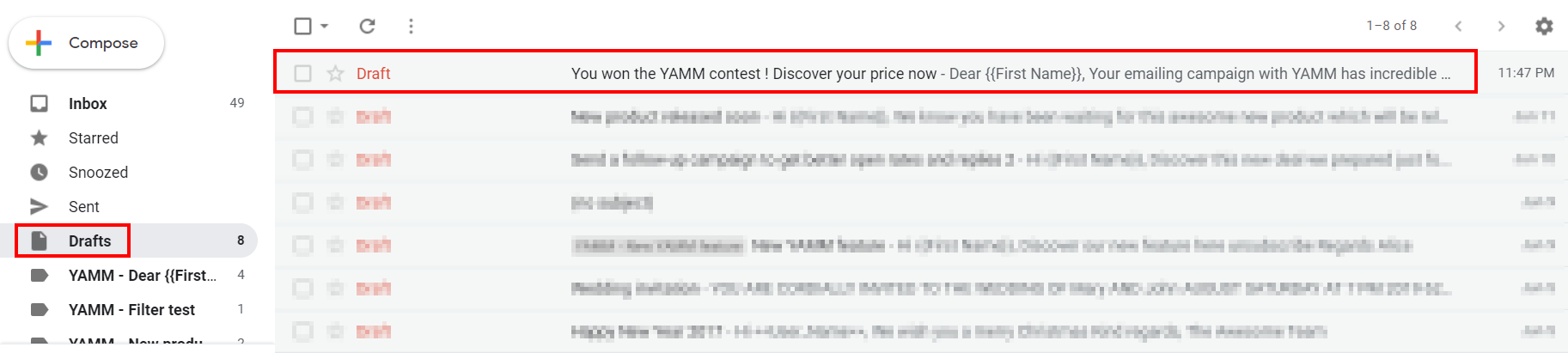
-
Make sure that you use the web version of Gmail and not Inbox or another tool.
-
The To field must remain empty.
-
Don't delete your draft!
2. Select your template in YAMM
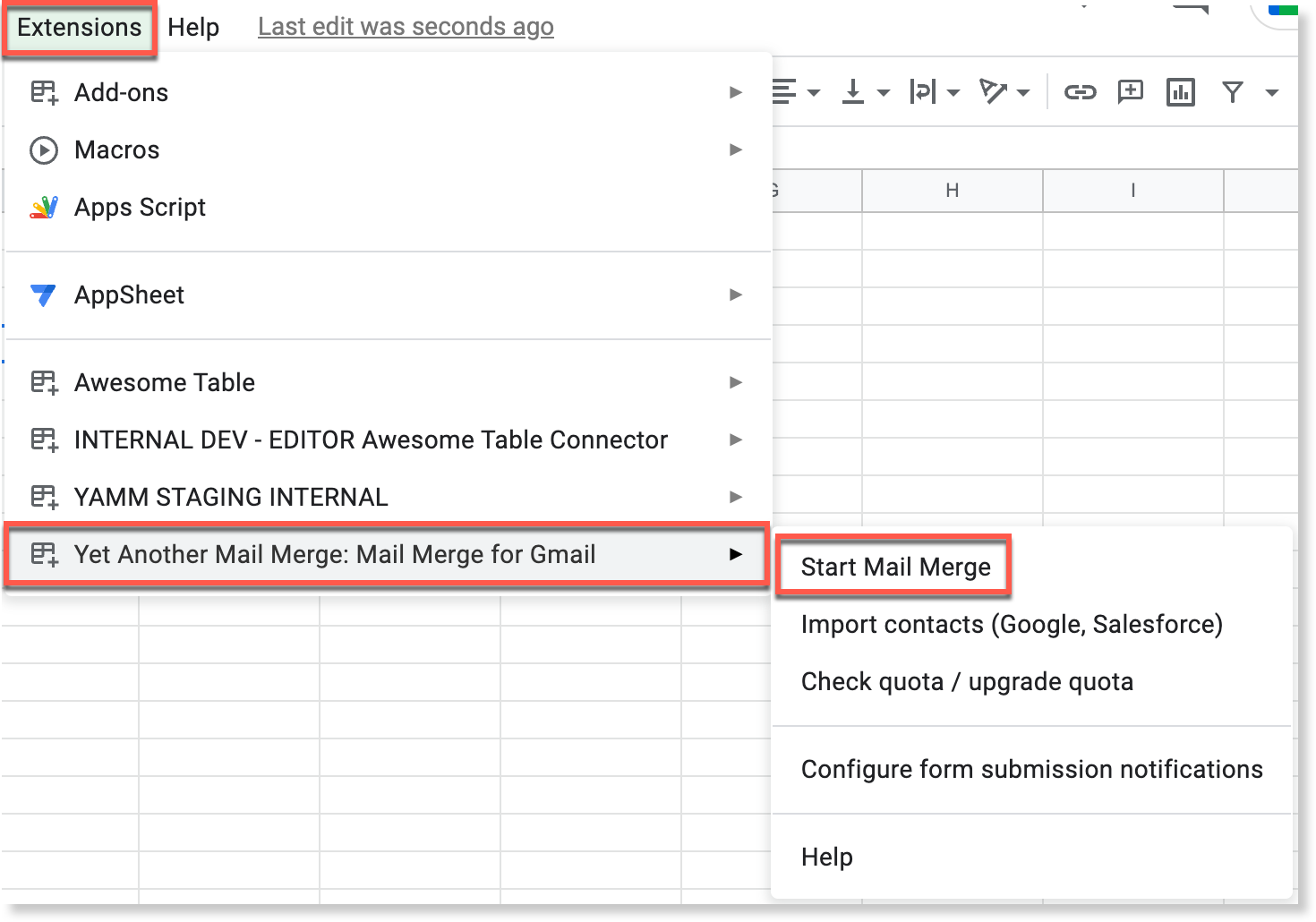
That's it! You can now use your template in YAMM. Go to Extensions > Yet Another Mail Merge: Mail merge for Gmail > Start Mail Merge.
Before launching the add-on don't forget to configure your Google sheet. Learn more: Prepare a contacts list in a Google sheet
Then select your draft in the Email Template field.
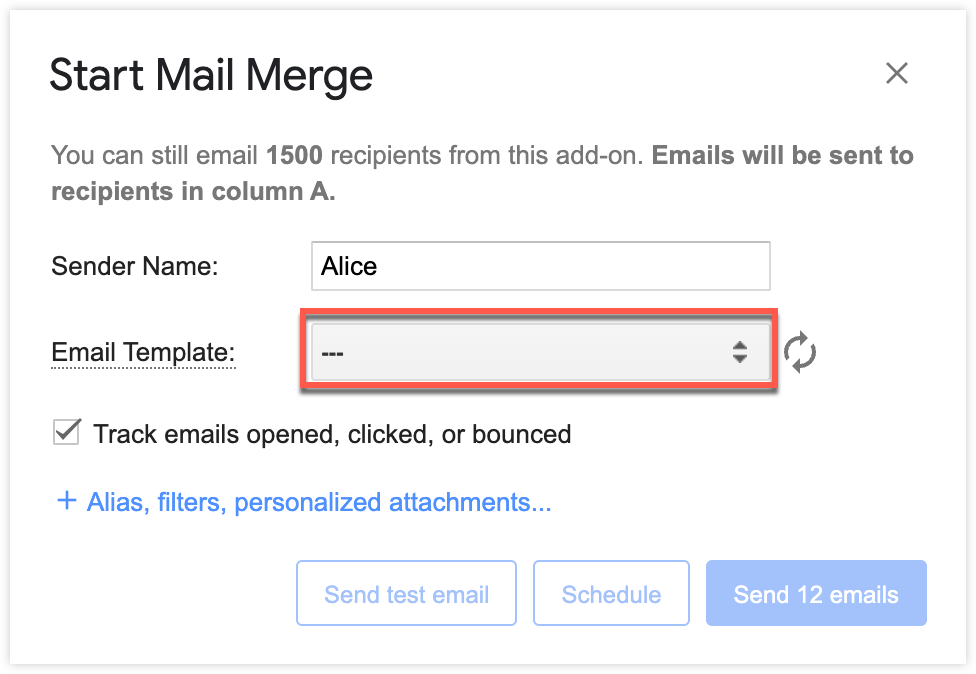
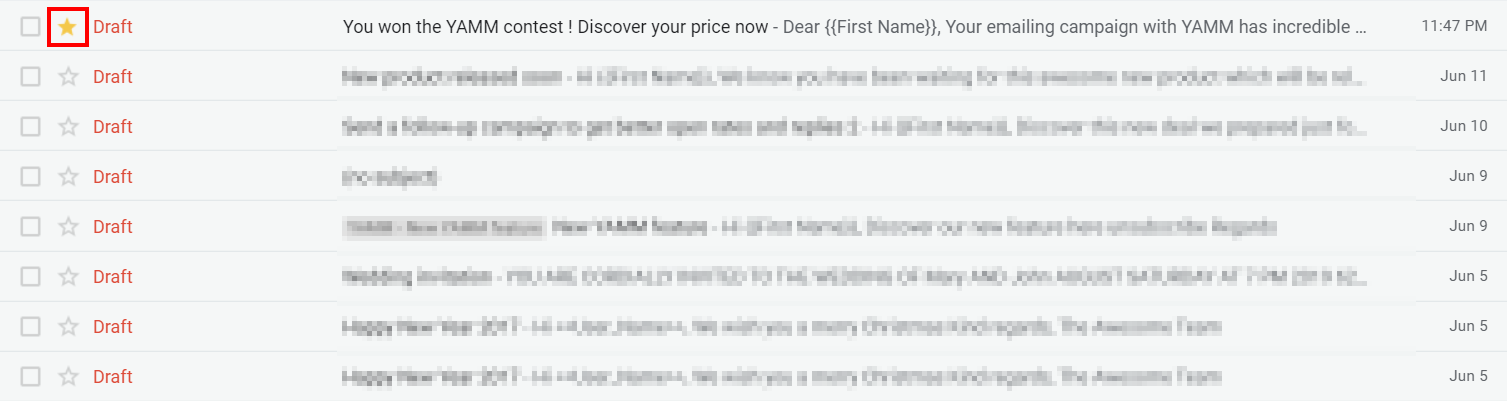
You can easily retrieve your draft in YAMM by adding a star in Gmail.
3. Send your mail merge with YAMM
Once you're ready, click the Send Emails button to send your mail merge to your recipients.
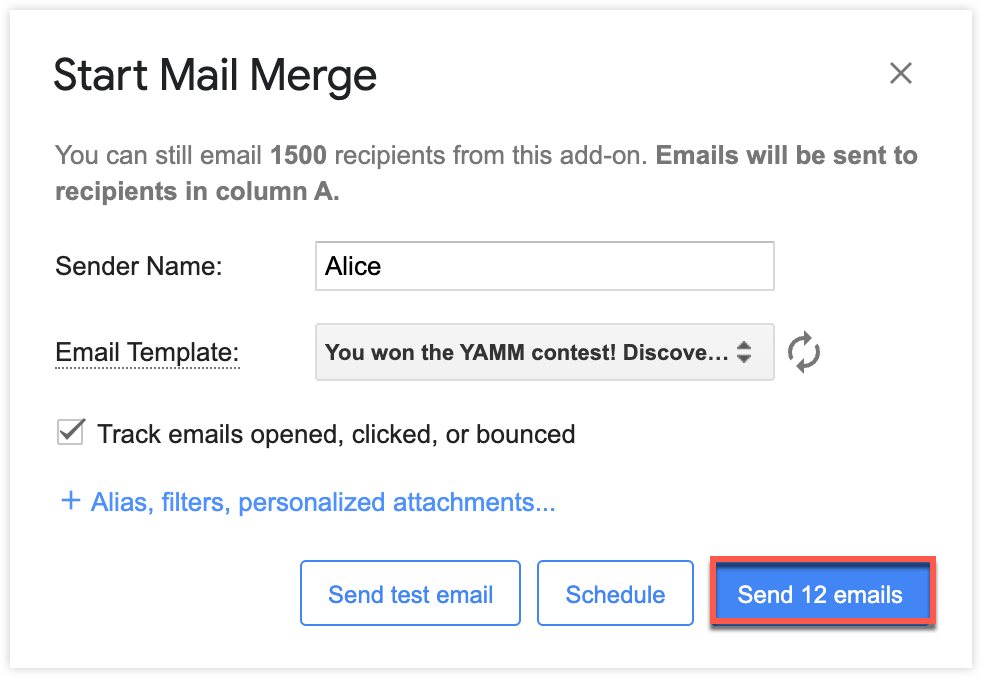
You can also use our test email feature to check what your email will look like before sending it definitely.