How to Change Your Gmail Password
4 min read
Table of contents
Whether it’s knowing how to spot phishing emails or responding to a security recommendation, staying on top of your online security is non-negotiable. Knowing how to change your Gmail password is another important aspect of safeguarding your personal information.
In this blog post, we'll provide detailed instructions on how to do so using both desktop and mobile devices. If you’re ready to reduce risk and improve your online security, let’s get to it!
How to change your Gmail password on desktop
Step 1: Go to Google account
Navigate to your Google account.
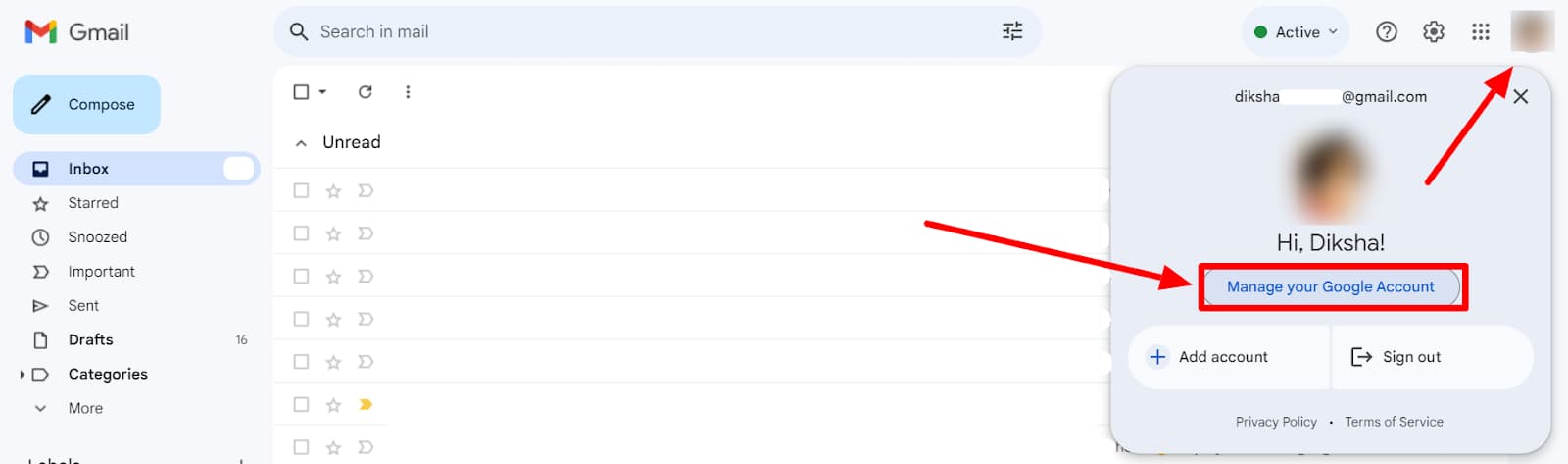
If you’re signed into Gmail, you can access your account by clicking on your image icon at the top right corner. Then click ‘Manage your Google account’ in the drop-down menu. If Google is your homepage, follow the same steps to access your Google Account.
Step 2: Choose “Security”
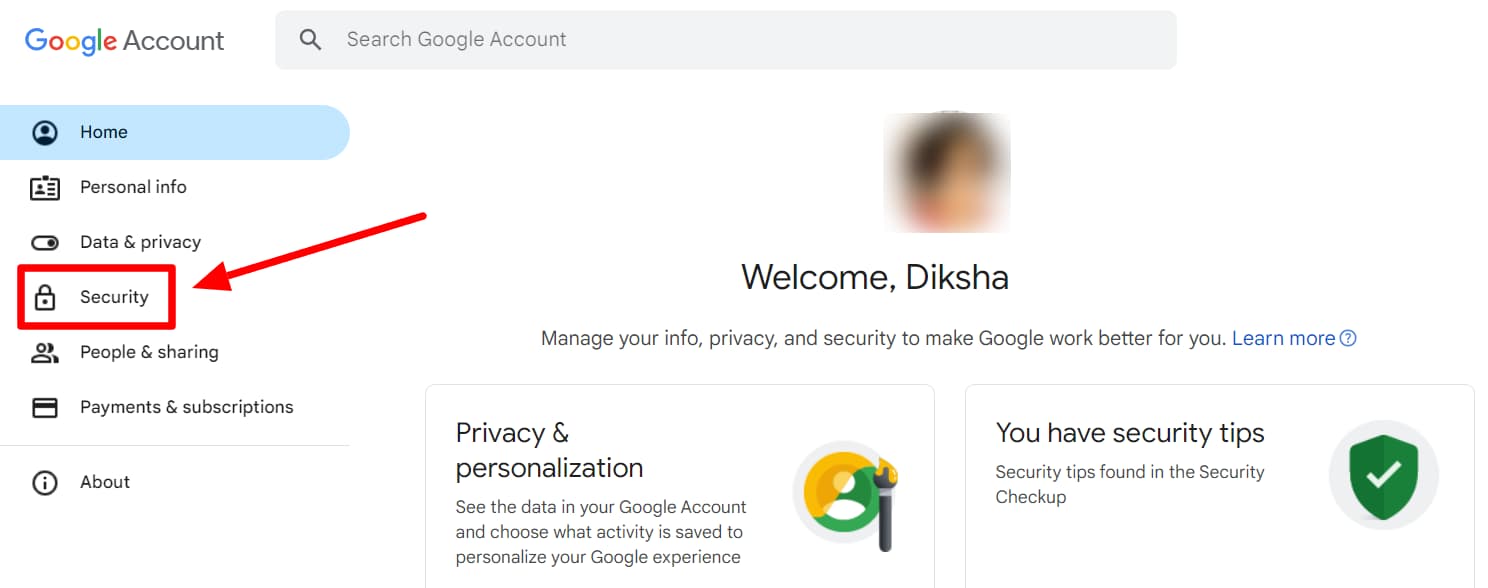
Once you’re in your Google Account, click ‘Security’ on the left-hand side panel.
Step 3: Choose “Password”
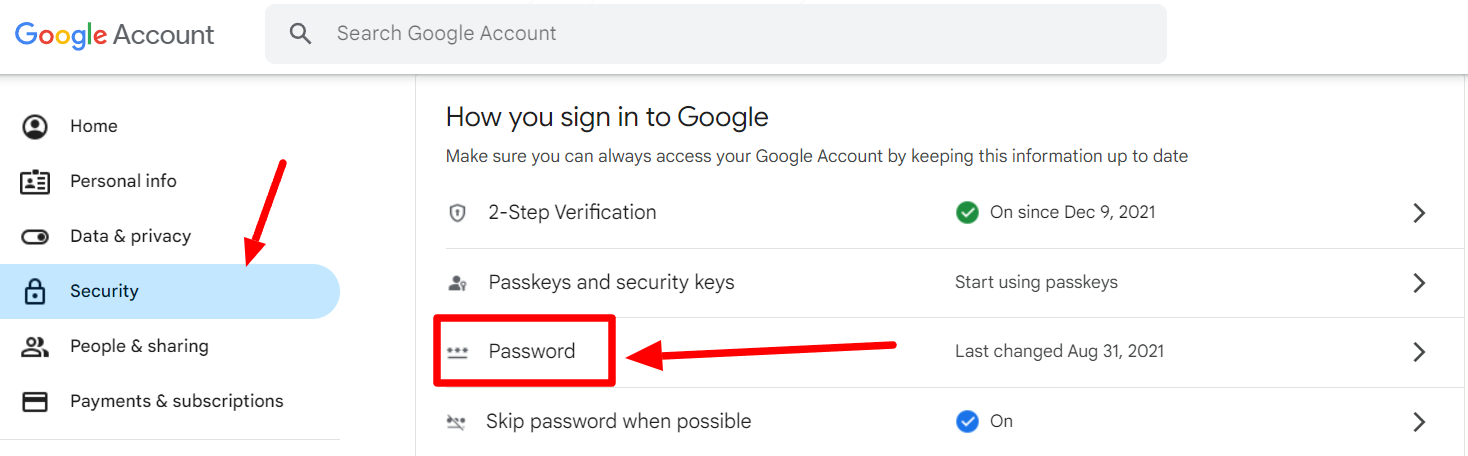
Scroll down a bit and click password, under the security options.
Step 4: Enter current password
Google requires you to authenticate that it’s you before it lets you change your password.
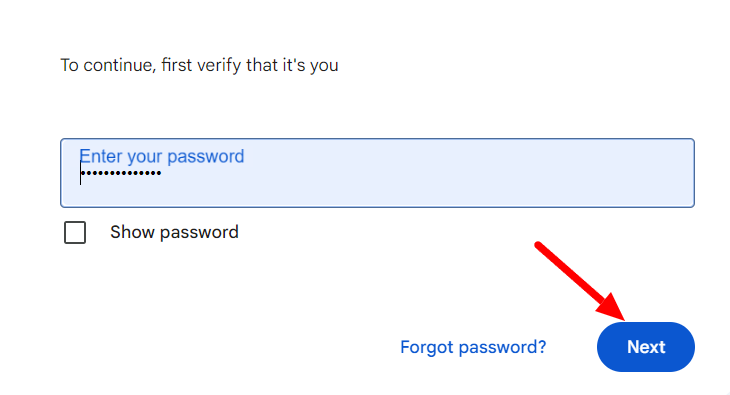
Enter your current password and click ‘Next.’
Step 5: Change your password
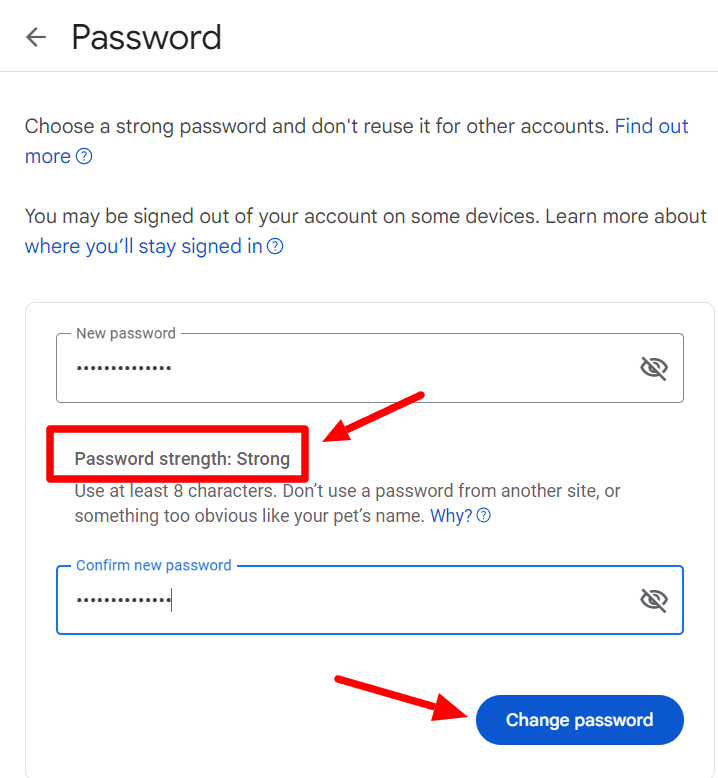
Now, you can enter a new password for your Gmail. Wait for Google to indicate that it’s a strong password. Then, confirm it in the next field and click ‘Change password.’
How to change your Gmail password on mobile: Android
If you’re on an Android mobile device, follow these steps.
Step 1: Go to Settings
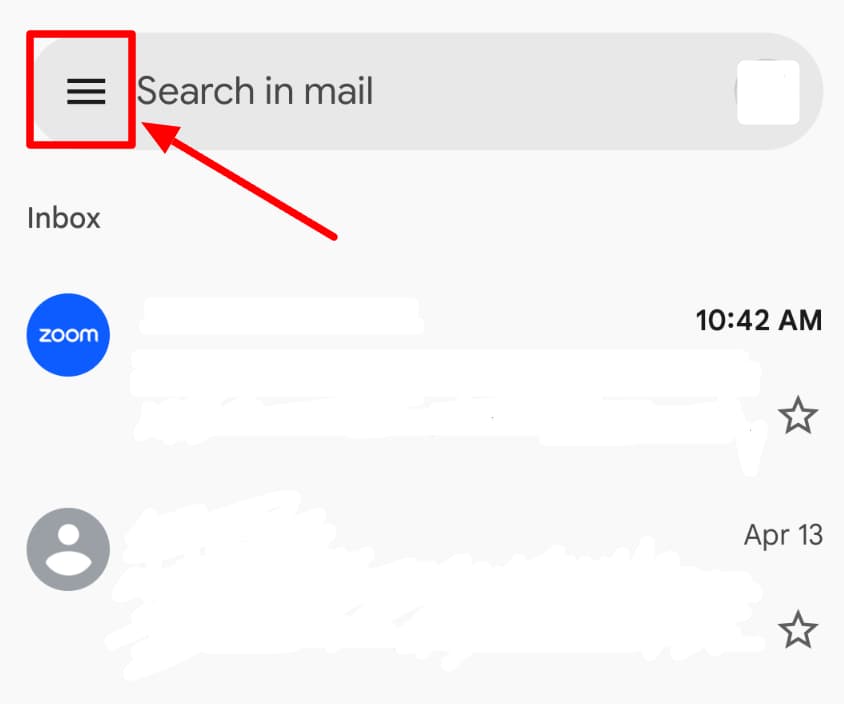
In your Gmail app, click the hamburger button (three bars in the top left corner) to open the options in the side panel.
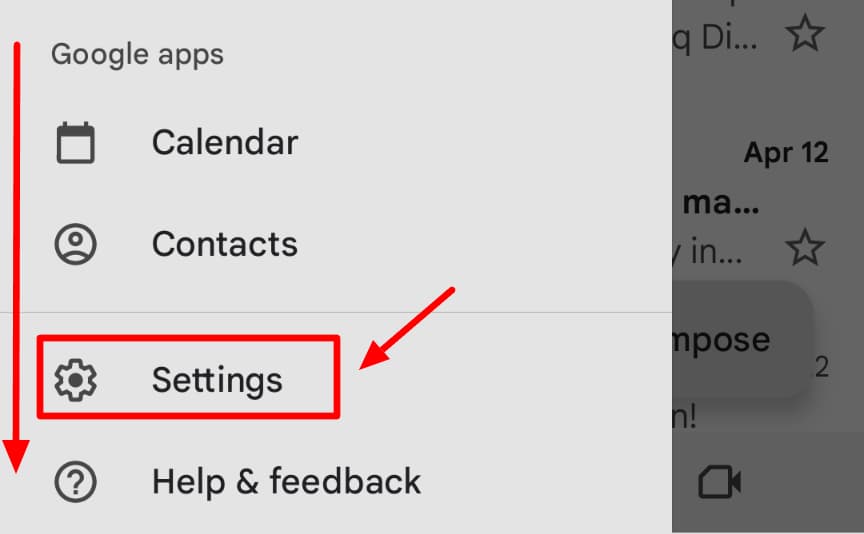
Scroll all the way down to find and click ‘Settings.’
Step 2: Manage your Google account
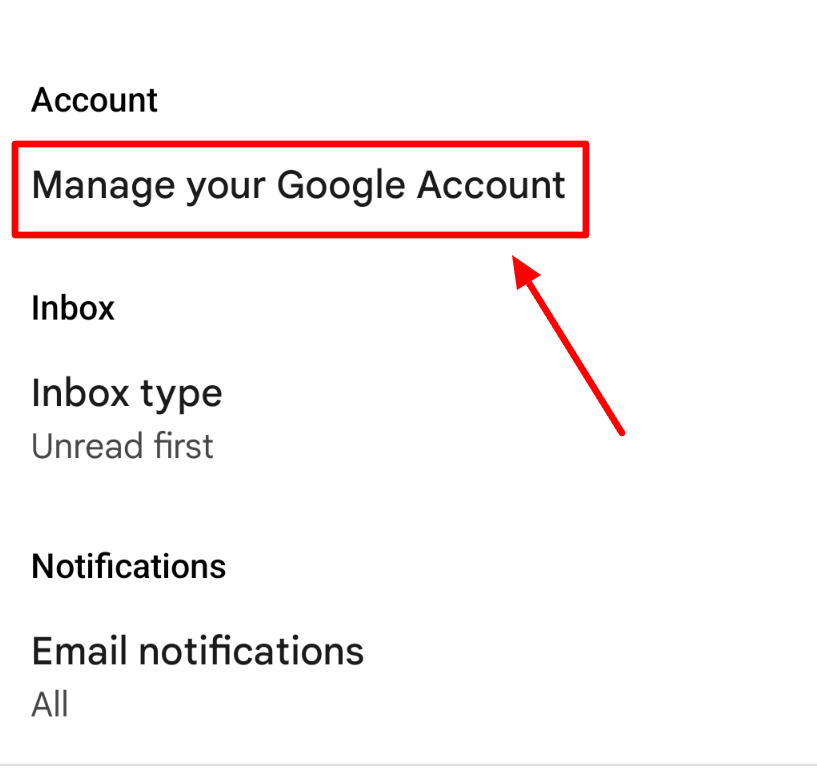
Click on ‘manage your Google Account’ in settings.
Step 3: Go to “Security”
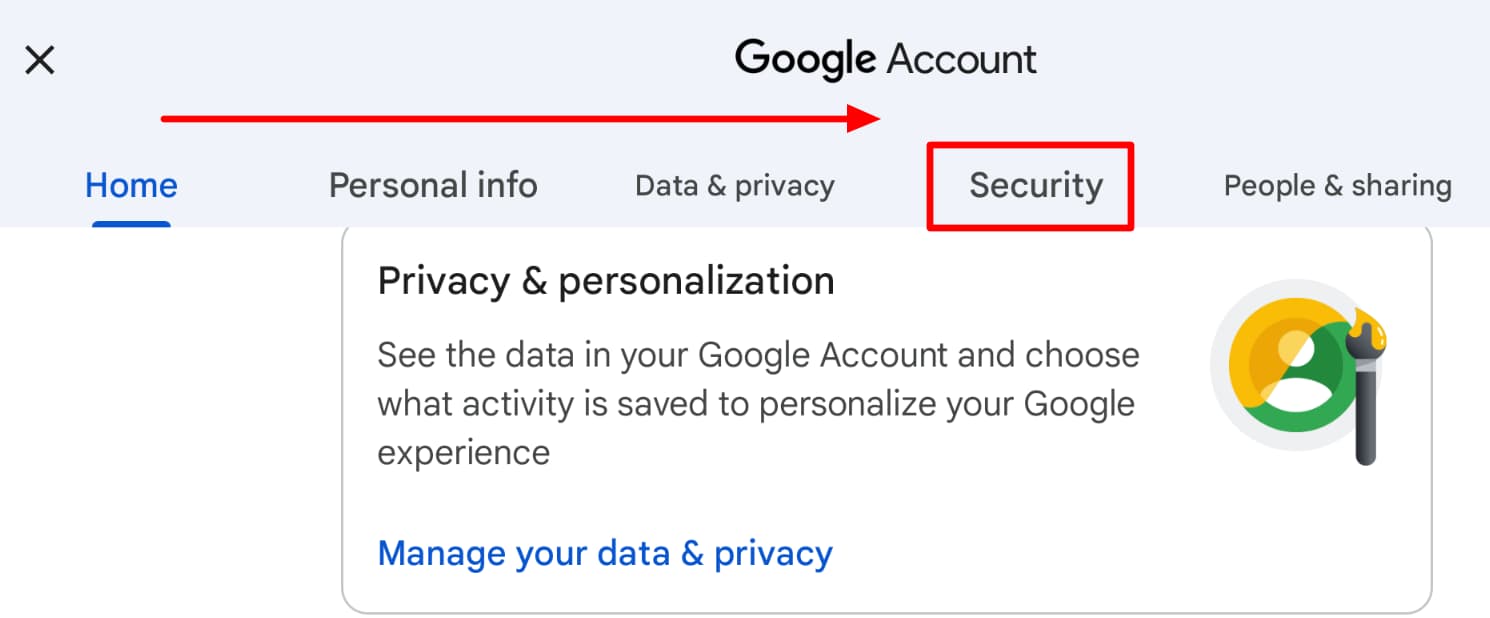
Toggle over to the ‘Security’ tab.
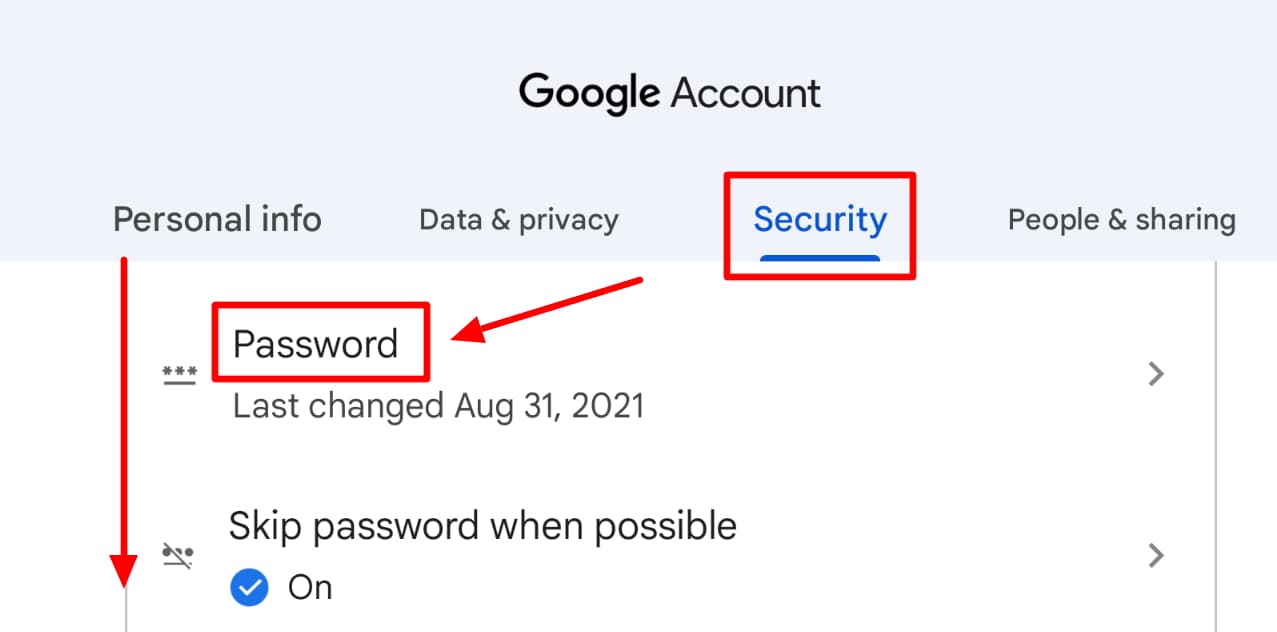
Scroll down to find ‘Password.’ Tap it.
Step 4: Enter current password and then change it
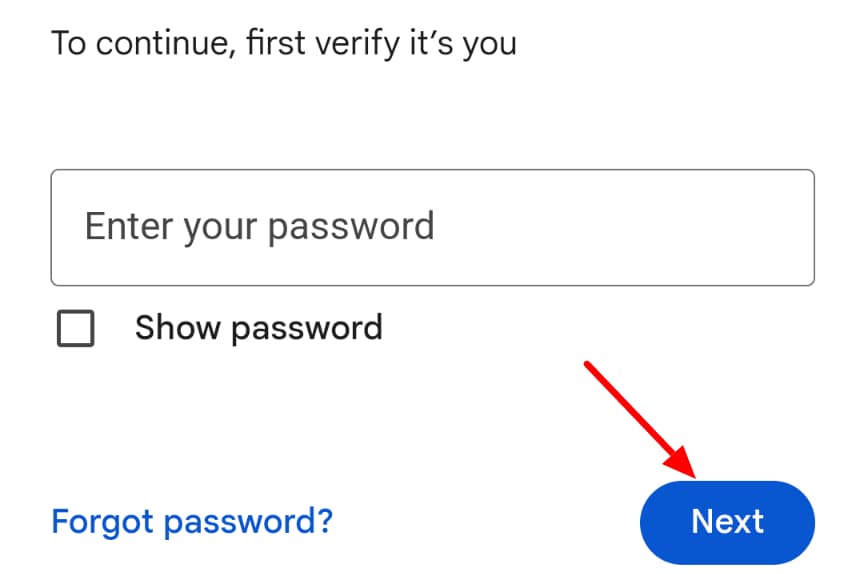
Google needs to authenticate your identity before it allows you to change your password. Enter your current password and then click ‘Next.’
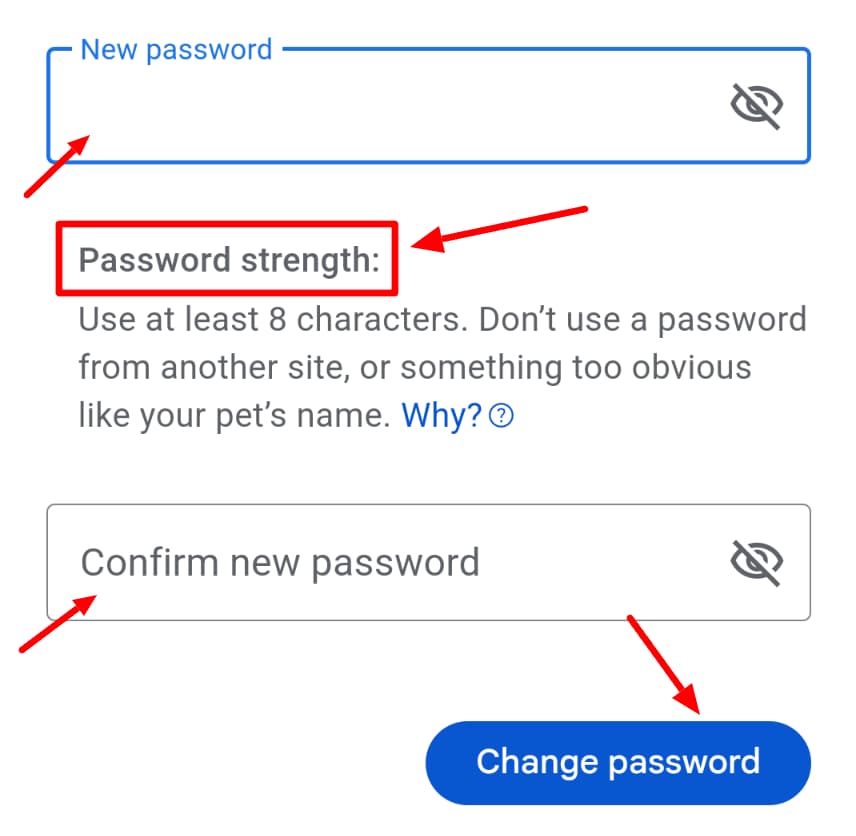
Enter the password you want in both fields. Check to see that it’s a strong password. Then click ‘Change Password’.
How to change your Gmail password on mobile: iPhone
Here are the steps to changing your password on an iOS device:
Step 1: Click profile in Gmail app
Open the Gmail app.
Tap on your profile icon in the top right corner.
Step 2: Manage Google account
Select the account for which you want to change the password, and then tap ‘Manage Google Account.’
Toggle over to the ‘Personal info’ tab.
Step 3: Tap “Password”
Tap ‘Password’ under personal info.
Step 4: Sign-in and change password
Now, enter your current password to verify your identity.
Then, enter your new password and click ‘change password.’
How to change your Gmail password if you forgot yours
Sometimes, you actively change your password, but other times, you may have to change it because you’ve forgotten it and cannot access your account. In such a situation, try the following steps.
Step 1: Go to Gmail recovery page
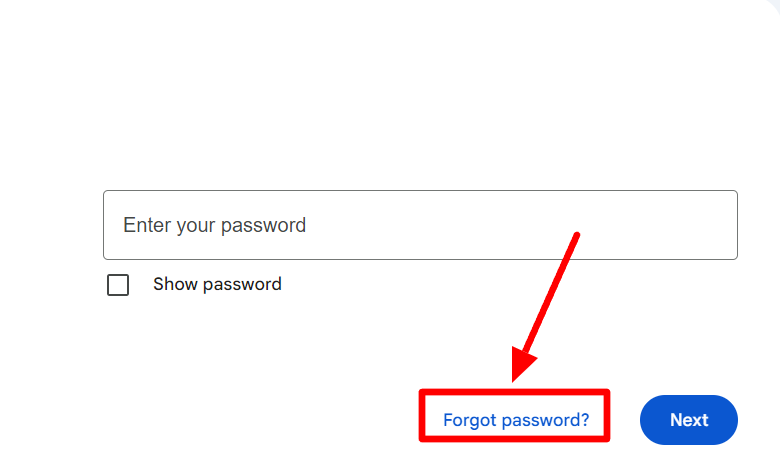
After entering your email ID, click the ‘Forgot password’ button on the login page.
Step 2: Try another way
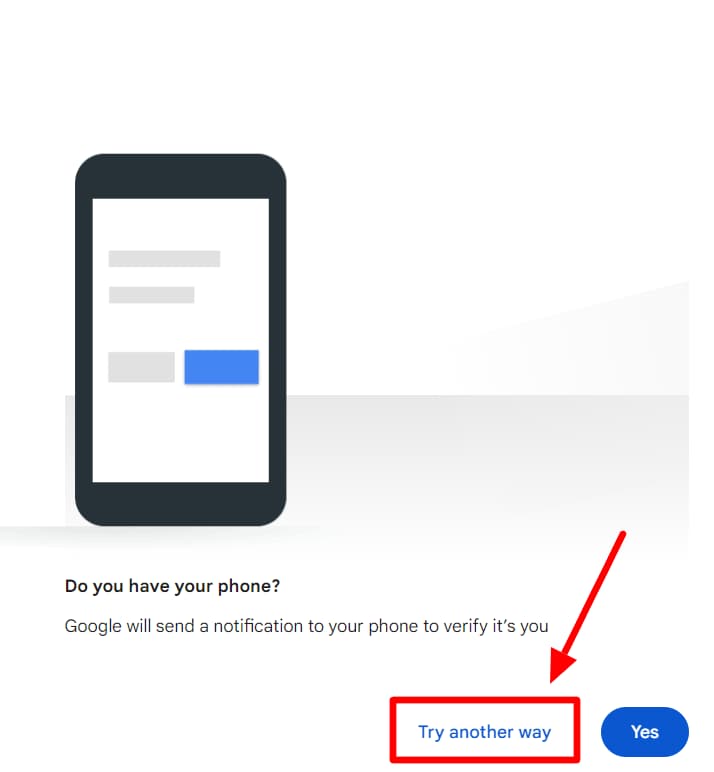
Click ‘Try another way’ in the next window.
Step 3: Pick which recovery option you want
Now, Google will show you more options that you can use to sign in.
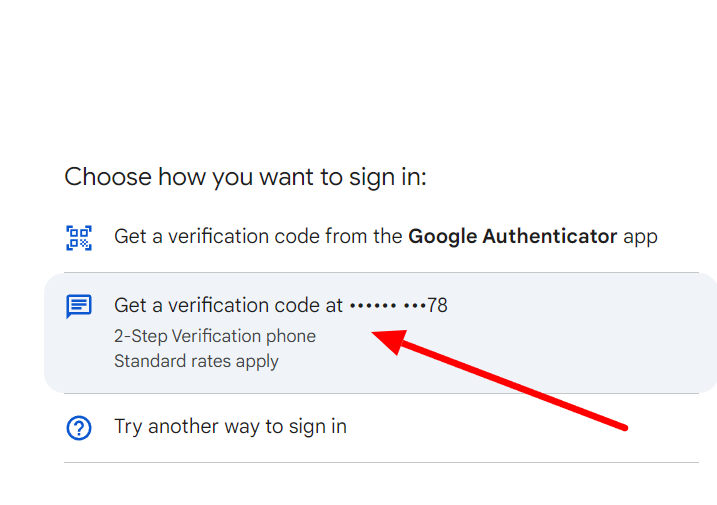
Pick the method that suits you.
Step 4: Enter recovery code and change password
No matter which option you use, once you're signed in, you’ll be prompted to update your password. Learn all these ways of signing into your Gmail account if you forgot your password in a step-by-step tutorial.
The YAMM blog has all the Gmail tutorials you’ll ever need
If that helped, you should know that the YAMM blog is your one-stop shop for all things Gmail. It offers easy-to-follow tutorials covering everything from basic to advanced features, helping you make the most out of your Gmail experience.
Whether you’ve forgotten your password or want to organize your inbox, the YAMM blog has something for everyone. YAMM blog has helpful tricks and tips to maximize your productivity and simplify your Gmail journey. Check it out today!