Send a test email
Preview your email template by sending a test email before sending it to all your recipients.
Send a test email to yourself
Prerequisites
-
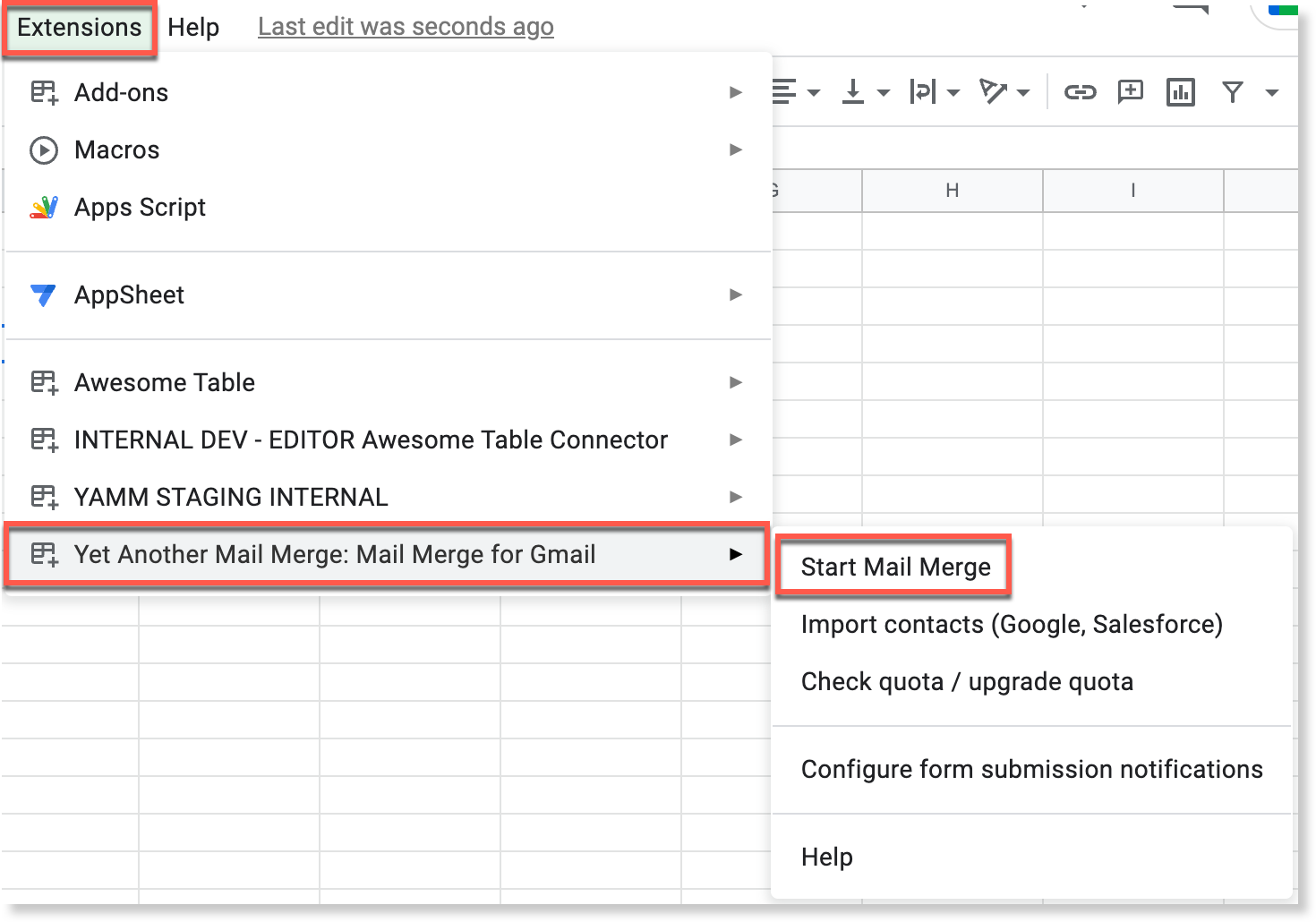
Select Extensions > Yet Another Mail Merge: Mail Merge for Gmail > Start Mail Merge.
-
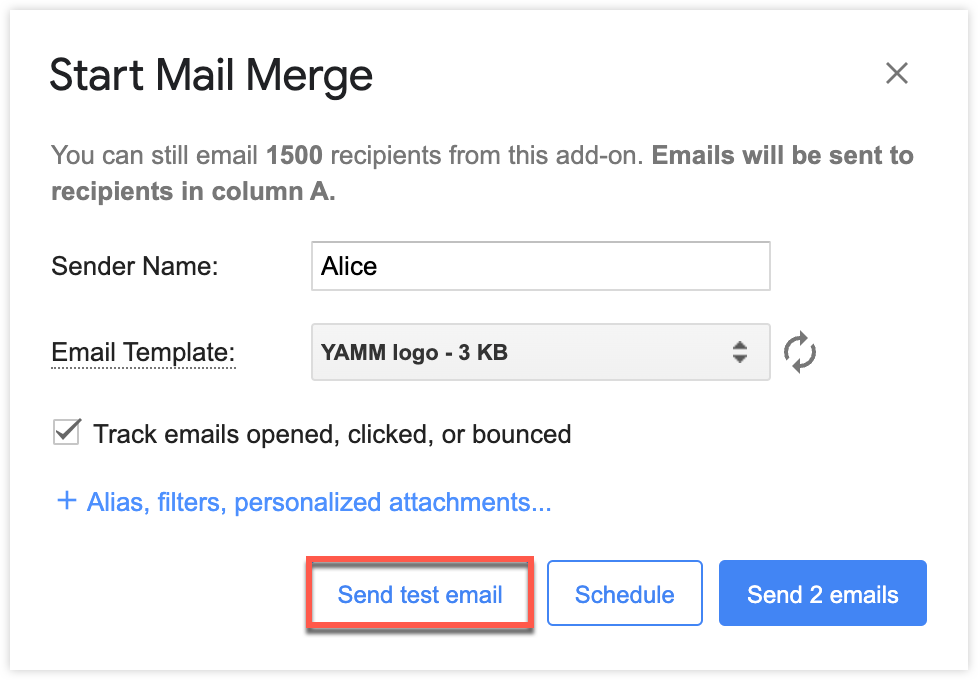
Select your template and click Send test email.
-
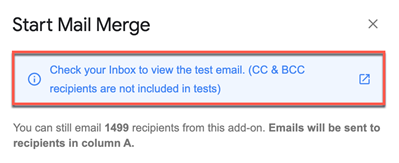
Click the blue banner to open the test email directly in your Gmail inbox.
 info
Delivery may take a few seconds to a minute, depending on the size of your template.
If you've personalized your template with markers, YAMM fills them in using data from the first visible row in your spreadsheet (row 2 by default, or the first unfiltered row if you've applied filters).
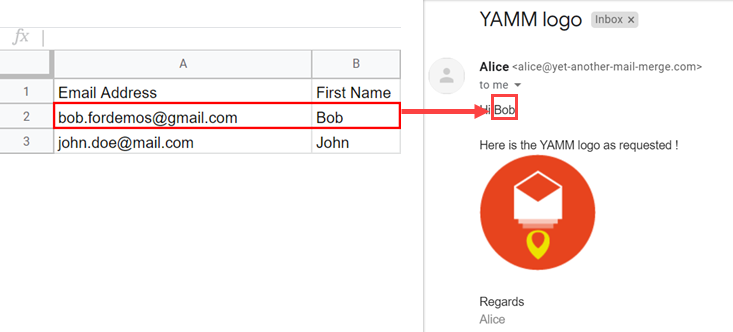
The test email uses the sender name, alias, reply-to address, and personalized attachments you set in the Start Mail Merge window, so you can check them before you launch.
Each test email counts against your daily quota. For more information about the quota, see Your daily quota.
Limitations
The test email doesn't fully replicate a live send. The following features are deactivated:
-
Tracking: YAMM doesn't track opens, clicks, or replies to the test email. For more information about tracking, see About tracking.
-
Unsubscribe link: The link only works in a tracked mail merge. Clicking it in the test email doesn't add you to your unsubscribe list. For more information about the unsubscribe link, see Insert an unsubscribe link.
-
Tracking opt-out link: The link only works in a tracked mail merge. Clicking it in the test email doesn't add you to your tracking opt-out list. For more information about the tracking opt-out link, see Insert a tracking opt-out link.
-
Poll links: The links only work in a tracked mail merge. YAMM doesn't record answers from the test email. For more information about polls, see Insert a poll.
-
Cc and Bcc recipients: The test goes only to you. YAMM leaves out the Cc and Bcc recipients from your spreadsheet and from your Gmail draft. For more information about Cc and Bcc recipients, see Reach multiple recipients per row.
Also, links to Google Docs/Sheets/Slides are previewed at the bottom of the test email. Your recipients won't see this. For more information about links, see Personalize links and images.