How to Import Contacts from Outlook to Gmail
3 min read

Table of contents
Do you constantly have to switch between Outlook and Gmail to access specific contacts? This is a common problem for users who used Outlook at some point but now prefer Gmail as their primary emailing platform.
There’s another, more convenient way than switching back and forth between platforms. Transfer or import your contacts from Outlook to Gmail. Below, we’ll show you how to import contacts from Outlook to Gmail. Ready to have all your contacts at your fingertips? Let’s go!
How to export contacts from Outlook
Step 1: Open Manage Contacts in Outlook
Navigate to your Outlook account and sign in.
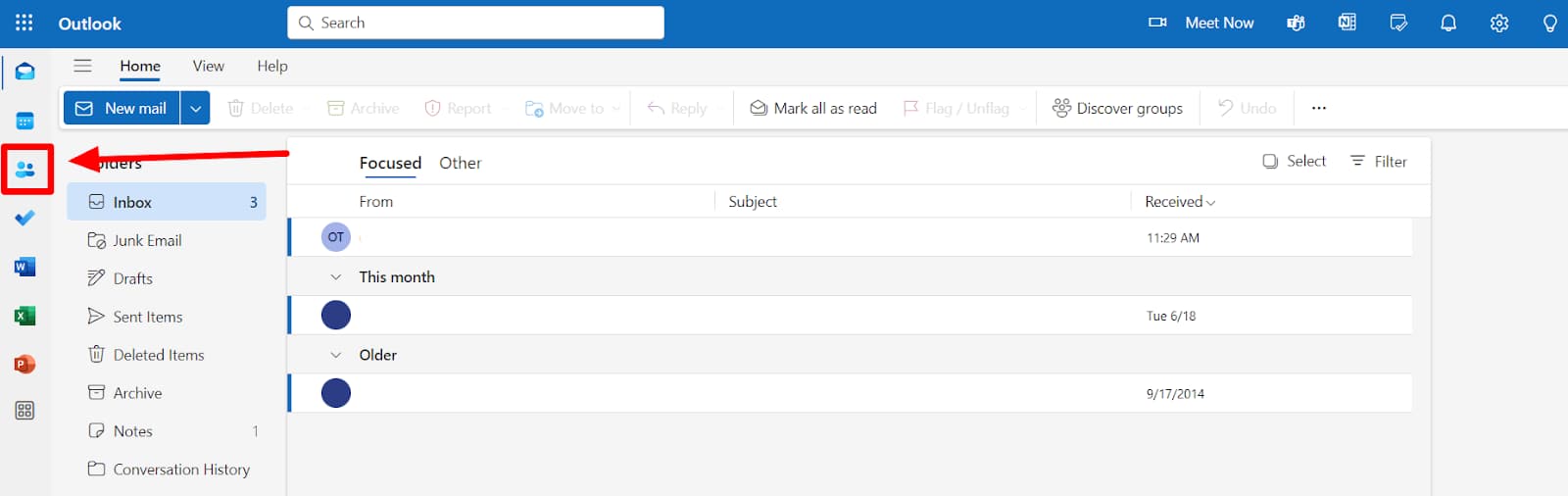
Once in your Outlook home, click the ‘People’ icon in the left-hand panel. Your Outlook contacts are saved here.
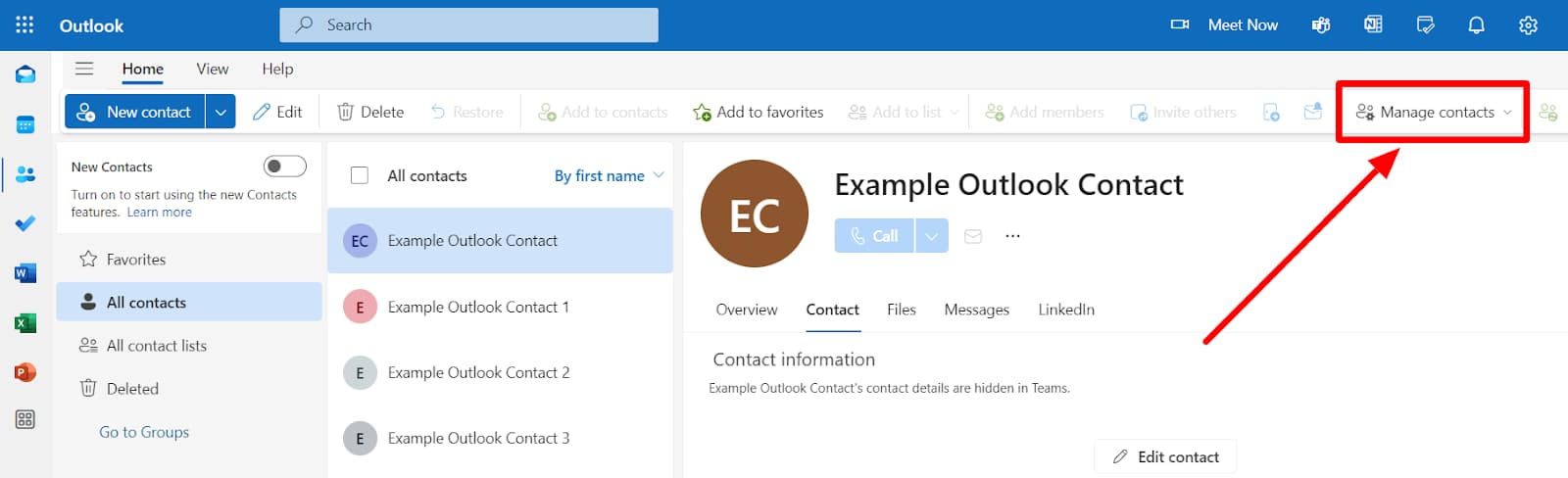
Click the ‘Manage contacts’ button in the top right corner.
Step 2: Click “Export”
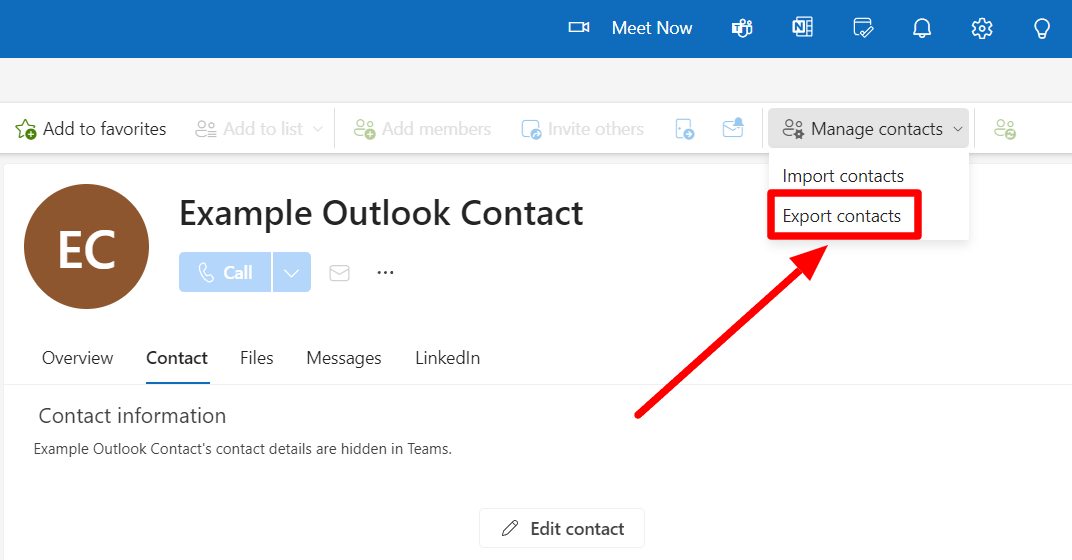
Click ‘Export contacts’ when the drop-down menu opens.
Step 3: Select to export a CSV file
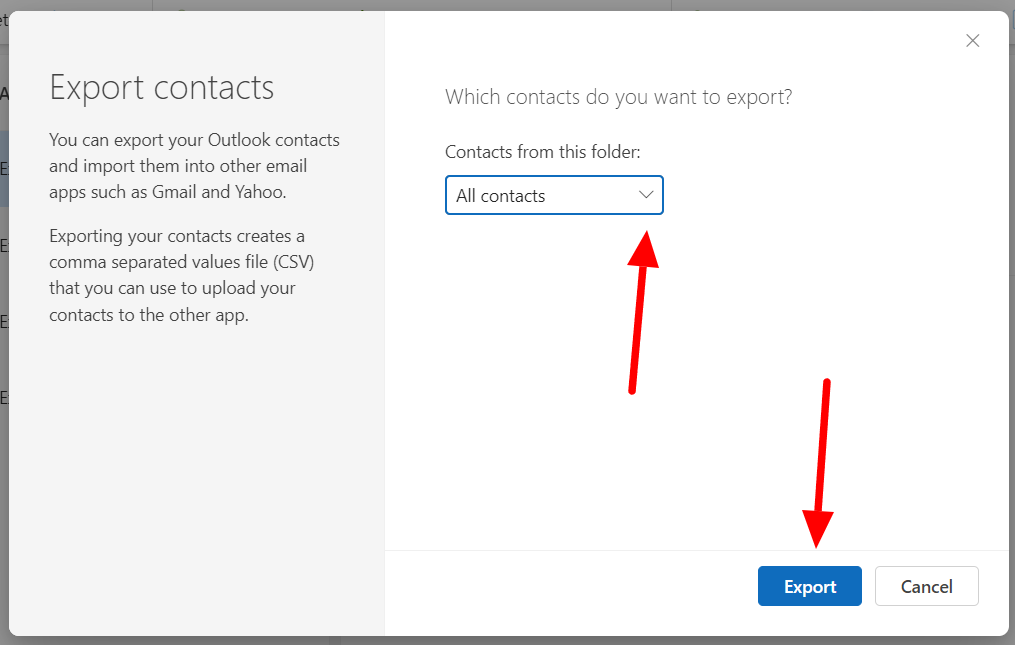
Outlook will now ask you which contacts you want to export. If you want to export only a specific list of contacts, click the drop-down button and select the list. If you want to export all your contacts, select ‘All contacts’ and then click ‘Export.’
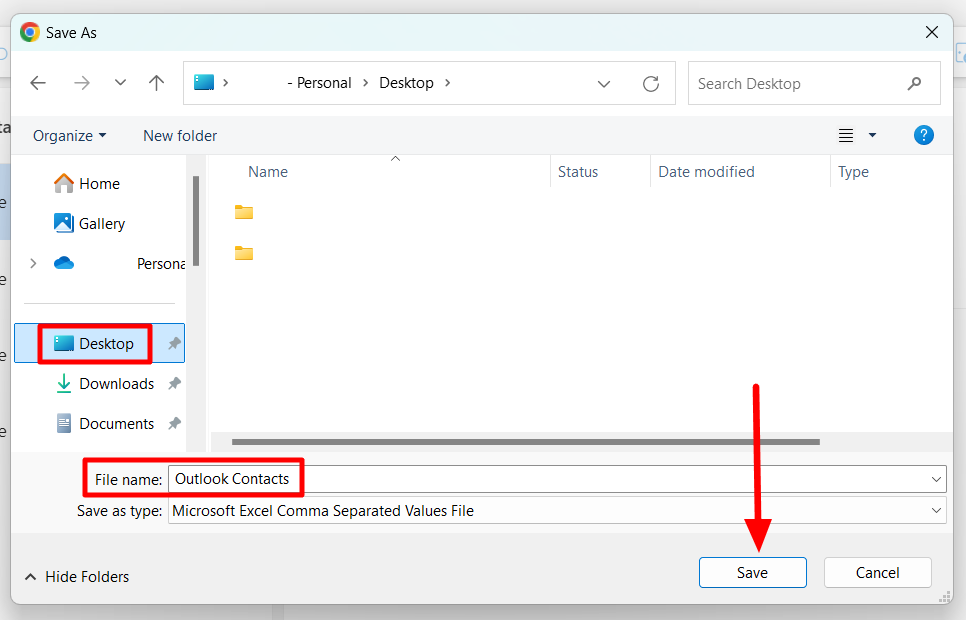
Outlook will now begin exporting your contacts as a CSV file. To save this file, name it and select your preferred destination. Then click ‘Save.’ You’ve now successfully saved your Outlook contacts as a CSV file on your PC.
Once you have contacts in a CSV format, getting them to Gmail is easy. Learn in detail how to import contacts to Gmail from CSV. We’ve also provided quick steps below.
How to import Outlook contacts to Gmail
If you’ve successfully saved your Outlook contacts as a CSV file, here’s how you can quickly import it to Gmail.
Step 1: Open Google Contacts
Open and sign into your Google Contacts.
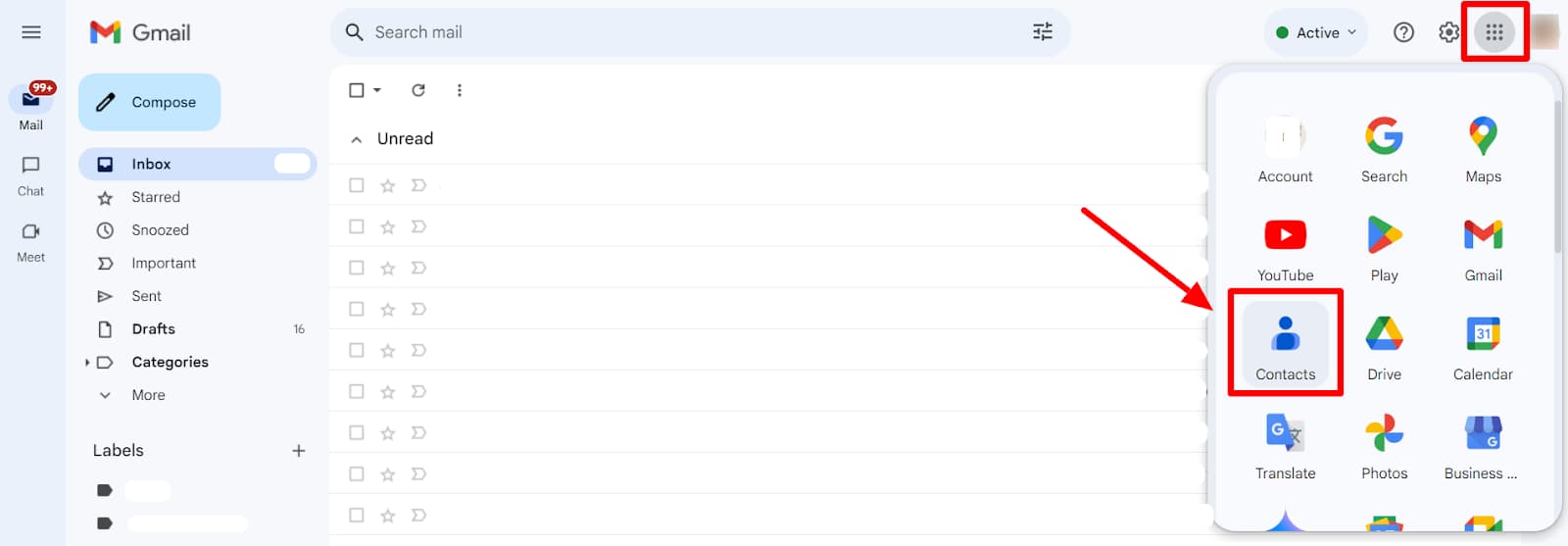
If you’re already signed into your Gmail, you can access your Google Contacts by clicking on the Google Apps button in the top right corner and then clicking on ‘Contacts’ in the drop-down menu. Learn how to find your contact list in Gmail.
Step 2: Select Outlook contact file to import
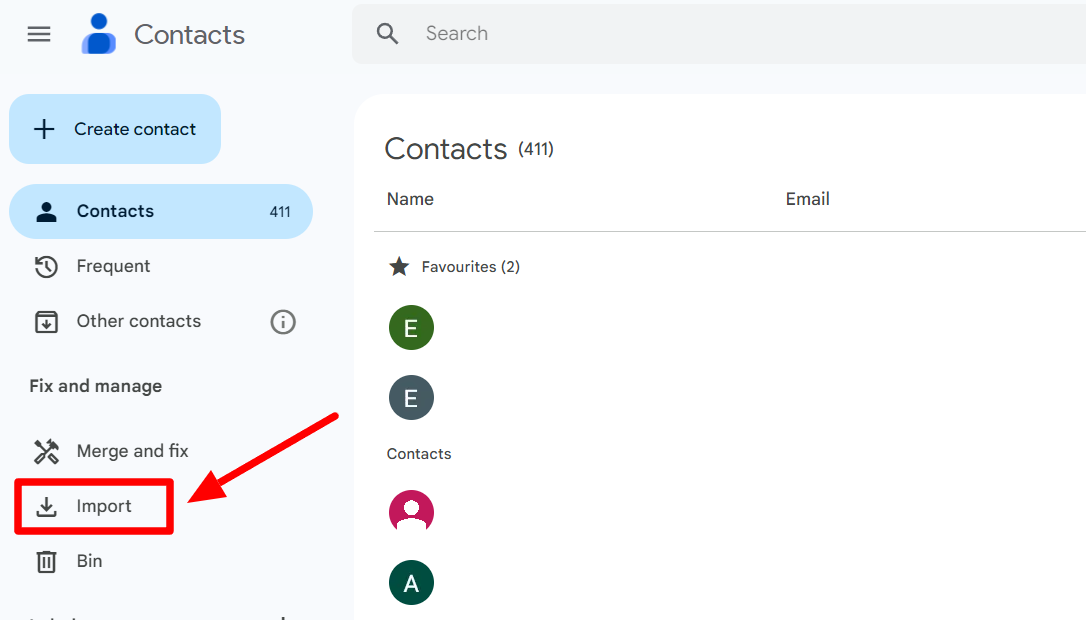
Click on the ‘Import’ button in the left-side panel.
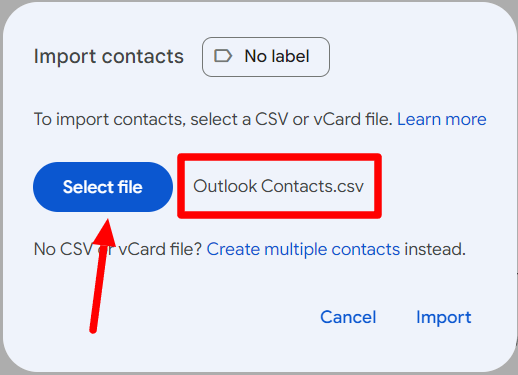
Click ‘Select file’ and select the CSV file that contains your Outlook contacts.
Step 3: Click “Import”
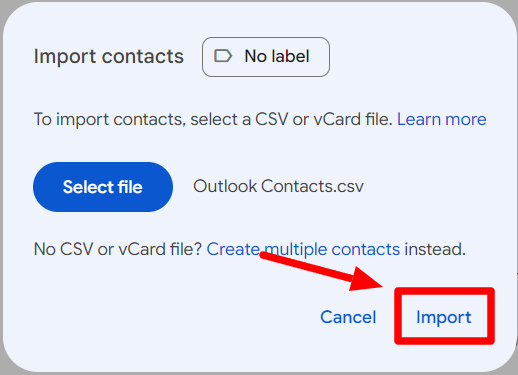
Click ‘Import’ once you have the correct file.
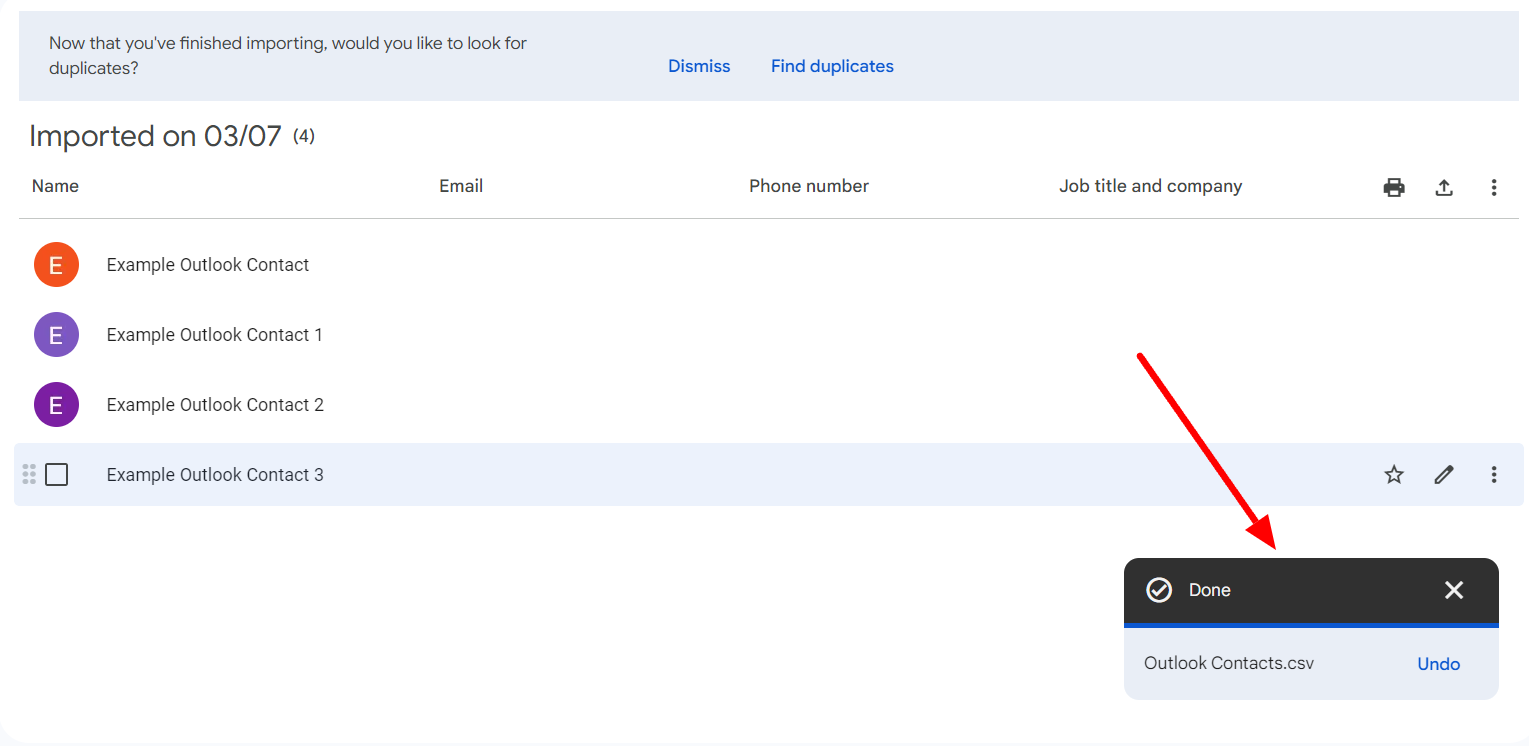
Google Contacts will notify you when your import is complete. You have successfully imported all your contacts from Outlook to Gmail.
Now that you’ll be sending your emails primarily from Gmail, you may want to let your Outlook contacts know. Learn how to create email groups in Gmail so that you can send out a mass email to your Outlook contacts, letting them know you’ve made the switch. Another great way to send out emails to all your contacts is through YAMM.
Email all your new contacts from Gmail with YAMM
YAMM is a simple but effective Gmail add-on that makes sending emails to many contacts a breeze. The best part about YAMM is that it works so easily with Gmail that you won’t even feel like you’re using a new platform. Try YAMM if you’re sending mass emails. You’ll love it!