How to Export and Import Gmail Contacts with a CSV File
4 min read
Table of contents
Are you looking for an easy way to get multiple contacts to Gmail? Learning how to import contacts to Gmail with a CSV file is a great solution that can save you time and ensure you have all your essential contacts in one place.
Below, we’ll give you the steps to download contacts as a CSV file and import them to your Gmail. Ready to organize your contacts better? Let's get started!
How to download contacts as a CSV file
A CSV (Comma-Separated Values) file is a simple and universally supported plain text file that’s commonly used to store and export tabular data between different applications. Here’s how you can download your contacts as a CSV file.
Step 1: Go to Google Contacts
Navigate to your Google Contacts. If you’re already signed into Gmail, learn how to find your contact list in Gmail.
Step 2: Select how many contacts to download
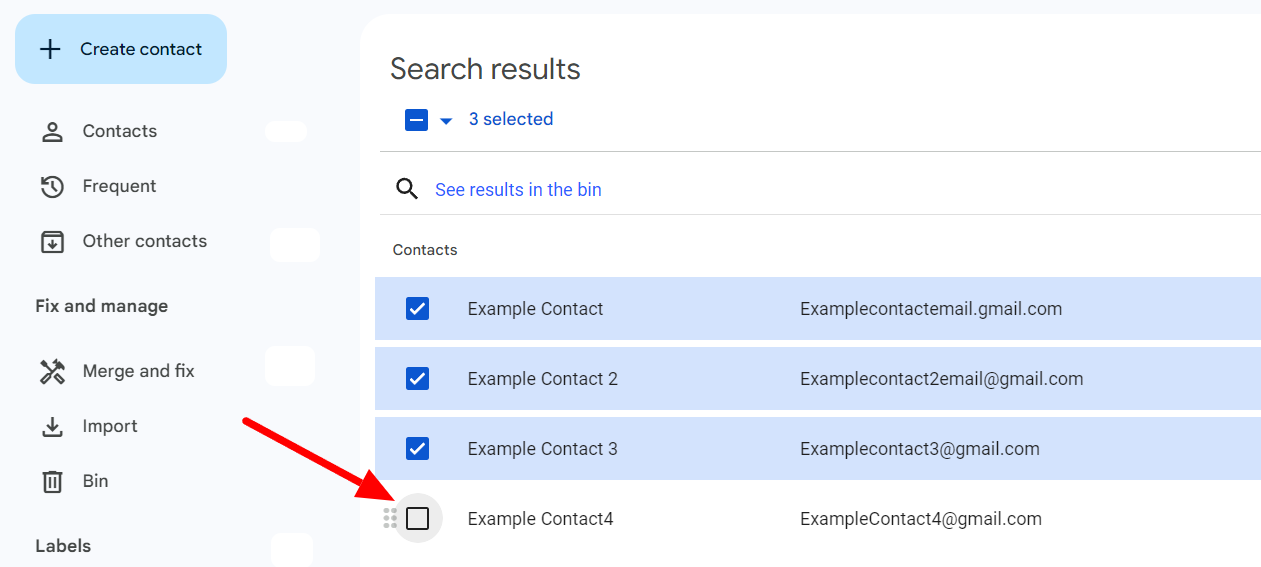
You can select the contacts you want to download in a CSV file by checking the box before each contact name.
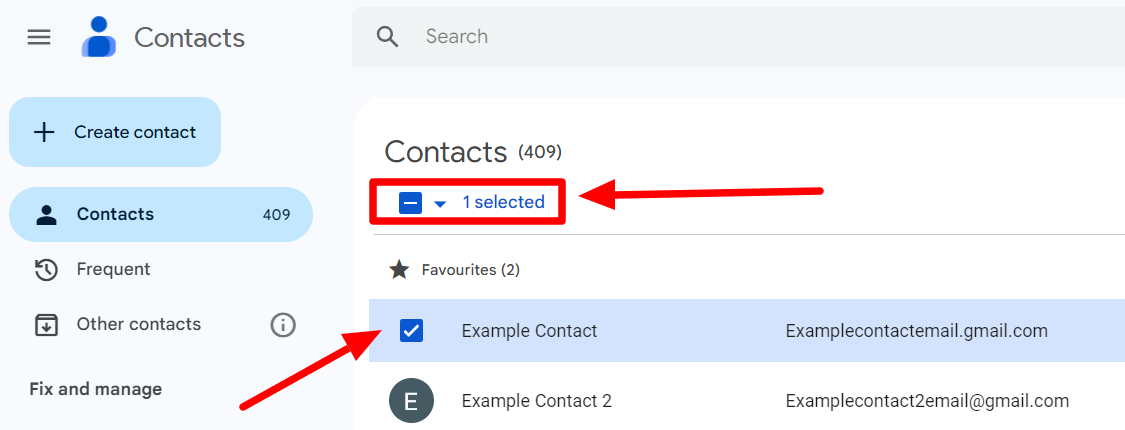
If you’d like to select all your contacts, simply select one by checking the box next to it. Then, click the drop-down arrow that appears at the top of the contacts.
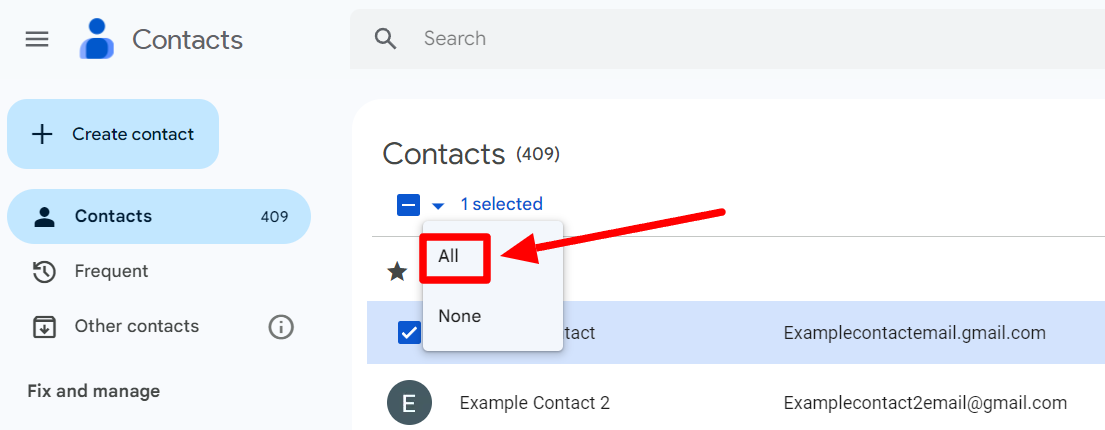
Now click ‘All’ in the menu that opens to select all your contacts.
Step 3: Export contact(s) as a Google CSV
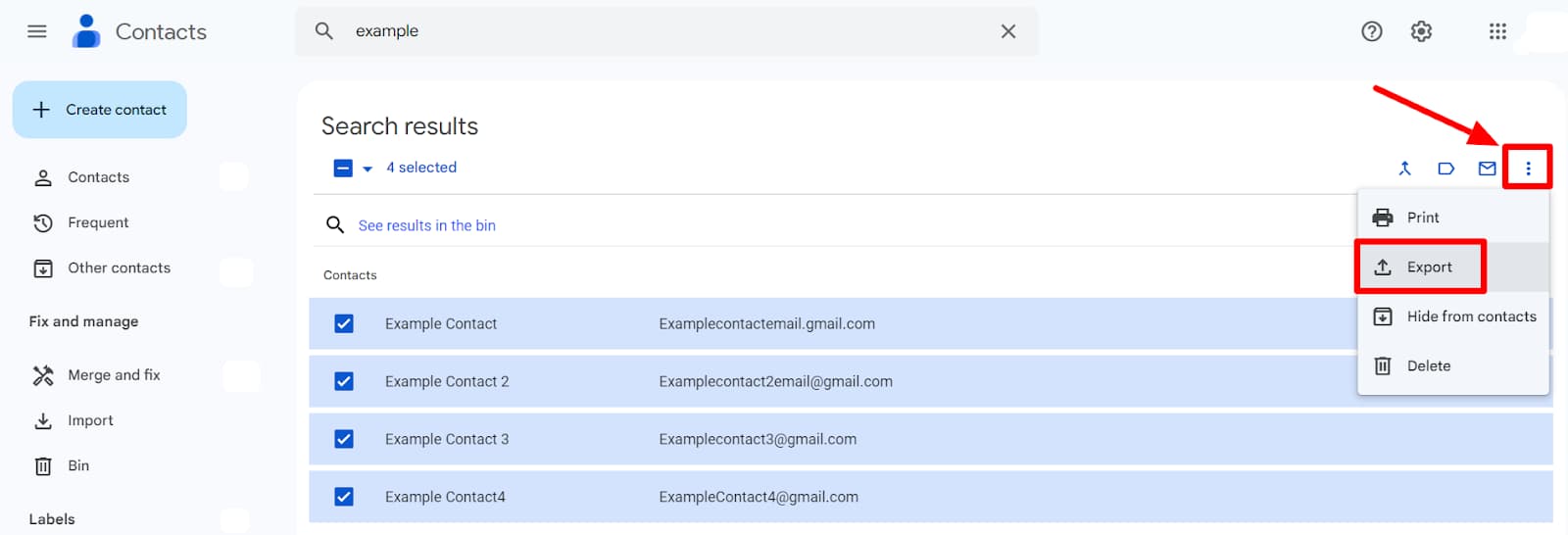
Once you’ve selected the contacts you want to export, click on the three dots in the top right corner. Then, click ‘Export’ in the drop-down menu that opens.
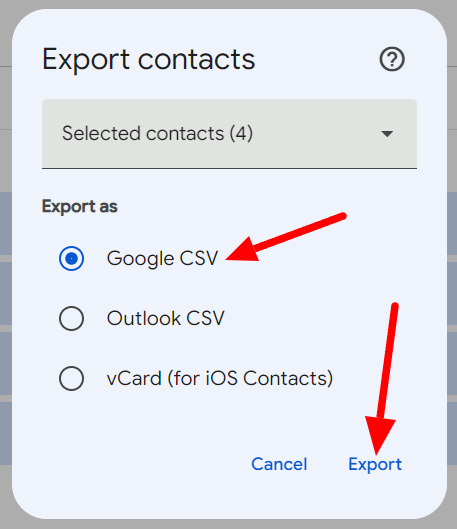
Select ‘Google CSV’ in the next window and click Export.
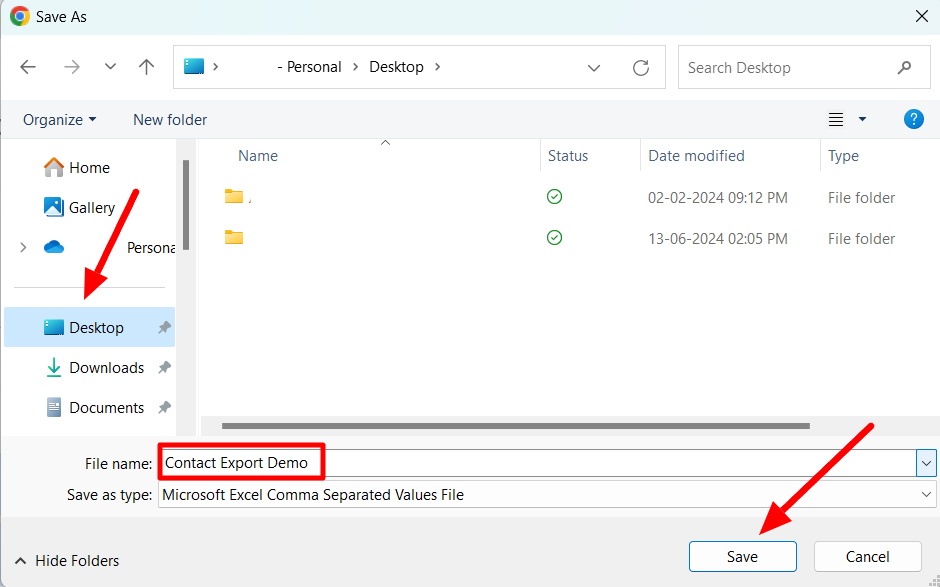
Title your CSV file, select your destination, and click ‘Save’ to save your CSV file on your device.
How to import contacts to Gmail with a CSV file
Now that you’ve successfully exported your contacts, say you want to import these contacts to another Gmail account. How would you do that? Read on below.
Step 1: Open Google Contacts for destination account
Go to the Google Contacts associated with the Gmail account where you want to import your contacts.
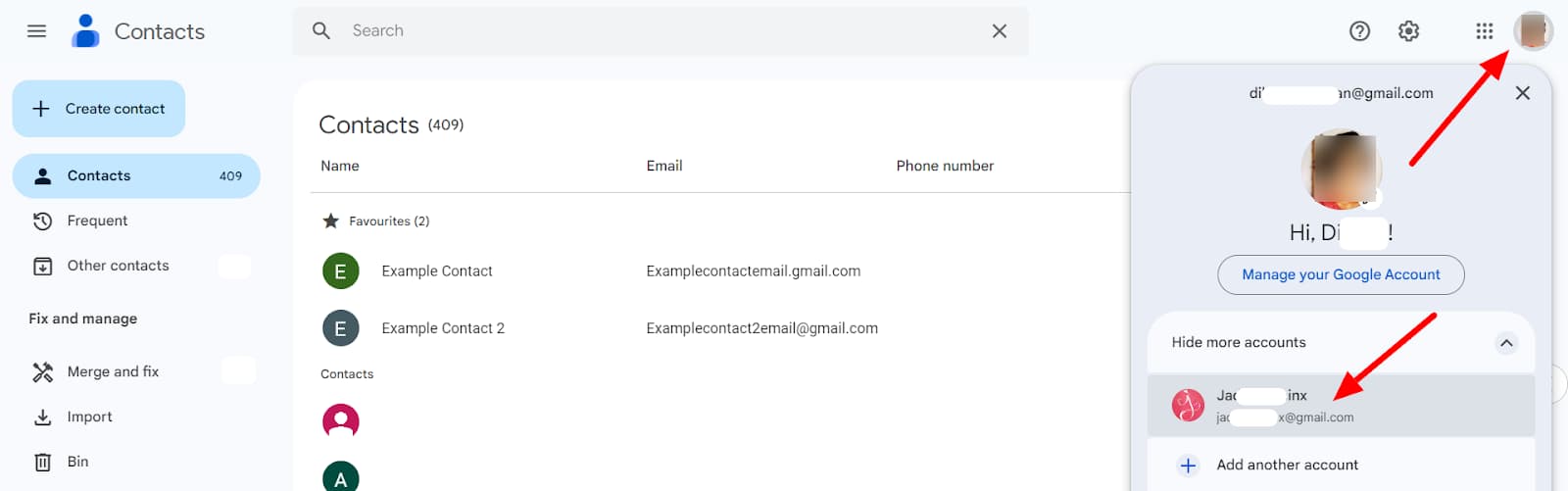
If you’re already in your Google Contacts from where you exported your contacts, simply click on your profile picture and select the account you want to sign into. If you’ve not currently added the other Gmail account, learn how to add a Gmail account.
Step 2: Click “Import”
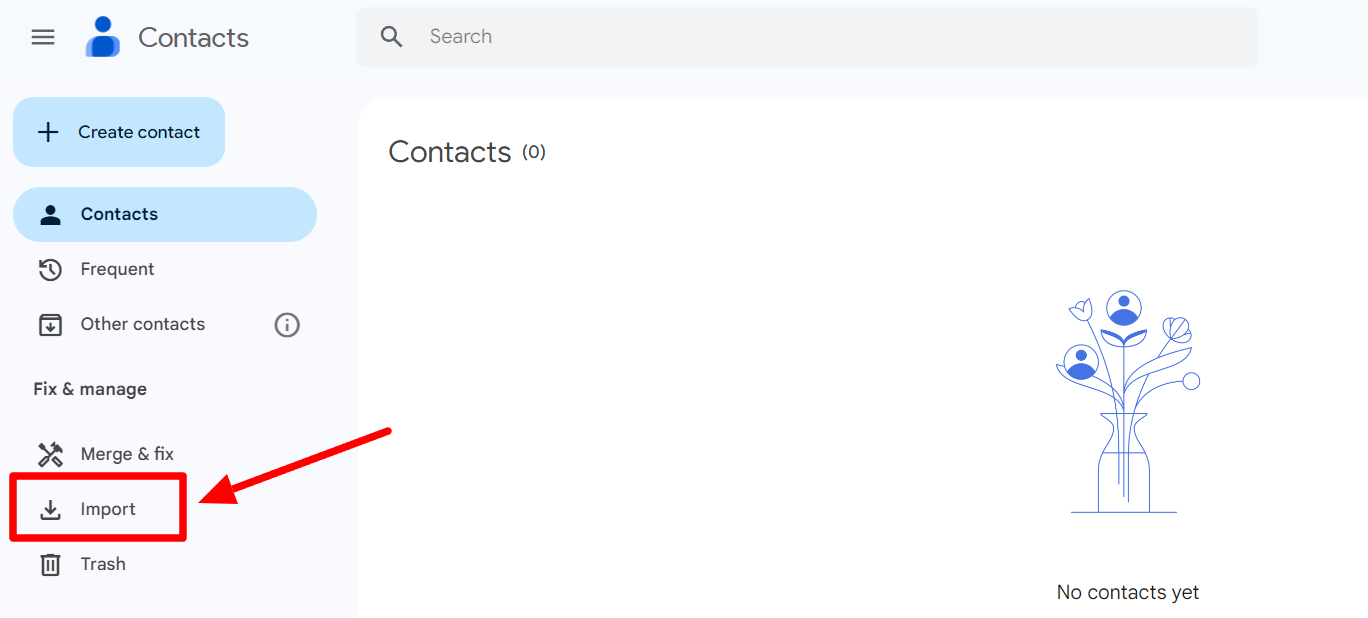
Click the ‘Import’ button in the left side panel.
Step 3: Select CSV file with contacts
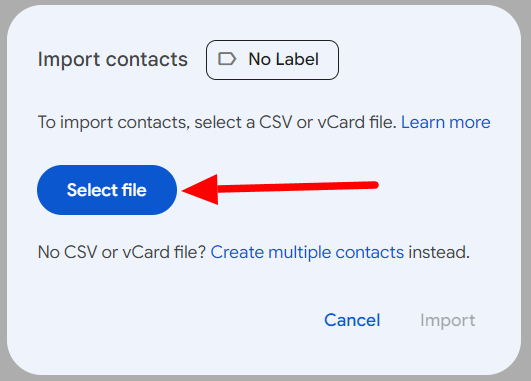
Click on the ‘Select file’ button.
Step 4: Click “Import”
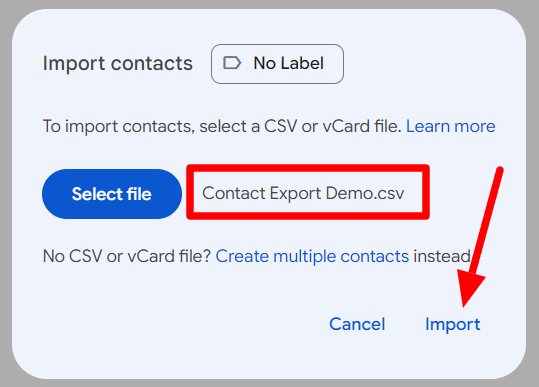
Once you’ve selected your CSV file from the destination where you saved it, click ‘Import.’
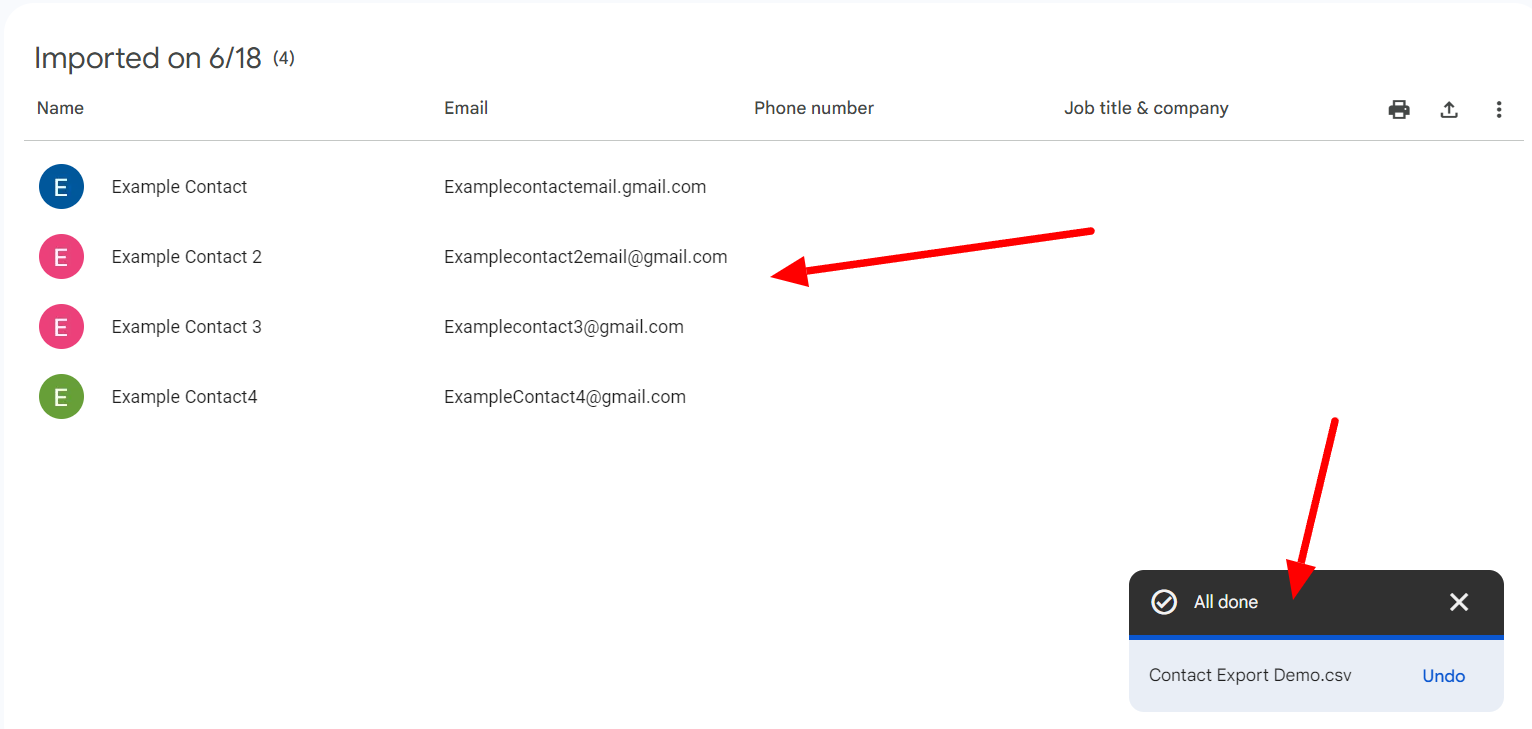
Your contacts will now appear here, and you’ll also see a notification when the Import is complete.
Now that you have all the contacts you wanted in the same place, maybe you’d like to email them all. Learn how to send an email to all your contacts using Gmail. In order to do that, you may want to use YAMM.
Imported your contacts and send a mass email from the new account with YAMM.
Now that your contacts have been imported to a new address, you may want to let them know that they’ll be seeing messages from this account. It can also help them to know where a new email destination is. If you’re looking to send a mass email in Gmail, the best way to do that is YAMM.
YAMM is a simple add-on to Gmail that allows you to send a mail merge to a list of contacts designated by you. You can schedule when they’re sent and even track their metrics over time. Interested? Learn more about YAMM today.