Send multiple attachments to each recipient
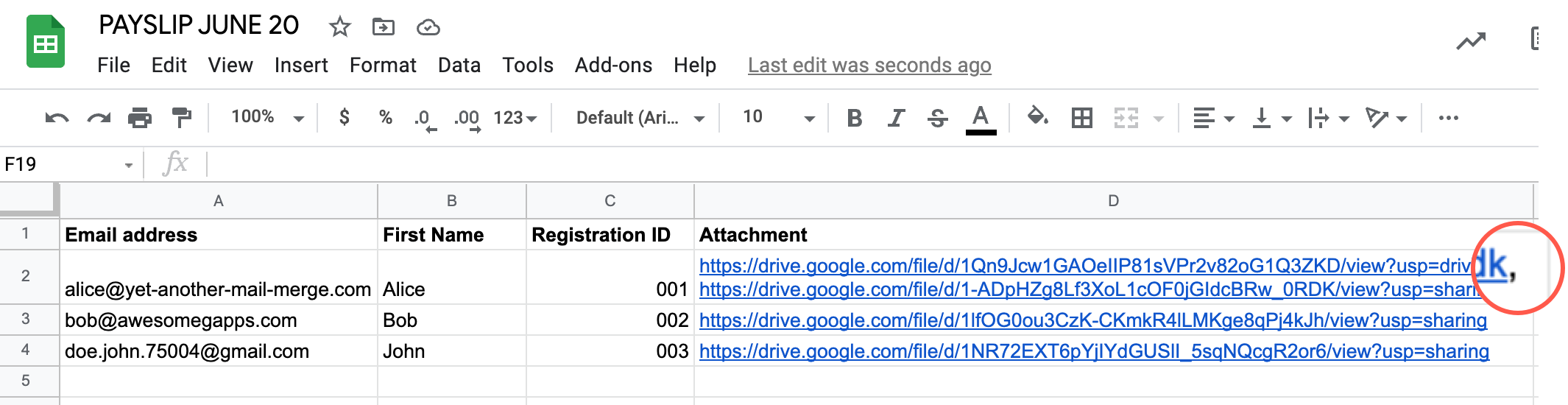
To send multiple attachments to a recipient of your mail merge, all you need to do is add the Google Drive URLs of the attachments in the respective cell in the Attachment column and separate URL with a comma.
Procedure
-
Open the Google spreadsheet for the mail merge.
-
Add multiple URLs in the recipient cells and separate each with a comma.
 warning
If you add links to Google Docs, Sheets, or Slides files, they are automatically converted and attached as PDF files when the mail merge is sent. You can identify such files by their URL, which starts with https://docs.google.com.
Instead, you can send Google Docs, Sheets, or Slides files as personalized URLs. For more information, see Send different hyperlinks / URL to each recipient.
-
In Google Sheets, select Add-ons > Yet Another Mail Merge > Start Mail Merge.
-
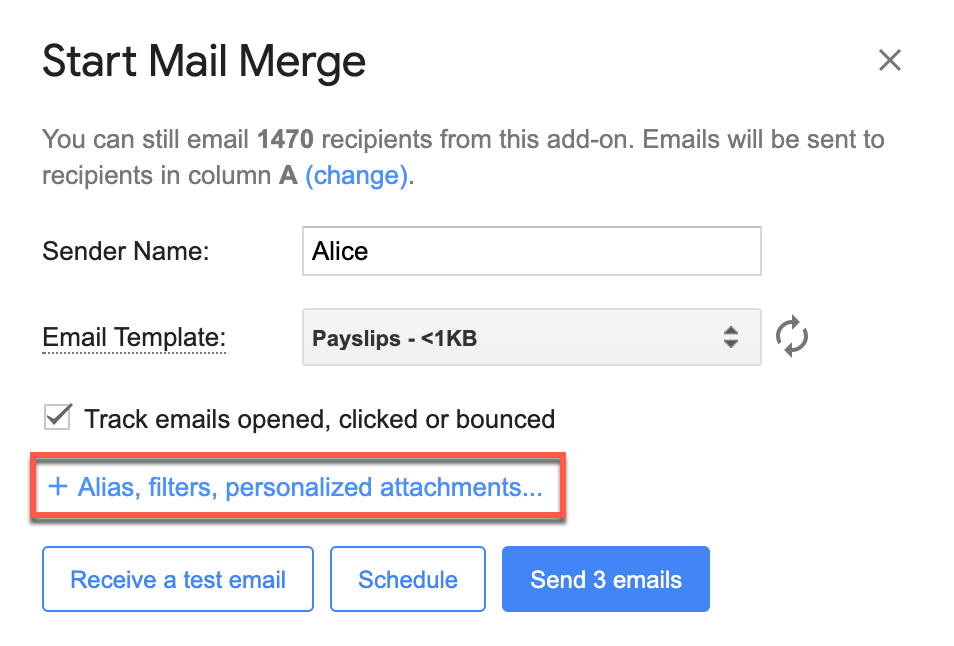
Click + Alias, filters, personalized attachments.
-
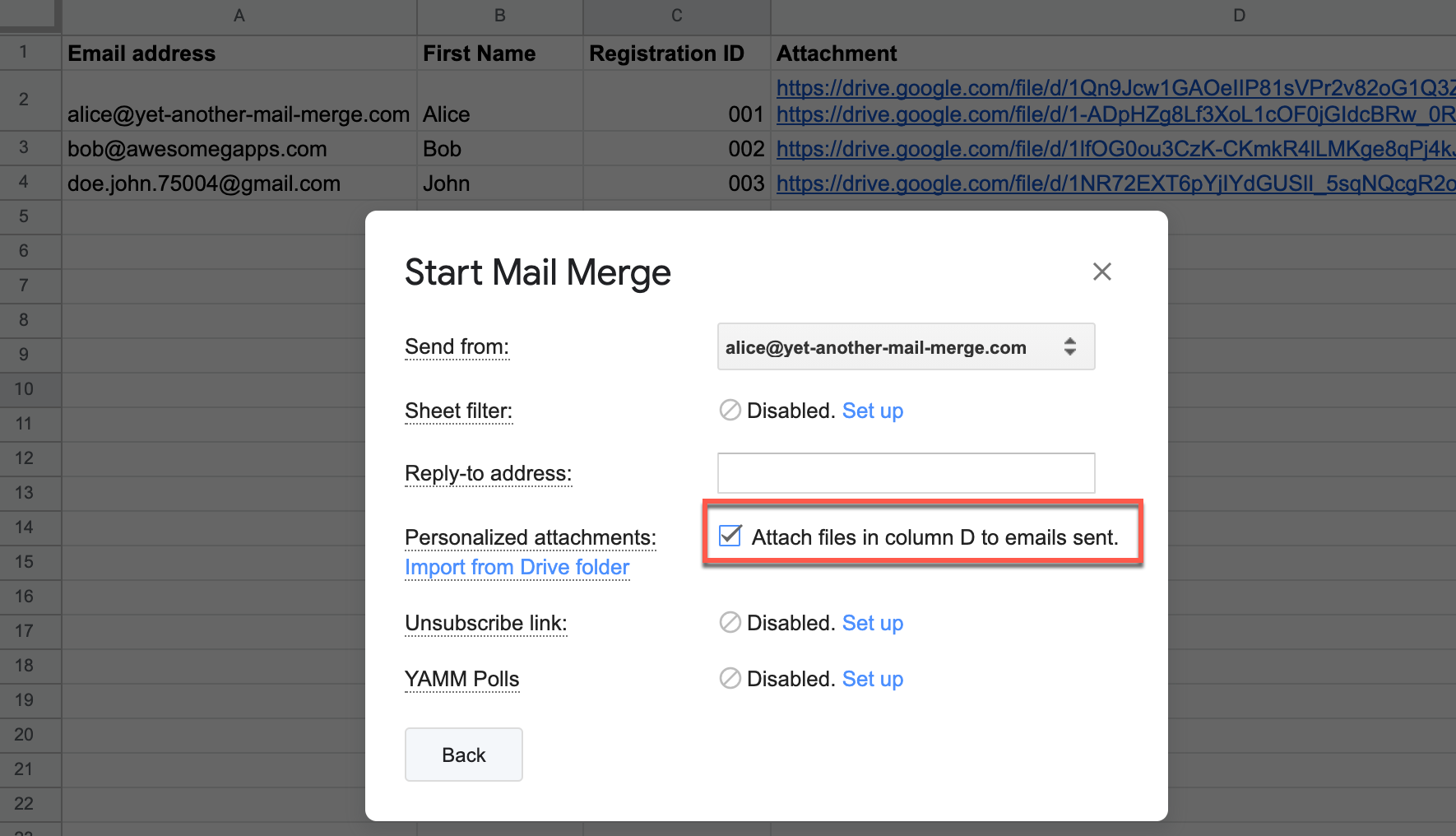
Select Attach files in column “...” to emails sent, and click Back.
-
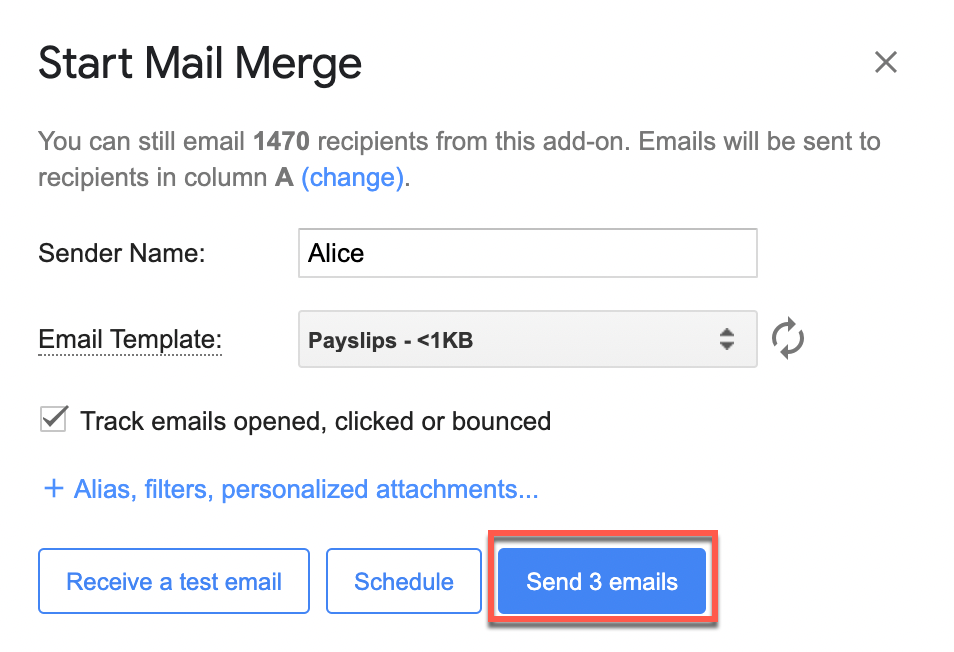
Click Send emails.
Result
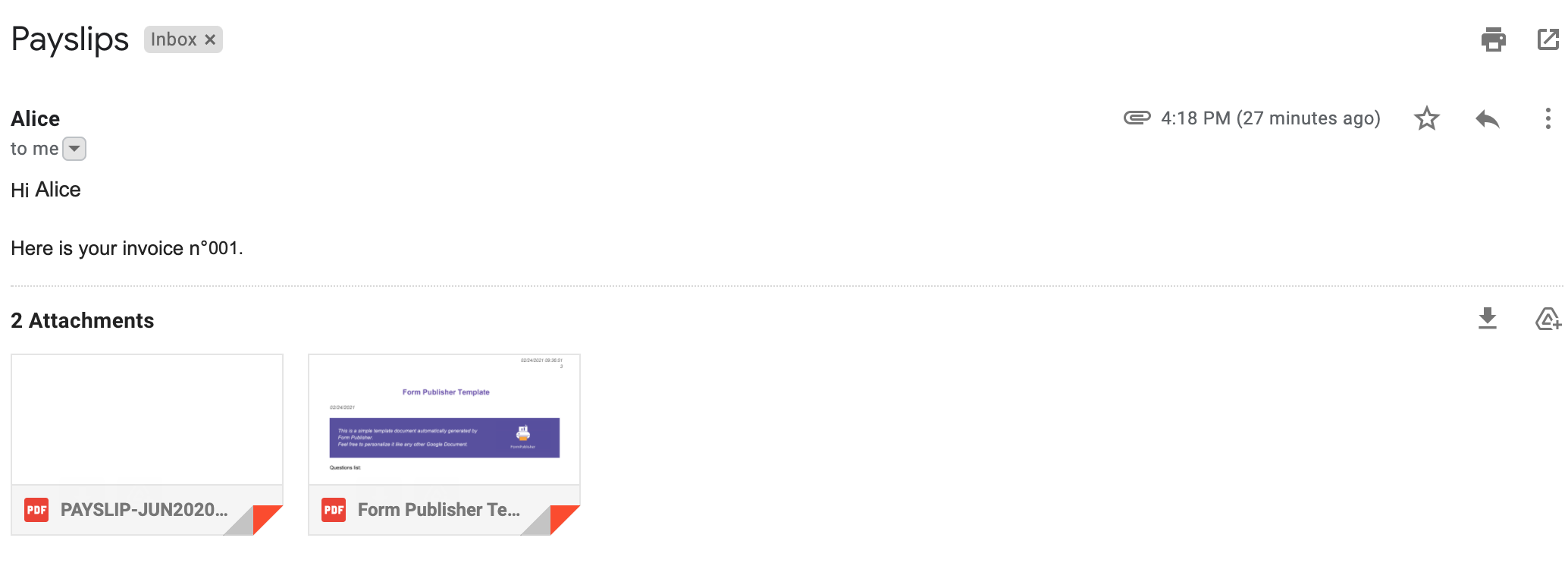
Your recipients receive an email with multiple attachments.
Related article