Personalize attachments
Send a different attachment to each recipient via Google Drive links in the contact list spreadsheet, and attach multiple files per recipient. You can either add links manually or use unique filenames to automate the link retrieval for a larger set of files. Google Docs, Sheets, and Slides files are attached as PDFs.
-
To send the same attachment to all recipients, add it directly to your Gmail draft.
-
To send a Google Docs, Sheets, or Slides file as a link rather than a PDF, see Send personalized hyperlinks to each recipient.
Add file links manually
Prerequisites
- You have created a contact list spreadsheet.
- You have uploaded the files for attachment to Google Drive.
- You have created an email template in Gmail.
This method is preferred if you only have a few file links to add.
-
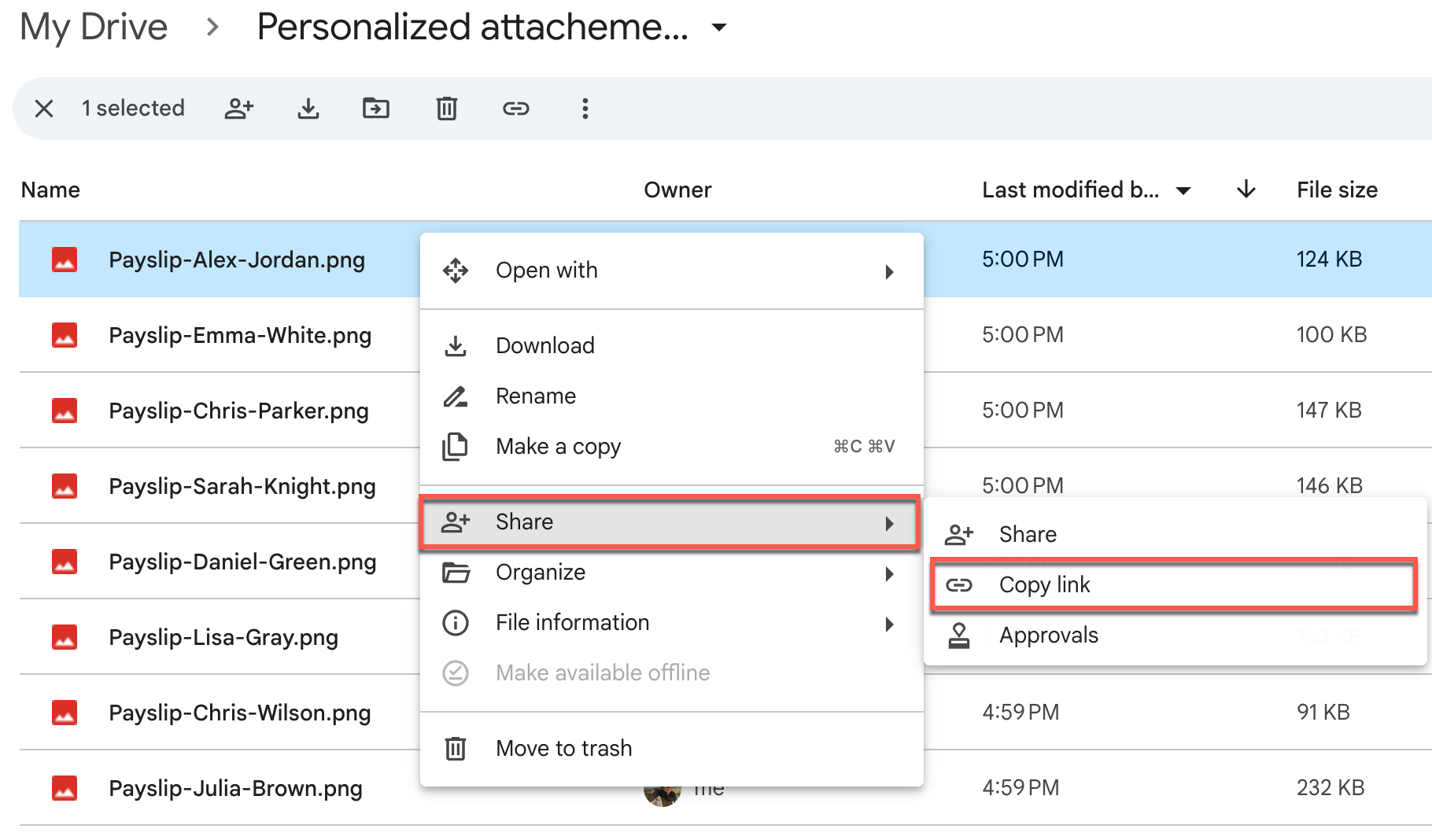
From Google Drive, right-click on the file > Share > Copy link.
-
In your spreadsheet, insert a new
AttachmentorAttachmentscolumn. -
Paste the link in the cell for the corresponding recipient. Repeat for each file.
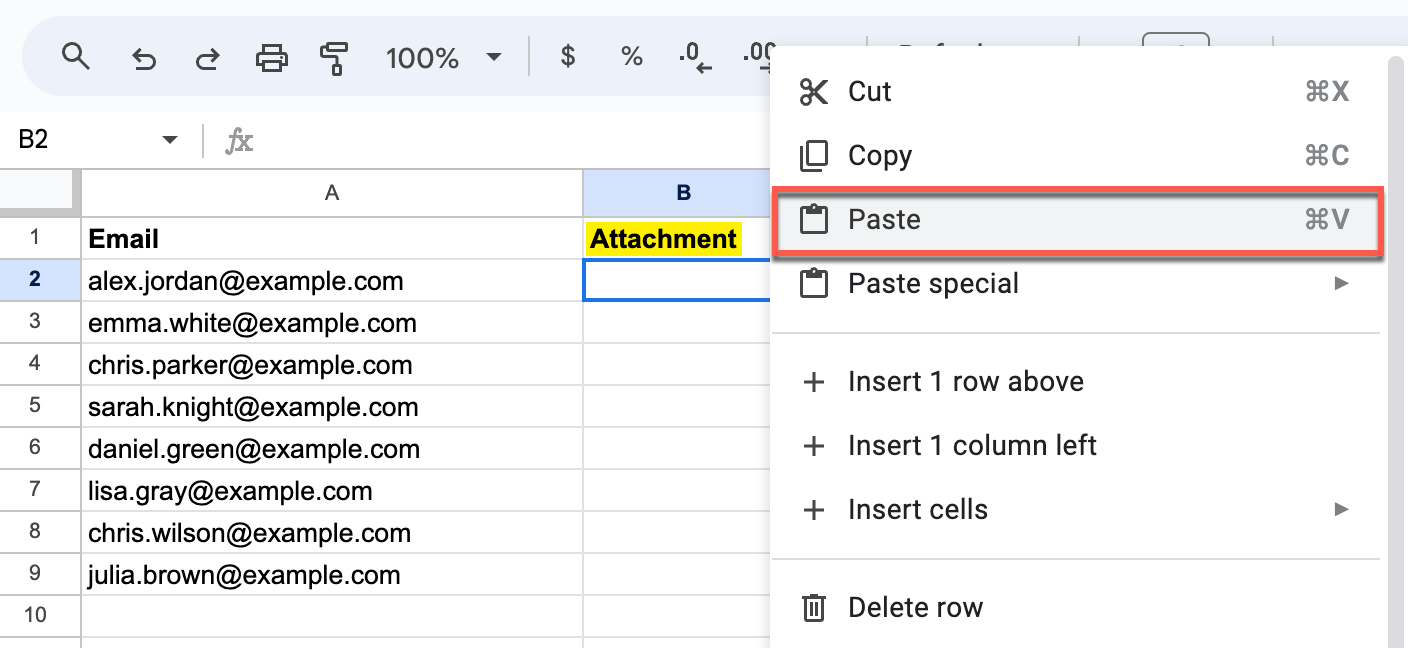
To attach multiple files for a recipient, separate links with a comma in the same cell.
-
In the menu bar, select Extensions > Yet Another Mail Merge: Mail Merge for Gmail > Start Mail Merge.
-
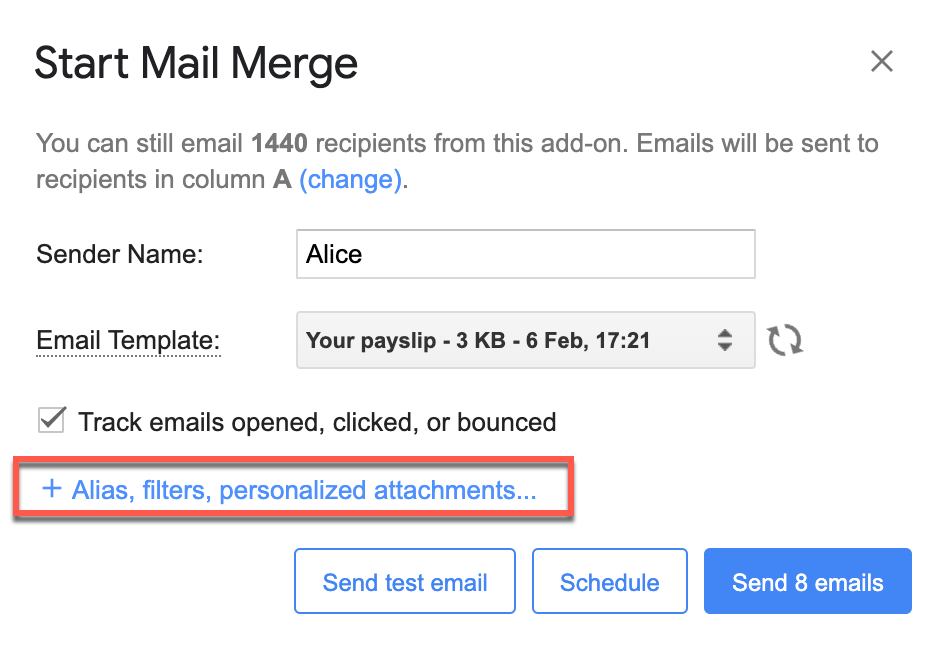
Click + Alias, filters, personalized attachments.
-
Select Attach files in column to emails sent next to Personalized attachments.
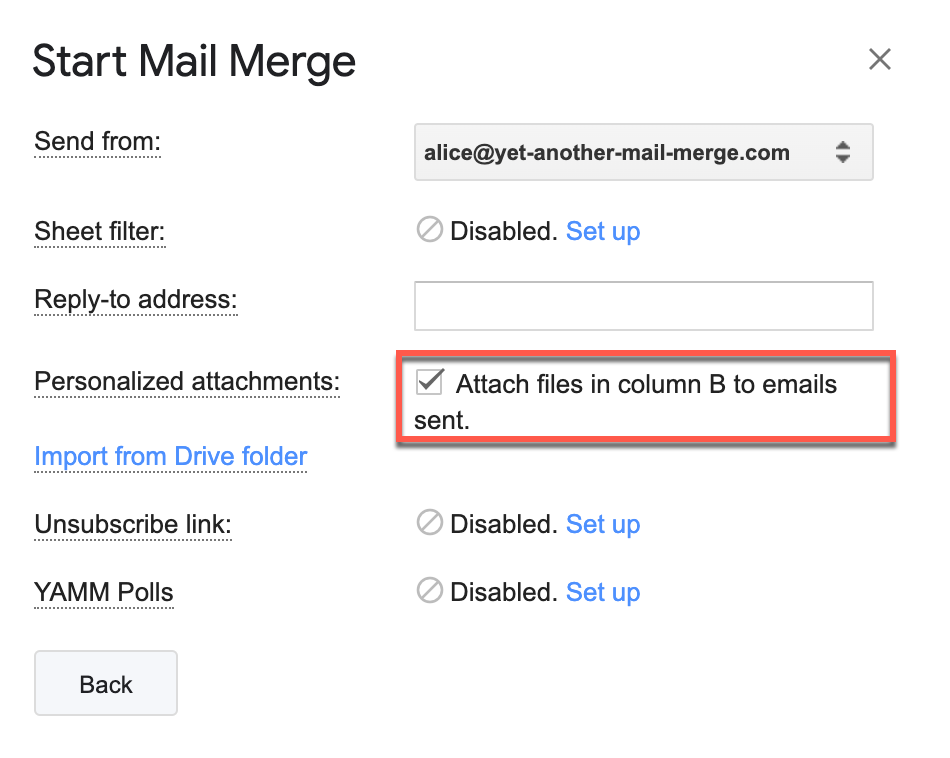
If you haven't set up Drive access yet, click Authorization required and authorize YAMM. See What permissions are needed?
-
Go back and select your Email Template.
-
Click Send test email to send yourself a test.
Check the test email in your inbox to confirm the attachments look right before you launch your campaign.
Add file links automatically (auto-match by filename ID)
Prerequisites
- You have created a contact list spreadsheet.
- You have uploaded the files for attachment to a single Google Drive folder.
- You have created an email template in Gmail.
YAMM matches each file to its corresponding recipient using unique IDs in the file names.
-
Go to your Google Drive folder. Each file must have a unique ID in its name, which will be referenced from your contact list spreadsheet (e.g.,
Firstname-Lastname).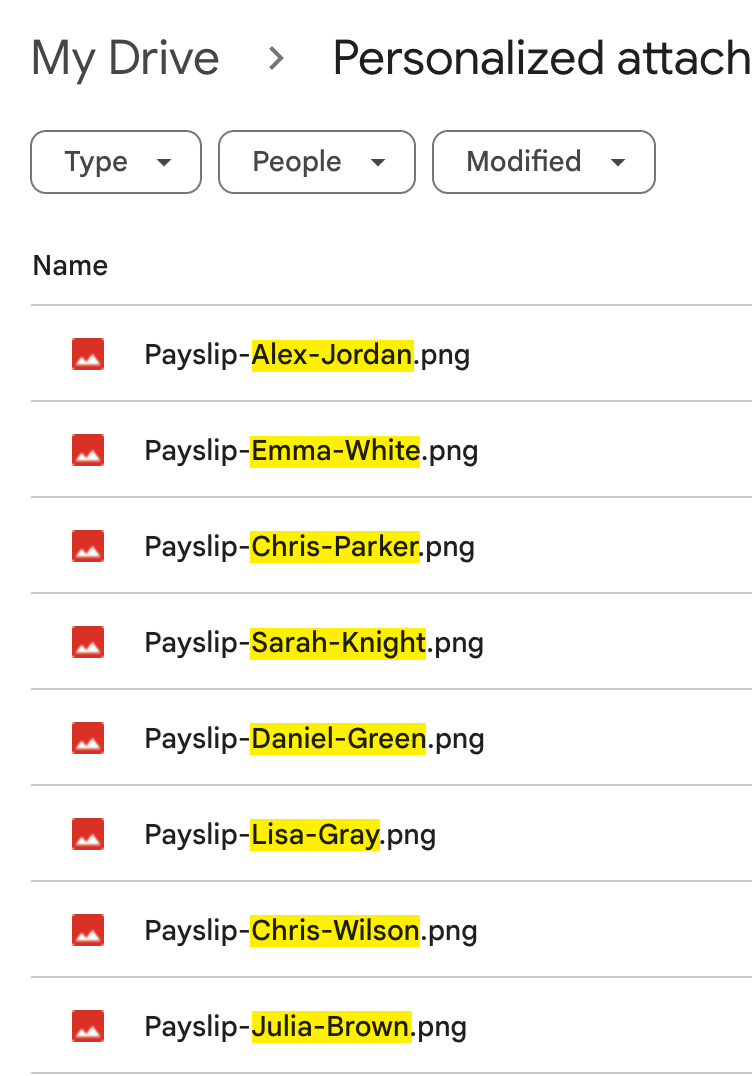
-
In your contact list spreadsheet, create a column listing each recipient's
ID. The ID ofPayslip-Alex-Jordan.pdfisAlex-Jordan.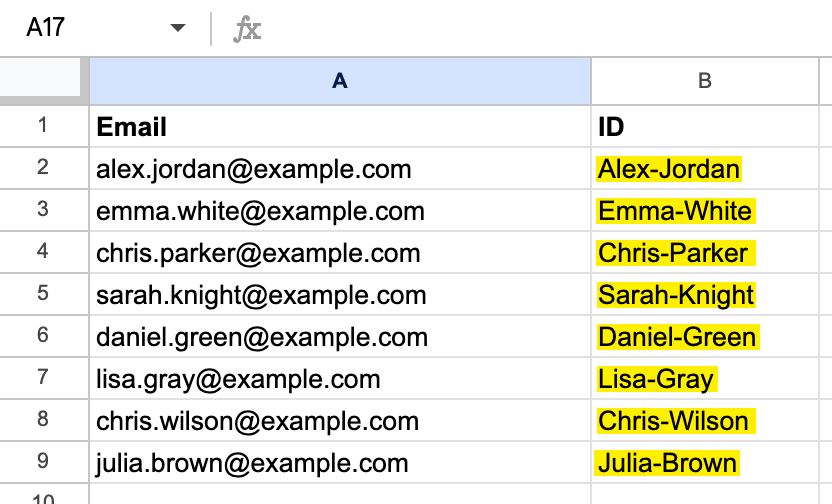 info
info-
To match multiple files, separate IDs with a comma.
-
Avoid overlapping IDs (
Chriswould matchChris-Parker.pdfandChris-Wilson.pdf). -
Case must match exactly.
-
Avoid spaces.
-
-
In the menu bar, select Extensions > Yet Another Mail Merge: Mail Merge for Gmail > Start Mail Merge.
-
Click + Alias, filters, personalized attachments.
If you haven't set up Drive access yet, click Authorization required and authorize YAMM. See What permissions are needed?
-
Click Import from Drive folder.
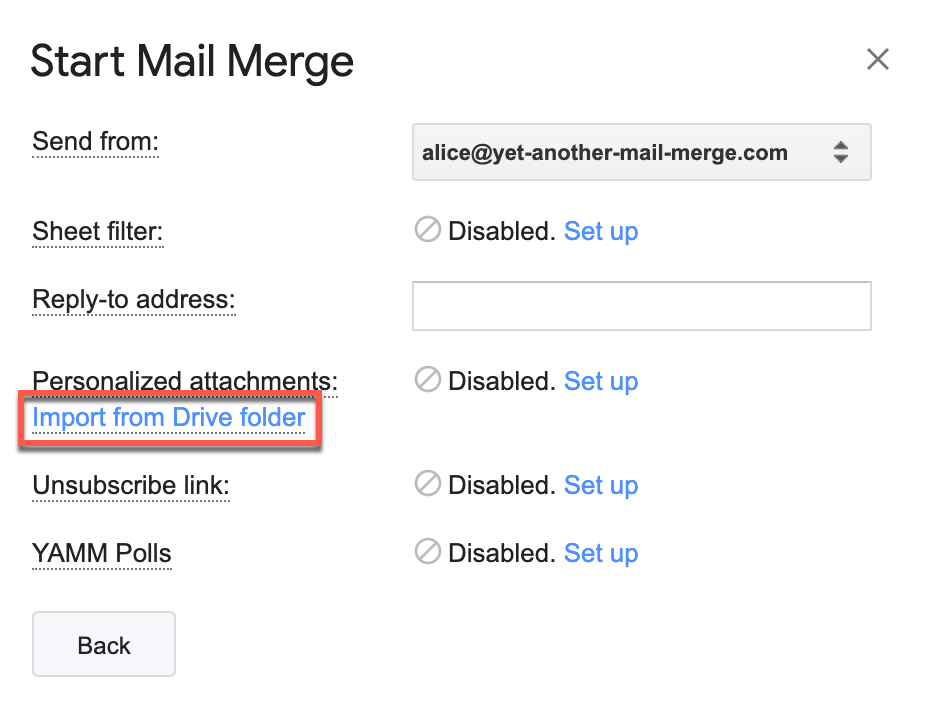
-
Select the folder (don't open it — opening shows No documents; see Attachments issue). Click Select.
-
Select the column to check for matches, click Import files.
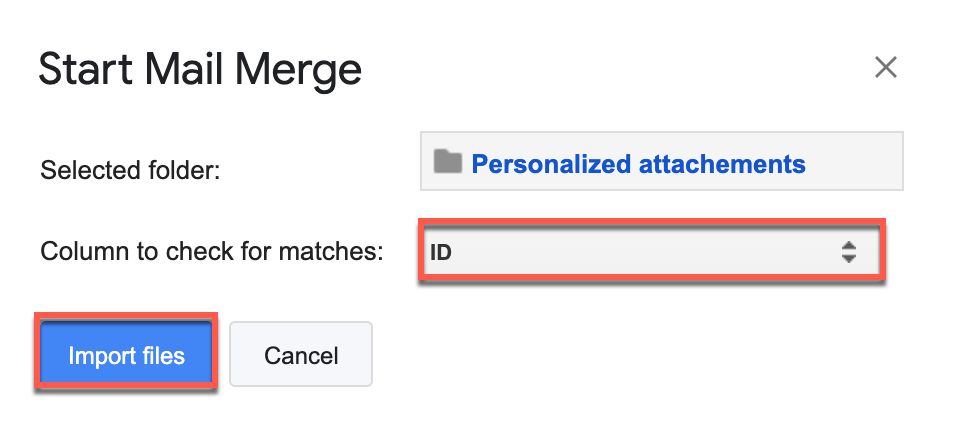
YAMM matches each filename to the recipient and adds links to a new
Attachmentcolumn plus anAttachment namecolumn. -
Select your Email template, then click Send test email to send yourself a test.
Check the test email in your inbox to confirm the attachments look right before you launch your campaign.