Send personalized links to each recipient
This article shows how to personalize links for each mail merge recipient in Google Sheets.
If you want to send personalized links, we recommend using both:
-
the ENCODEURL function to ensure the links work correctly,
-
then the HYPERLINK function to generate the final link.
YAMM does not support URLs containing spaces, quotes, or special characters when stored in spreadsheet cells.
-
✅ Use the ENCODEURL() function to encode only the parameter values — this will safely convert special characters (e.g. Awesome Table → Awesome%20Table).
-
🔴 Do not use ENCODEURL() on the entire URL, as it will also encode slashes / and colons :, which will break the base URL (https://...).
-
Create a new Encode column, and use the ENCODEURL function:
=ENCODEURL(<cell containing the value to encode>)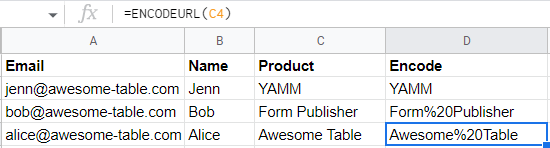
Non-alphanumeric characters are replaced with the percentage symbol (%) and a hexadecimal number.
-
Create a new Build Link column, and create the link using a fixed part and the encoded variable:
="http://example.com/?productid=" & <cell from the Encode column>
-
Create a new Hyperlink column, and use the HYPERLINK function to generate the final link with the label of your choice:
=HYPERLINK(<cell from the Build Link column>, "link label")
-
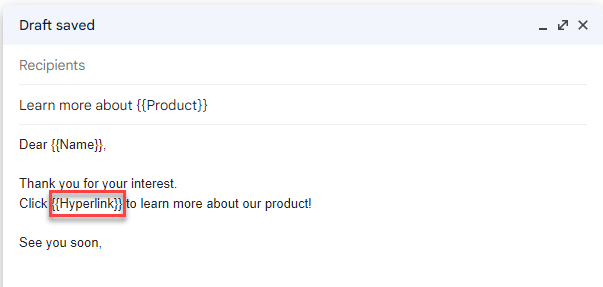
Insert the {{Hyperlink}} marker in your Gmail draft and send your mail merge with YAMM.
Result
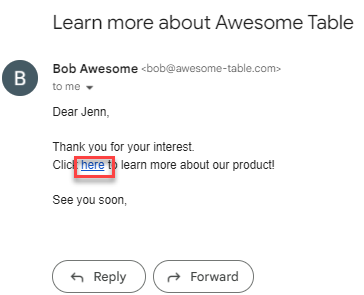
Each recipient receives an email with a personalized link, such as:
http://example.com/?productid=Awesome%20Table