How to Cancel a Meeting in Gmail
3 min read

Table of contents
Whether plans have changed or an event is no longer necessary, knowing how to cancel a meeting in Gmail can save you time and keep your schedule organized.
This guide will walk you through the steps of canceling a Google Meet meeting in Gmail without any hassles. Before we give you the steps, it’s important to know where exactly you need to go to cancel a meeting, so let’s start there.
Can you cancel a Google Meet in Gmail?
To start off, you can’t schedule or cancel a Google Meet meeting in Gmail. You have to go to your Google Calendar to both schedule and cancel a scheduled Google Meet meeting. Learn how to schedule a Google Meet meeting.
If you’re a meeting attendee, you have the option of ‘not attending’ or responding ‘No’ to a meeting invitation right from your email invitation in Gmail. This won’t cancel the meeting, but it will let the organizer know you won’t attend.
How to cancel a Google Meet you’ve scheduled
Here’s how you can cancel a pre-scheduled Google Meet meeting:
Step 1: Go to Google Calendar
Navigate to your Google Calendar.
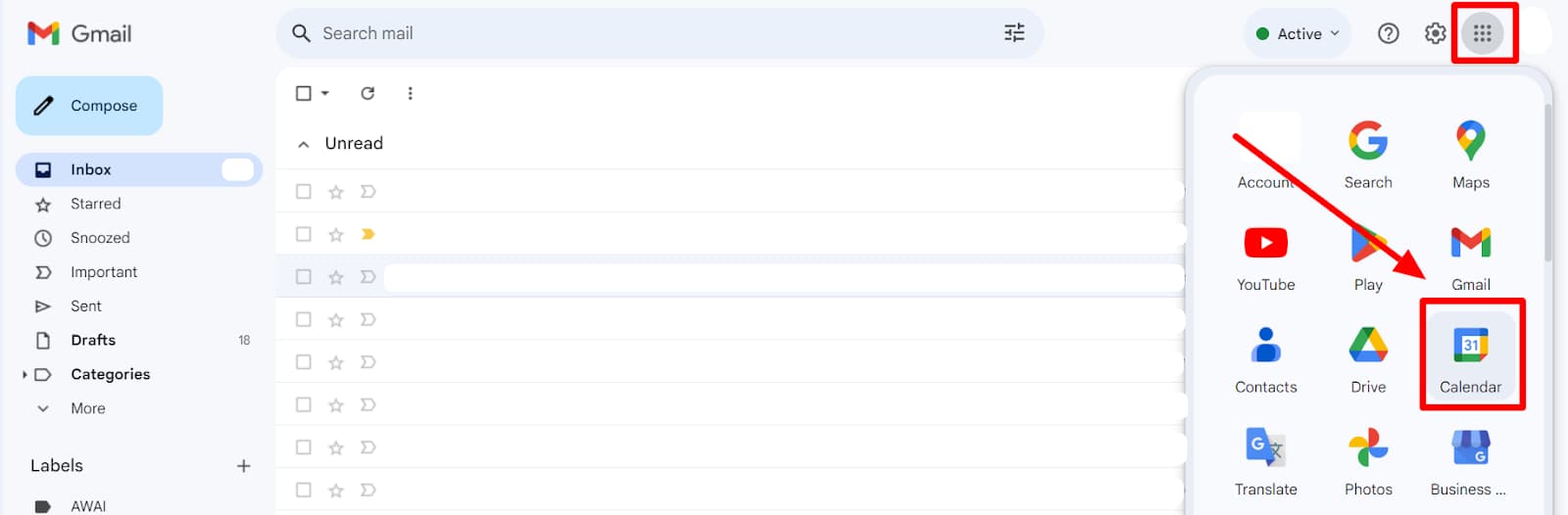
If you’re in Gmail, you can click the Google Apps button in the top right corner. Then, find and click the ‘Calendar’ button in the drop-down menu.
Step 2: Find meeting you want to cancel
Now, you have to look for your scheduled meeting on your calendar.
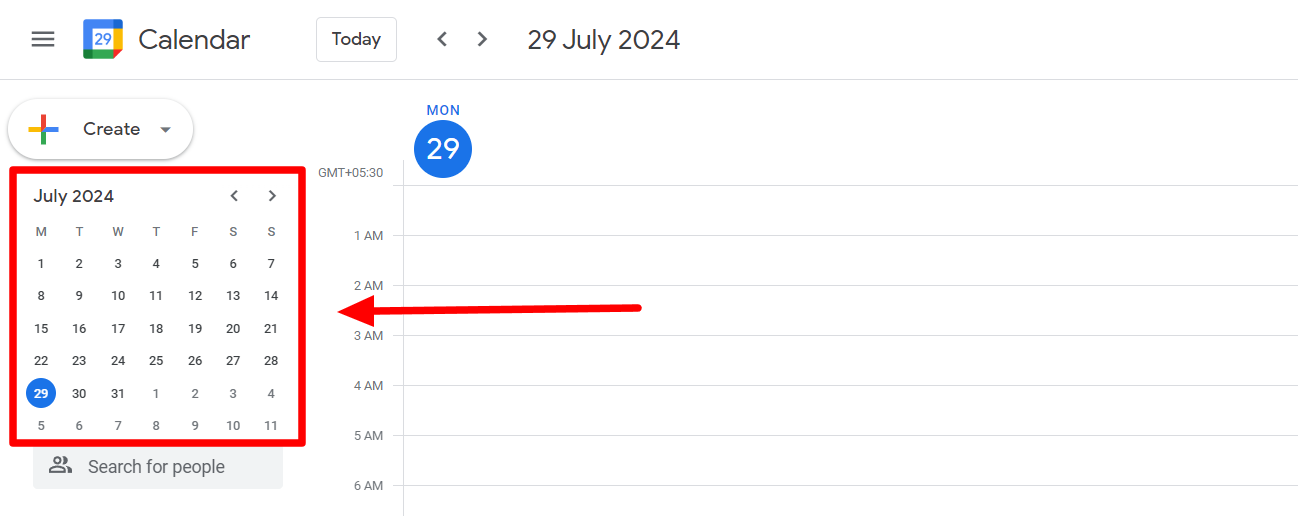
If you remember the meeting's date, select it in the monthly Calendar. This way, you’ll be able to view all the events scheduled for that day.
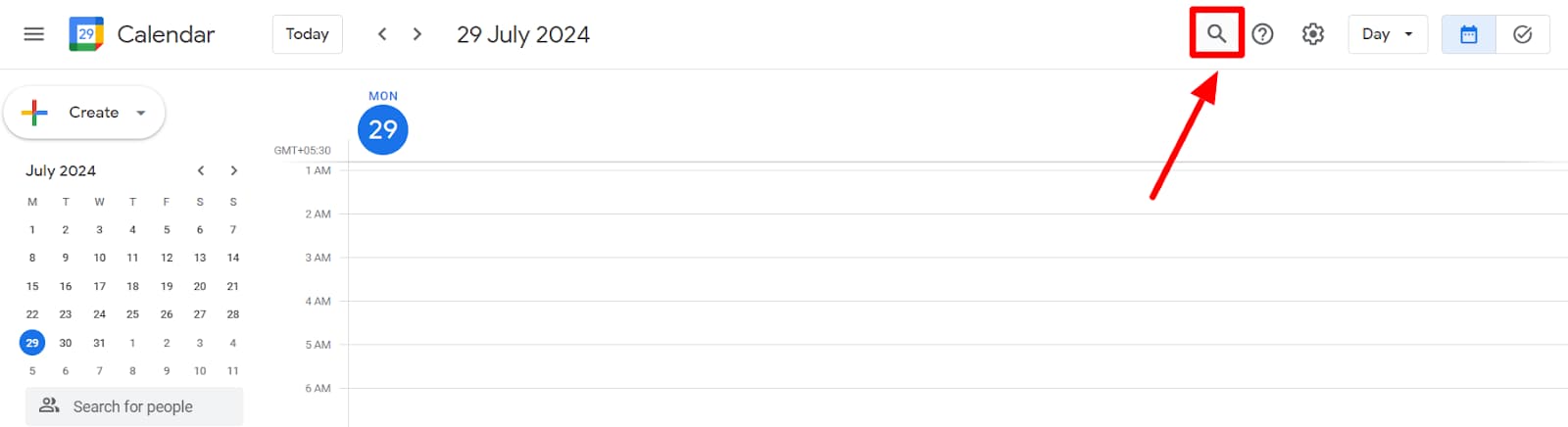
Suppose you don’t remember the date of the meeting. In that case, you can use the search feature. Simply input the name of your event to get to it.

If you cannot remember the date or the name of the scheduled meeting, you can choose a different view of your calendar. Opt for a Weekly or monthly view to see if you can identify the scheduled meeting you want to cancel.
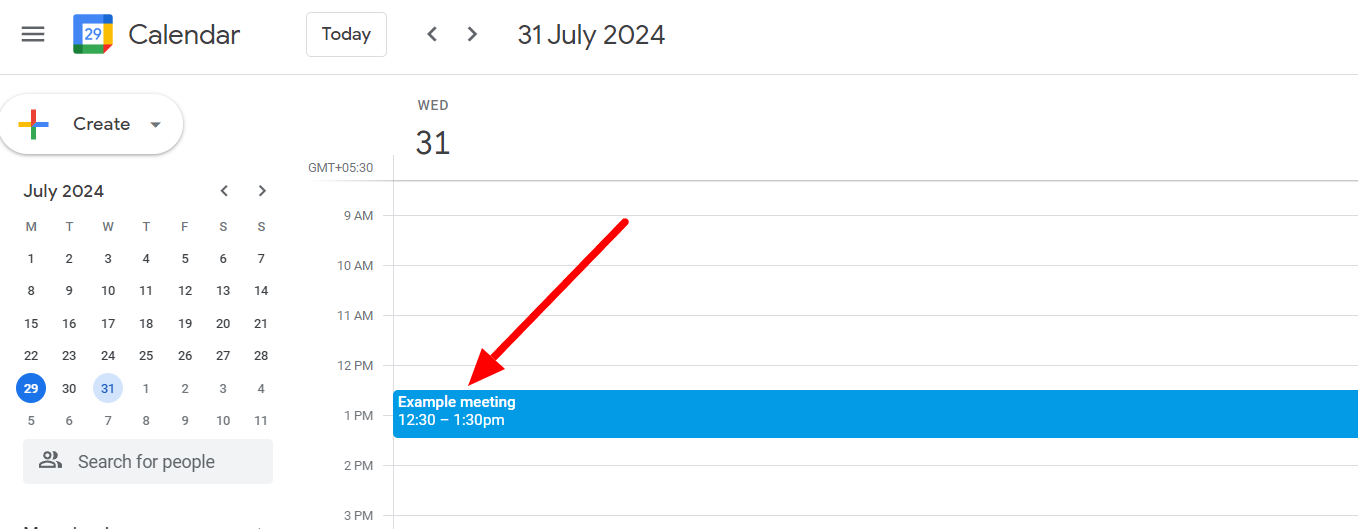
Once you’ve identified the meeting, click to open it.
Step 3: Click “Trash” icon
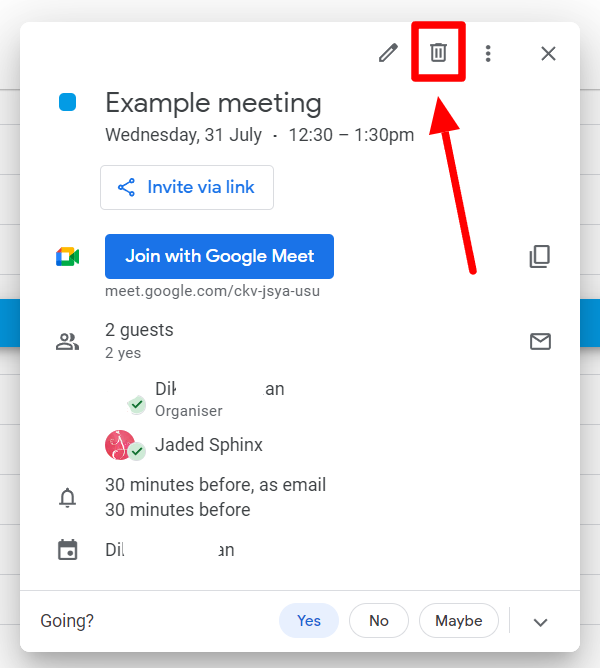
Click the trash icon on the top of the meeting details window to cancel the meeting.
Step 4: Choose to send a cancellation email (or don’t)
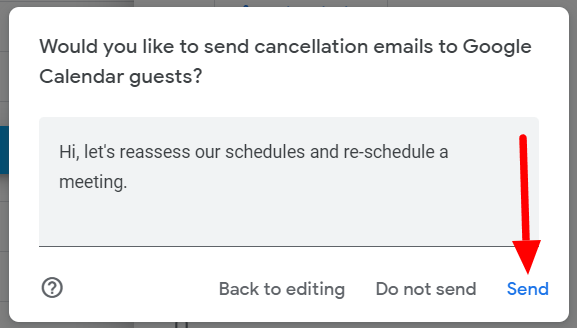
You’ll now be prompted to choose whether you want to send cancellation notifications to the meeting guests. You can also insert a message for your guests here.
This will send a generic system-generated email with your custom message. A great way of leaving an impact even while canceling a meeting is to send personalized messages to all your meeting participants. Learn how to send personalized messages from Gmail.
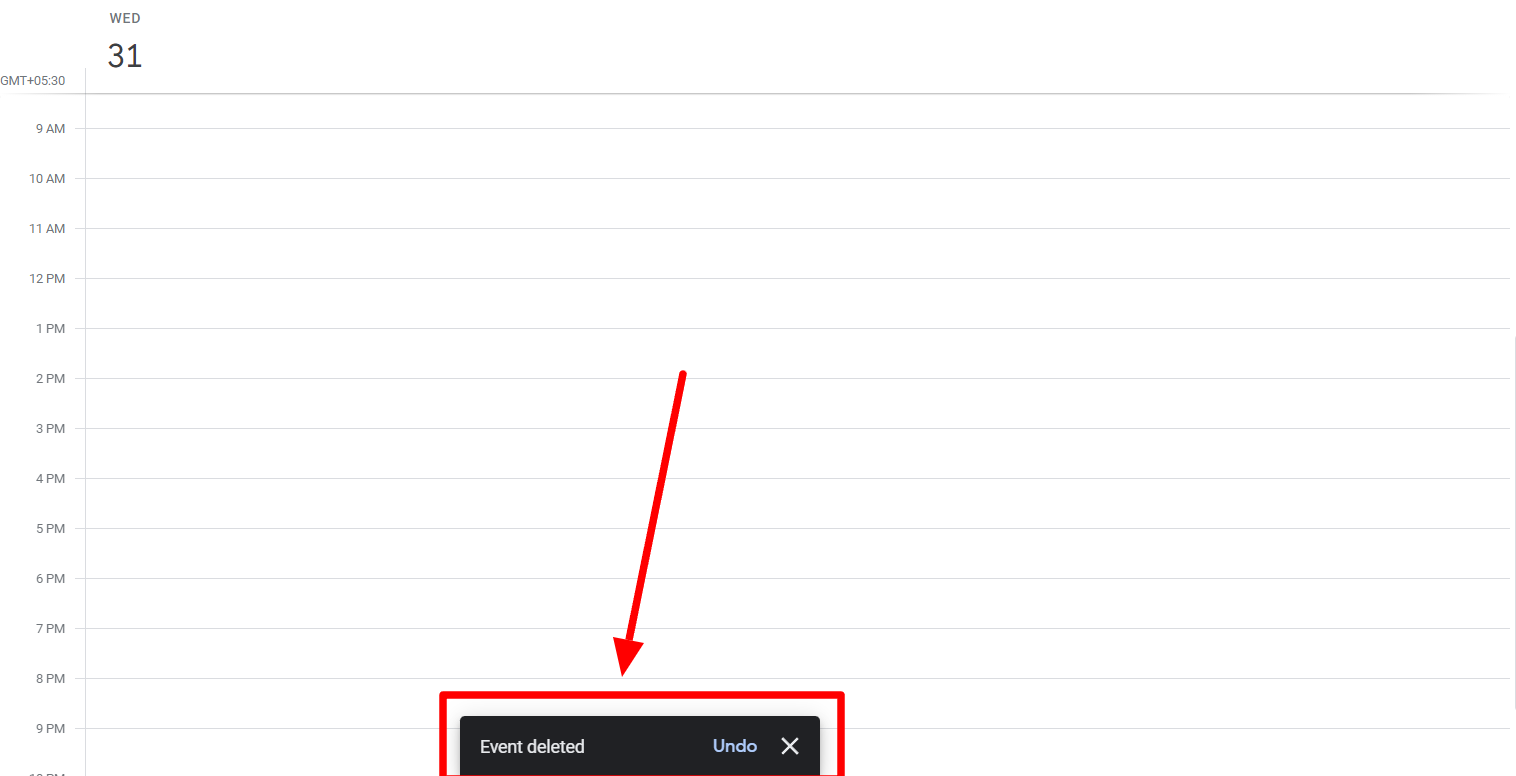
When you click ‘Send,’ your meeting will be canceled, and Google Calendar will show you a notification confirming the deletion of the event.
Perhaps you canceled the meeting because you were busy, or perhaps the platform wasn’t suitable for everyone. When you reschedule your meeting you can also choose other platforms like Zoom and still send meeting invites through Gmail. Learn how to schedule a Zoom meeting in Gmail.
Learn more about what you can do on Gmail
Gmail offers a plethora of features to enhance your email experience. In addition to scheduling meetings and sending and receiving emails, you can organize your inbox with labels, filters, and categories.
If you think knowledge is power and are interested in upping your Gmail game, check out the YAMM blog. The YAMM blog is where Gmail users of all levels find solutions to their Gmail snags and snafus. Got a Gmail-related question? Check out the YAMM blog!