How to Send Personalized Mass Emails in Gmail
Updated 7 min read
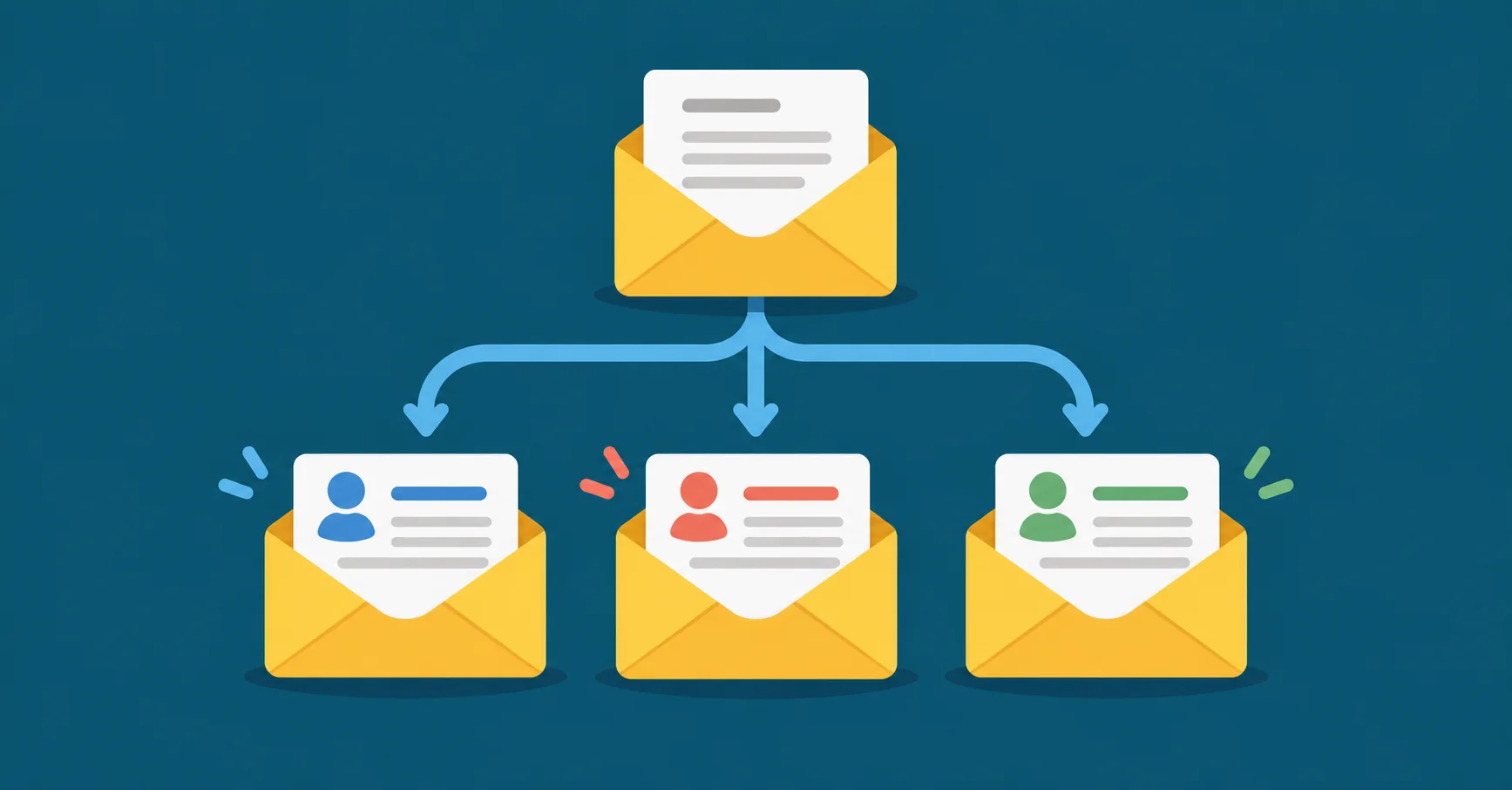
Table of contents
If everyone should get the same email, Bcc in Gmail works fine. But once you want each person to see their own name, or a line written just for them, you need a mail merge: a Google Sheet with one row per person, a Gmail draft that shows where each person's details go, and a tool that sends each of them their own copy from your Gmail.
Gmail has a mail merge of its own, but only on some paid Google Workspace plans. On any other Gmail account, or when more than the body has to change, you need an add-on. YAMM is our add-on, and it's the one in the example below.
Which way works on your Gmail account?
- Workspace Individual, Business Standard, Business Plus, Enterprise Standard, Enterprise Plus, Education Standard or Education Plus: you have Gmail's own mail merge. It fills any column of a linked sheet into the body of each email, and adds an unsubscribe link to every email. It can't put markers in the subject line or in the text of a link. A file you attach goes to everyone. It doesn't work with Schedule send, and when your list comes from a sheet, you can't add anyone in Cc or Bcc.
- Everyone else, including free @gmail.com accounts and Business Starter: Gmail has no mail merge for you. Bcc sends the same words to everyone. Each person in Bcc can see that they were Bcc'd, and can see everyone in To and Cc. Here's how to hide addresses with Bcc, and how to send the same email to each person separately.
YAMM works on all of these accounts. It writes whether each person opened, clicked or replied into your sheet, and following up with everyone who didn't open takes a few clicks. It can also put markers in the subject, add a link or a file that's different for every row, and schedule a merge on a Pro plan.
Example: one email, a different message for each person
Say you run the Terrace Hotel, and each guest gets their own check-in note. Bob's reminds him to bring his ID card, or he won't get into his room. Everyone gets the same email with their own name, and only the middle paragraph changes.
First mail merge ever? Our step-by-step mail merge tutorial goes through each screen more slowly.
Step 1: Install YAMM
Install YAMM from the Google Workspace Marketplace. It adds Yet Another Mail Merge to the Extensions menu in Google Sheets.
Step 2: Put one person per row in a Google Sheet
Open a new Google Sheet. In the first row, write your column names. Then add one person per row, starting from row 2.
You need a column of email addresses. It doesn't have to be called Email: YAMM finds the column with addresses and lets you pick it. Then add a column for each thing that changes. Here, that's First Name and Message, and each Message cell holds that person's whole paragraph.

Step 3: Write a Gmail draft with markers
In Gmail, click Compose and write the email once, as if to one person. Leave the To field empty, because YAMM fills it in from your email column.
Wherever something changes per person, type the column name between double curly brackets. This draft says Hi {{First Name}}, and then {{Message}} where the paragraph goes. The subject can have markers too: this example's subject starts with {{First name}},, as you'll see in YAMM's template list in Step 4. Capital letters don't matter: {{first name}} still matches a First Name column.
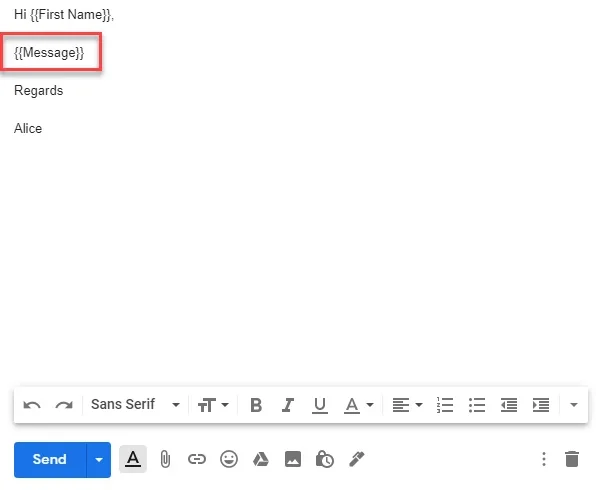
Close the draft so Gmail saves it, and don't delete it. If you keep a lot of drafts, star this one: starred drafts show at the top of YAMM's list.
Step 4: Send yourself a test, then send
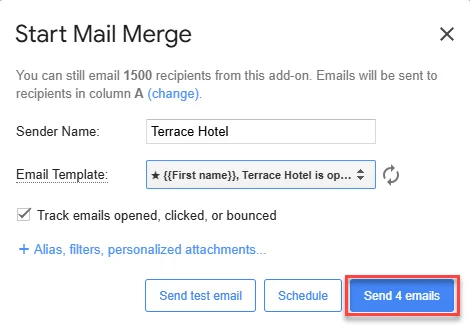
Back in your sheet, go to Extensions > Yet Another Mail Merge: Mail Merge for Gmail > Start Mail Merge.
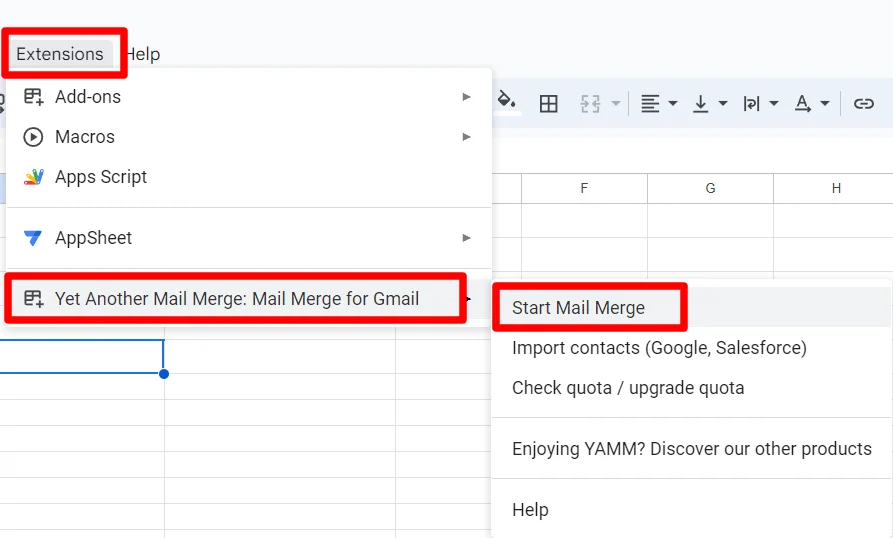
In the window that opens:
- Check that YAMM picked the right email column.
- Type a Sender Name if you want one.
- Pick your draft in the Email Template list. If it isn't there yet, click the refresh icon next to it.
- Leave "Track emails opened, clicked, or bounced" ticked, so you can follow up later.
- Click Send test email. YAMM sends it to you, filled in from the first visible row of your sheet, so you see what Bob will get. A test counts toward your daily limit.
- Click Send emails. The button shows how many emails will go out.
Step 5: Watch the Merge status column
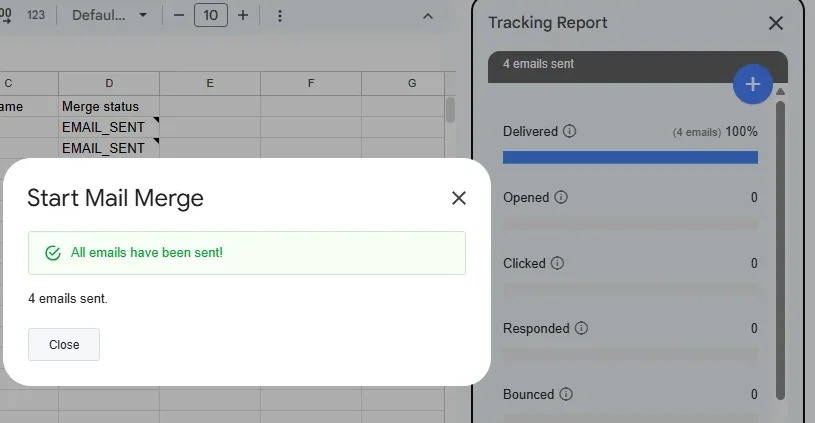
YAMM adds a Merge status column to your sheet and writes EMAIL_SENT on each row as that email goes out. A tracking report opens on the right.
Other things that can change for each person
- A link. Give everyone a different URL, such as a form that's already filled in with their details. Add a column named Hyperlink and build each person's link there with the HYPERLINK formula. Then put
{{Hyperlink}}in the draft. The help center shows how to personalize links. - A file. Attach a different PDF from Drive to every row, like an invoice or a certificate. On some plans this lowers your daily limit (see the limits below). Here's how to attach a different file for each person.
- Who gets it. To email only part of your list, add a normal filter in Google Sheets. YAMM sends only to the rows the filter shows and skips hidden rows. Don't use a filter view: YAMM doesn't read filter views, so check the number on the Send button before you click it.
After you send: see who opened, then follow up
With tracking on, the Merge status column changes as people act on your email: EMAIL_OPENED, EMAIL_CLICKED, RESPONDED, BOUNCED or UNSUBSCRIBED. You can sort and filter by it like any other column.
To follow up, open the tracking report, click the + button and choose who gets it: everyone, people who didn't open, people who didn't reply, or people who did open. People whose email bounced or who unsubscribed never get a follow-up.
How many people can you email a day?
- YAMM sends from your own Gmail. You can email up to 20 people a day on the Free plan, 400 on Pro with an @gmail.com account, and 1,500 on Pro with a Google Workspace account. New Workspace accounts start at 400 while Google's trial and warm-up last. With a different file for each person, Pro on @gmail.com and new Workspace accounts go down to 100 a day. YAMM's daily quota page has the details.
- Personal Gmail: up to 500 recipients in one email, and 500 emails a day.
- Google Workspace: up to 2,000 emails a day per user, or 500 a day during a Workspace trial. One email can go to up to 2,000 recipients, with at most 500 outside your organization. Across a day, at most 3,000 recipients can be outside your organization.
- Gmail's mail merge: up to 1,500 recipients a day.
Every address in To, Cc and Bcc counts as a recipient. Google Workspace and YAMM count over the last 24 hours, not per calendar day.
One last tip: send the test, read it the way Bob will, and then send the rest.