How to Schedule a Google Meeting in Gmail
3 min read

Table of contents
The remote and hybrid work culture requires everyone to be able to set up and attend online meetings quickly. Google offers Google Meet integration for users who love the Google platform, so does that mean you can schedule meetings using Gmail itself?
We’ll answer that below and also show you how to schedule a Google meeting in Gmail with Google Meet in a few simple steps. If you’re ready to coordinate with colleagues or clients without leaving the Google platform, let’s begin!
Can you schedule a Google Meet in Gmail?
You can start a new meeting with a code right away or join a new meeting while in Gmail, but you can’t schedule a Google Meet for later. This is something that’s only done through the Google Calendar. Here’s how you can schedule a Google Meet through the Google Calendar:
- Go to your Google Calendar.
- Click the “+ Create” button on the left.
- Enter the event title, date, and time.
- Enter email addresses of invitees in “Add guests” field.
- Ensure the “Add Google Meet video conferencing” option is enabled.
- Add a location and event description in the respective fields.
- Choose how you want to be notified about the event.
- Click “Save.” Click “Send” to send email invitations to your guests.
Your meeting is now scheduled and guests will receive an email with the event details and a Google Meet link. However, there are times when you’re working in Gmail and want to send a meeting link to someone quickly. For such situations, where you don’t need scheduling, you could make a Google meeting in Gmail.
How to create a Google meeting in Gmail
Step 1: Click “Meet” in Gmail
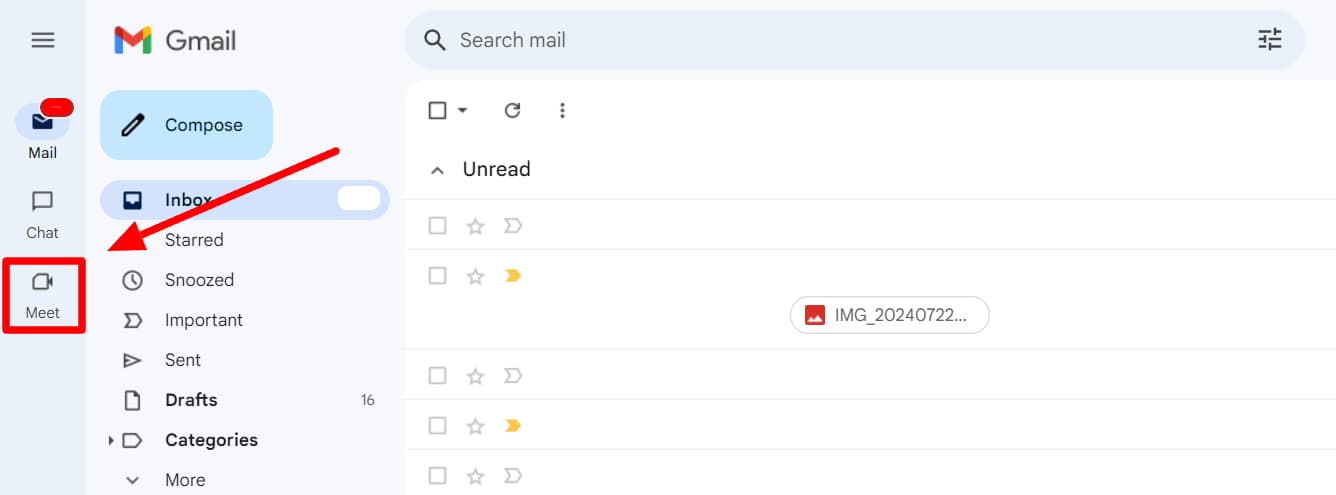
Here’s how you can quickly create a meeting link through Gmail. Click ‘Meet’ in the left side panel of your Gmail.
Step 2: Select “New meeting”
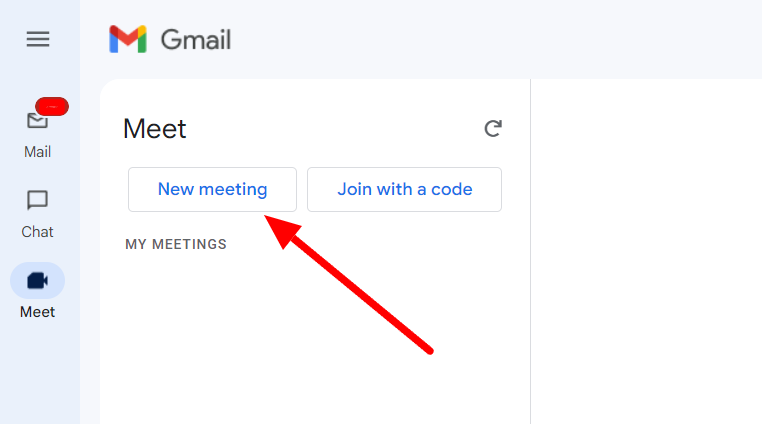
Select ‘New meeting’ to set up a new meeting.
Step 3: Send invite via link or email
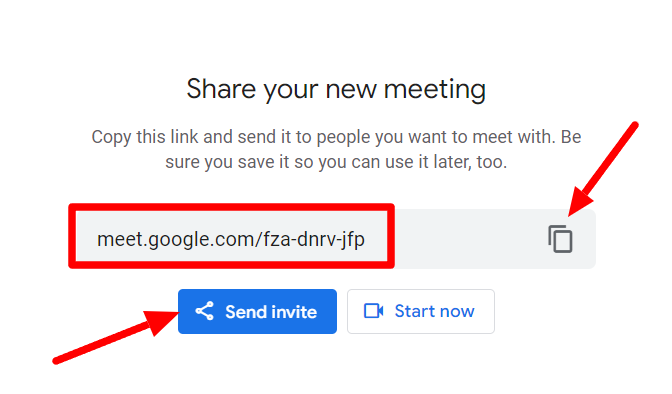
Gmail will now generate a meeting link. You can copy it to your clipboard and insert it as a hyperlink in an email or click the ‘Send invite’ button.
While Google Meet is a great way to have meetings with your contacts, sometimes, emails suffice. Learn how to send an email to all your contacts in Gmail.
Learn more about Gmail’s capabilities by going to the YAMM blog
Were you happy to find out how easy it is to set up a meeting in Google Meet even if you’re in Gmail? Well, Gmail is filled with many such easy-to-use features that really make life easy once you find out about them.
If you want to achieve more by doing less with Gmail, head over to the YAMM blog. YAMM blog is where productivity freaks and communication enhancement geeks put together guides and step-by-step tutorials so that even complete Gmail beginners can look like pros. Check out the YAMM blog!