How to Cancel a Mail Merge That Was Scheduled
3 min read
Table of contents
Did you just find out that your scheduled mail merge is about to go out with errors or incorrect information? That can be a stressful situation. Knowing how to cancel a mail merge is handy in such moments.
This guide will walk you through the steps to halt a mail merge process before any emails are sent so you can prevent any potential marketing mishaps. Ready to take control of your mail merge? Let’s dive in!
How to cancel a mail merge using YAMM
Let’s say you’ve downloaded YAMM, installed it, and then scheduled a mail merge on it. Here are the steps to stopping a mail merge that you’ve already scheduled:
Step 1: Go to your YAMM dashboard
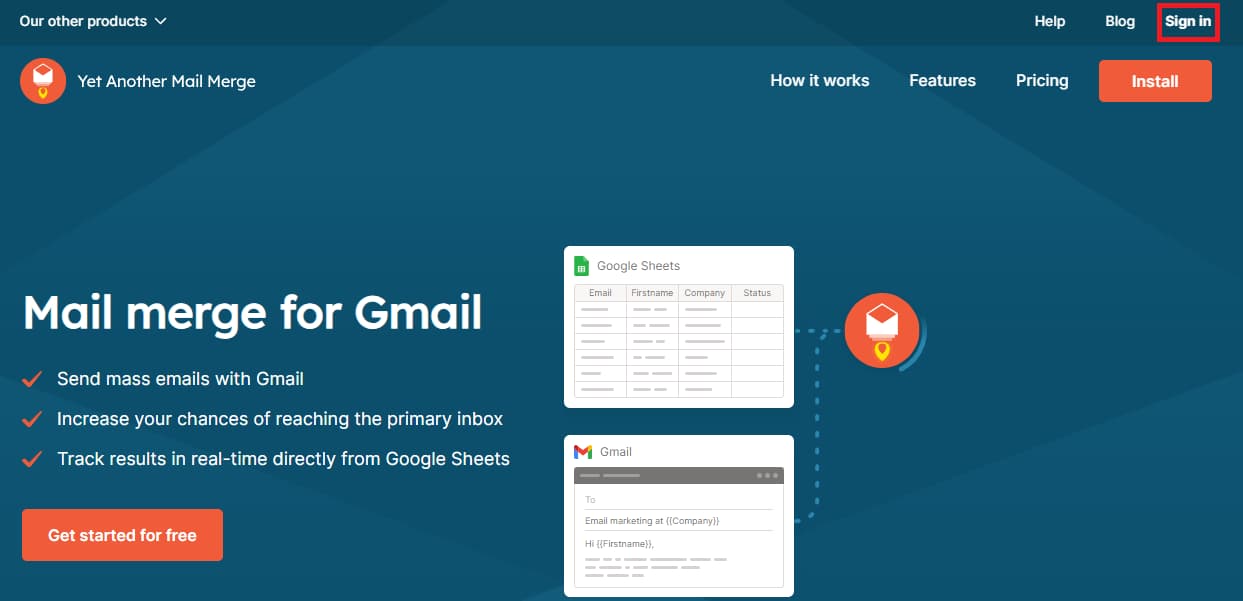
To get to your dashboard, sign into your account on YAMM. If you’ve already signed into your Gmail, you can also get to your dashboard from there.
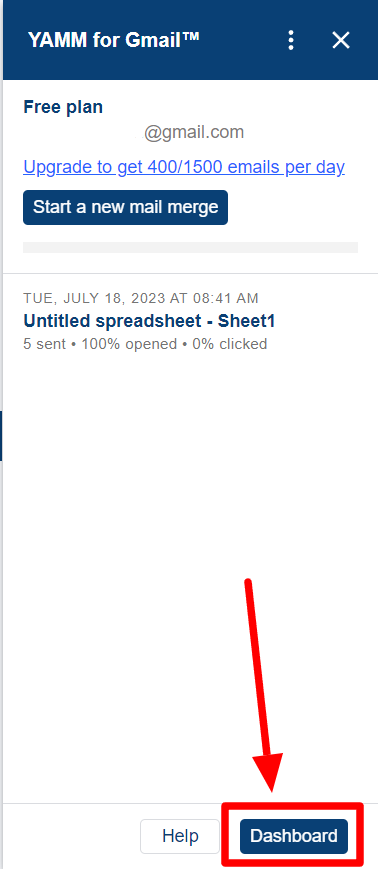
When YAMM opens up in a new window, click ‘Dashboard’ at the bottom corner.
Step 2: View the “Scheduled” tab under “Mail merges”
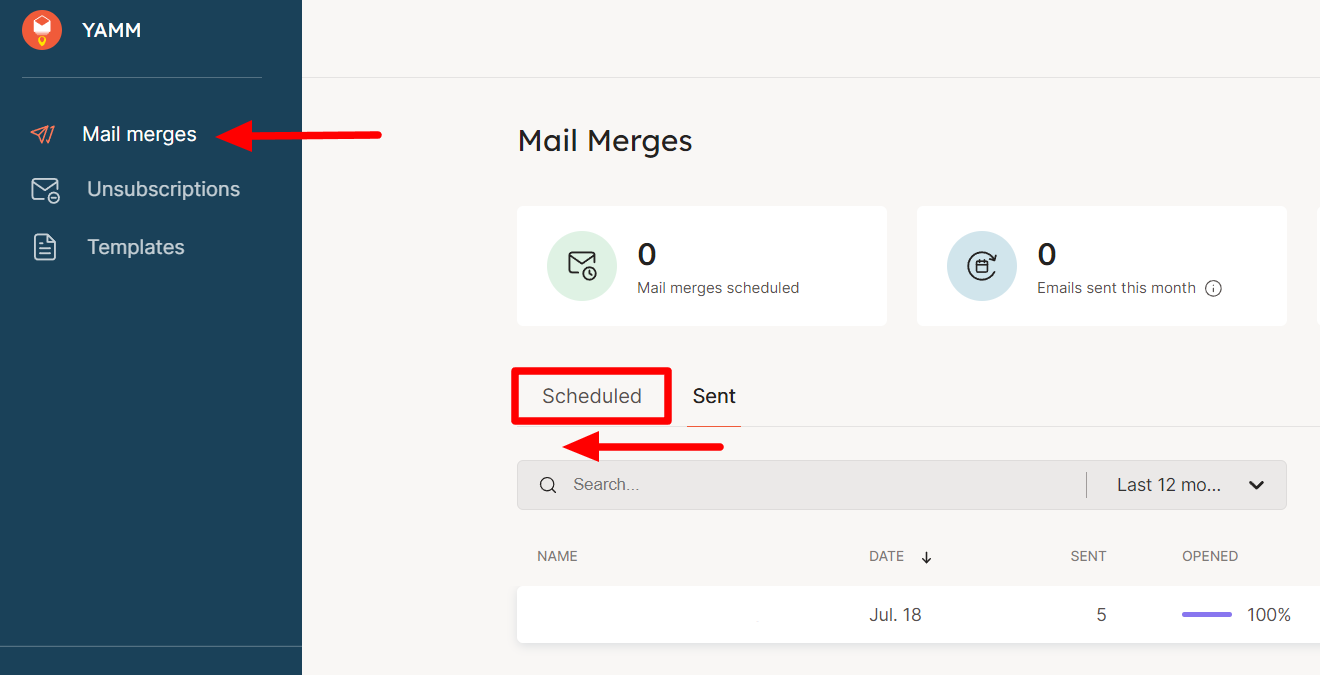
Once you’re in your Dashboard, under “Mail Merges,” toggle to the “Scheduled” tab from the “Sent” tab.
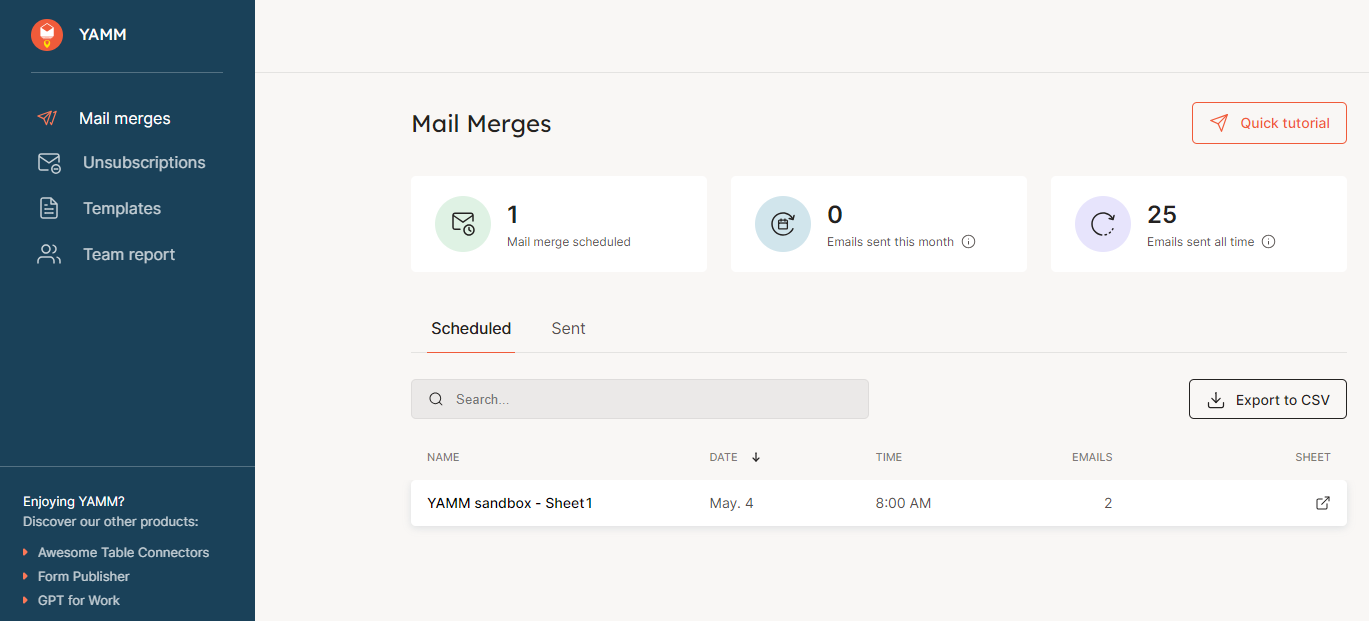
Step 3: Click mail merge you want to cancel
Find and click the particular mail merge that you want to cancel.
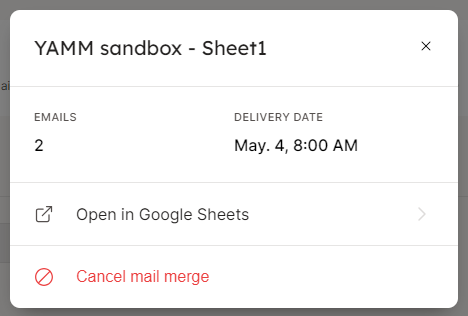
Step 4: Select “Cancel mail merge”
This will open up a new window. Click ‘Cancel mail merge.’ Your YAMM dashboard will display a confirmation message about the canceled mail merge.
FAQs about canceling a scheduled mail merge
Here are a few important things to know about mail merges:
How do I schedule a mail merge in the first place?
Scheduling a mail merge is easy with YAMM. After installing YAMM, there are three steps to conducting a mail merge:
- Creating and saving an email template in Gmail.
- Creating email groups in Gmail.
- Starting a mail merge on Google Sheets.
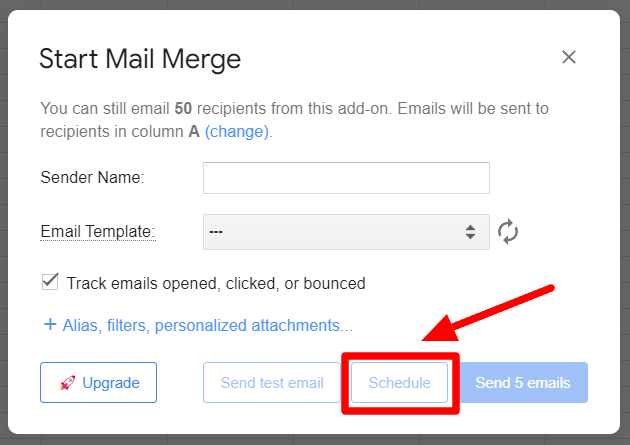
The step to schedule your mail merge appears after you’ve clicked “Start mail merge” on Google Sheets. You need to have a paid YAMM subscription to schedule a mail merge. Upgrade your YAMM plan here to schedule your mail merges with ease.
How will I know if a mail merge has been canceled?
When you click ‘cancel mail merge,’ a message at the bottom shows that the scheduled mail merge is being canceled. When the cancellation is complete, the dashboard also displays a message confirming that the mail merge has been canceled.
Can I stop a mail merge once it's sent?
Technically, all your mail merge messages are sent through Gmail. While possible, it's difficult to stop a message after it has been sent, as there’s a very small window in which you can do it. Learn how you can recall an email in Gmail.
Why does it still say scheduled in the merge status column?
You may continue to see “Scheduled” in the status column in your Google Sheets. You should know that no messages will be sent if you’ve successfully canceled the mail merge. If you don’t want to see the un-updated status, simply delete the column on your sheets.
Easily schedule and cancel mail merges using YAMM
Scheduling, as well as canceling mail merges, is easy to do with YAMM. Being able to schedule messages is a crucial component of running a successful email campaign. Without it, you’re always chasing the right time to send your messages.
Use YAMM to schedule messages easily, and you’ll never have to worry about missing the right time to connect with your audience. Upgrade your mail merges by learning essential mail merge features on the YAMM blog.