How to Track Email Opens, Clicks and Replies in Google Sheets
9 min read
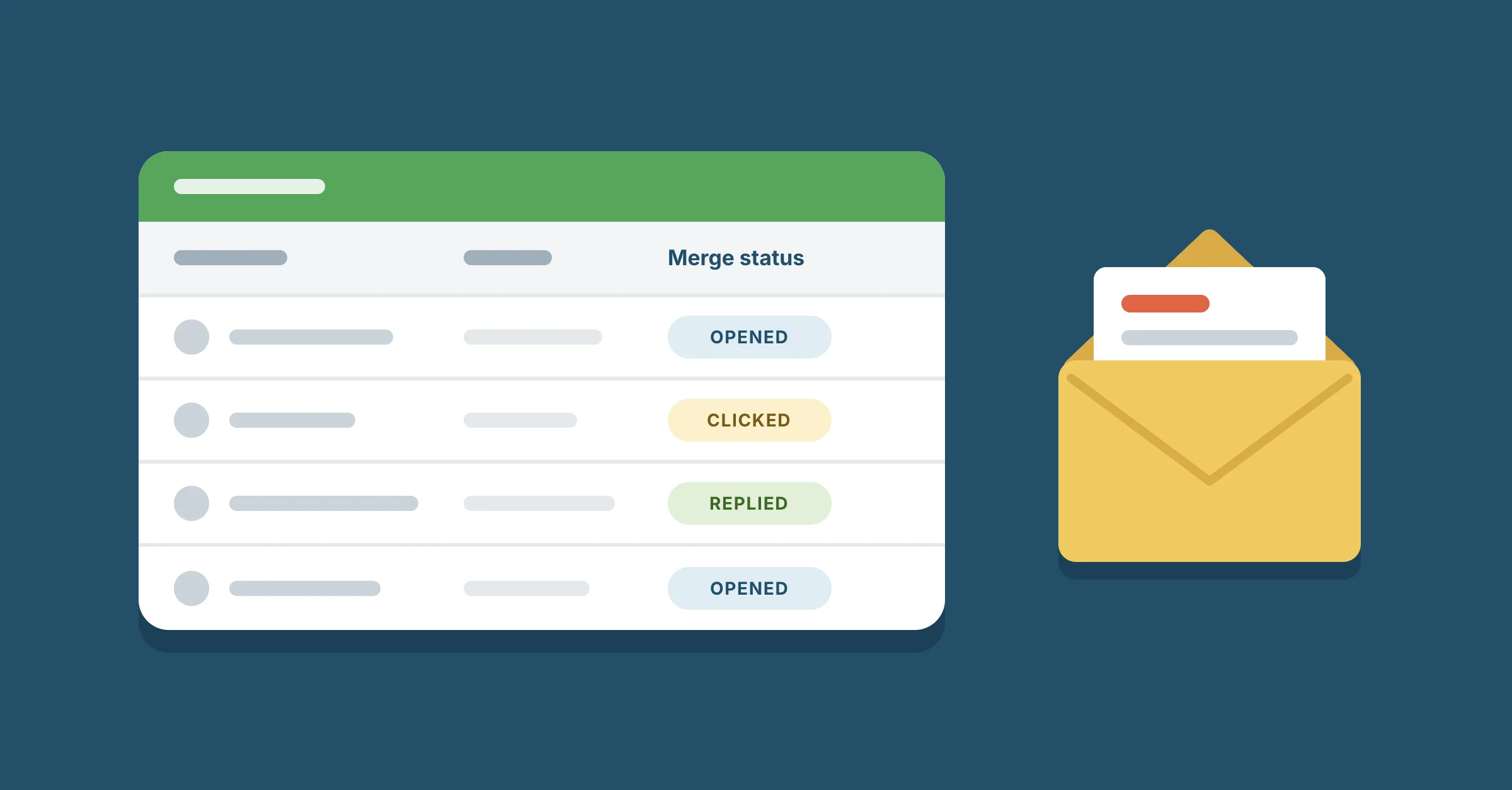
Table of contents
Yes, you can see who opened, clicked or replied right in your Google Sheet. Send your mail merge with YAMM, a Google Sheets add-on, and turn on tracking before you send. Each row then gets one status that moves from sent to opened to clicked, or to replied, and the tracking report updates in real time. Trust a reply most and an open least.
You can also schedule the merge up to two weeks ahead and track it the same way. The sheet you used as your list becomes your report. There's nothing to export and no other dashboard to open: you send, track and follow up from the same place.
Can Gmail or Google Sheets track opens without an add-on?
No. Google Sheets has no email tracking, and Gmail's own read receipts work one email at a time, only on Google Workspace accounts whose admin turned them on. And the recipient can choose not to send one. To see opens, clicks and replies for everyone on a list, row by row, you need a mail merge add-on that tracks them, such as YAMM.
How to turn on tracking for your mail merge
You need a Gmail account, a Google Sheet with your list and the YAMM add-on, which you can install from the Google Workspace Marketplace. Steps 1 to 3 are a normal mail merge; our guide to sending a mail merge in Gmail covers them in more detail.
- Put your list in a sheet. One row per person, a column with their email address, and a column for each detail you want in the email, such as First name.
- Write the email as a Gmail draft. Add markers such as
{{First name}}where each person's details go. The marker must match the column header. - Open YAMM from the sheet. In Google Sheets, go to Extensions > Yet Another Mail Merge: Mail Merge for Gmail > Start Mail Merge. Check that it found your email column and pick your draft.
- Turn on tracking. Select Track emails opened, clicked or bounced before you send. This is the step people forget. Without it you get no opens or clicks, and you can't send a follow-up from the tracking report later.
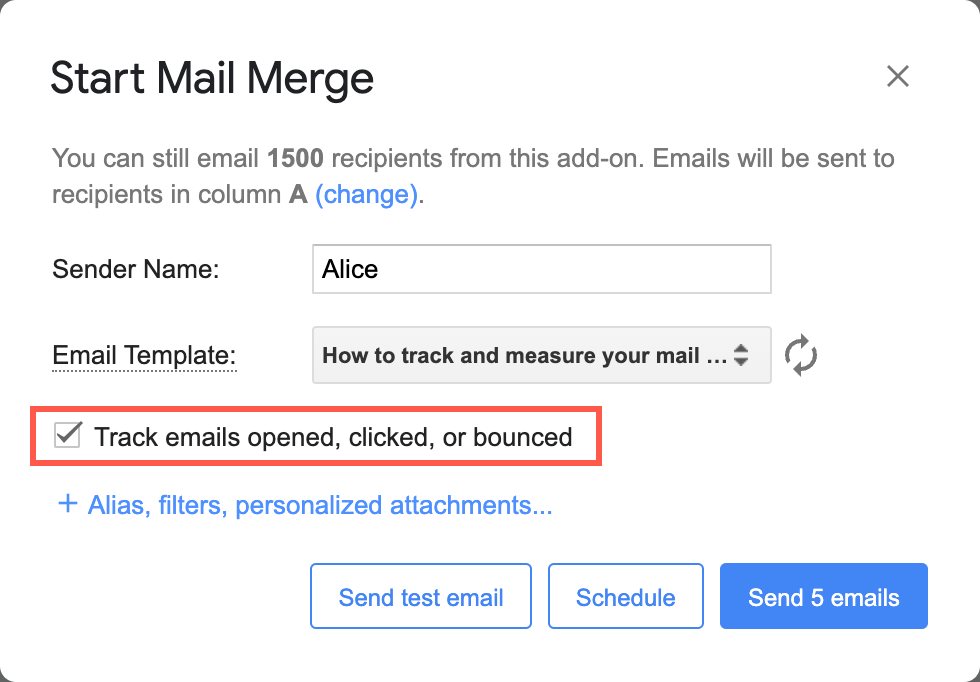
- Send yourself a test, then send. Click Send emails, or Schedule to send it later. Each person gets their own email from your Gmail address.
When the merge starts, YAMM adds a Merge status column to your sheet and opens the tracking report in the right sidebar. If you close it, open it again from Extensions > Yet Another Mail Merge: Mail Merge for Gmail > Open tracking report. Keep the sidebar open while results come in: the Merge status column updates live only while it's open.
What YAMM writes in your sheet for opens, clicks and replies
Every row gets one status in the Merge status column, and it shows how far that person got:
- SCHEDULED: the merge is scheduled and this email hasn't gone out yet.
- EMAIL_SENT: the email left your Gmail.
- EMAIL_OPENED: they opened it, as far as tracking can tell.
- EMAIL_CLICKED: they clicked a link in it.
- RESPONDED: a reply arrived in the same Gmail conversation.
- BOUNCED: the email couldn't be delivered to that address.
- UNSUBSCRIBED: they clicked the unsubscribe link.
- DO_NOT_TRACK: they used a tracking opt-out link, so their opens and clicks aren't recorded.
A newer status replaces the older one. When someone opens your email, EMAIL_SENT becomes EMAIL_OPENED. When they click a link, EMAIL_OPENED becomes EMAIL_CLICKED. So a row that says EMAIL_CLICKED also means the person opened it. The tracking report counts it that way too: its Opened number includes everyone who clicked, replied or unsubscribed.
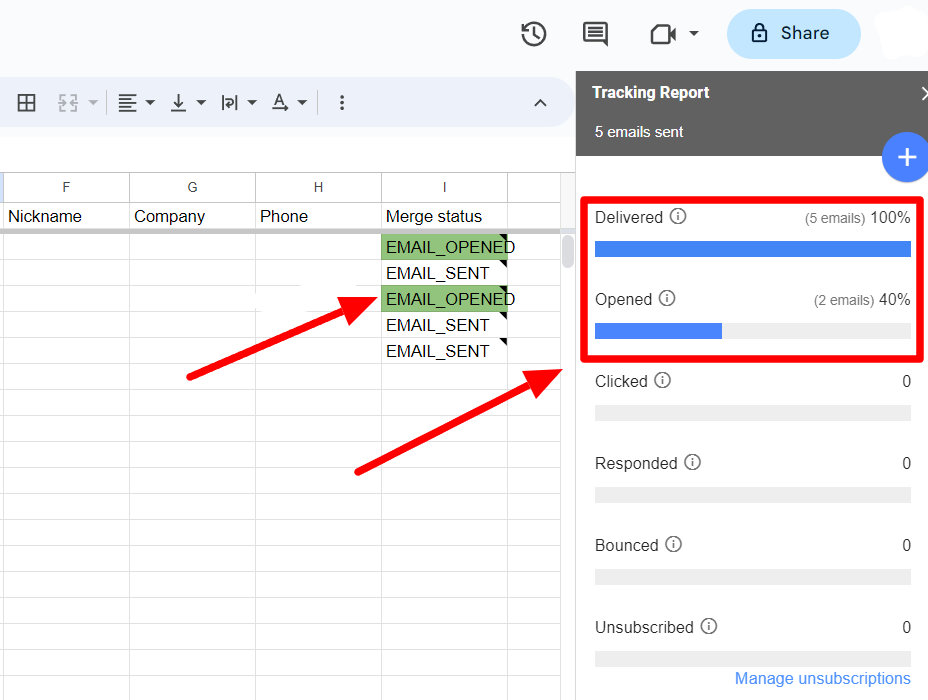
The report turns those counts into rates:
- Open rate: emails opened divided by tracked, delivered emails. See open rate.
- Click rate: emails clicked divided by tracked, delivered emails. A person counts once, however many links they click. See click rate.
- Response rate: emails replied to divided by delivered emails. See response rate.
Here's what a small list looks like a few days after sending:
| First name | Merge status |
|---|---|
| Ana | RESPONDED |
| Ben | EMAIL_CLICKED |
| Chloe | EMAIL_OPENED |
| David | EMAIL_SENT |
| Emma | BOUNCED |
Read it row by row. Ana answered. Ben clicked your link but hasn't written back. Chloe probably saw it. David shows no sign of it yet. Emma's email bounced, so check her address before you send anything else.
Which result can you trust: reply, click or open?
A reply is the strongest signal. YAMM checks the Gmail conversation of each email it sent. When someone adds a message to that conversation, the row turns to RESPONDED. Watch for two cases, though. An automatic out-of-office reply in the conversation counts as a reply too, so open the thread before you celebrate. And a reply sent somewhere else, such as a new email or a different address, isn't counted.
A click is a good signal. Someone did something with your email. YAMM sends each link through its own address first, so it can record the click and then take them to your page.
An open is a hint. Opens are counted with a tiny invisible image in the email. If the person's email app doesn't load images, or Gmail cuts off a long email before the image, no open is recorded, even if they read every word. Apple Mail goes further: its Mail Privacy Protection prevents senders from seeing whether someone opened their email. And an open can be counted when your recipient never read it. Our help page on open rates lists these cases:
- you open the email yourself from your Sent folder
- the person forwards it, or someone in cc or bcc opens it
- a spam filter opens your links, or a preview pane loads the images
So judge a mail merge by its replies and clicks, and use opens as a rough trend across the whole list, not as proof about one person.
How to follow up with people who didn't open or reply
The tracking report shows Delivered, Opened, Clicked, Responded, Bounced and Unsubscribed for the whole merge. Click any of those numbers and the sheet filters down to those rows. Click Remove filter at the bottom of the report to see everyone again.
To send a follow-up:
- Write the follow-up as a new Gmail draft.
- Open the tracking report and click +.
- Choose who gets it: everyone, only people who didn't open, only people who didn't reply, or only people who opened.
- Choose whether it goes in the same thread as your first email or as a new one, then click Follow-up.
- Pick your draft and click Send emails.
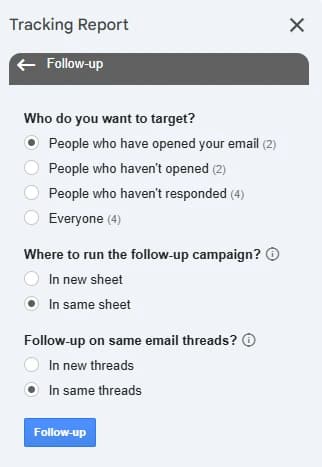
For the same thread, give your follow-up draft the same subject line as your first email (adding "Re:" is fine) and send it from the same Gmail account. It can't carry personalized attachments, so attach files to the draft itself or send it as a new email.
People whose email bounced or who unsubscribed never get a follow-up, so you don't have to remove them by hand. You decide when the follow-up goes out, so you can wait until you've answered the replies you already have.
We'd pick "didn't reply" over "didn't open" for most follow-ups. Some of your "didn't open" people did read your email. Their open just wasn't counted. For what to say in the follow-up, see how to follow up on an email with no response.
YAMM tracks only the latest campaign in a sheet. To keep the results of the first one, send your next merge from a new sheet, or choose "In new sheet" when you set up a follow-up. If you track the follow-up in the same sheet instead, nothing is lost: YAMM renames the first status column to Previous Merge with its date and starts a new Merge status column.
Can you schedule a mail merge and still track it?
Yes. YAMM Pro lets you click Schedule in the Start Mail Merge window and pick a date and time up to two weeks ahead. Leave Track emails opened, clicked or bounced selected before you schedule. Until the emails go out, each row's status says SCHEDULED. Then it changes to EMAIL_SENT, and tracking works the same as for a merge you sent right away.
FAQ
Can you track email open rates in Google Sheets?
Yes. With tracking turned on, YAMM's tracking report shows your open, click and response rates, worked out as described above. For what a normal open rate looks like, see what is a good open rate for email.
Why does my sheet still say EMAIL_SENT?
Usually because the tracking report is closed: the Merge status column updates live only while it's open. Open it from Extensions > Yet Another Mail Merge: Mail Merge for Gmail > Open tracking report and YAMM fills in the new results. If rows still say EMAIL_SENT, give it a few hours, as opens tend to come in later. Also check that you turned on tracking before sending and that you're looking at the original sheet, not a copy: tracking doesn't work on a copy.
Can recipients tell they're being tracked?
Not from the email itself: the image that records opens is invisible. Someone who hovers over a link can see that it goes through a YAMM address before reaching your page. If you want to let people choose, add a tracking opt-out link to your email. Anyone who clicks it shows as DO_NOT_TRACK, still gets your emails, and isn't tracked in your later merges.
Can you see what time someone opened your email?
Yes. Hover over a person's status cell in your sheet and a note shows when the action happened, such as the time of the open or the click.