Add members to your space
If your space is on a Pro plan and has available seats, you can add members to your space by assigning these seats to them.
Currently, you can only add members who belong to your own domain. For example, if your email is alice@example.com, you can add bob@example.com, but not john@company.com.
How to add members
Prerequisites:
- You are using a Google Workspace account.
- Your role in the space allows you to manage members.
-
Sign in to your YAMM dashboard.
-
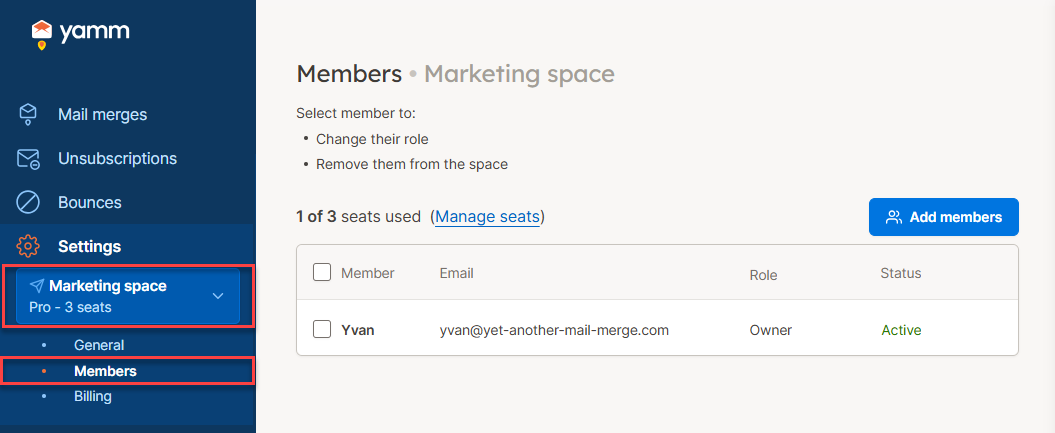
In the sidebar, select the space, and click Members.
-
Click Add members.
-
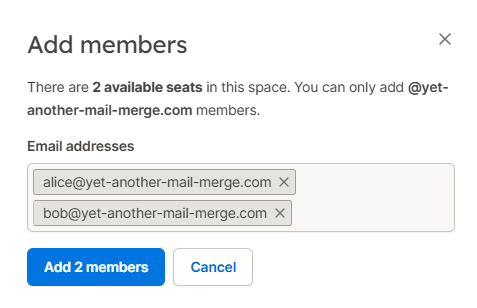
Enter the email addresses of the members you want to add, separated by spaces or commas.
-
Click Add members.
Result
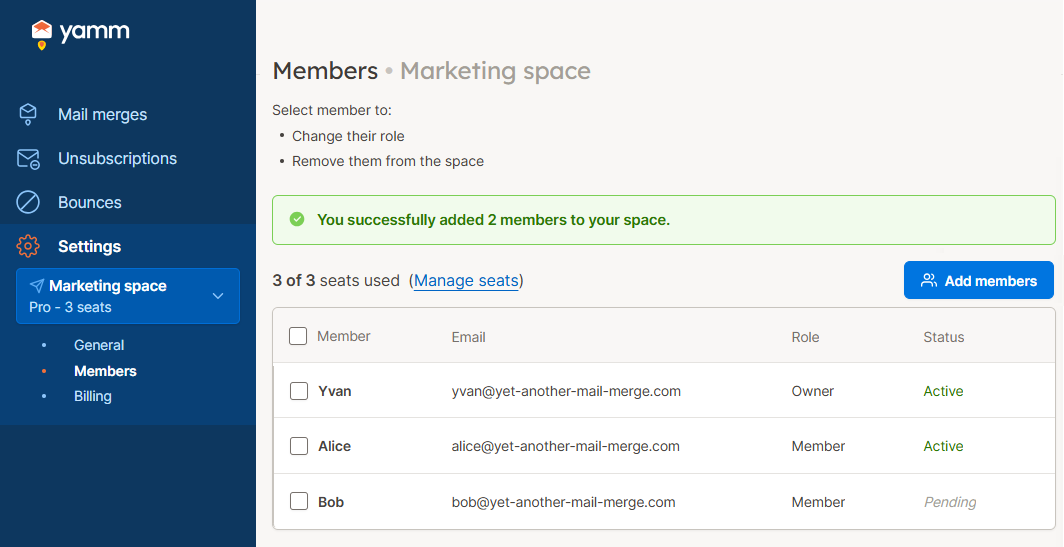
The seats are assigned to the members you added:
-
Members who already have a YAMM account appear as Active in your space.
-
Members who don’t yet have a YAMM account appear as Pending until they create one. Let them know that they can sign up here to start sending mail merges from your space!
Next Steps
-
Buy more seats if needed.
-
Remove members from your space if they no longer need to use YAMM.