How to Add an Attachment to a Mail Merge in Gmail and Word
Updated 7 min read
Table of contents
Yes, you can add attachments to a mail merge in Gmail. With YAMM, attach a file to your Gmail draft to send it to everyone, or put a Google Drive link in each row of your spreadsheet to send each person their own file. Word's email merge can't add a separate file. Microsoft suggests links instead.
Can you add attachments to a mail merge?
It depends on where you run the mail merge. Here is what each tool lets you attach:
| Tool | What you can attach |
|---|---|
| Microsoft Word (email merge) | No separate attachments, only links (Microsoft). |
| Gmail's built-in mail merge (some paid Google Workspace plans) | A file you attach to the email goes into every recipient's copy (Google). |
| YAMM, for Gmail and Google Sheets | One file for everyone, attached to your Gmail draft. Or a different file for each person, from Google Drive links in your spreadsheet. You can give one person several files. |
So if everyone should get the same file, such as an event program or a price list, either Gmail option works. If each person needs their own file, such as a certificate, an invoice or a payslip, YAMM can attach a different file to each email.
How to send the same attachment to everyone
YAMM uses a regular Gmail draft as the template for your mail merge. Anything attached to that draft goes to every person on your list.
Step 1: Install YAMM
Sign up for YAMM with your Google account and install it from the Google Workspace Marketplace. It works with @gmail.com accounts and Google Workspace accounts.
Step 2: Write your email as a Gmail draft
In Gmail, click Compose. Leave the "To" field empty, because YAMM fills it in from your spreadsheet. Write the subject and the message. Put markers like {{First name}} wherever a detail from your spreadsheet should go.
Step 3: Attach the file to the draft
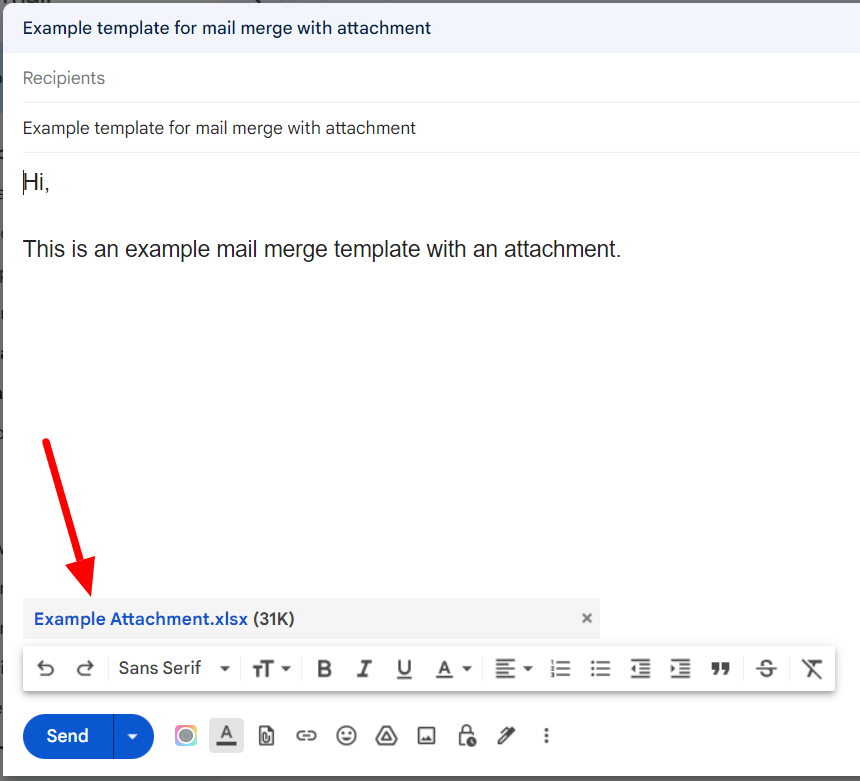
Click the Attach files button (the paperclip) at the bottom of the draft and choose your file.
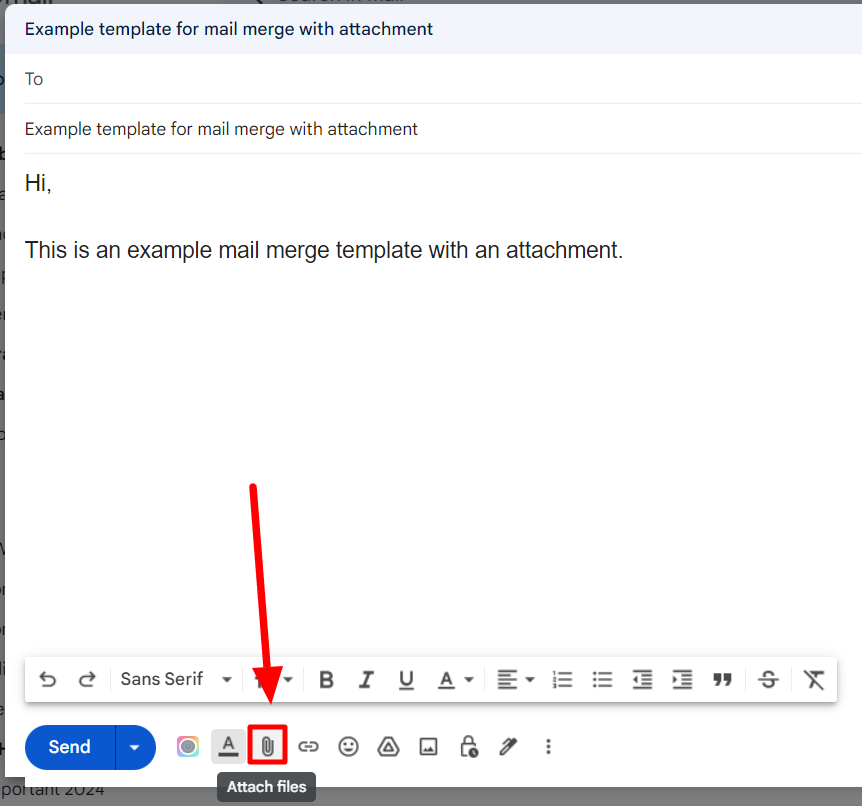
The file name appears at the bottom of the draft. Close the draft to save it.
Step 4: Start the mail merge from Google Sheets
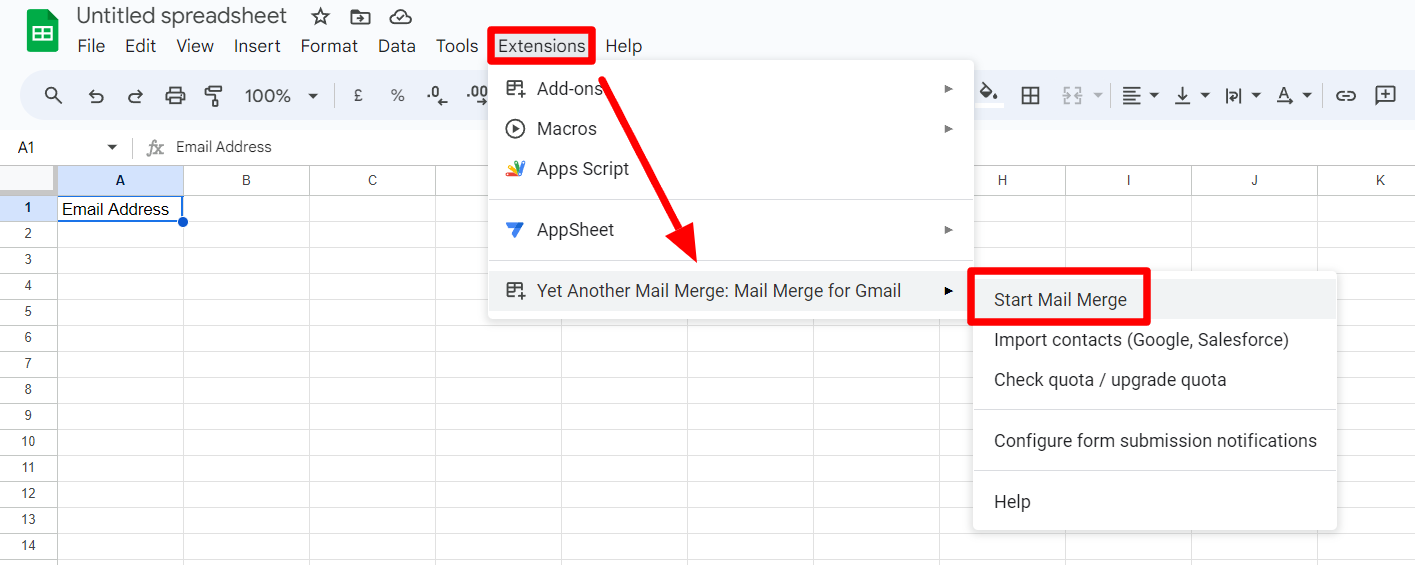
Open the spreadsheet with your recipients. It needs an Email column and one row per person. Then select Extensions > Yet Another Mail Merge: Mail Merge for Gmail > Start Mail Merge.
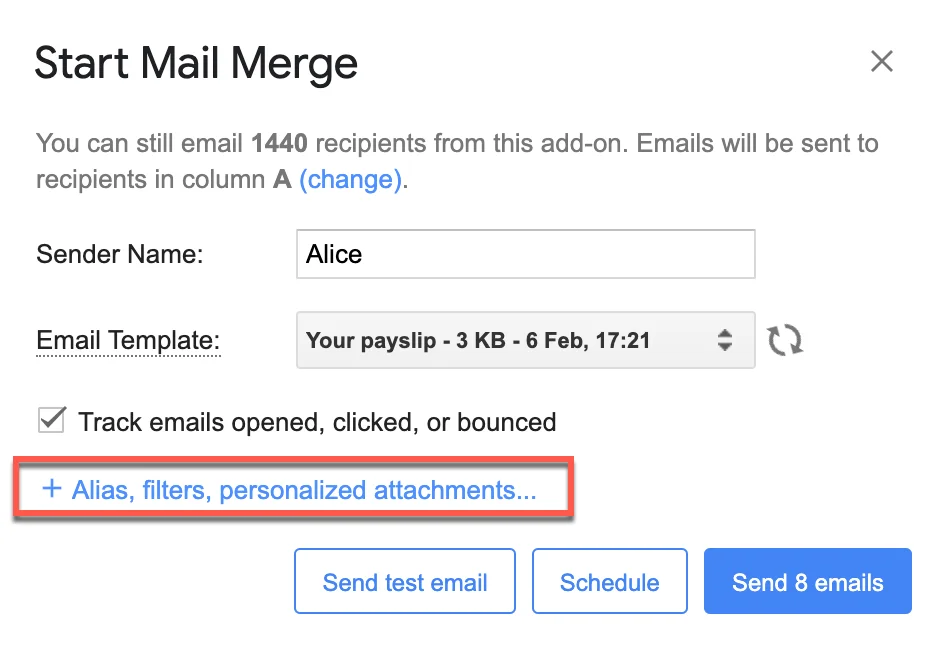
In the Start Mail Merge window, pick your draft in the Email Template list. Click Send test email to send yourself a copy and check that the file is there. Then click Send emails. YAMM sends one email per row from your own Gmail account and writes the result into a Merge status column.
How to send a different attachment to each person
A personalized attachment is a different file for each recipient. You put a link to each person's file in their row of the spreadsheet, and YAMM attaches the right file to each email. There are two ways to do it.
Add the links by hand
This is the easiest way when you have a few files. Your spreadsheet will look like this:
| First name | Attachments | |
|---|---|---|
alex@example.com | Alex | Link to Alex's certificate |
sam@example.com | Sam | Link to Sam's certificate, link to the event program |
Write the column name exactly as Attachment or Attachments. Capital letters don't matter in markers like {{first name}}, but they do matter in these two column names.
-
In Google Drive, right-click a file and choose Share > Copy link.
-
In your spreadsheet, add a column named Attachment or Attachments.
-
Paste each file's link into the row of the person who should get it. To send one person several files, put all their links in the same cell, separated by commas.
-
Select Extensions > Yet Another Mail Merge: Mail Merge for Gmail > Start Mail Merge, then click + Alias, filters, personalized attachments.
-
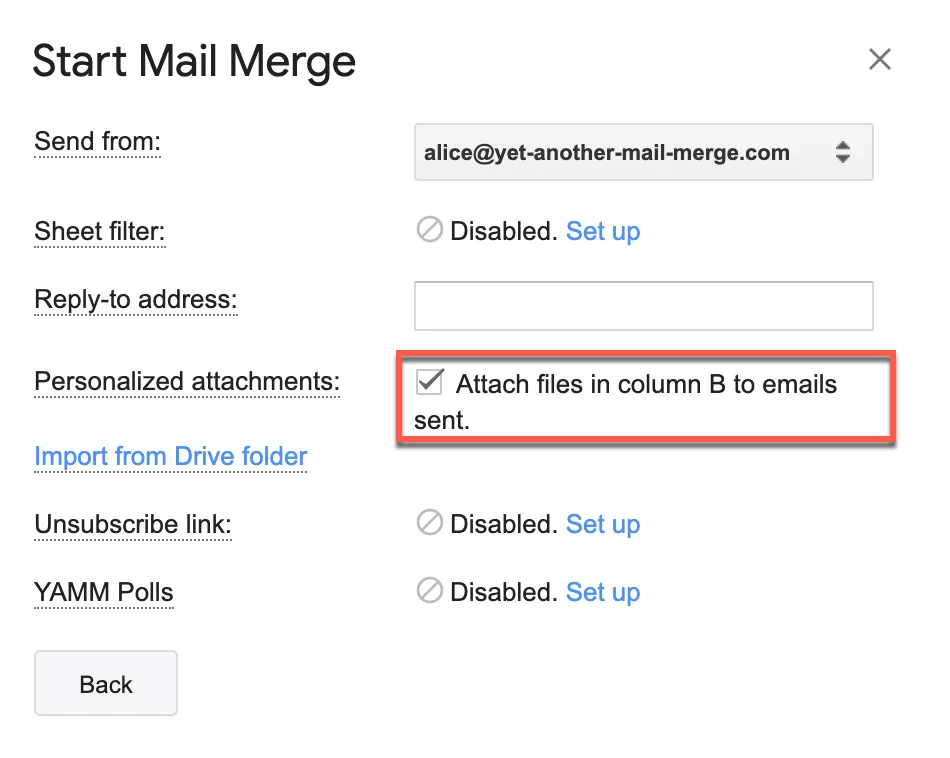
Select Attach files in column to emails sent. If YAMM asks for access to your Google Drive, click Authorization required and allow it.
-
Click Back, pick your draft in the Email Template list, send a test email, then click Send emails.
Match files from a Drive folder
When you have many files, let YAMM find them for you. Put all the files in one Google Drive folder, and give each file a name that contains a unique ID, for example Payslip-Alex-Jordan.pdf.
-
Add an ID column to your spreadsheet, with each person's ID (for example
Alex-Jordan). To give one person several files, put several IDs in their cell, separated by commas. -
Select Extensions > Yet Another Mail Merge: Mail Merge for Gmail > Start Mail Merge, then click + Alias, filters, personalized attachments.
-
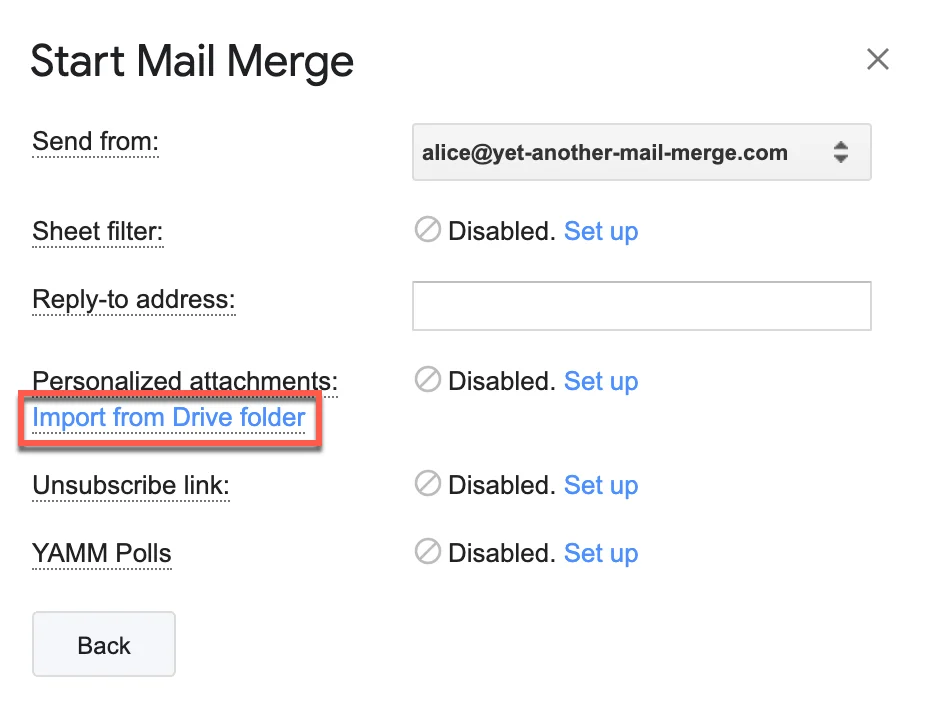
Click Import from Drive folder. If YAMM asks for access to your Google Drive first, click Authorization required and allow it.
-
Select the folder and click Select. Don't open the folder first, or YAMM shows "No documents".
-
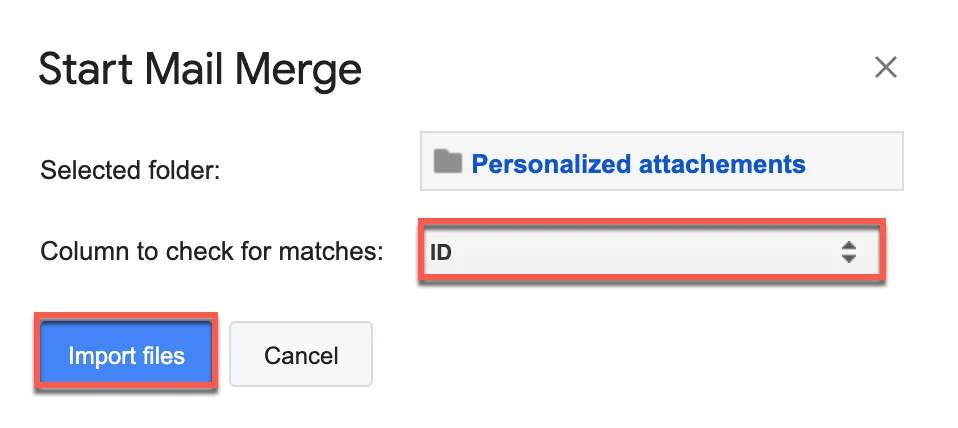
Choose the ID column YAMM should match against the file names, then click Import files. YAMM puts each person's links in a new Attachment column.
-
Pick your draft in the Email Template list, send a test email, then click Send emails.
Follow these rules so each file goes to the right person:
- Capital letters in the ID must match the file name exactly.
- Don't use an ID that is part of another file's name. For example, the ID Chris matches both Chris-Parker.pdf and Chris-Wilson.pdf, so use Chris-Parker and Chris-Wilson as the IDs.
- IDs shouldn't contain spaces.
YAMM's help center has the full guide to personalized attachments.
Daily limit for personalized attachments
On some paid accounts, YAMM's daily quota is lower for emails with personalized attachments:
- From a paid @gmail.com account, you can send them to 100 people a day, instead of the usual 400.
- A new Google Workspace account is also limited to 100 a day during Google's 14-day free trial and the warm-up period that follows. The warm-up ends once your organization has been billed $100 in total by Google.
- After that, a Google Workspace account can send them to up to 1,500 people a day.
The free plan's limit of 20 a day doesn't change. On a paid plan, if your list is longer than the day's limit, YAMM can send as many as the quota allows now and schedule the rest for when it resets.
What if you started in Word?
You can't attach a separate file in Word's email merge. Word sends through your email program, such as Outlook, and Microsoft's own guide says you can include links instead. On a Mac, Word can send the merged document itself as the attachment, but then the email has no body text. You have two options:
- Link to the file. Upload it to a cloud drive, copy the share link, and put the link in your email.
- Move the mail merge to Gmail and Google Sheets. If your email account is a Gmail or Google Workspace account, import your Excel file into Google Sheets and follow the steps above. Your recipients get a real attachment, and each person can get their own file. Our guide to running a mail merge from Excel with a Gmail account walks through the move.
Tips for mail merges with attachments
- Say what's attached. Mention the file in the email, for example "Your certificate is attached as a PDF," so people know to look for it.
- Send a test email first. Open the test and check that the file is attached and opens. With personalized attachments, test a few rows.
- Google files go out as PDFs. When a personalized attachment is a Google Docs, Sheets or Slides file, YAMM attaches it as a PDF. If you want people to open the live Google file instead, put a link to it in the email.
- Keep files small. A personal Gmail account can send up to 25 MB of attachments per email. If you attach more than that to your draft, Gmail adds the file as a Google Drive link instead, so check that the file's sharing lets your recipients open it.
If you also want to send people links, names or other details that change per person, see how to send personalized mass emails in Gmail.