Quickstart
Run your first YAMM mail merge in three steps: build your contact list in Google Sheets, draft your template in Gmail, and start the mail merge. Watch the short video for an overview, or follow the written walkthrough below.
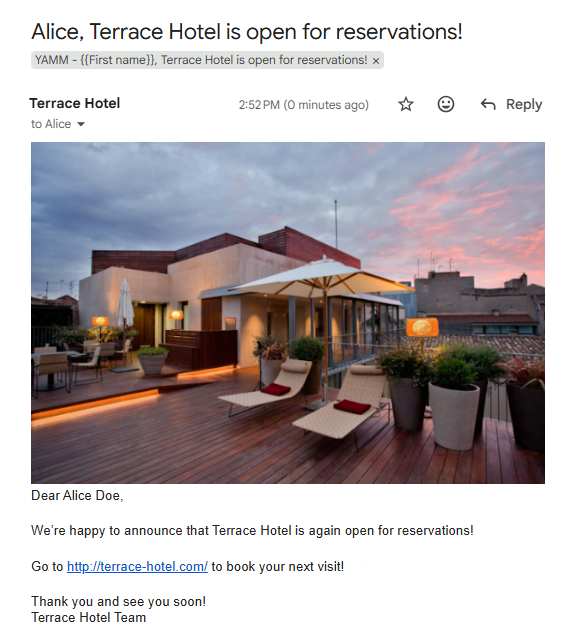
In this walkthrough, you send an announcement to four recipients on behalf of the fictitious Terrace Hotel, letting them know the hotel is open for reservations again. Everyone gets their own email, addressed to them by name.
Prerequisites
- You have installed YAMM.
-
Build your contact list:
-
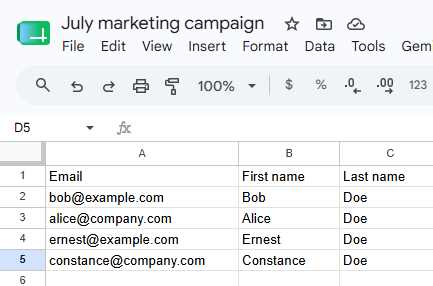
Create a new spreadsheet.
-
In the first row, enter the column names
Email,First name, andLast name. -
Fill out one row per recipient, starting from row 2.
-
-
Draft your template:
-
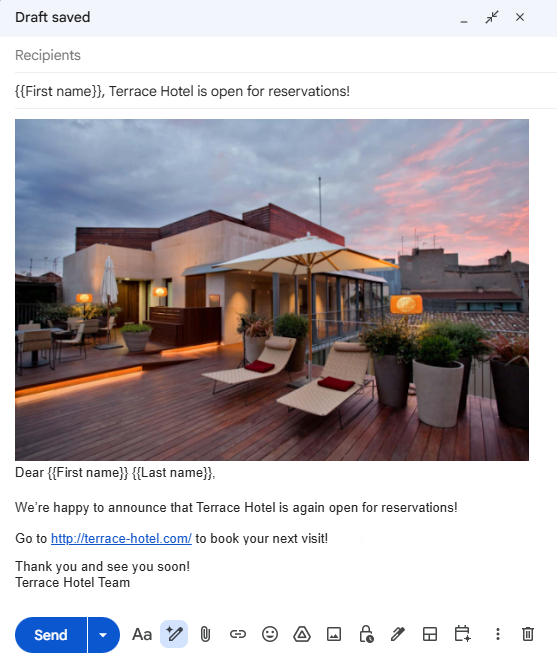
Open Gmail and click Compose.
-
In the New Message window:
-
Leave the To field empty. YAMM fills it in from the
Emailcolumn when it sends. -
Add subject
{{First name}}, Terrace Hotel is open for reservations! -
Draft the body, again with markers — for example,
Dear {{First name}} {{Last name}},
-
-
-
Start your mail merge:
-
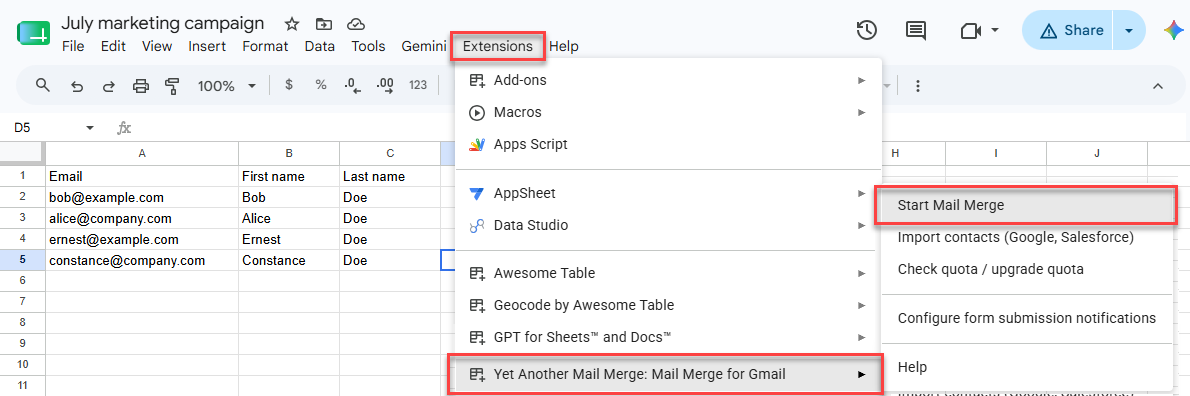
In the contact list spreadsheet select Extensions > Yet Another Mail Merge: Mail Merge for Gmail > Start Mail Merge.
-
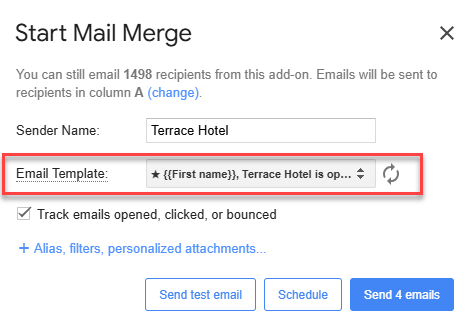
In the Start Mail Merge window, select your Gmail draft from the Email Template dropdown.
-
Click Send emails.
-
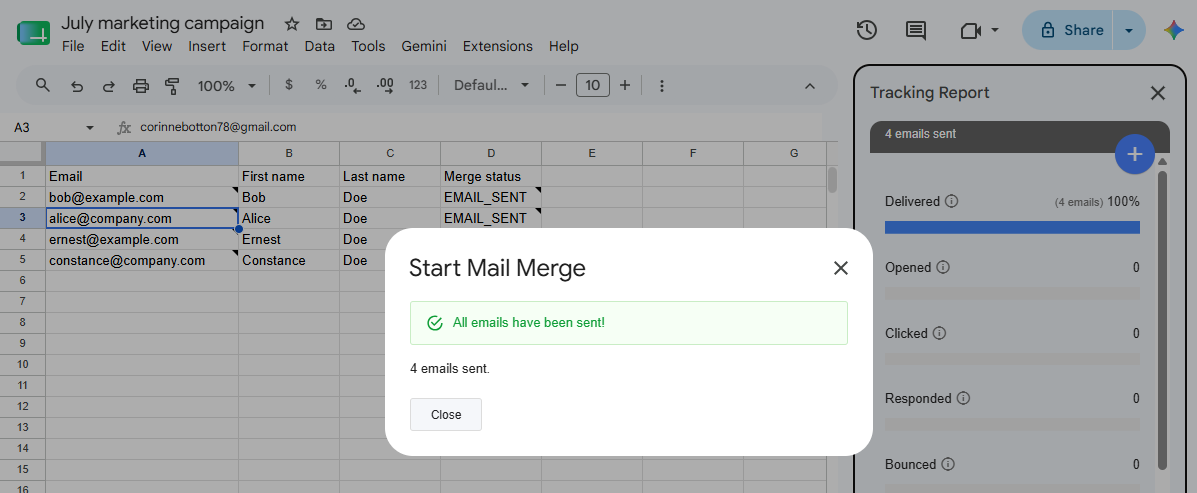
YAMM sends one personalized email per row and writes the outcome into a Merge status column as it goes — EMAIL_SENT for each email that goes out. The tracking report then opens in the sidebar and keeps updating as your recipients open, click, and reply.
What's next
-
Track your campaign opens, clicks, responses, bounces, unsubscribes.
-
Personalize your email with more advanced markers, or add per-recipient attachments.