Personalize content
Make recipients feel unique with markers — {{Column Header}} placeholders that YAMM replaces with each row's value from your contact list spreadsheet. Use them in the subject line and the body, or store whole messages in a column to send different content to each recipient.
Personalize your subject line
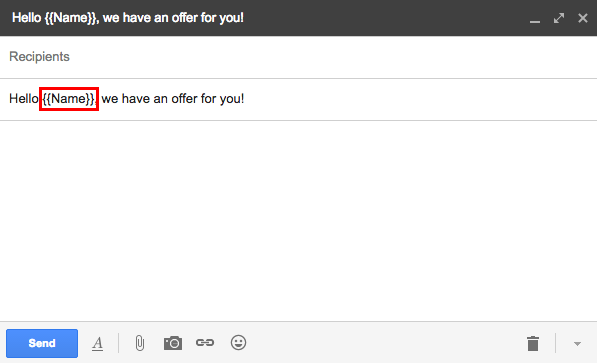
The subject line is the first thing recipients see, so personalizing it with their name helps increase open rates. Add a marker that matches one of your spreadsheet columns — for example, Hello {{Name}}, fills in each recipient's value from a Name column.

Personalize your email body
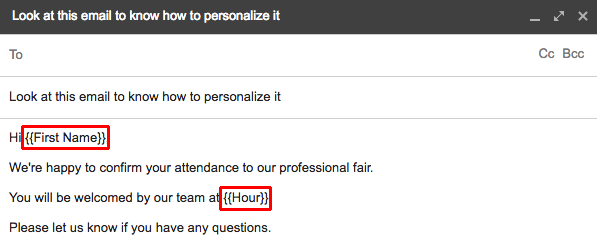
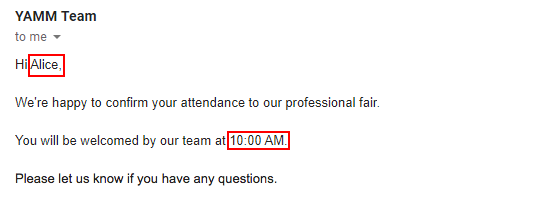
Add markers anywhere in the body of your draft — for example, Hi {{First Name}} and at {{Hour}}.
Send different content to each recipient
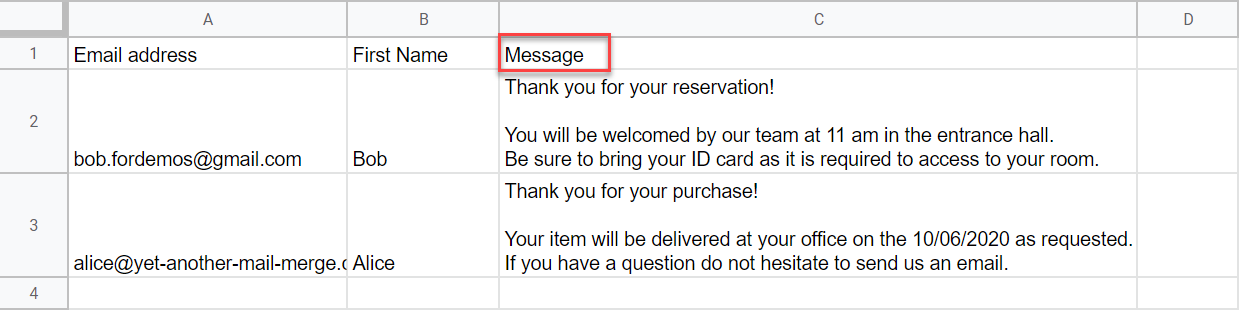
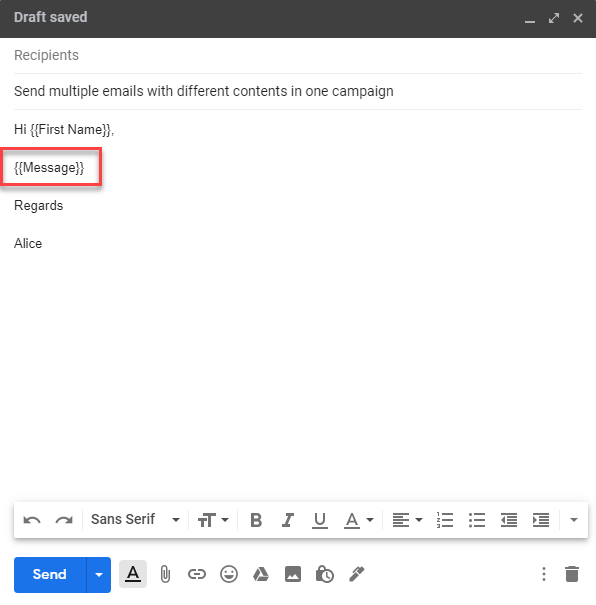
To send different content to different groups in a single campaign, store each version in a spreadsheet column and reference it with a marker, for example {{Message}}.
How markers work
These rules apply wherever you use markers — in the subject line, the body, or a content column:
-
Format:
{{Column Header}}is the recommended format — it avoids HTML conflicts in Gmail. YAMM also accepts<<Column Header>>and$%Column Header%. -
Case doesn't matter: A
{{first name}}marker matches aFirst Namecolumn. -
Email address: The universal
{{email address}}marker always matches the email column whatever its title. -
Create as many markers as you need.
What's next
-
Personalize the email attachments, or links and images.
-
Send a test email to preview your email template.