FAQ
Answers to common questions about sending your mail merge with YAMM.
What is the best time to launch campaigns?
The best sending time depends on your recipients' job, industry, and time zone. Use Growbots' Email Send Time Optimizer to get a data-based recommendation for your audience.
At what time is my mail merge sent?
-
If you run your mail merge manually: YAMM starts sending as soon as you click Send emails. The time zone shown in the tooltip under the
Merge statuscolumn is based on the spreadsheet's time zone.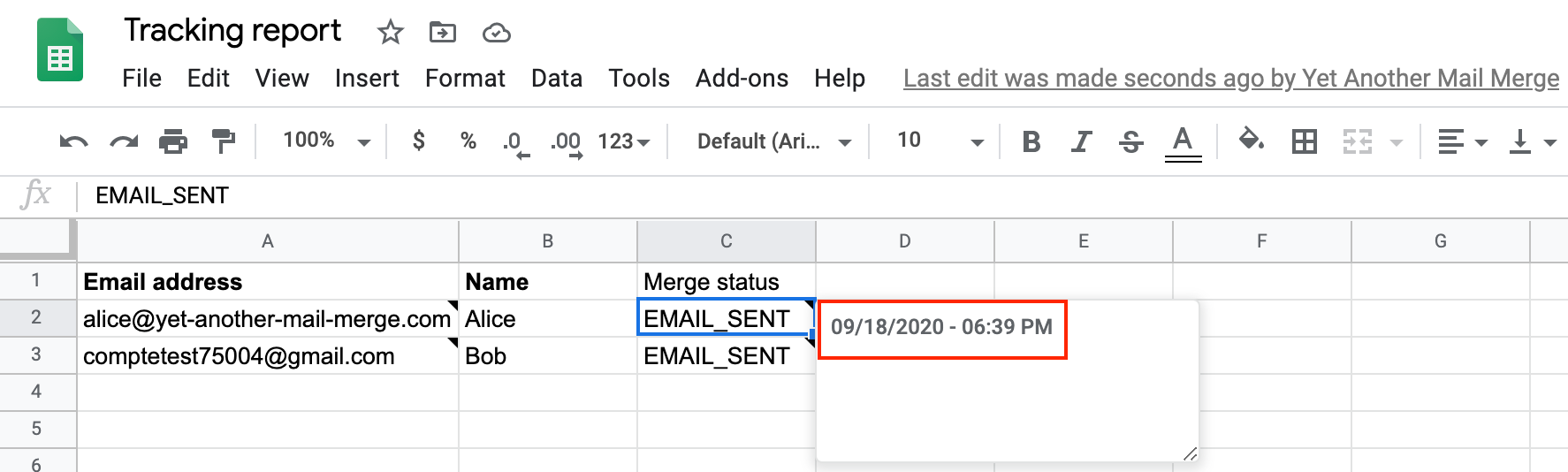
-
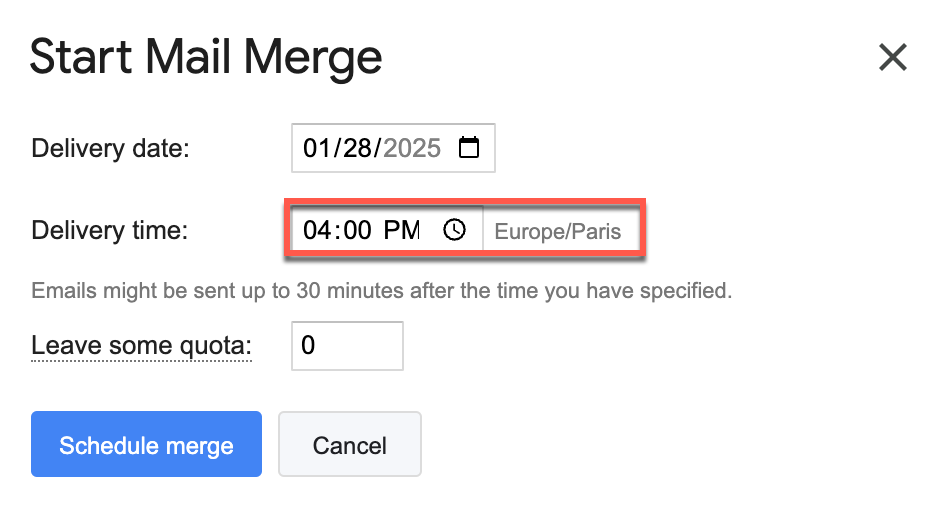
If you schedule your mail merge: Scheduling is available on Pro plans only. The mail merge is sent according to your browser's time zone (not the spreadsheet's). Recipients in different time zones may receive the email at a different time than you intended. To avoid this, schedule based on the majority of your recipients' time zone.
The delivery time is also approximate: YAMM checks your contact list spreadsheet every 30 minutes, so the mail merge can be sent up to 30 minutes after the time you set.
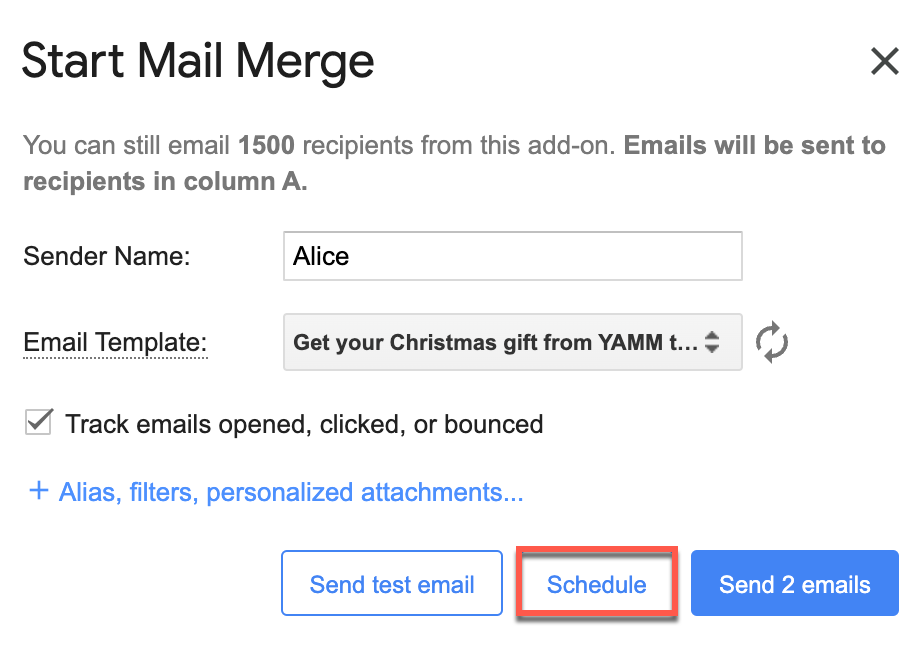
To check your browser's time zone, choose Yet Another Mail Merge in the Extensions menu, click Start Mail Merge, then click Schedule. Your time zone appears next to the Delivery time field.
How long does it take for YAMM to send my emails?
The average time per email depends on the email size (including any personalized attachments):
| Email size | Avg time per email |
|---|---|
| 10 KB | 1.5–3.5 seconds |
| 100 KB | 2–4 seconds |
| 1 MB | 3–5 seconds |
| 10 MB | 5–10 seconds |
For example, sending 10 emails of 10 KB each takes about 15–35 seconds.
These figures are averages. Several factors affect speed: the recipient's email service provider, server location, the size and complexity of the merge, and peak-hour traffic.
If you schedule a mail merge, keep in mind that recipients in different time zones may receive the email at a different time than intended — see At what time is my mail merge sent?.
How do I send more than 1,500 emails?
YAMM can send up to 1,500 emails per 24 hours with a Google Workspace account. For bigger campaigns, choose one of these two solutions.
-
Schedule your campaign over several days: YAMM takes about 30 minutes to send 1,500 emails. Instead of sending now and waiting, use the scheduling solution, available on Pro plans only. YAMM automatically sends the scheduled mail merge when your quota resets.
For example, with 10,000 recipients in your spreadsheet, schedule so the first 1,500 receive the email in the first hour. YAMM then sends to the remaining 8,500 over the next 6 days (1,500 max each day) as your quota resets.
-
Send with multiple Google accounts in one day: If you don't want to schedule over multiple days, send from different Google accounts.
Use the alias feature to send from the original account and set a reply-to account so all responses land in the same inbox.
To see all tracking stats in the same sheet, share the original contact list spreadsheet with your different accounts and run the rest of the mail merge directly on the same spreadsheet. See Re-run a mail merge.
Send one part of the campaign after another (not at the same time), and create a separate browser profile for each account. See Run mail merges from multiple accounts.