Billing FAQ
Answers to common questions about YAMM plan renewal, seats, and payments.
How does automatic renewal work?
When you purchase a YAMM plan, YAMM sets up a recurring yearly subscription with Stripe. All YAMM subscriptions are valid for 1 year. One year after the purchase date, your subscription automatically renews.
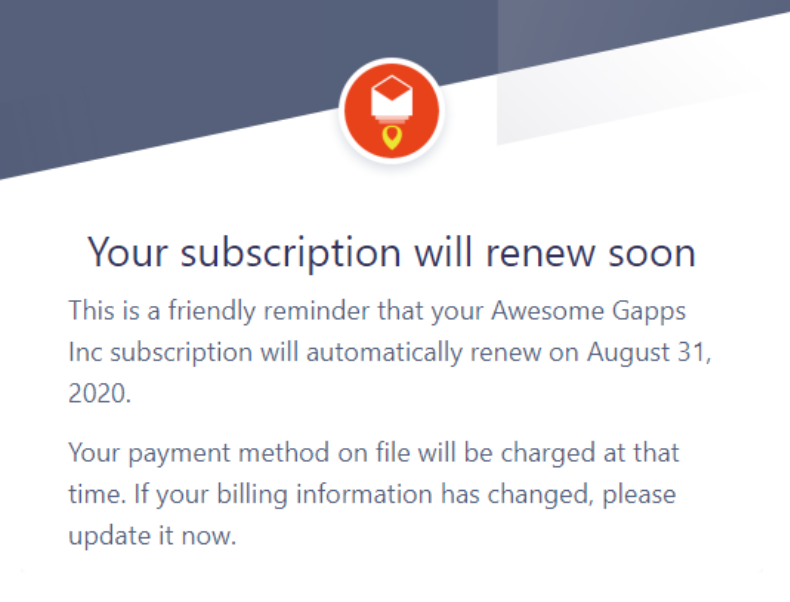
Stripe sends you a reminder email 15 days before your subscription renews.
You can turn off auto-renewal at any time. Your plan stays active until the end of your current billing cycle.
What happens to my space when my Pro plan ends?
Your Pro plan stays active until the end of the current billing cycle. After that, your space becomes a free personal space, and Pro features are no longer available in it.
Other members of the space can still use YAMM from their own spaces.
If you change your mind before the billing cycle ends, you can reactivate auto-renewal.
When does removing seats take effect?
When you remove unused seats, the downgrade takes effect at your next billing cycle, not immediately. You are then charged only for the remaining seats.
For example, if you remove seats on March 15 and your next billing cycle starts on June 1, the change takes effect on June 1.
My renewal payment failed, what will happen?
Your YAMM subscription renews automatically every year through Stripe. Renewal fails when Stripe cannot charge the card on file. This is typically due to an expired or inactive card.
When your renewal payment fails, Stripe sends you an email.
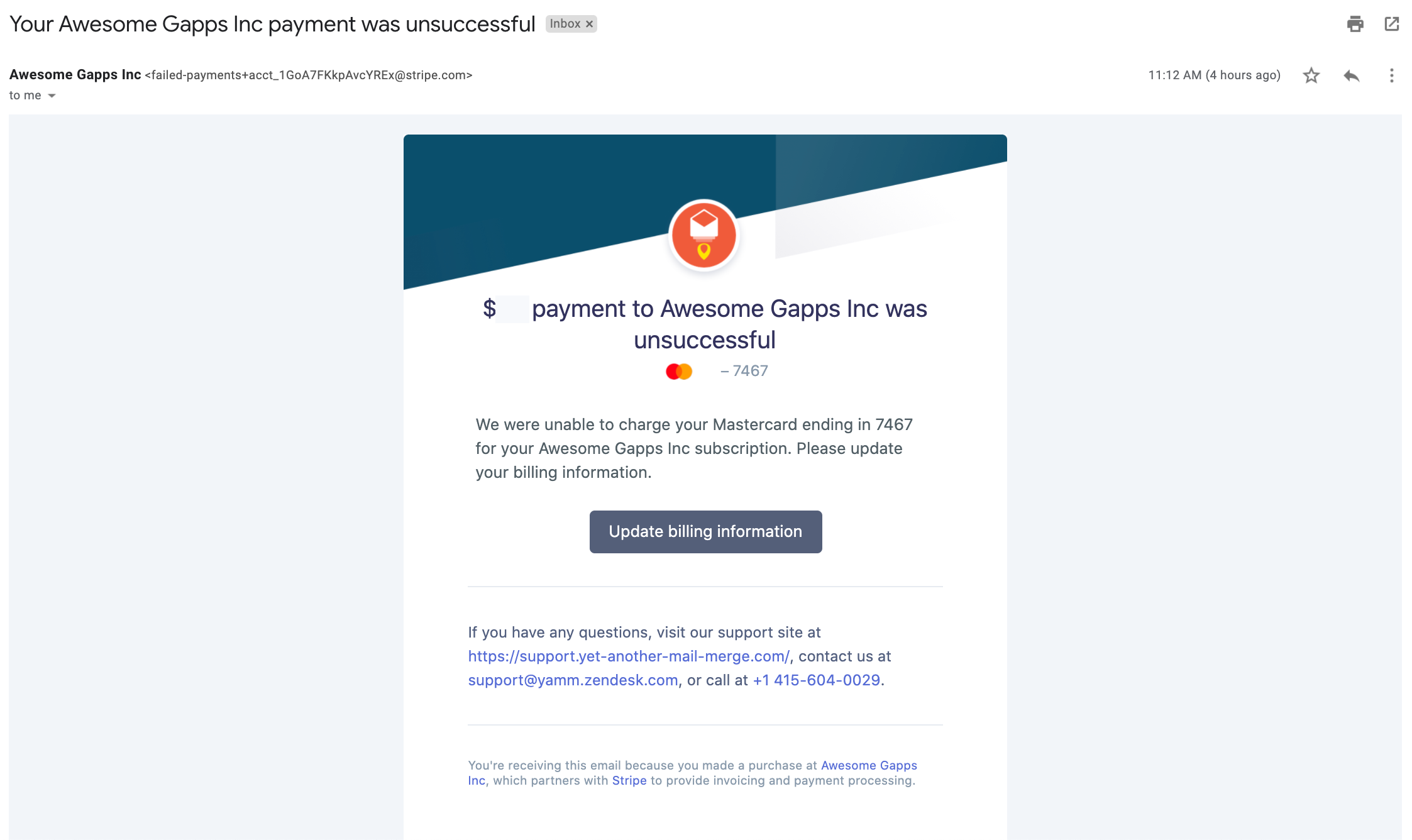
After receiving the email, you have up to five days of continued access to resolve the issue.
To resolve the issue, update your payment information.
If the payment issue remains unresolved after five days, your subscription is canceled.
How do I check my payment history?
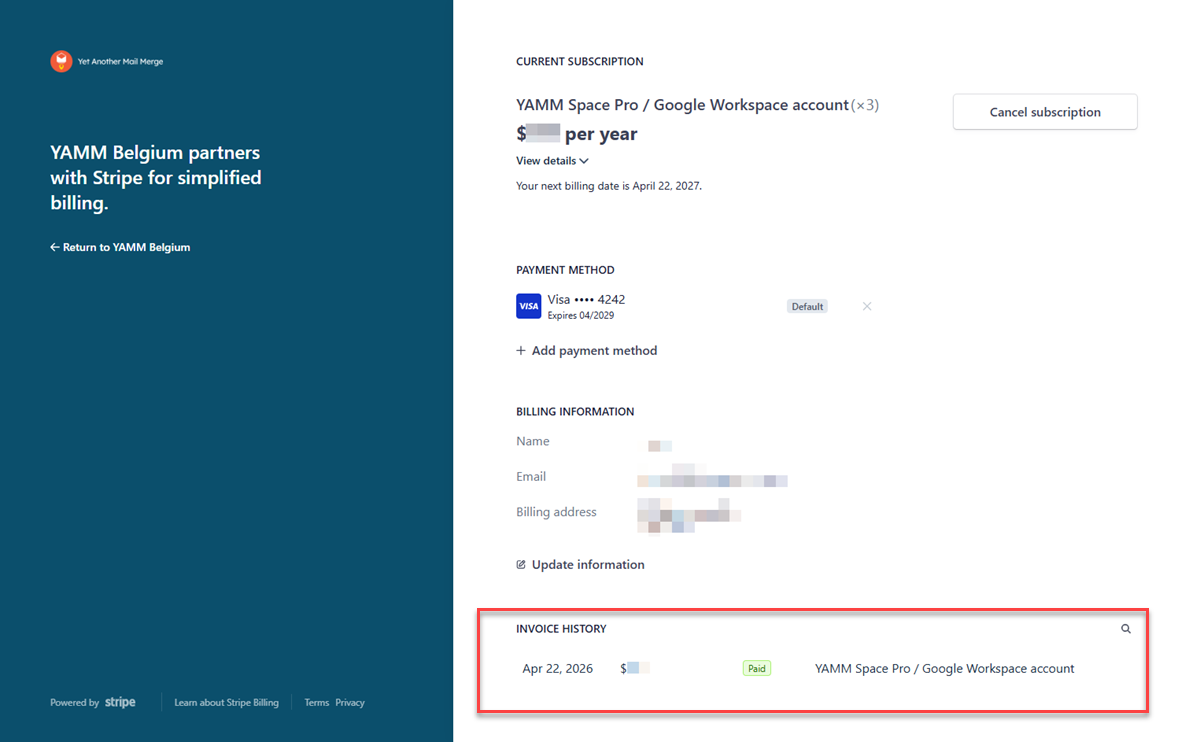
Review all your previous payments on the Stripe checkout page, accessible from your YAMM dashboard.
-
Sign in to your YAMM dashboard.
-
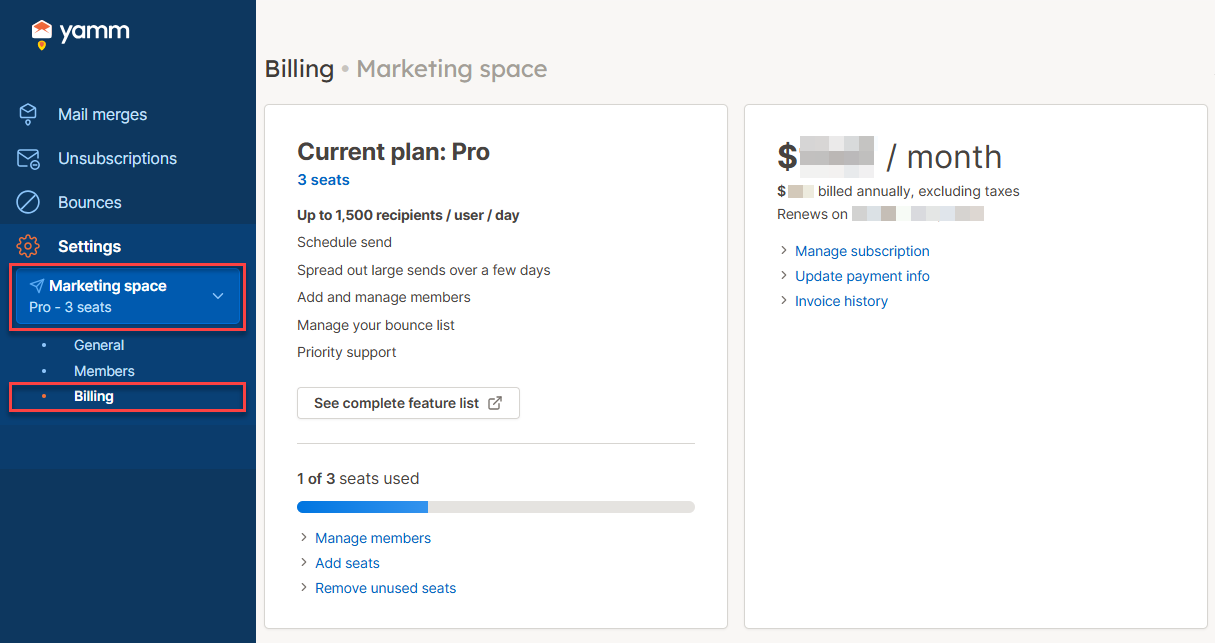
In the sidebar, select your space, then click Billing.
-
Click Invoice history.
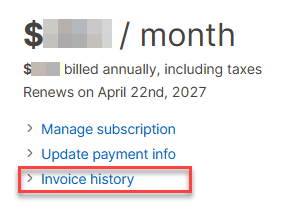
The checkout page opens.
Result
Review your previous payments under INVOICE HISTORY.