Remove unused seats
Remove unused seats to keep your subscription aligned with your team size.
The downgrade takes effect at your next billing cycle, not immediately — see When does removing seats take effect?.
Remove unused seats
Prerequisites:
-
You are using a Google Workspace account.
-
You are an admin or the owner of the space.
-
Sign in to your YAMM dashboard.
-
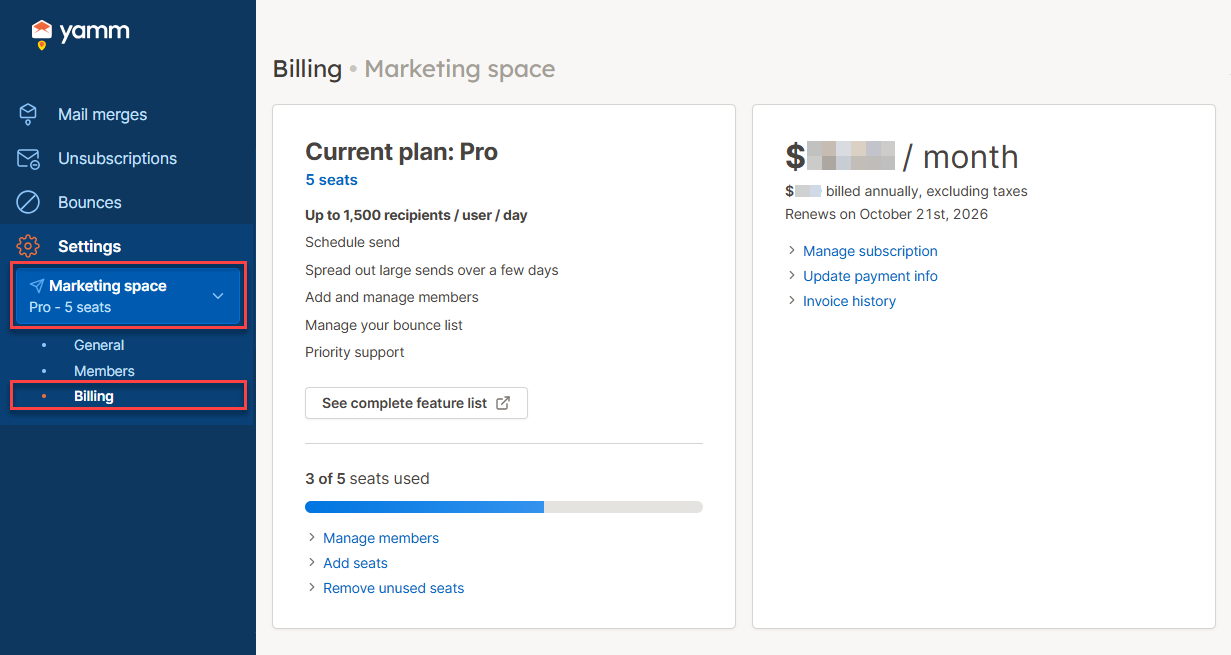
In the sidebar, select the space, and click Billing.
-
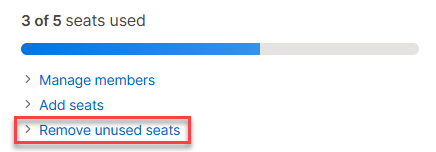
Click Remove unused seats.
-
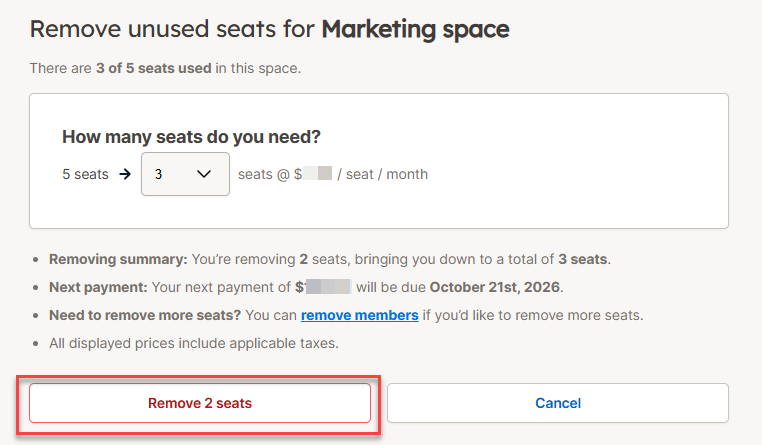
Select the number of seats you want to keep, then click Remove seats.
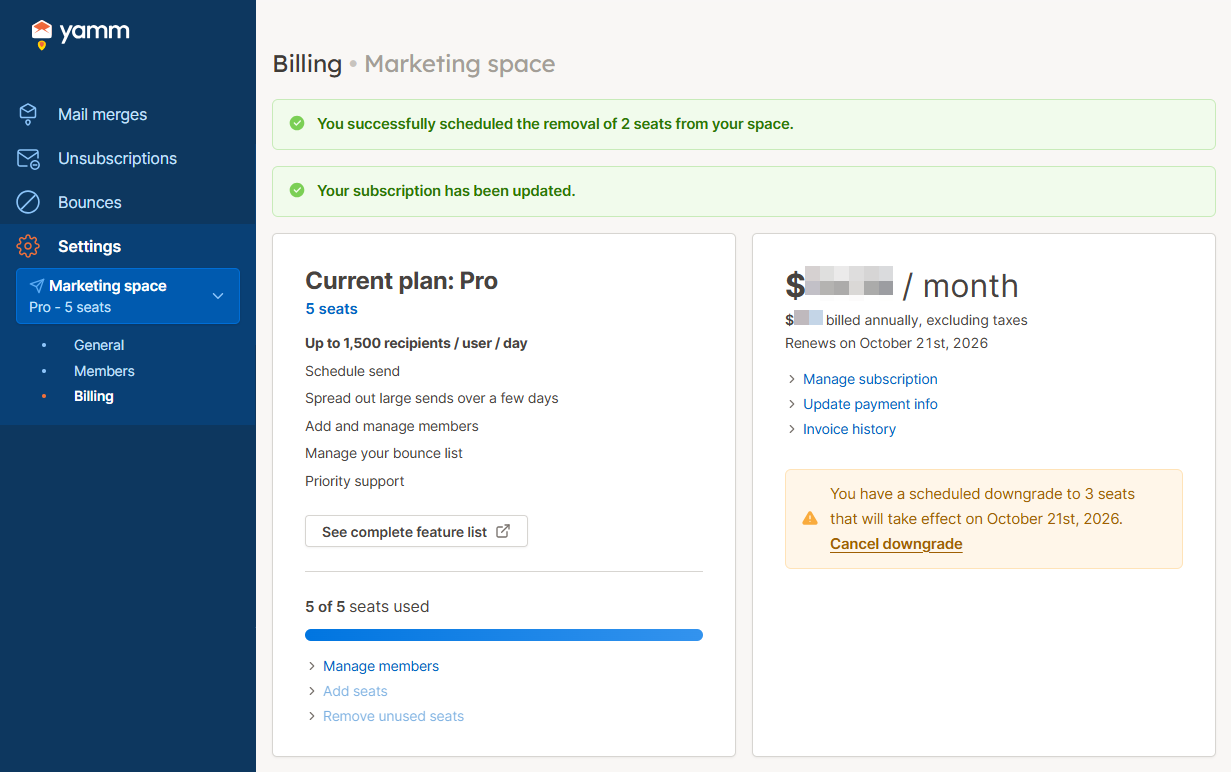
You have removed unused seats from your space. You can cancel this operation at any time by clicking Cancel downgrade.
What's next
- Remove members from your space to free up more seats.