Update your payment information
When you enjoy a product or service, you expect that it runs smoothly and without unexpected interruptions. If you already have a Pro plan and have a new debit or credit card you want to use for future payments, you can update your payment information to avoid interruptions caused by unsuccessful payments.
Update your payment information
-
Sign in to your YAMM dashboard.
-
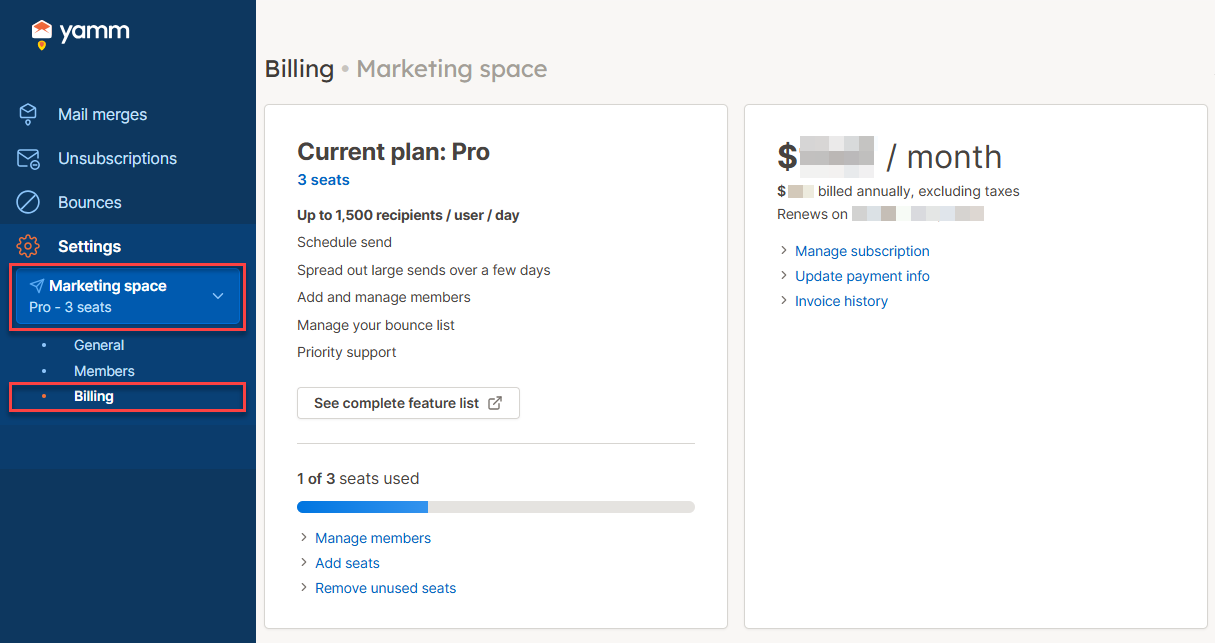
In the sidebar, select the space, and click Billing.
-
Click Update payment info.
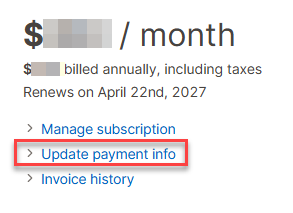
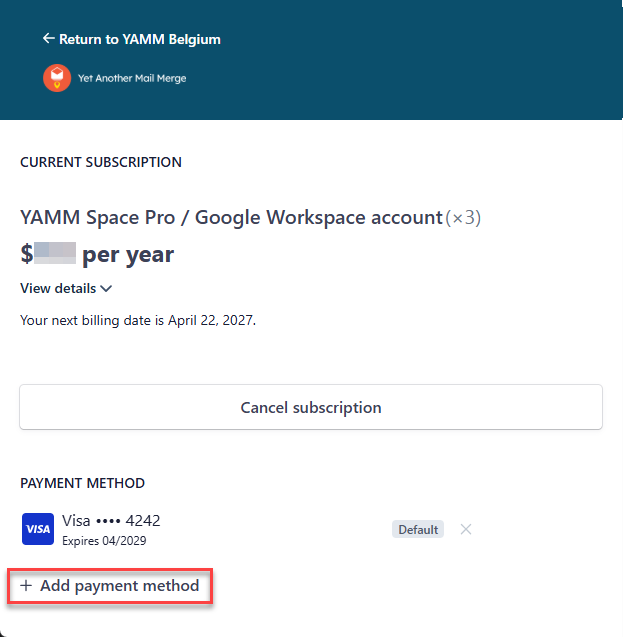
You are redirected to your checkout page on Stripe.com.
-
Click Add payment method and enter your new debit or credit card information.
-
Click Add.
The added card is now the default payment method.
-
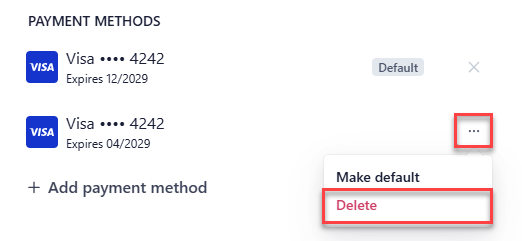
(Optional) Delete the old card under PAYMENT METHODS:
-
In the row of the old card, click the three dots and select Delete.
-
In the confirmation box, click Delete payment method.
-
Result
Your payment information is now updated. When your next payment is due, the billing system charges the new payment method.