Integrating HubSpot CRM with your Gmail email campaigns
This article will show you how to record all your email campaigns sent from Gmail and Google Sheet in your HubSpot account. As a result, all Gmail conversations with your sales leads will be automatically saved into HubSpot.
HubSpot provides the option to record all your emails sent through Gmail directly in HubSpot. You will be able to access at a glance all the Gmail conversations you had with your prospects or clients.
Please read the following steps to learn how to log your Gmail email campaigns into HubSpot.
1. Link your HubSpot account to your Gmail inbox
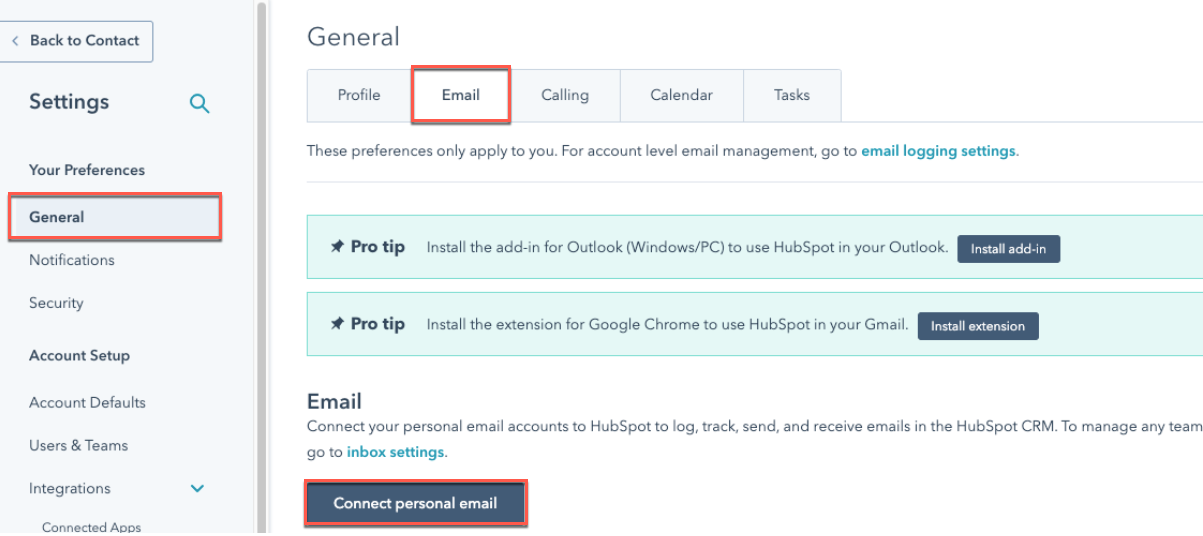
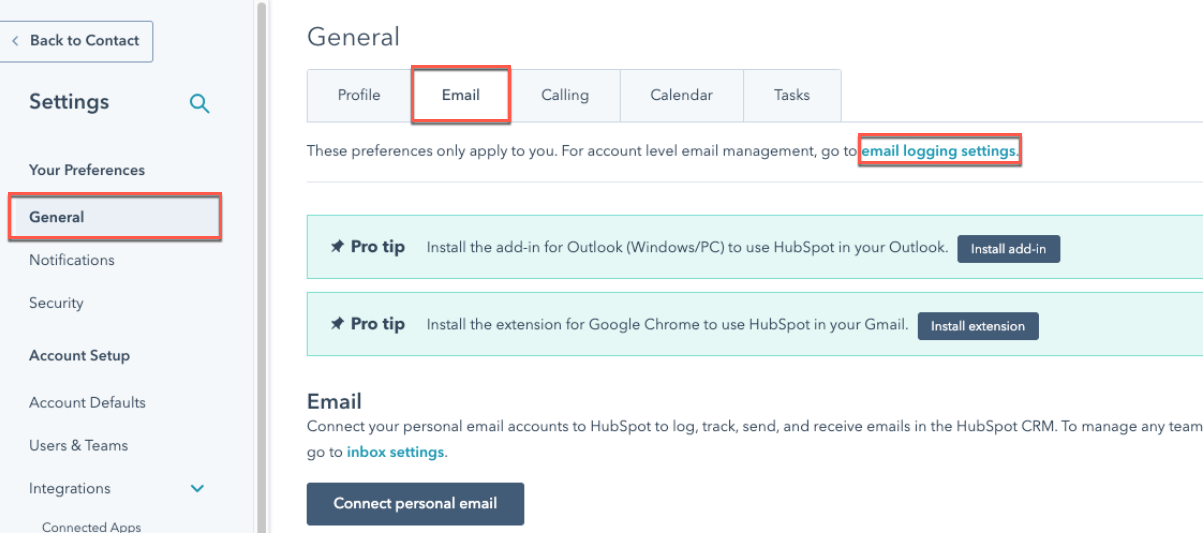
Click the gear icon in the top right corner to go to the Settings. Then, select General, open the Email tab and click Connect personal email.
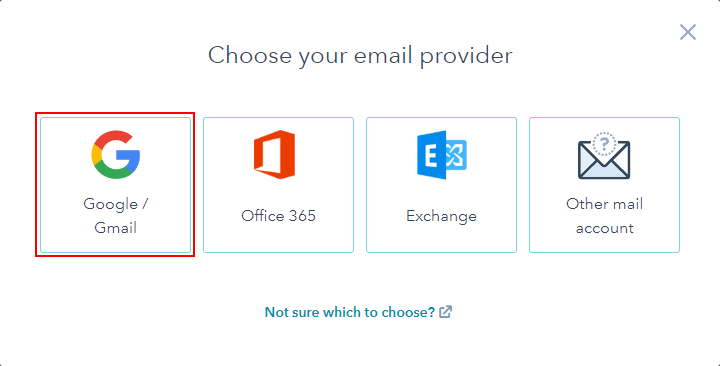
Select Google / Gmail as the email provider.
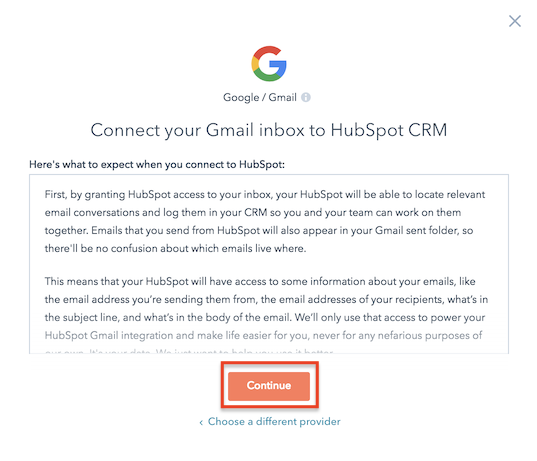
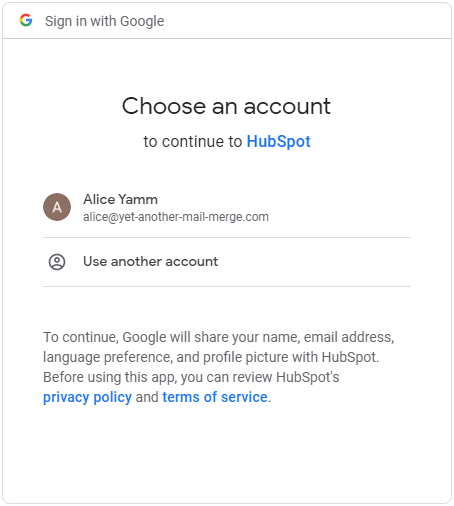
Click Continue, select your Google account (which should be the one you'll use later to send your campaign with YAMM), and accept the authorizations.
Once done, a confirmation pop-up will open on your HubSpot settings. You can close it or click No, thanks.
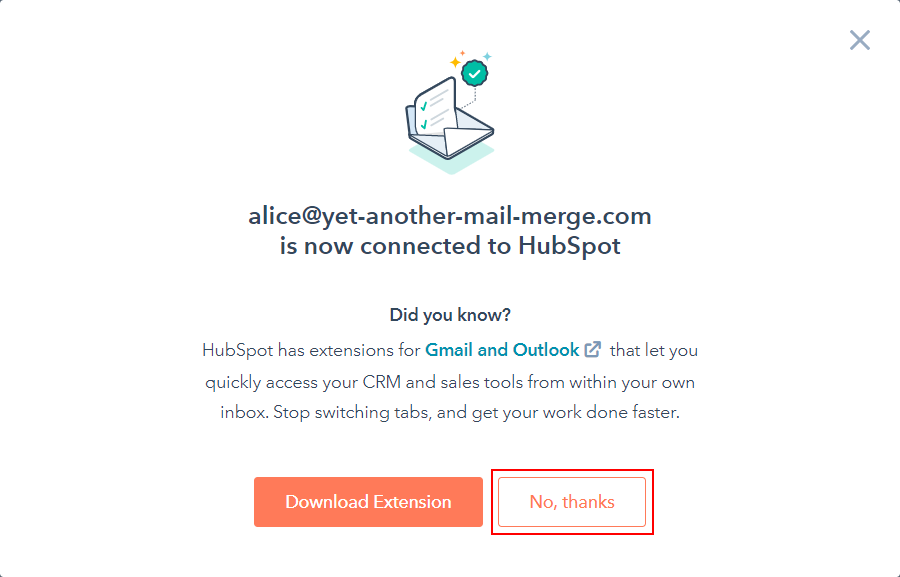
Your Gmail inbox is now linked to your HubSpot account.
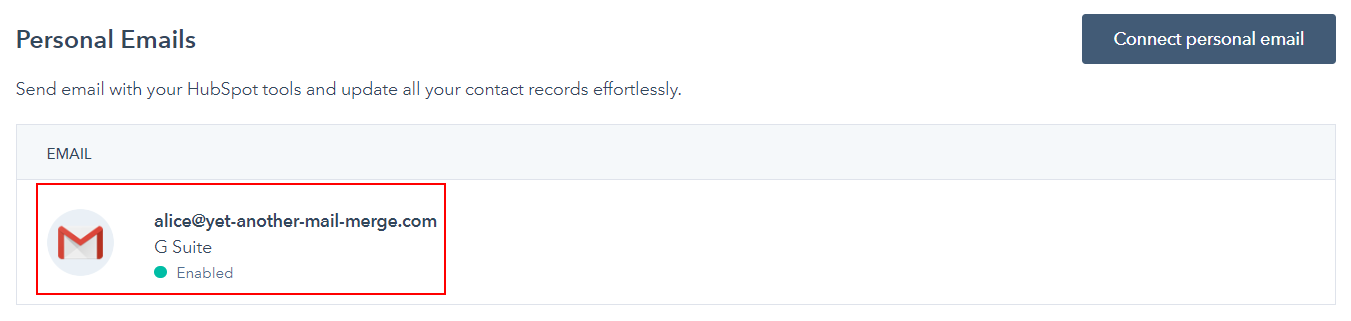
2. Retrieve your HubSpot bcc email address
To log your YAMM email campaigns into HubSpot, you'll need to send your mail merge to each recipient with a special bcc email address.
To retrieve your BCC address, click the gear icon in the top right corner to go to the Settings. Then, select General, open the Email tab and click email logging settings.
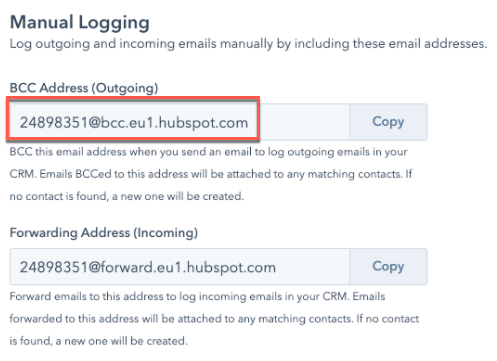
The bcc address appears under Manual Logging.
You’ll find your BCC address. This is the special email address you’ll have to add as a bcc recipient in your spreadsheet.
By default HubSpot will not log emails sent to recipients from the same domain as you.
3. Configure your contact list in your Google Sheet
List all your recipients in your Google Sheet (or import contacts from your HubSpot account).
Then, paste the special BCC address under a bcc column, as shown below.

4. Start your mail merge using YAMM
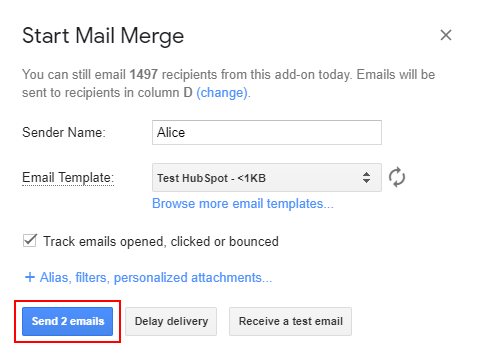
When your spreadsheet and Gmail draft are ready, run YAMM Add-ons > Yet Another Mail Merge > Start Mail Merge and send your emails.
5. Go back to your HubSpot contact list to check the email logs
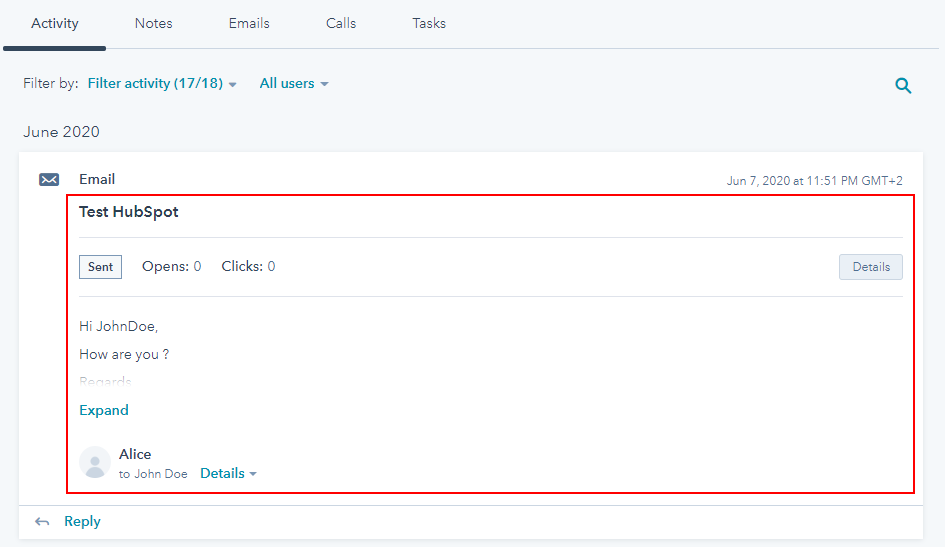
If there’s a match between the recipients from your spreadsheet and the email addresses from your HubSpot contacts, you’ll be able to see the emails in the contacts’ profile, under Activity.
If there’s no match, a new contact profile will be created.

It can take a few minutes to record all your emails! If you don't see them, please wait a bit longer.