MailChimp CRM
Learn how to import your contacts from Mailchimp CRM into Google Sheets to run a mail merge with Gmail from your spreadsheet.
Awesome Table Connectors allows you to import Mailchimp data, including your contacts.
Prerequisites
-
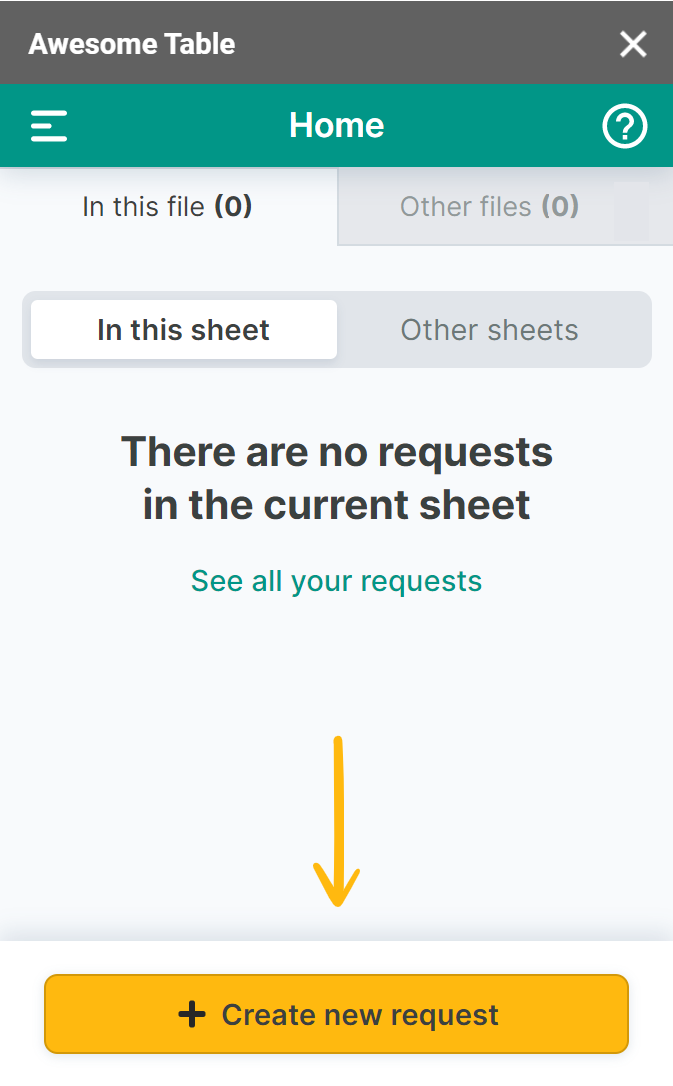
In the Awesome Table add-on Home screen, click Create new request.
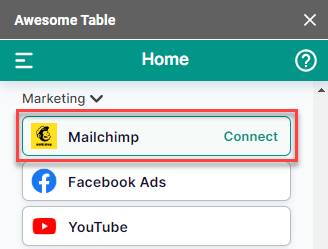
The list of available connectors is displayed.
-
Open the Mailchimp connector.
-
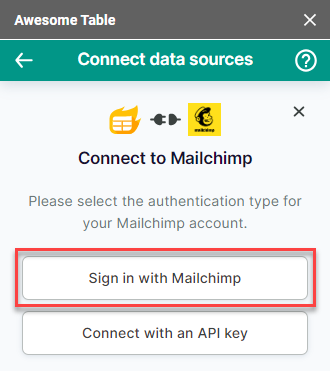
On the Connect to Mailchimp screen, click Sign in with Mailchimp.
-
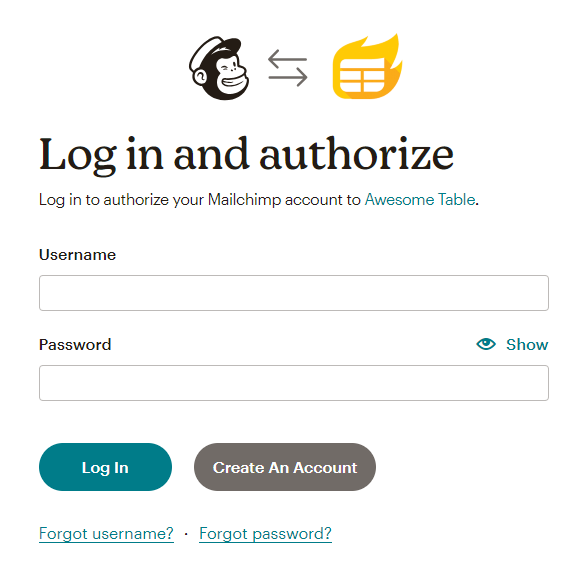
Log in to Mailchimp with your account.
-
Click Allow to accept the authorizations.
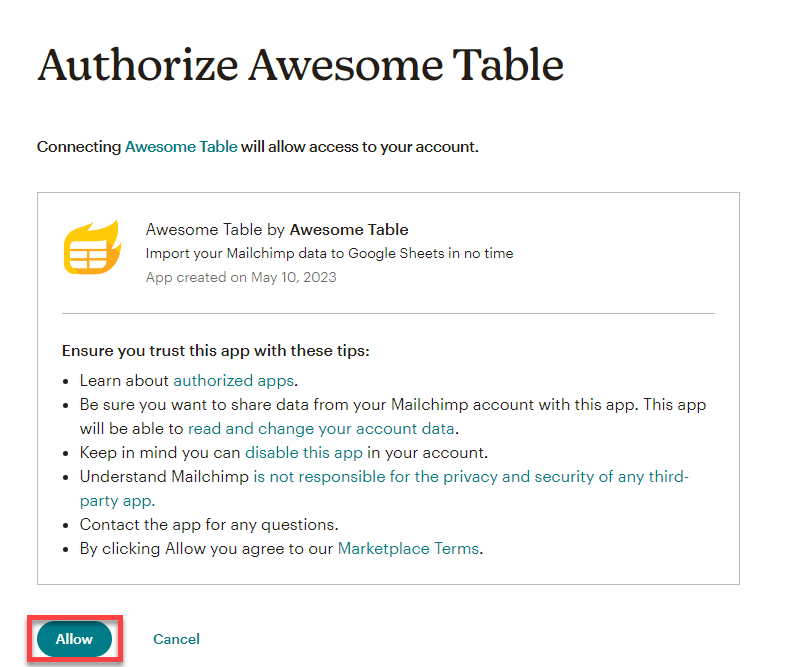
You are now logged in with the Mailchimp connector.
-
Open the Select data drop-down and select the audience for which you want to export contacts.
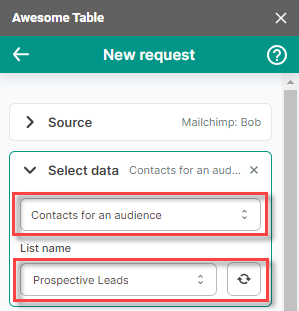
-
(Optional) Use the Preview & Select columns feature to choose the columns you need, edit their names, and configure a sort order.
-
Click Preview & Select columns.
A new window opens.
-
Make the changes you want.
-
Click Save changes.
-
-
Click Run to start your request.
If you are running a request for the first time, the Permission needed pop-up window opens.
-
Click Sign in with Google.
-
Select the Google account you want to use with Awesome Table.
-
Click Allow to grant Awesome Table the required permissions.
-
That's it! You have imported your contacts from Mailchimp into your Google spreadsheet. You are now ready to use YAMM to email your contact list!
