Salesforce CRM
YAMM integrates with Salesforce in two complementary ways: import contacts from Salesforce into your contact list spreadsheet to run a mail merge, and log YAMM campaigns back into Salesforce so all conversations appear in each lead's profile.
Import contacts from Salesforce CRM
Awesome Table Connectors lets you import Salesforce data, including your contacts.
Prerequisites
-
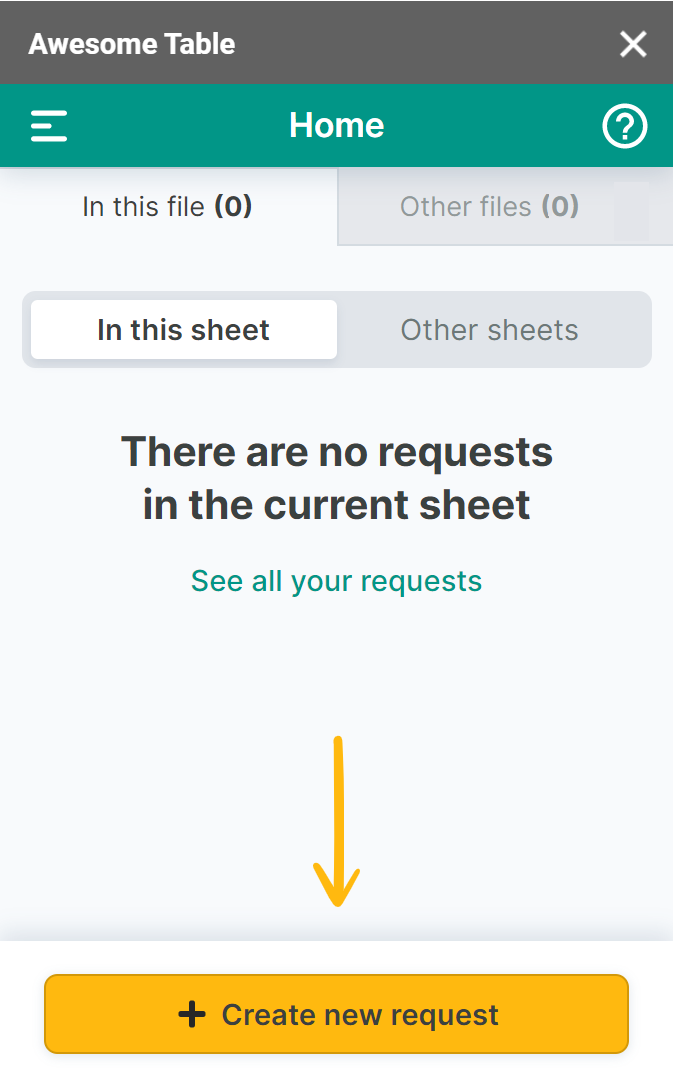
In the Awesome Table add-on Home screen, click Create new request.
-
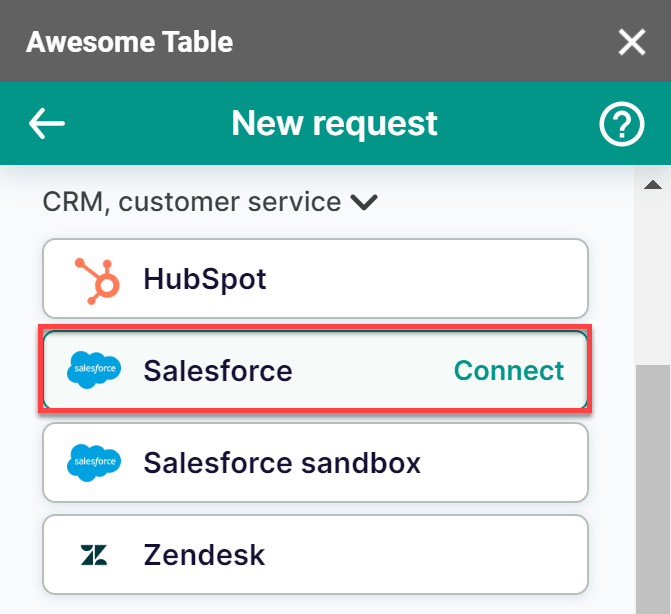
Open the Salesforce connector.
-
On the Connect to Salesforce screen, click Sign in with Salesforce.
-
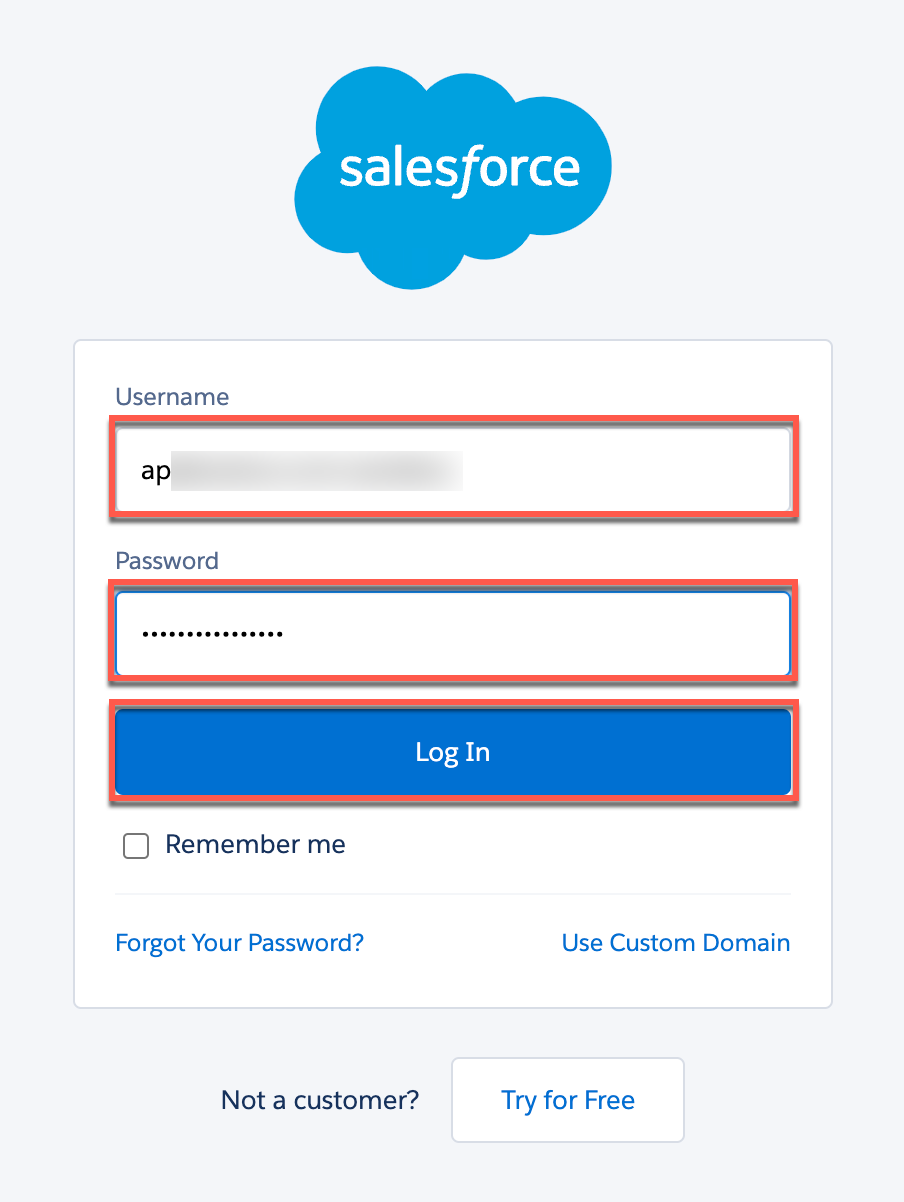
Enter your Salesforce username and password and click Log In.
-
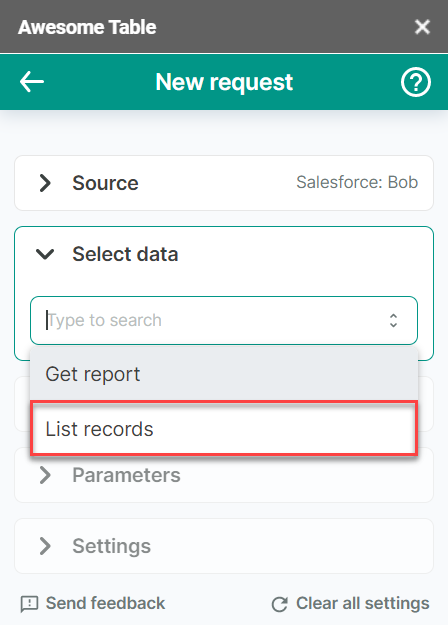
Open the Select data drop-down and select List records.
-
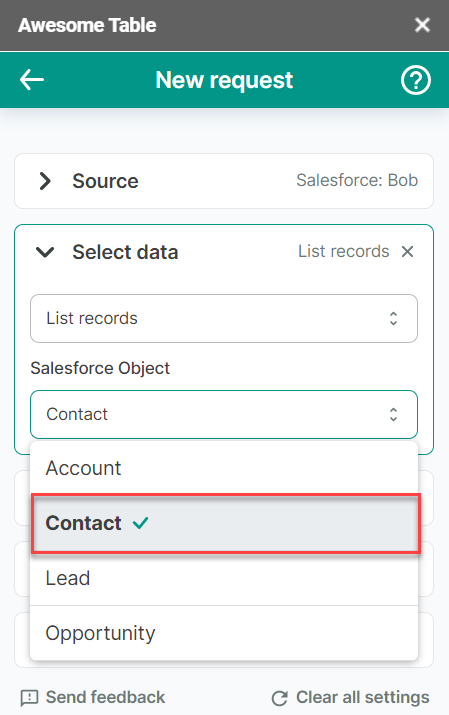
Open the Salesforce object drop-down and select Contact.
-
(Optional) Use Preview & Select columns to choose the columns you need.
-
Click Run to start your request.
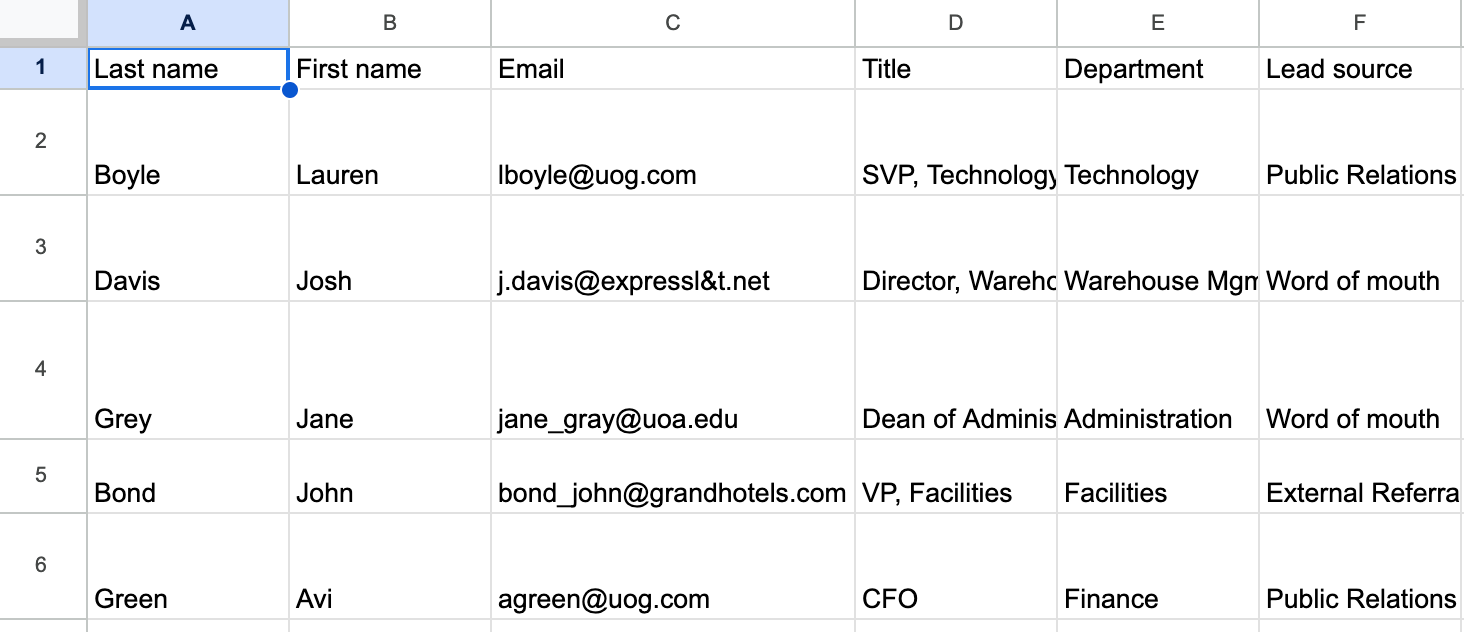
Your contacts are imported into your Google spreadsheet, ready for YAMM.
Log YAMM campaigns into Salesforce
Salesforce lets you log Gmail campaigns into your Salesforce account so all conversations with prospects or clients appear in their lead profile.
1. Enable 'Email to Salesforce'
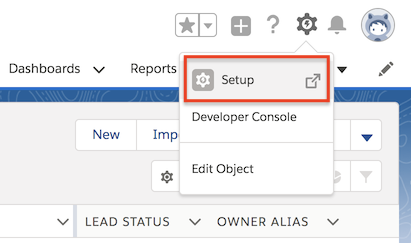
Click the top-right corner icon > Setup.
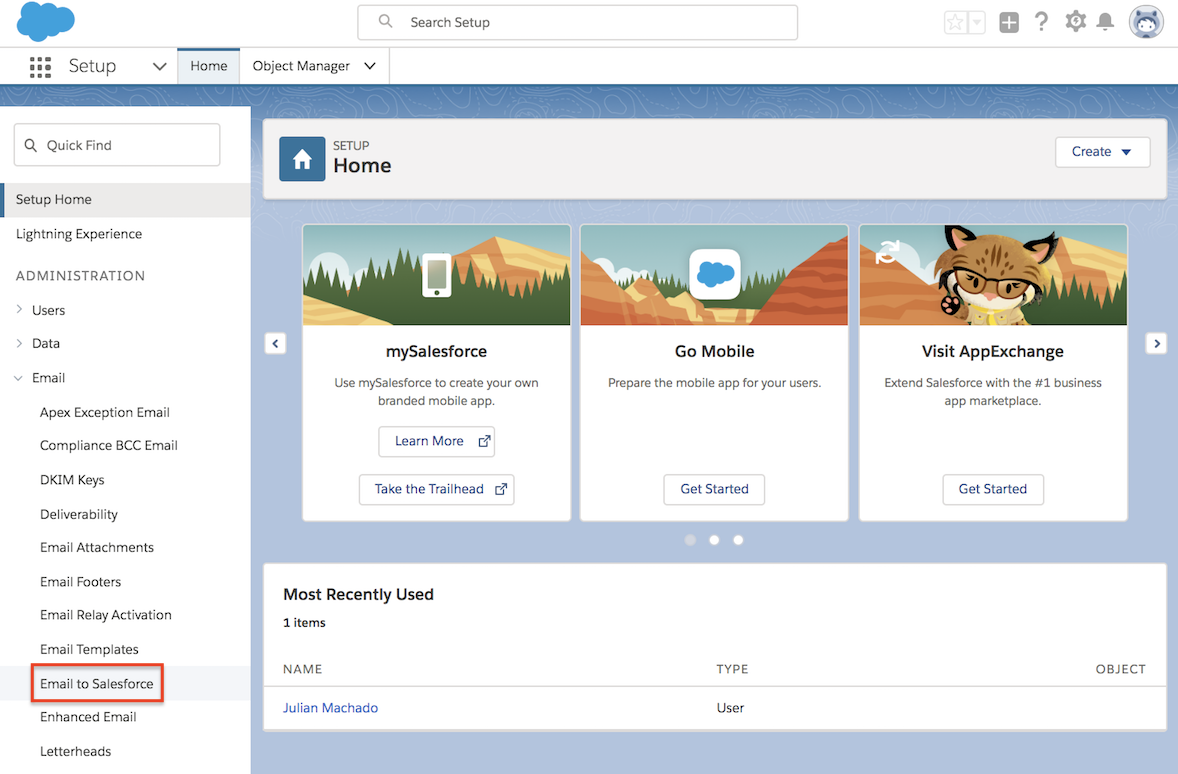
In the left sidebar, click Email > Email to Salesforce.
Click Edit > select Active.
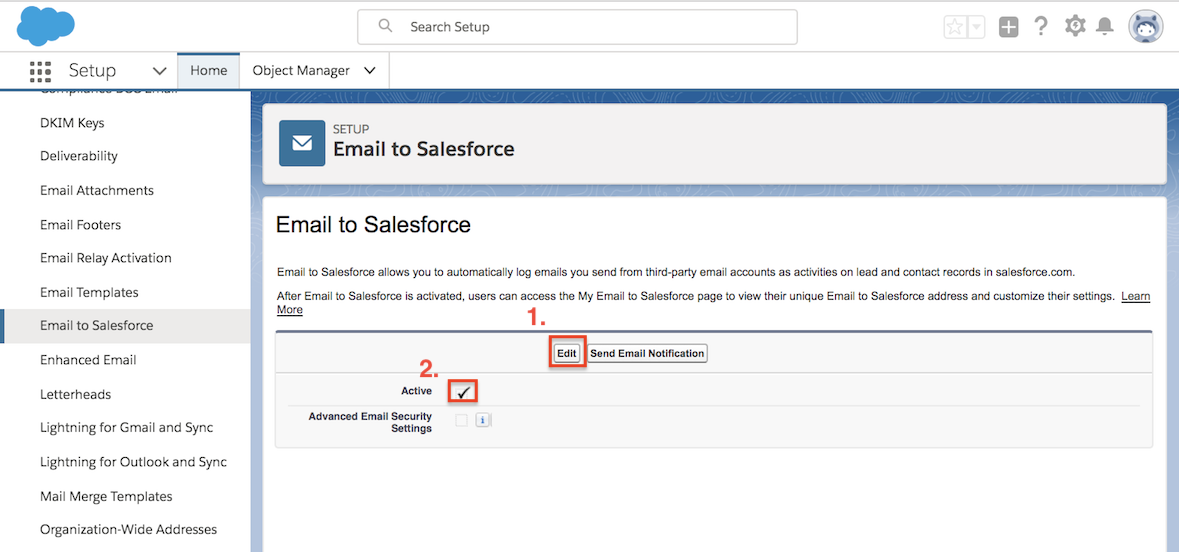
Click Save. A Send Notification Email to Users pop-up appears.
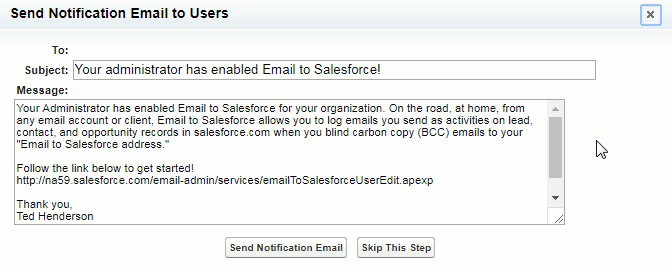
If other users from your company are registered with your Salesforce account, click Send Notification Email; otherwise click Skip This Step.
2. Log out and log back in
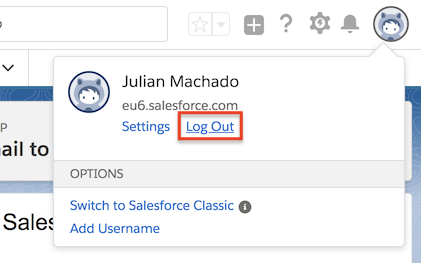
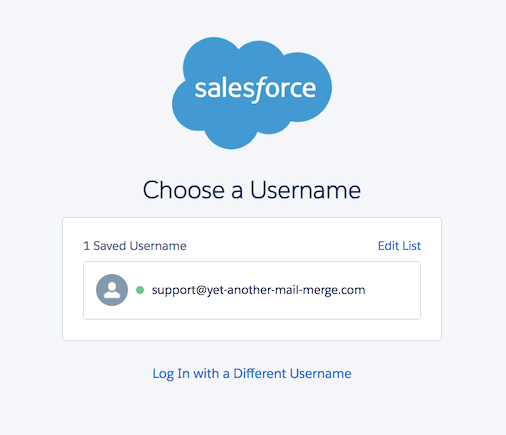
Salesforce doesn't refresh settings instantly — log out, then log back in to update your settings menu.
3. Locate the 'Email' menu option
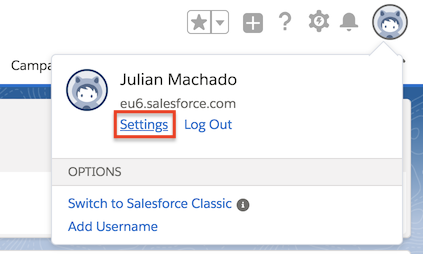
In the left menu, click Email > My Email to Salesforce.
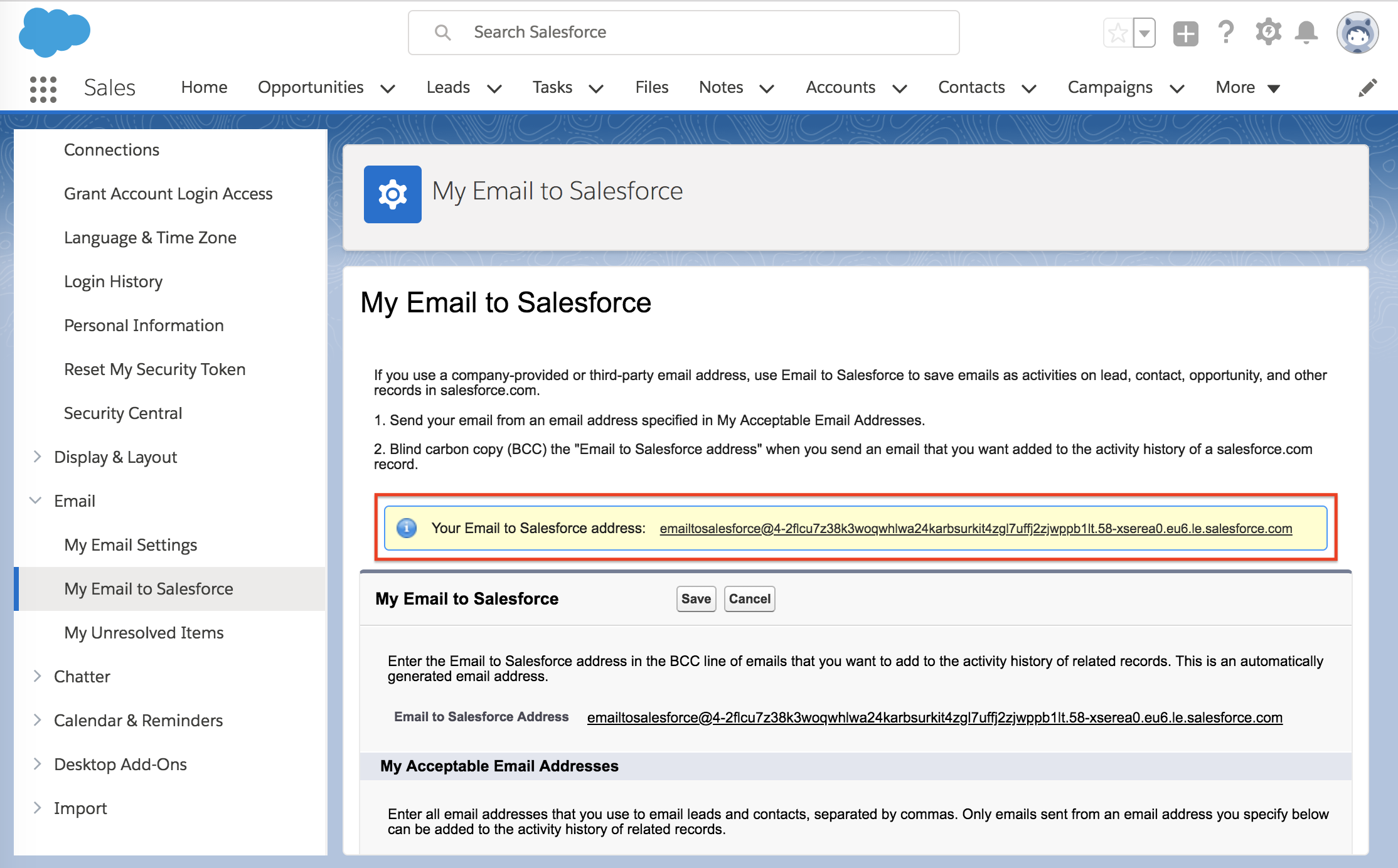
Your Email to Salesforce address appears in the yellow box.
This is the unique email address you'll add as a bcc recipient in your spreadsheet.
In My Acceptable Email Addresses, enter every address you use to email leads and contacts, separated by commas. Only emails from these addresses are added to the activity history of related records.

Choose your Email Associations settings and click Save.
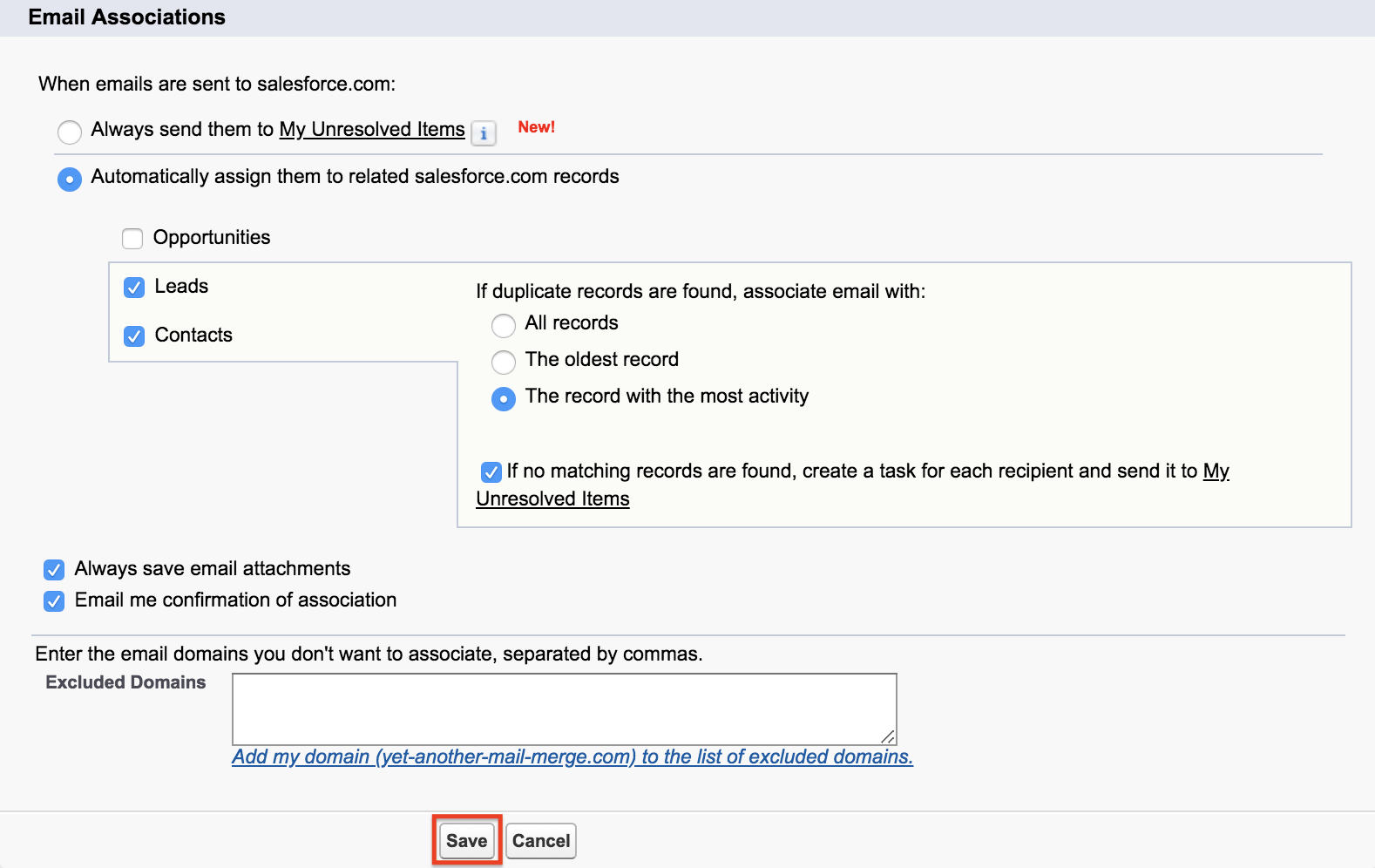
4. Configure your contact list spreadsheet
List all your recipients (or import them from Salesforce). Paste the Email to Salesforce address under a bcc column.
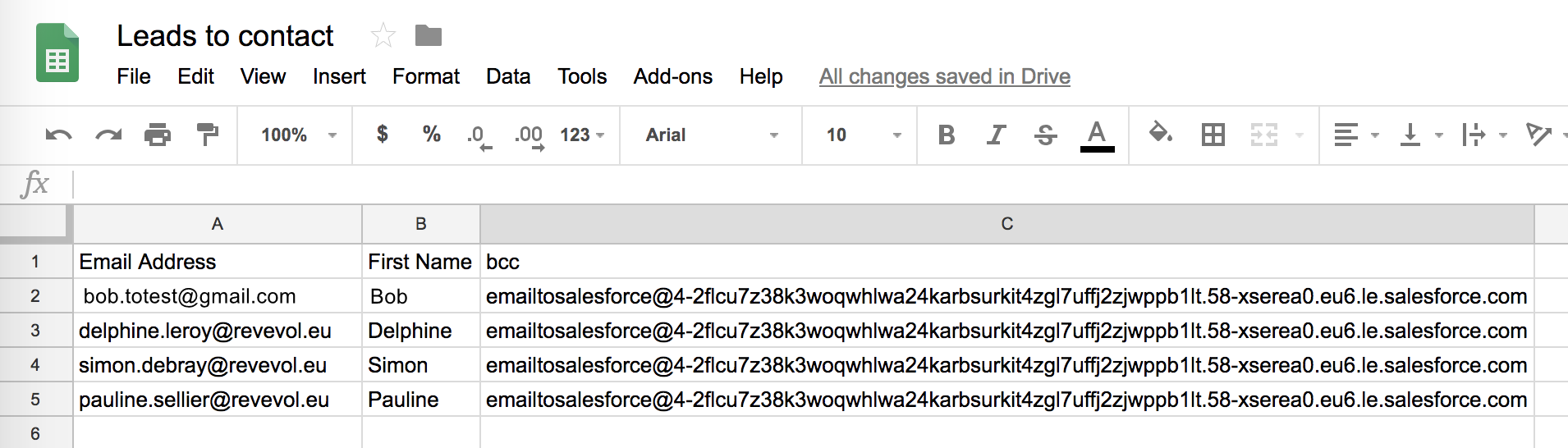
Learn more: Reach multiple recipients per row.
5. Start your mail merge with YAMM
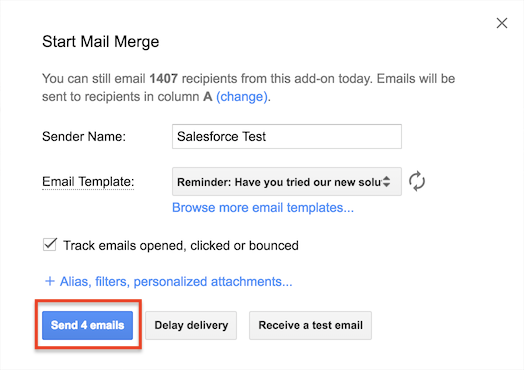
Run YAMM: Extensions > Yet Another Mail Merge: Mail Merge for Gmail > Start Mail Merge.
6. Check the email logs in Salesforce
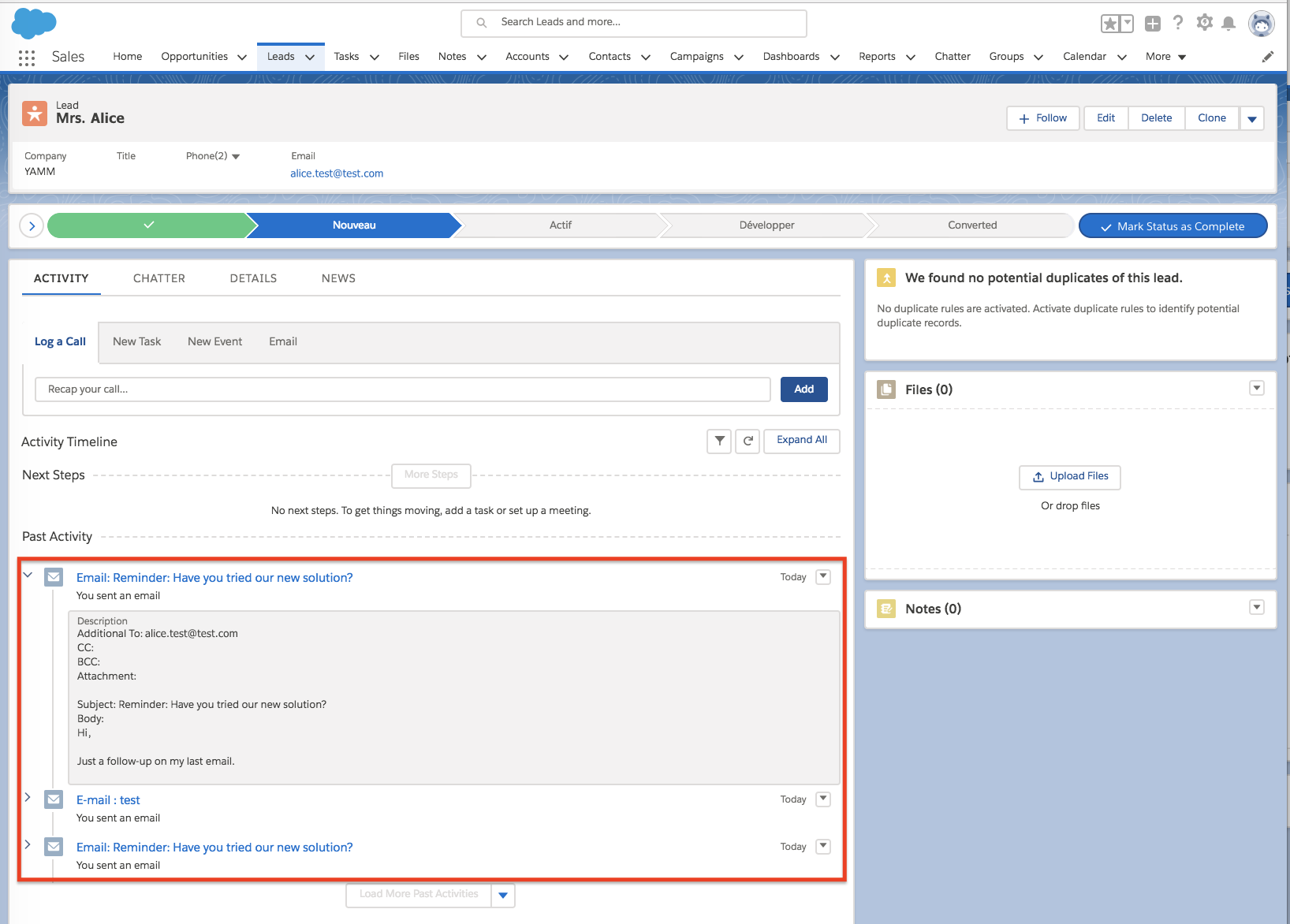
If a recipient matches a Salesforce lead or contact, the email appears in their profile under Activity.
If not, find the emails under Settings > Email > My Unresolved Item > Emails.
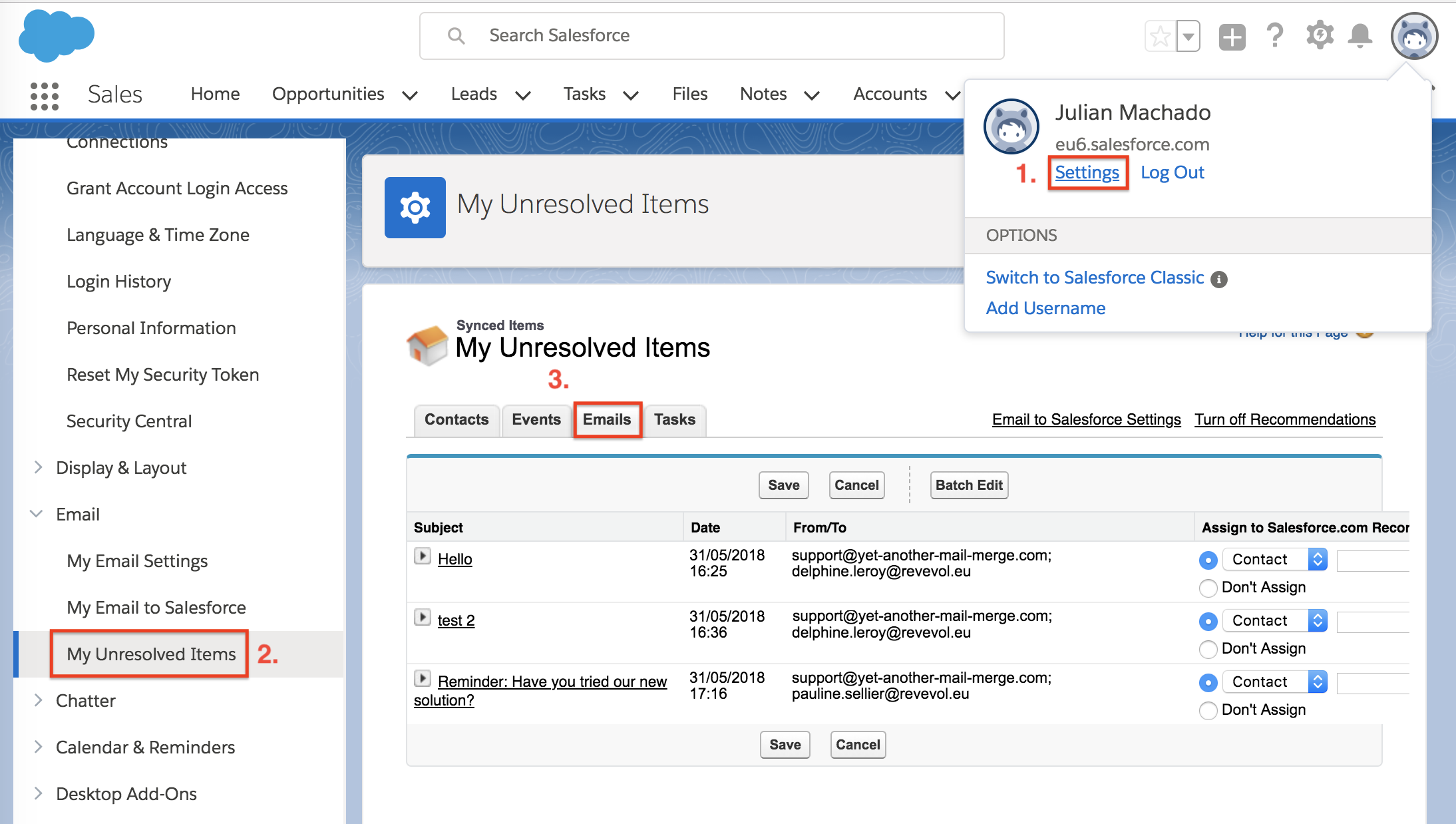
It can take a few minutes to record all your emails. If you don't see them, wait a bit longer.