HubSpot CRM
YAMM integrates with HubSpot in two complementary ways: import contacts from HubSpot into your contact list spreadsheet to run a mail merge, and log YAMM campaigns back into HubSpot using a bcc address so all conversations appear under each contact's profile.
Import contacts from HubSpot CRM
Awesome Table Connectors lets you import HubSpot data, including your contacts.
Prerequisites
You can log in to the HubSpot connector using your HubSpot account or with an API key.
-
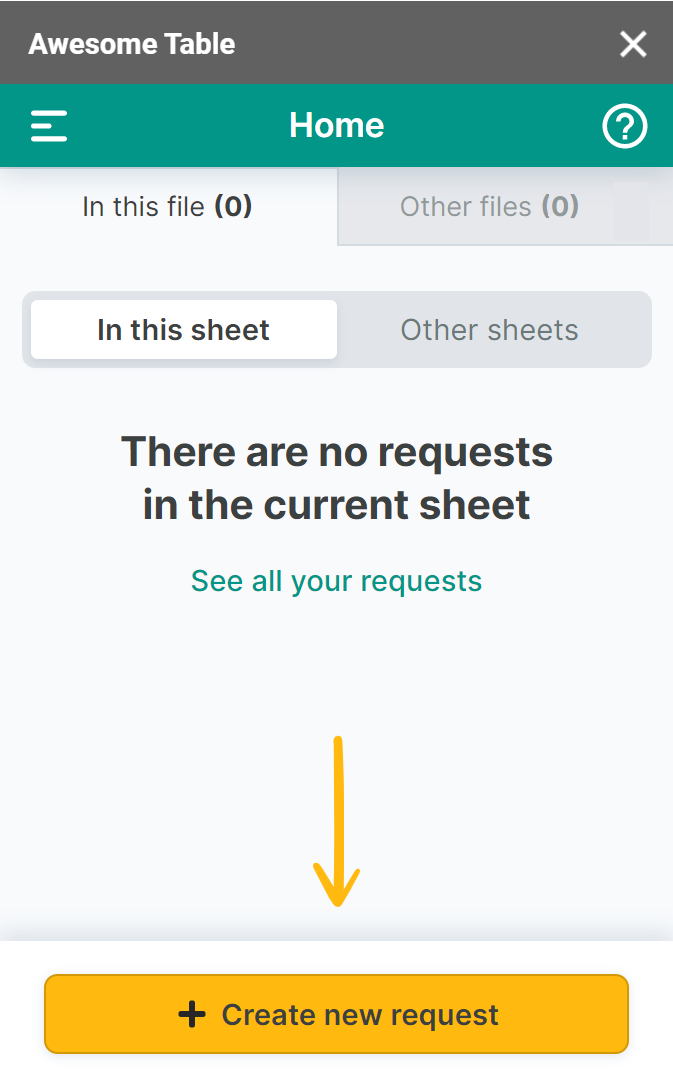
In the Awesome Table add-on Home screen, click Create new request.
-
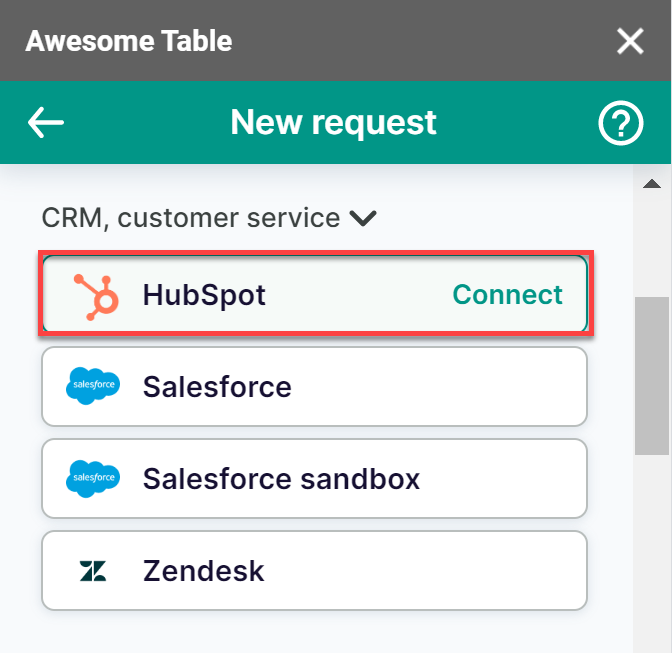
Open the HubSpot connector.
-
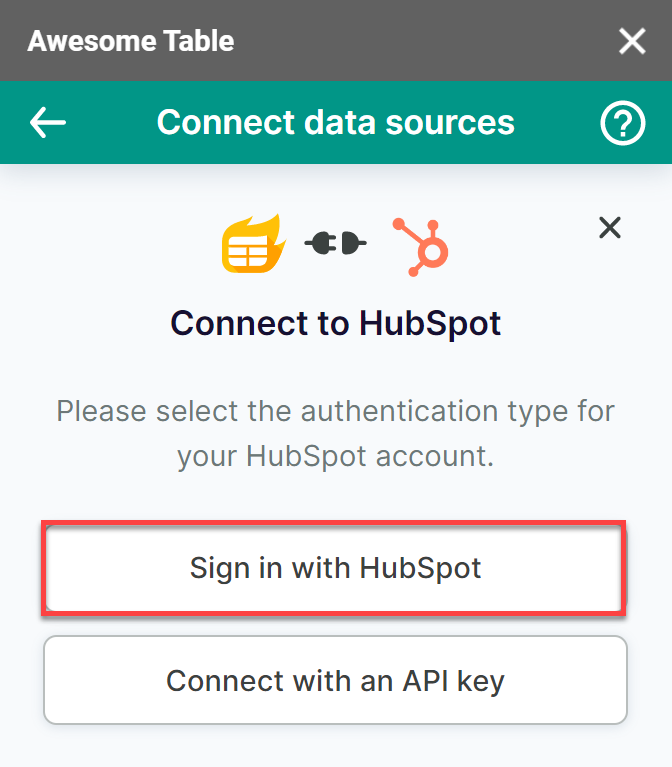
On the Connect to HubSpot screen, click Sign in with HubSpot.
-
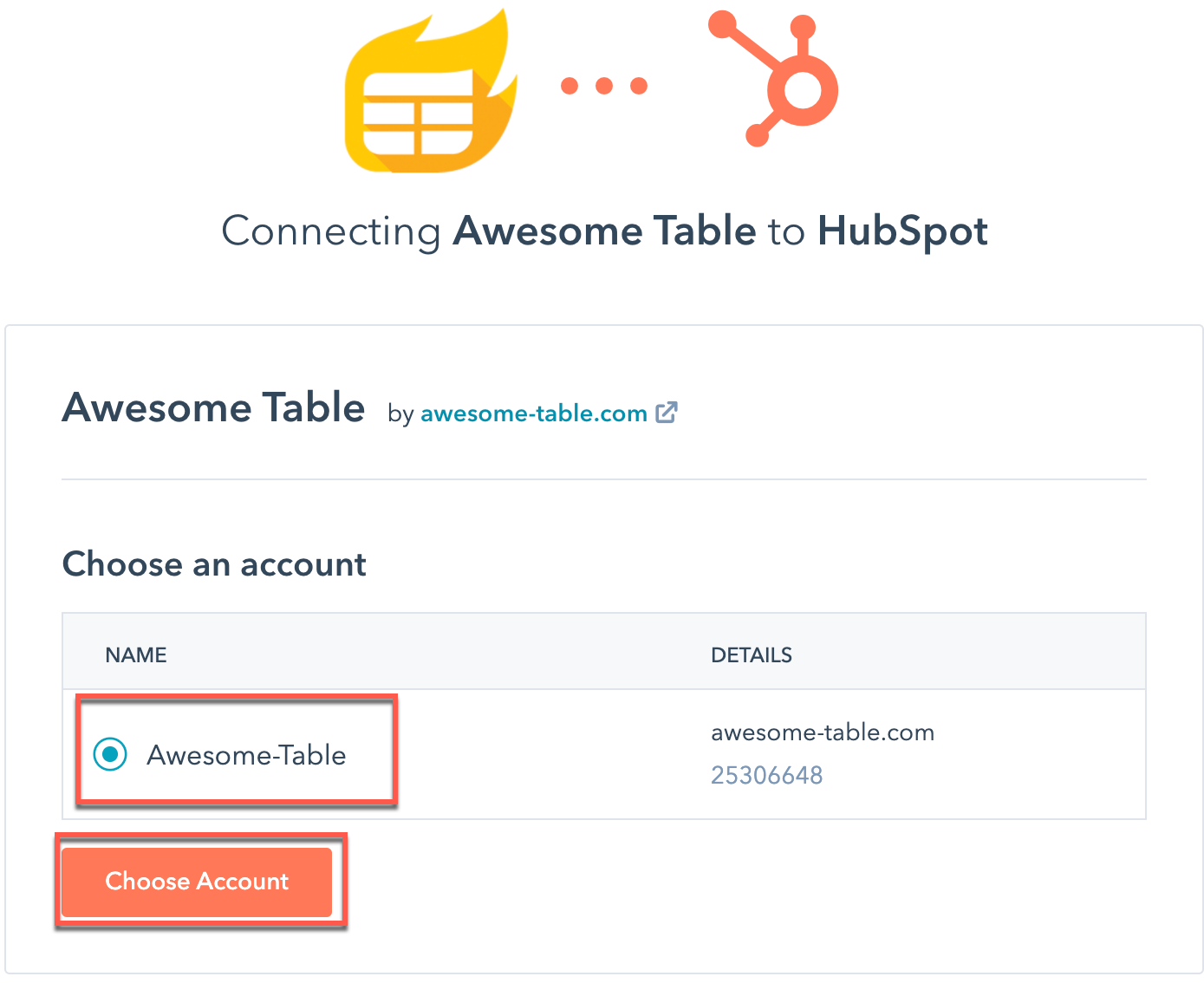
Select your HubSpot account and click Choose Account.
-
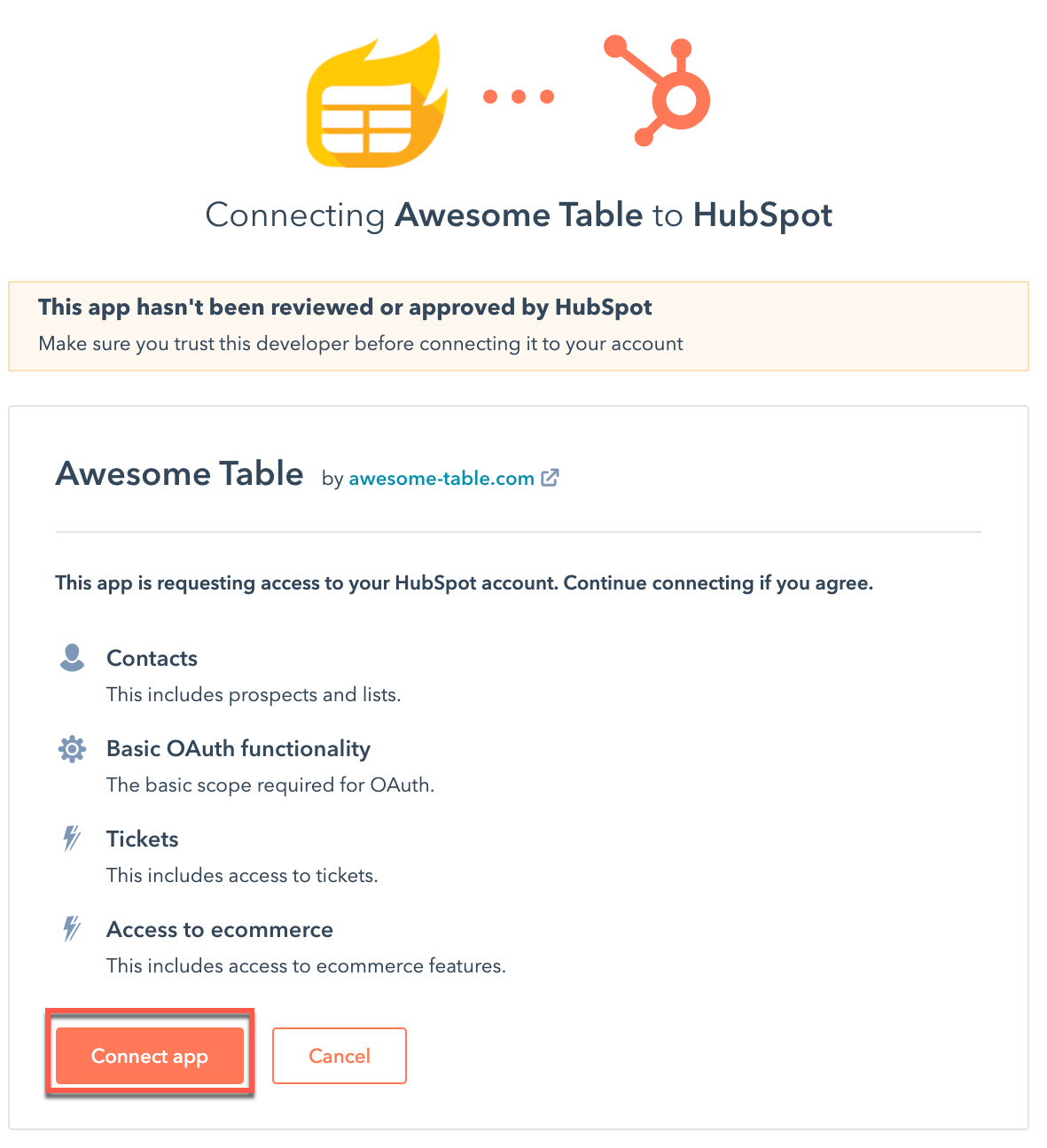
Click Connect app.
-
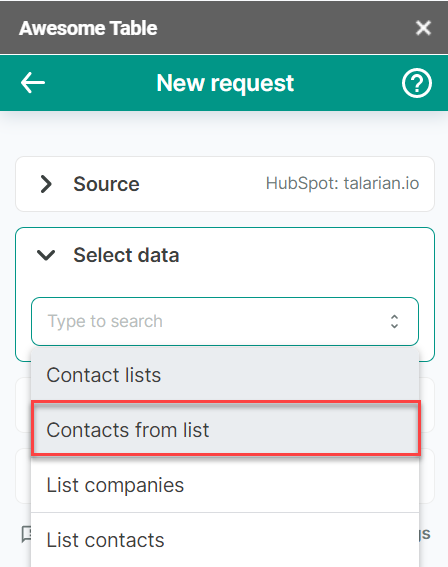
Open the Select data drop-down and select Contacts from list.
-
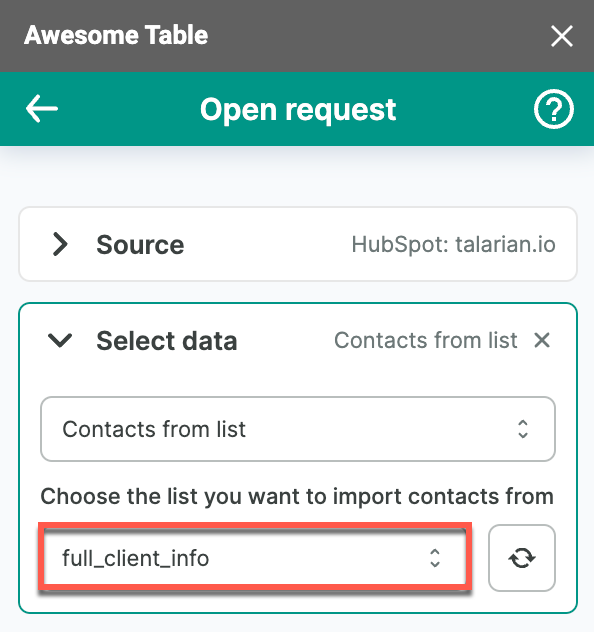
Select the list you want to import contacts from.
-
(Optional) Use Preview & Select columns to choose the columns you need.
-
Click Run to start your request. The first time, you grant Awesome Table the required permissions.
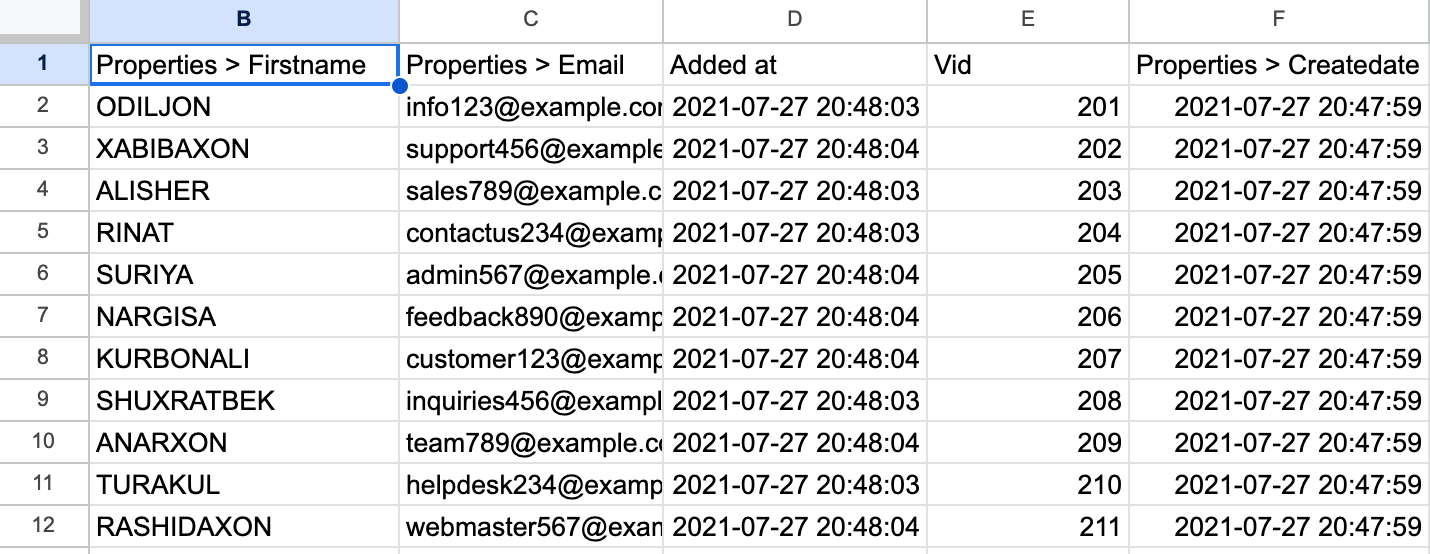
Your contacts are imported into your Google spreadsheet, ready for YAMM.
Log YAMM campaigns into HubSpot
Record YAMM email campaigns directly in HubSpot — all Gmail conversations with your sales leads automatically save into each contact's profile.
1. Link your HubSpot account to your Gmail inbox
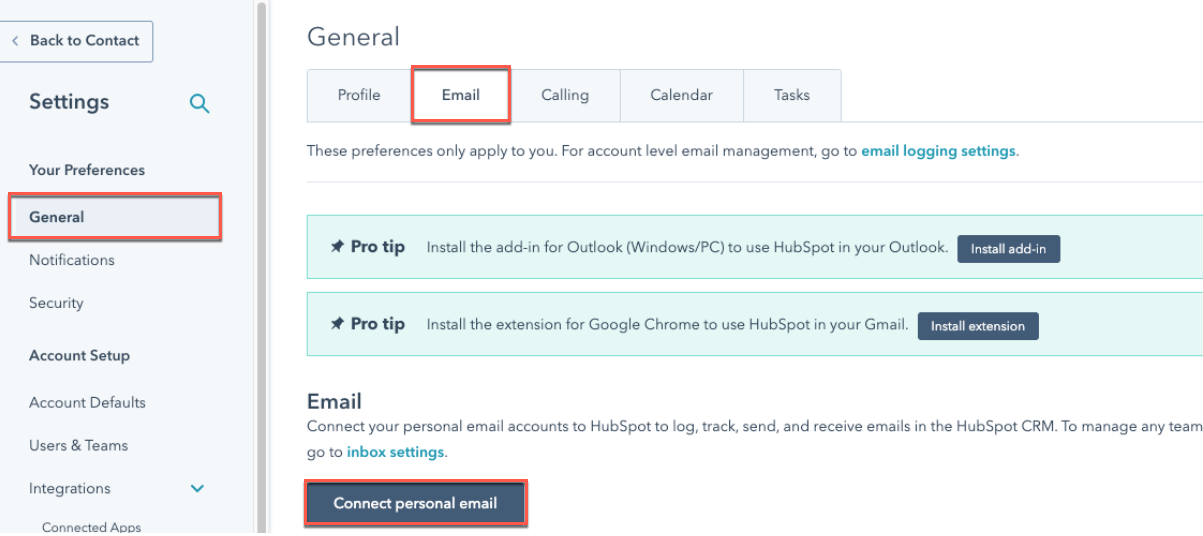
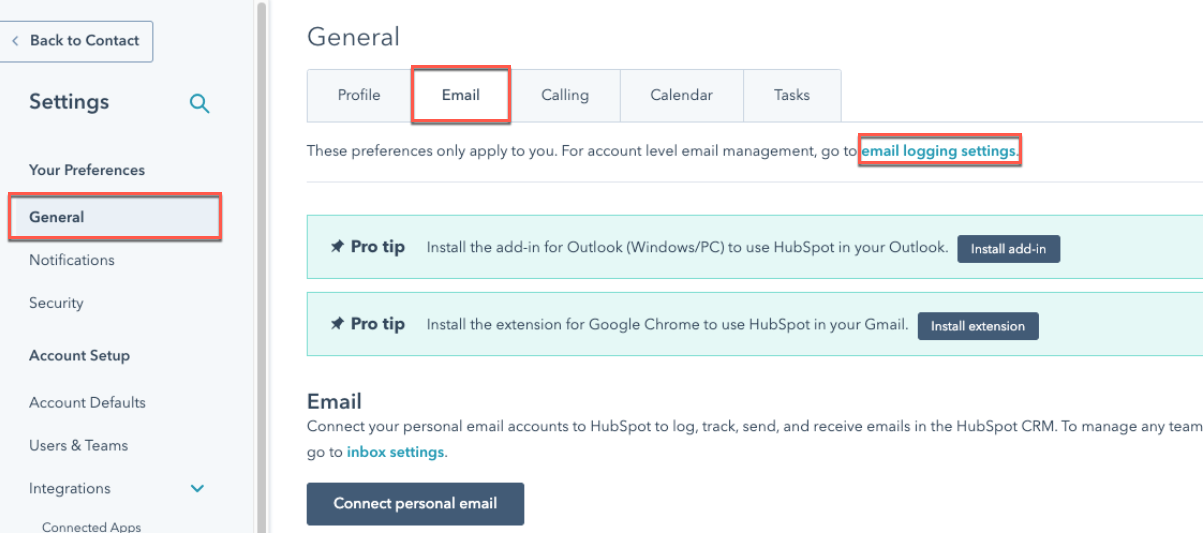
In HubSpot, click the gear icon in the top right corner. Select General, open the Email tab, and click Connect personal email.
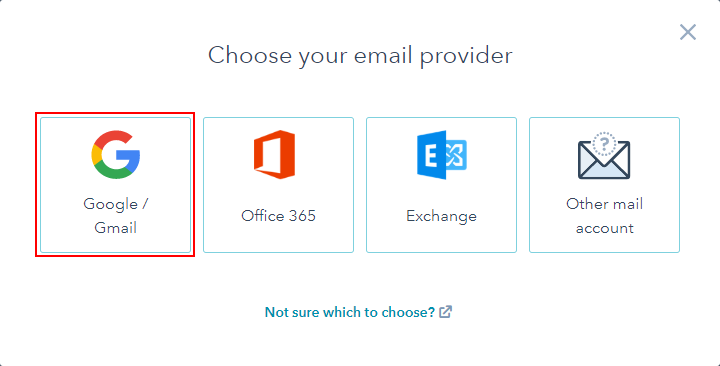
Select Google / Gmail as the email provider.
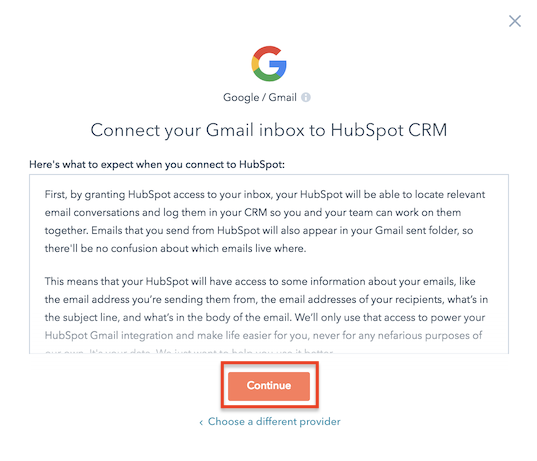
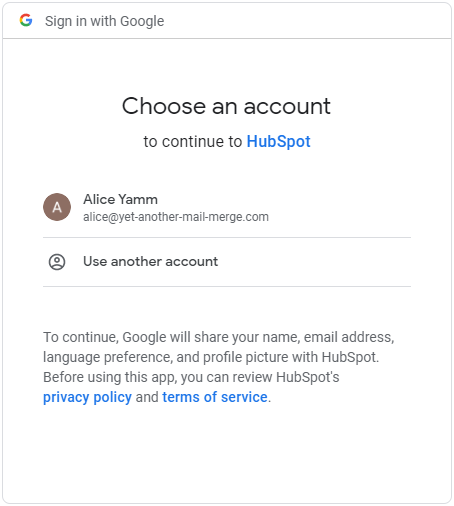
Click Continue, select your Google account (the same one you'll use to launch your campaign with YAMM), and accept the authorizations.
A confirmation pop-up opens in your HubSpot settings — close it or click No, thanks.
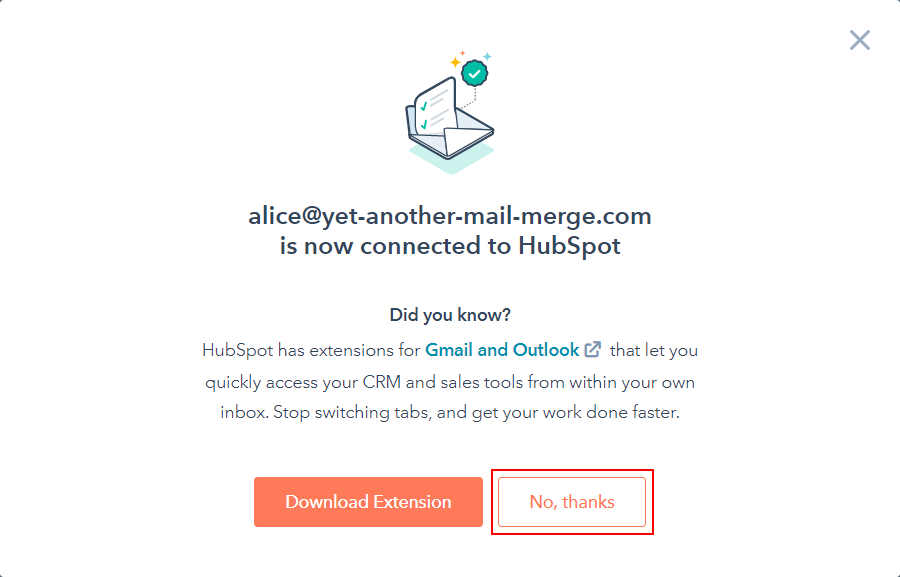
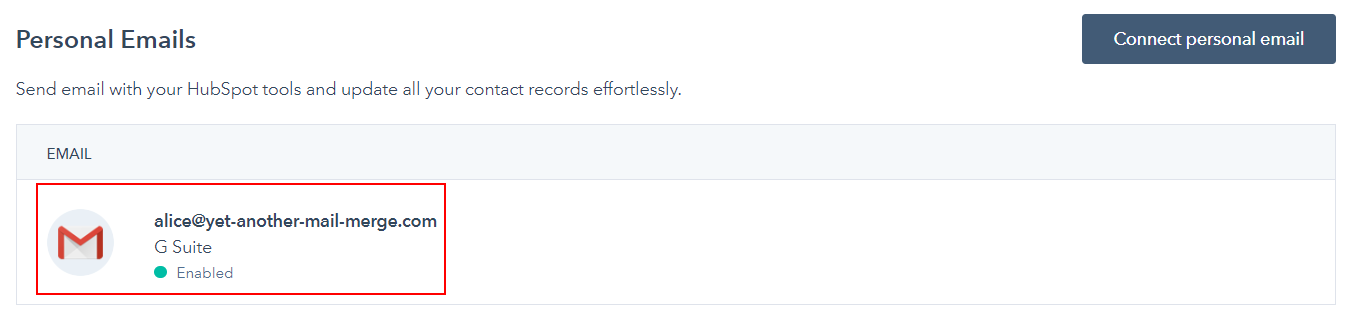
Your Gmail inbox is now linked to your HubSpot account.
2. Retrieve your HubSpot bcc email address
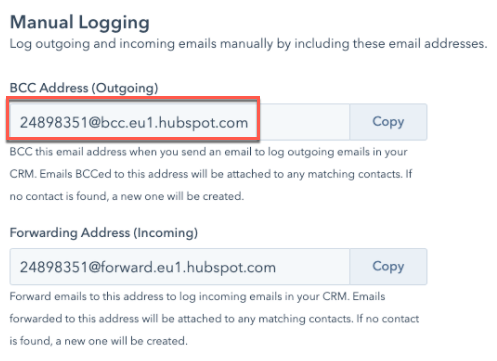
Click the gear icon > General > Email tab > email logging settings. The bcc address appears under Manual Logging.
By default, HubSpot does not log emails sent to recipients from the same domain as you.
3. Configure your contact list spreadsheet
List all your recipients (or import them from HubSpot). Paste the special bcc address under a bcc column.

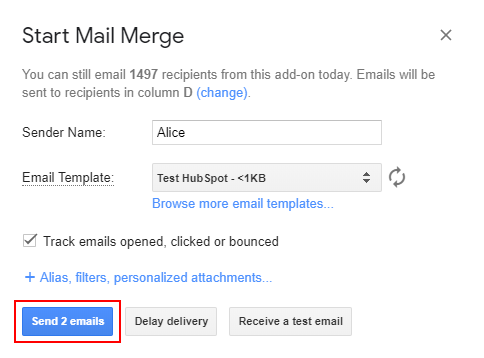
4. Start your mail merge with YAMM
Run YAMM as usual: Extensions > Yet Another Mail Merge: Mail Merge for Gmail > Start Mail Merge.
5. Check the email logs in HubSpot
If a recipient matches a HubSpot contact, the email appears in the contact's profile under Activity.
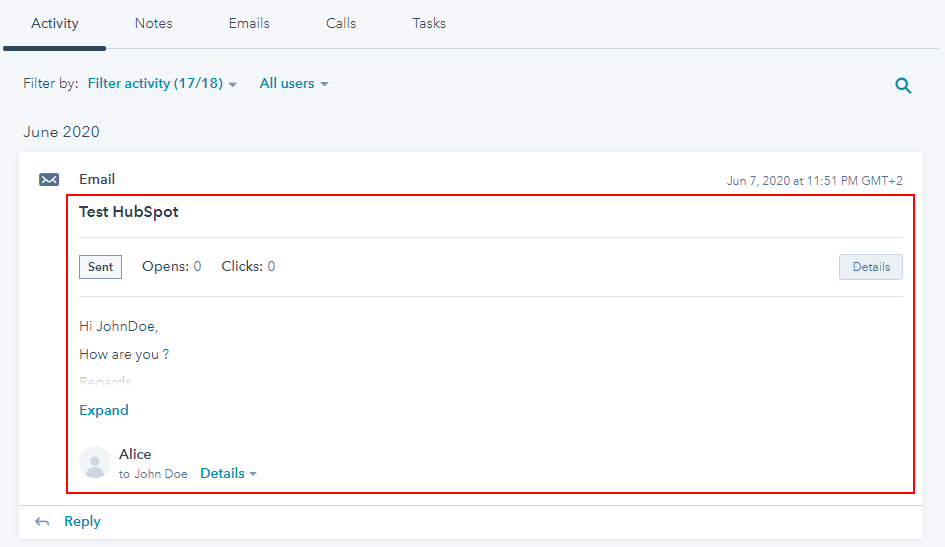
If no match, a new contact profile is created.

It can take a few minutes to record all your emails. If you don't see them, wait a bit longer.