About tracking
Good feedback is key to measuring the success of your campaign. YAMM tracking collects information on each email sent — opens, clicks, replies, bounces, and unsubscribes. This article covers how to enable tracking, what each metric means, and how accurate the numbers are.
Track and measure your mail merge results
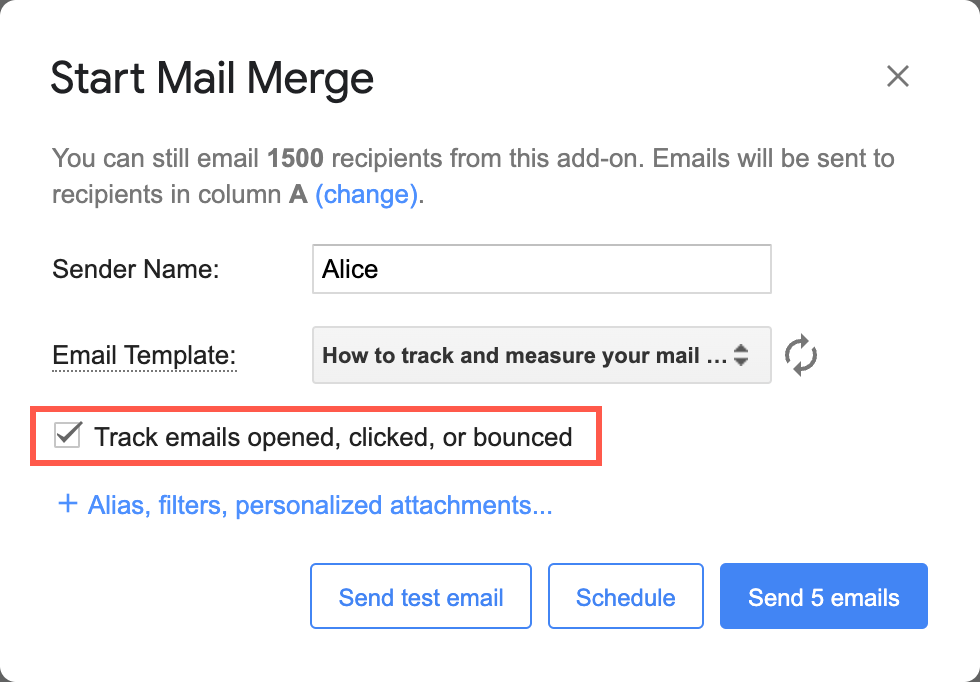
Select the Track emails opened, clicked or bounced checkbox just before running your mail merge.
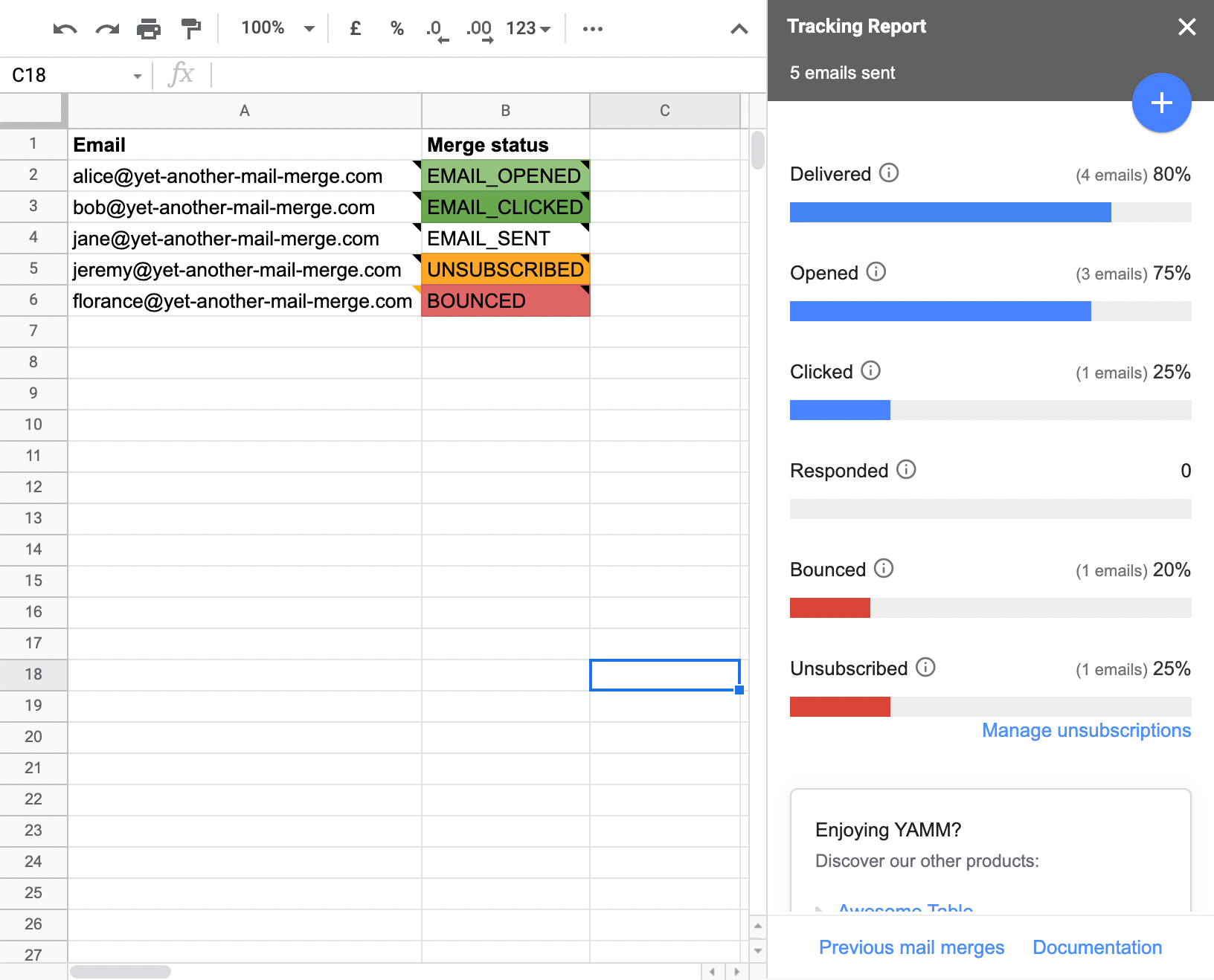
After running your mail merge, the tracking report automatically opens on the right sidebar of your Google Sheets.
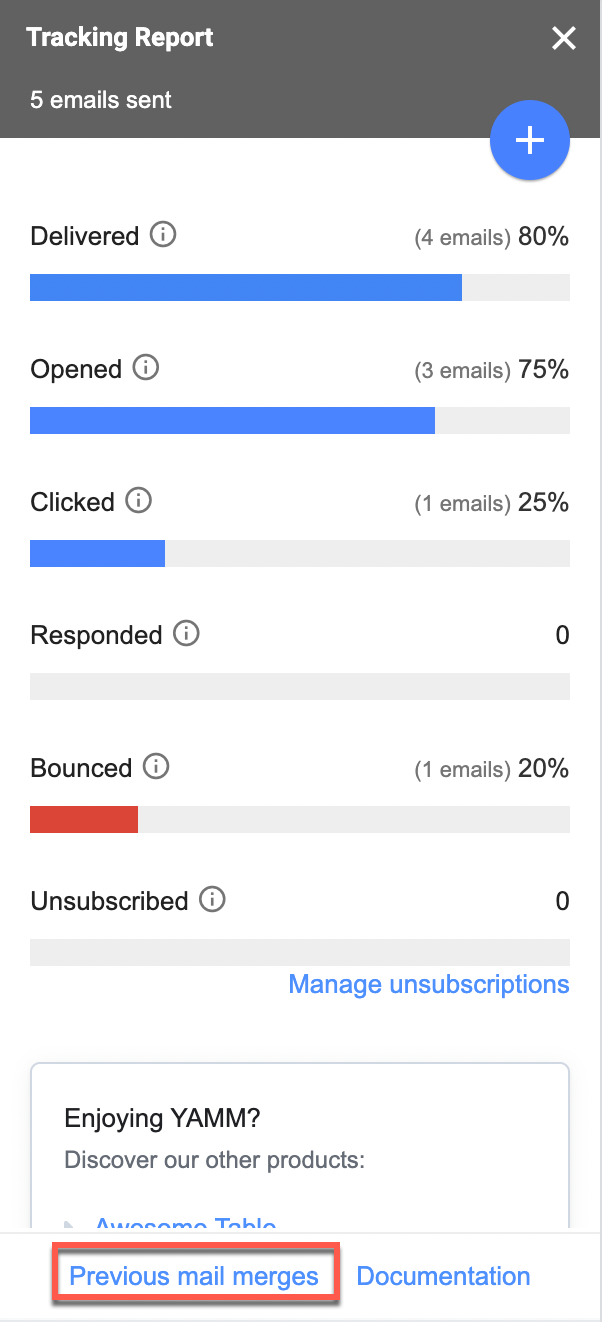
Get all useful metrics related to your campaign success at a glance: Opened, Clicked, Replied, Bounced and Unsubscribed.
Check your tracking stats again
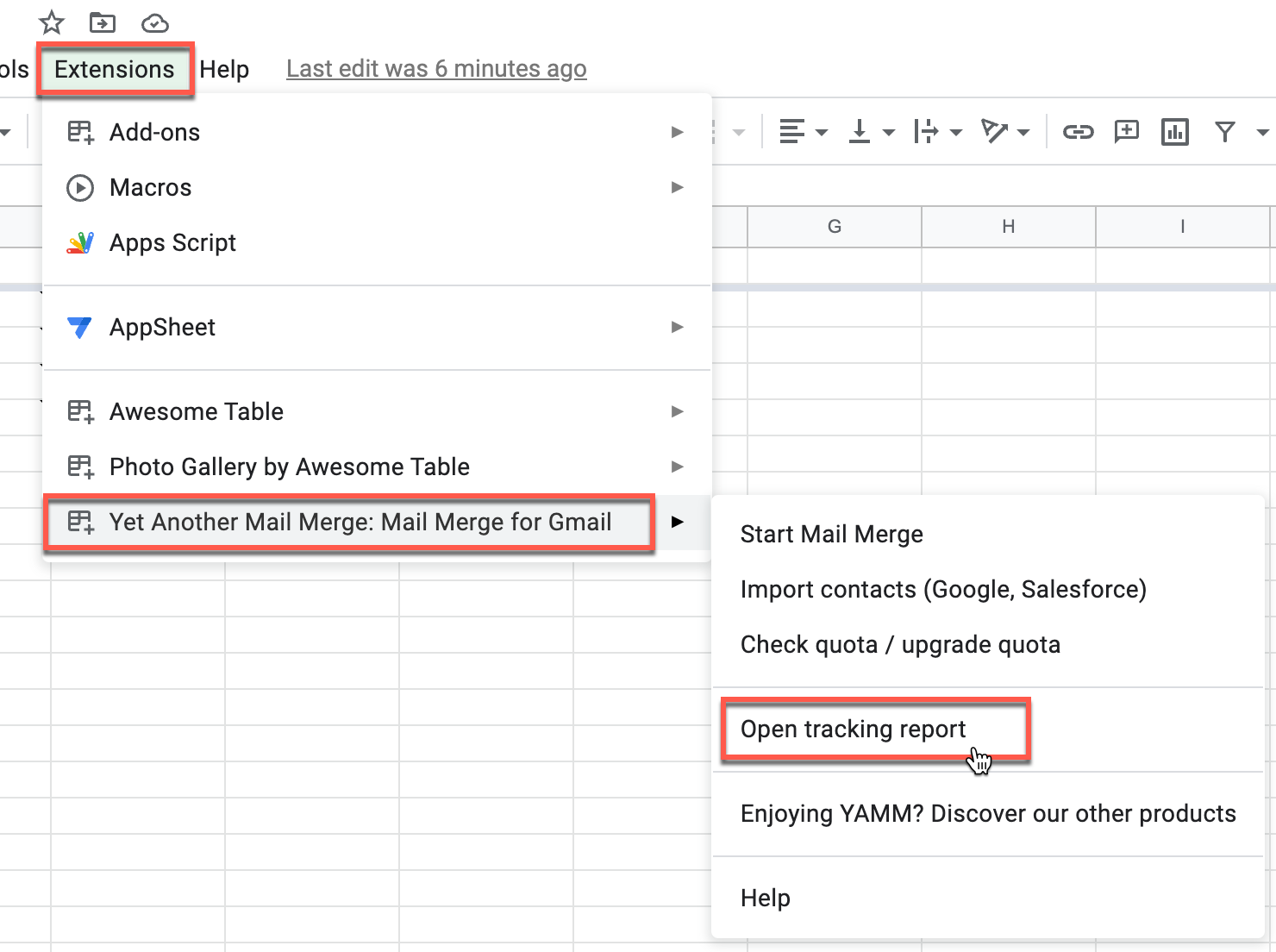
If you have closed the tracking report, you can always open it again from the Extensions menu. A new entry called Open tracking report appears.
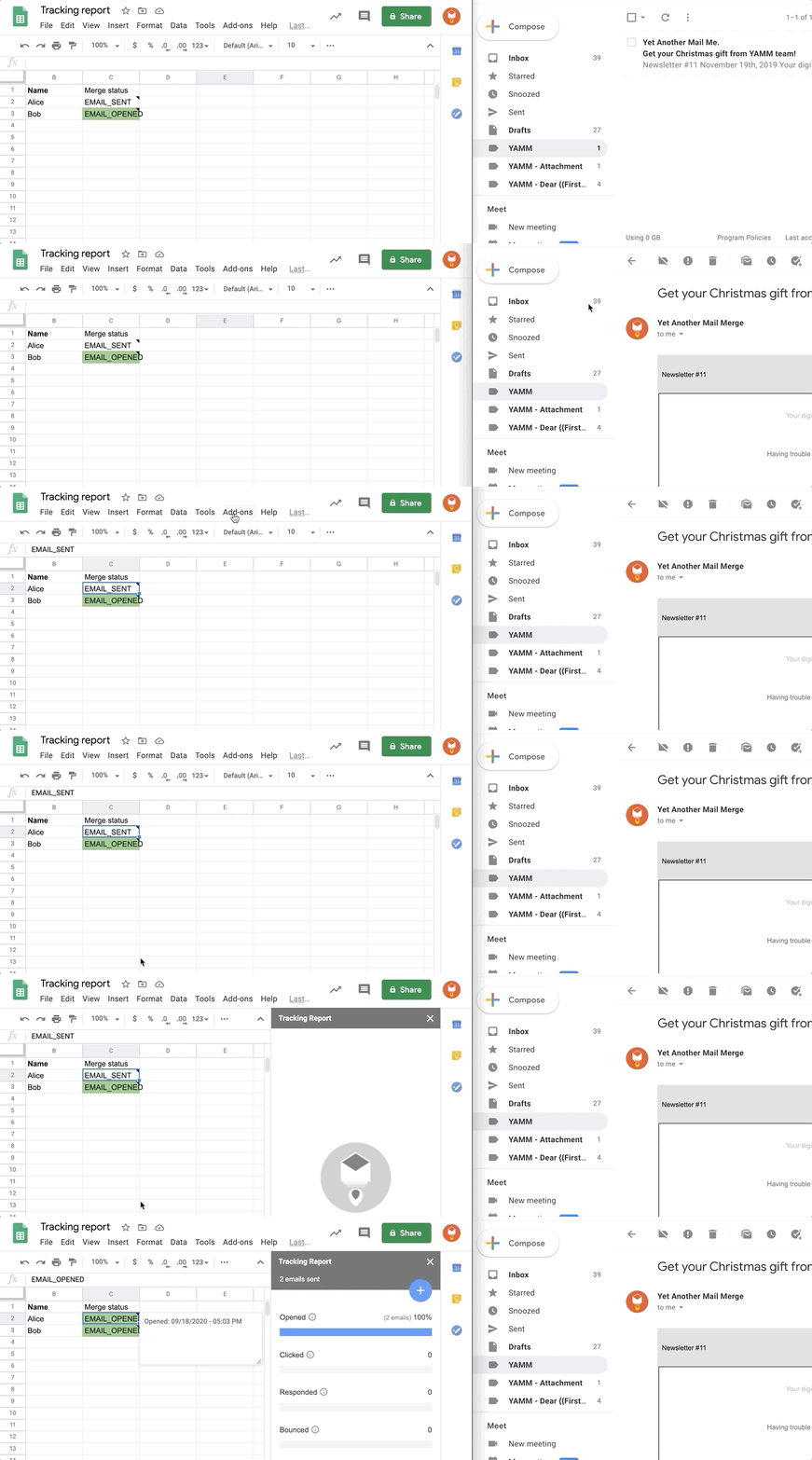
When you open the tracking report, YAMM updates your spreadsheet with all new receipts.
Tracking receipts are stored for around one year from the last recorded action (such as an open, click, or unsubscribe).
Track your mail merges in real time
All stats on your mail merge are retrieved in real time. Every time a recipient opens, clicks or unsubscribes from your email, or if your emails bounce, the information is automatically and immediately recorded in the report.
If you close the tracking report sidebar, the Merge status column will no longer update automatically. To track changes live, you must open the tracking report sidebar again.
What the tracking stats mean
All statuses in the Merge status column
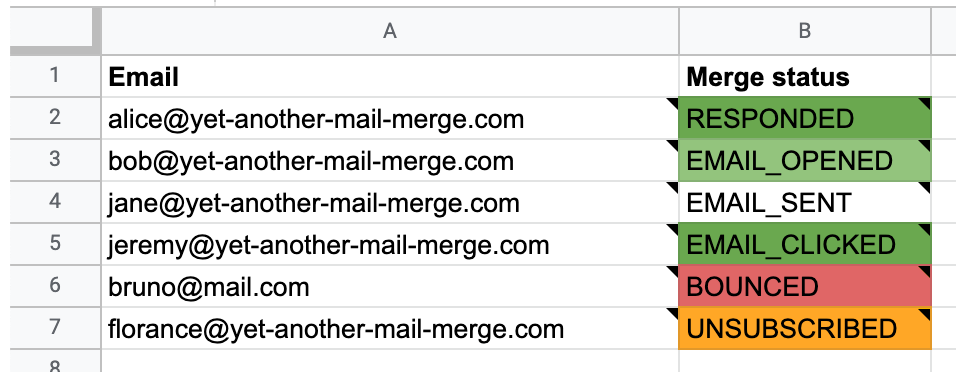
After you run your mail merge, you can instantly see how the status of each recipient changes in the Merge status column.
| Status | Description |
|---|---|
EMAIL_SENT | The email was sent. |
EMAIL_OPENED | The email was opened by the recipient. |
EMAIL_CLICKED | The recipient clicked a link in the email. |
RESPONDED | The recipient responded to the email. |
BOUNCED | The email was not delivered. |
UNSUBSCRIBED | The recipient unsubscribed from future mail merges. |
All tracking stats in the tracking report
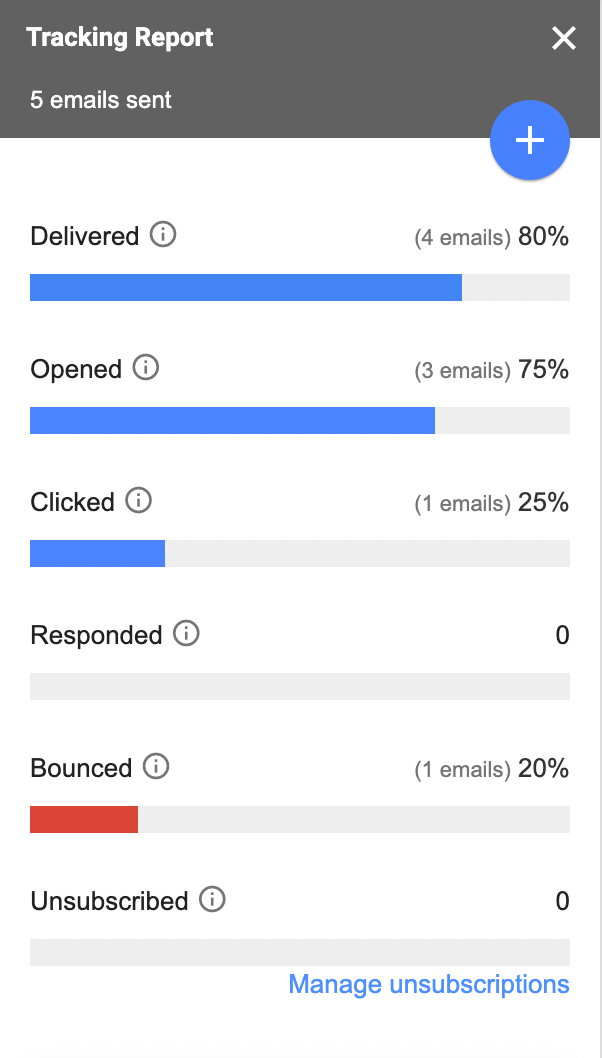
At a glance, you can quickly review the stats and metrics of your email campaign in the tracking report.
| Metric | Definition | Calculation | Which emails are counted in this metric |
|---|---|---|---|
| Delivered | When the sent emails are delivered to the recipients' inboxes. | Delivery rate = (sent - bounced) / sent | All except BOUNCED. |
| Opened | When people open your email. Learn more | Open rate = emails opened / delivered (sent - bounced) | EMAIL_OPENED, EMAIL_CLICKED, UNSUBSCRIBED, RESPONDED |
| Clicked | When people click on a link in your email. Learn more | Click rate = emails clicked / emails delivered | EMAIL_CLICKED |
| Responded | When people answer your email. Learn more | Response rate = emails responded / emails delivered | RESPONDED |
| Bounced | When your email was not delivered, usually because the address does not exist. Learn more | Bounce rate = emails bounced / emails sent | BOUNCED |
| Unsubscribed | When people don't want to receive more emails from you. Learn more | Unsubscribe rate = unsubscriptions / emails delivered | UNSUBSCRIBED |
Clickable metrics
Click each metric from the tracking report and YAMM automatically filters the corresponding rows. You can see at a glance who opened your emails, clicked etc. and better refine your target if, for example, you want to run a follow-up mail merge — see Run a follow-up mail merge.
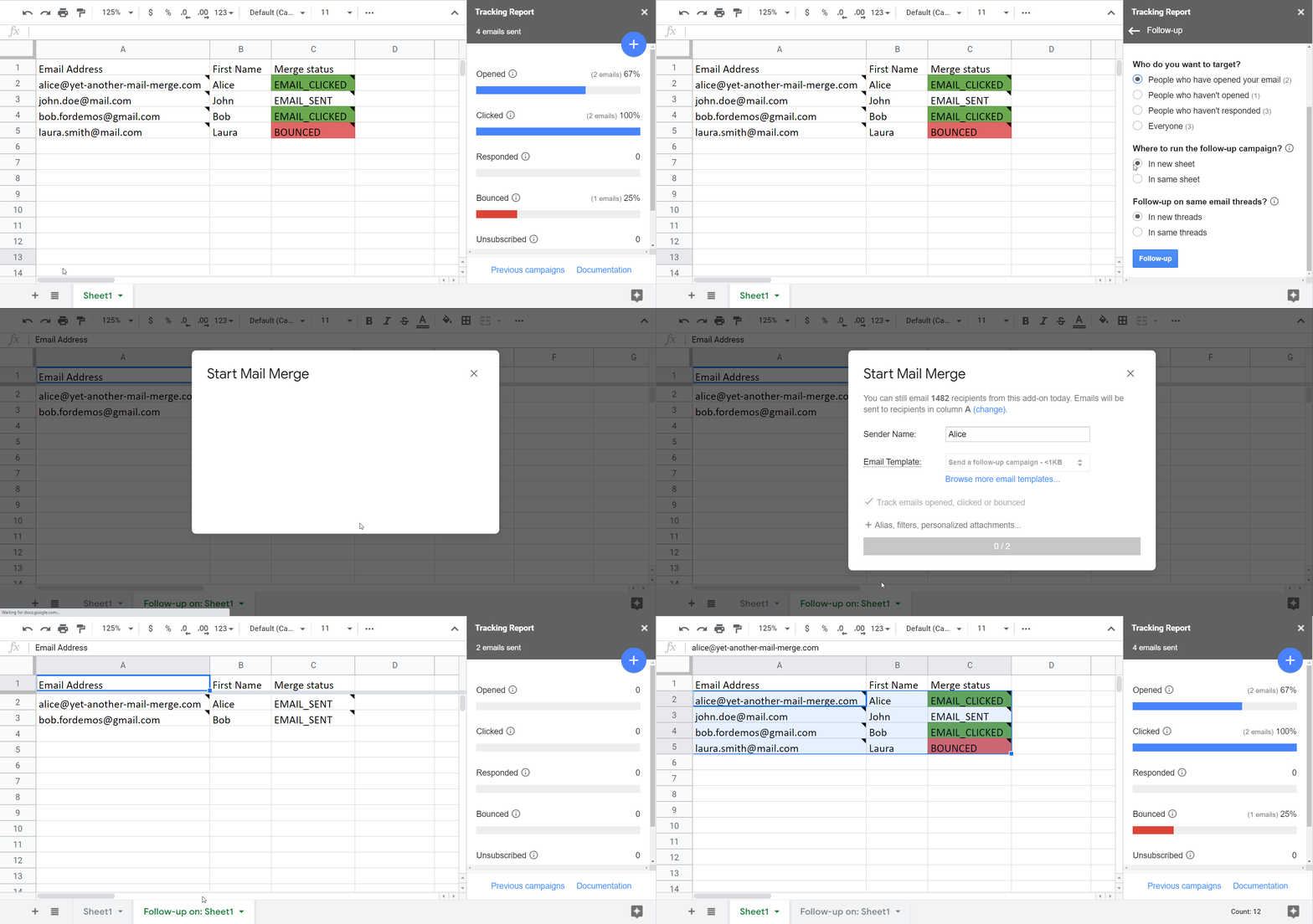
To remove the filters, click Remove filter at the bottom of the tracking report.
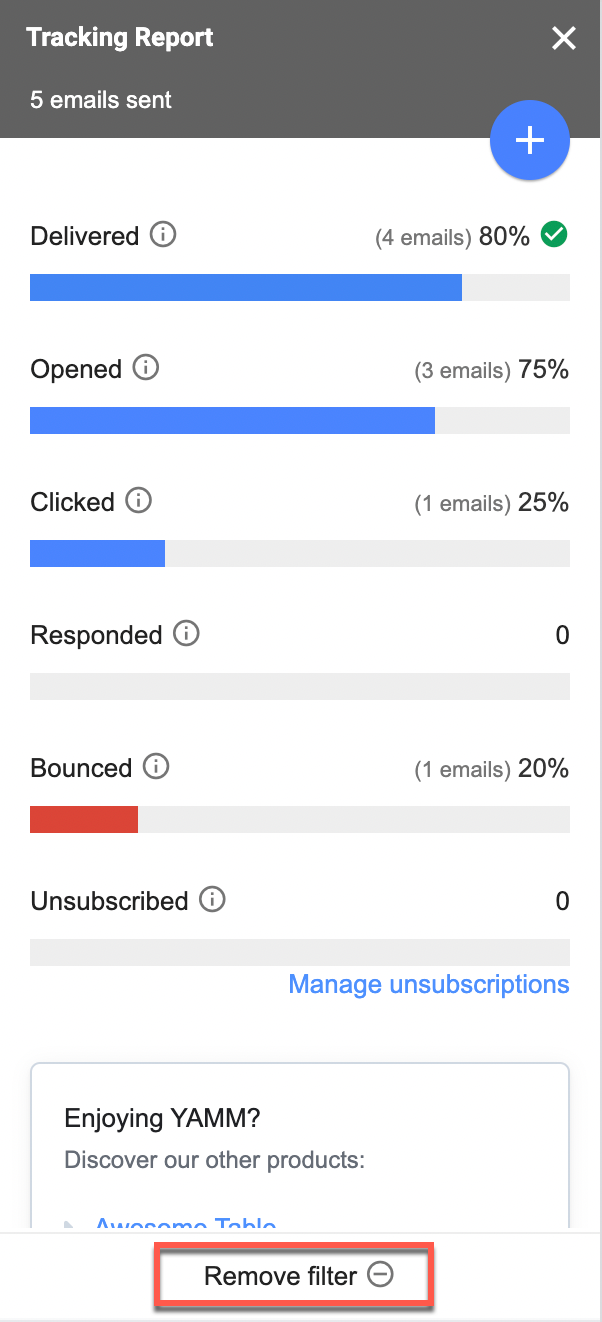
If you hover over or click on a cell under the Merge status column, you find a small note indicating when the action happened.
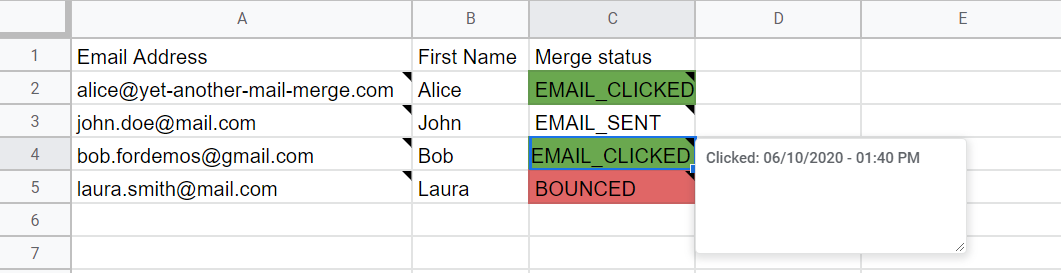
See the history of your campaign
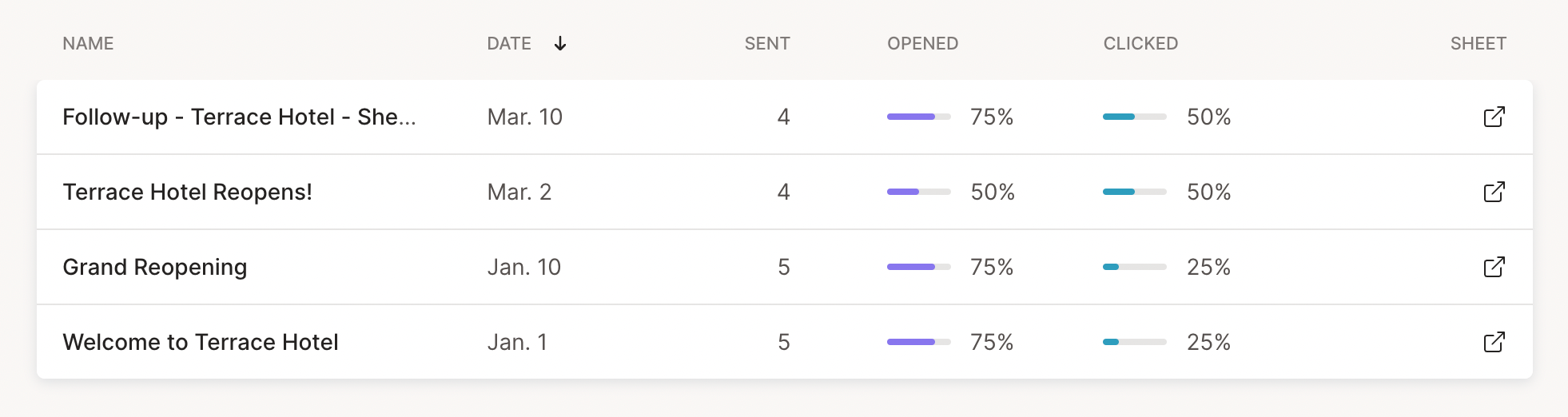
At the bottom of the tracking report, you can access your previous mail merges. Click Previous mail merges to open the YAMM dashboard with stats from all your past campaigns.
How accurate is tracking?
Tracking gives you a good overview of your campaign performance as a whole, but cannot be 100% accurate for each individual email.
About the open and bounce rates
Some elements affect tracking accuracy — particularly the open rate and bounce rate. For example, someone may have replied to your email (so they opened it) but tracking still marks it as EMAIL_SENT. Web beacons are widely used to track opens, but they have limitations — learn more about the open tracking system.
If you have specific issues with the open rate, see:
For the bounce rate, YAMM scans your Gmail box to check the sender of bounced messages. Most bounces are recorded, but some domains may be missed. If you notice a missing bounce, send a screenshot via our support form with Bounces not recorded by tracking as the subject.
Other reasons tracking may be inaccurate
- If you have multiple recipients in the same row (or people added as cc or bcc), YAMM creates only one email — you can see whether the email was opened, but not which recipient opened it.
- To get more accurate open tracking, ask your subscribers to add your email address to their contacts or to display images in their email client.
- If you have used the follow-up option or started another campaign on the same sheet, YAMM only tracks the latest campaign.