Response rate

In addition to opens and clicks, YAMM tracks response rate — whether your recipients replied to your email — and also includes YAMM Polls for collecting short one-click answers.

Real-time response rate tracking

Getting (relevant) replies from your recipients is often the ultimate sign of interest in your mail merge. YAMM integrates response rate tracking so you can see at a glance who answered your email.

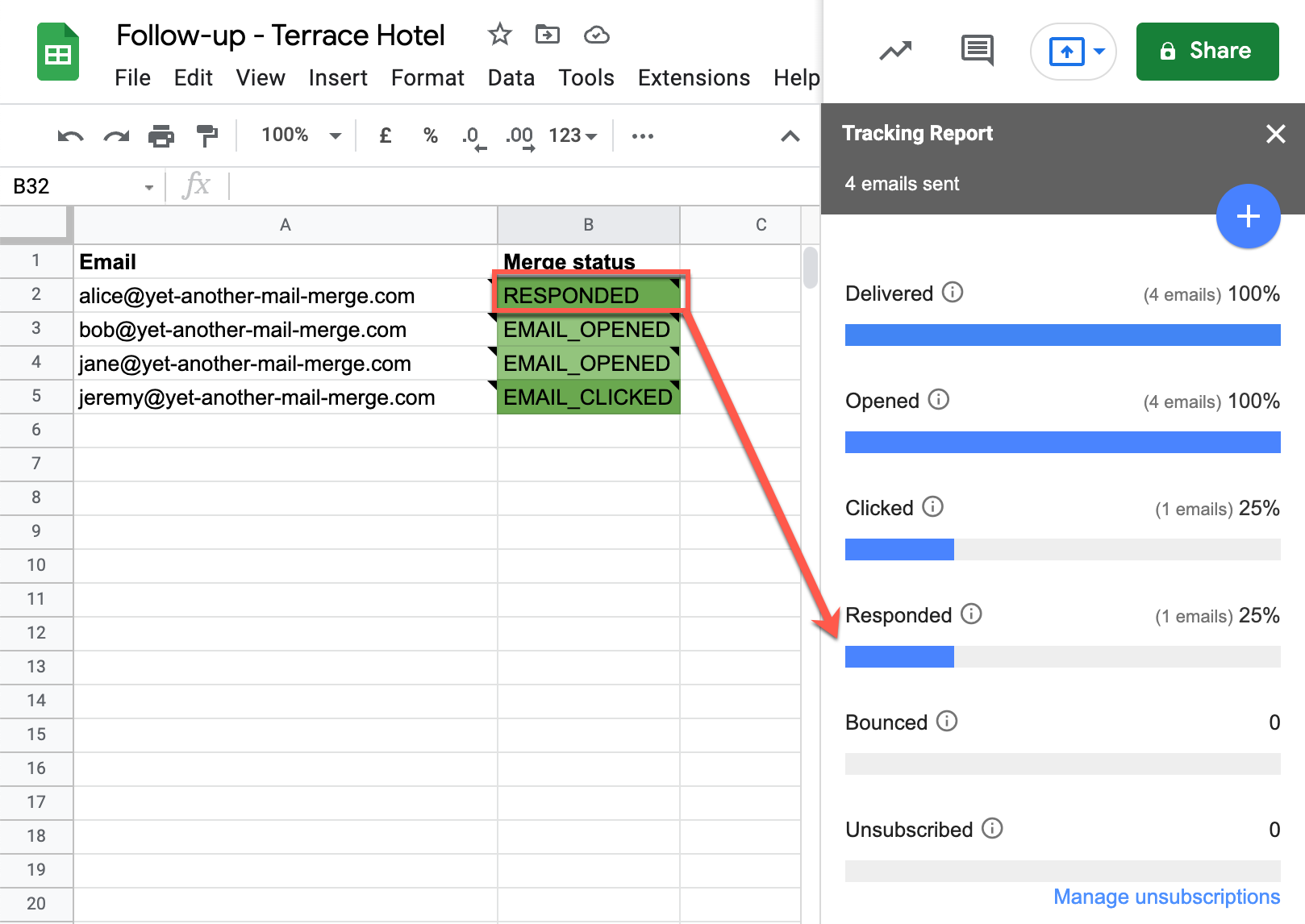
You can track the response rate (along with all other metrics) of your mail merge from the tracking report sidebar. To do so, activate tracking before running your mail merge. Every time someone replies to your email, YAMM records the answer as RESPONDED in the Merge status column and updates the response rate in the tracking report.

info

You can view the live updates in the Merge status column only while the tracking report sidebar is open.

YAMM tracking report responded status
info

If you set a different reply-to in YAMM, or send from another email address, and a recipient replies, RESPONDED does not appear in the tracking report.

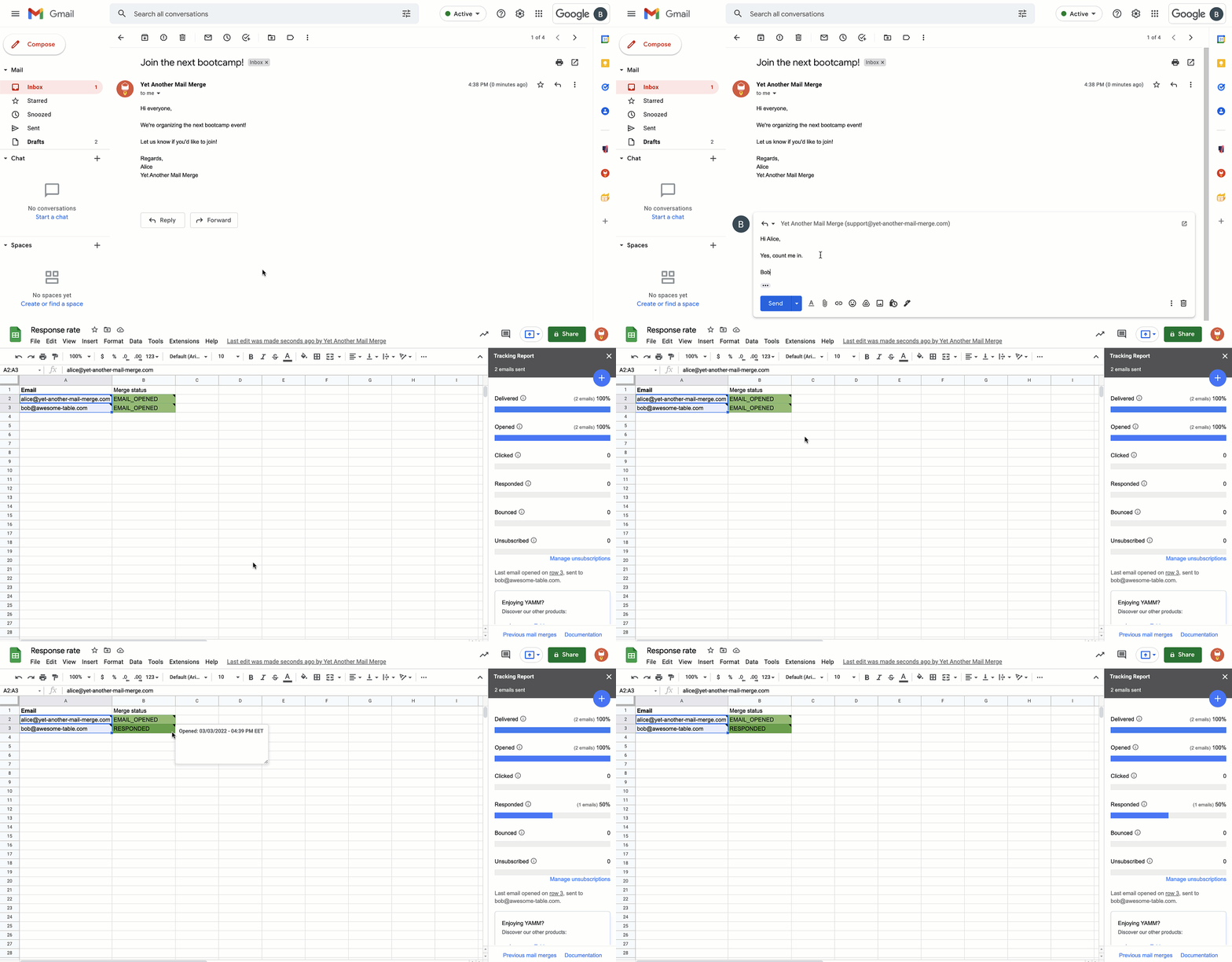
YAMM tracks the response rate in real time so you can see who responds right after your mail merge.

Real time response rate tracking demo

It can take a few minutes to see the status update in your spreadsheet — for example, if your recipients use Gmail's Undo Send feature with a long cancellation period.
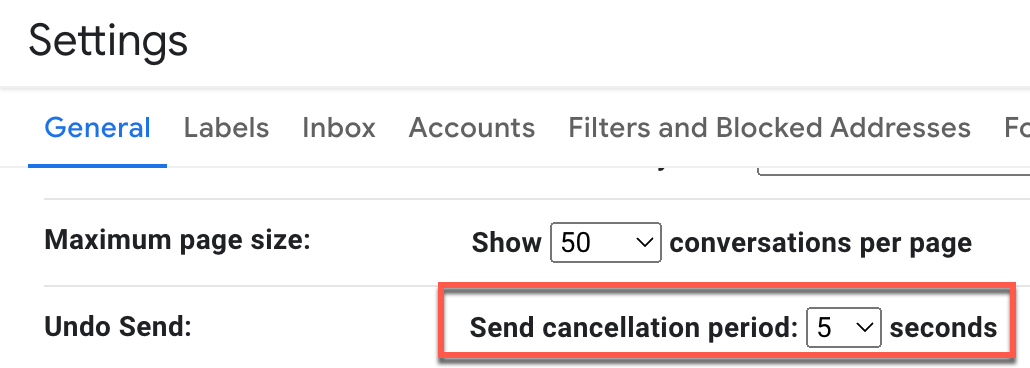
Gmail undo send

How to increase your response rate

Start by improving your open rate. You can also use follow-up campaigns to remind recipients who haven't replied.

For faster feedback, use YAMM Polls below to include one-click answers in your email.

RESPONDED in my spreadsheet but no answer in my inbox

This typically happens when:

  • You receive an out-of-office automatic reply to the same conversation thread as your email sent.

    Out-of-office automatic reply in the same conversation thread
  • You replied to your own email to send a reminder to your recipients.

  • You set a different reply-to email address.

warning

YAMM cannot differentiate an Out-Of-Office automatic reply from a real reply, so it marks both as RESPONDED.

YAMM Polls

Ask quick questions in your emails — "Are you planning to come?" or "Which option do you prefer?" — and let recipients reply instantly by clicking a link instead of writing a full response. YAMM Polls makes it easy to insert a mini form directly into your Gmail draft and automatically collects all responses in your contact list spreadsheet.

This is for users who want to insert simple one-question forms in their emails and collect short answers. For multiple questions or multiple-choice options, use Google Forms instead.

One-question form inserted in an email with YAMM Polls

Why use YAMM Polls?

Recipients can choose their answer directly from your email with a single click. Common use cases:

  • Inviting friends or colleagues to an event (wedding, party, corporate gathering) and needing RSVPs.
  • Product managers announcing new features and collecting quick feedback.
  • Reaching out to prospects to gauge interest in what you're offering.

All your form links must start with the following syntax:

https://app.yamm.com?response=YOUR_RESPONSE

Where YOUR_RESPONSE corresponds to the response you want to collect.

For example, to ask a YAMM customer for feedback with three responses (Yes, No, Maybe):

ResponseLink to insert in your Gmail draft
Yeshttps://app.yamm.com?response=Yes
Nohttps://app.yamm.com?response=No
Maybehttps://app.yamm.com?response=Maybe
info

The answers appear in your contact list spreadsheet exactly as they appear at the end of the links (case-sensitive). If you insert https://app.yamm.com?response=MAYBE, the recorded answer is MAYBE.

In your Gmail draft, insert your links with their corresponding answers like any regular link — on images, buttons, or simple text.

2. Enable tracking and run your mail merge

Once your template is ready, open YAMM, enable tracking, and run your mail merge. In the Start Mail Merge window, select Track emails opened, clicked or bounced before sending.

Track emails opened, clicked or bounced option in the Start Mail Merge window
warning

YAMM Polls don't work with test emails. Responses are only recorded when the email is sent through an actual mail merge.

3. Collect responses and view the results

When recipients click an answer, they're redirected to a confirmation page.

YAMM polls

In your contact list spreadsheet, a new column named YAMM Poll lists each recipient's answer.

YAMM poll result
warning

Responses are collected in real time — recipients can change their answer by clicking another link. Reopen the tracking report (Extensions > Yet Another Mail Merge: Mail Merge for Gmail > Open tracking report) to get their latest answers.