Follow up
Send a follow-up campaign to the people you choose from a previous mail merge: everyone, or only those who didn't open, those who didn't reply, or those who did open. Write a new message for that audience, and choose whether it lands as a reply under your first email or as a separate one.
Run a follow-up
Prerequisites
- You enabled the tracking report for the first mail merge. YAMM uses it to know who opened, clicked, or replied.
-
Open your contact list spreadsheet.
tipTo hold specific recipients back from a follow-up, enter
0(zero) as their merge status. -
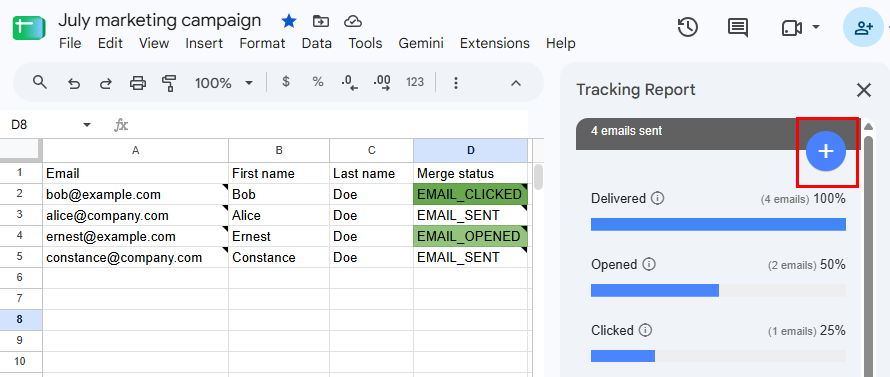
Select Extensions > Yet Another Mail Merge: Mail Merge for Gmail > Open tracking report.
-
Click the + button.
-
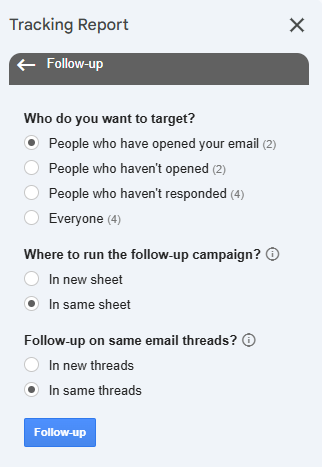
Select your follow-up options and click Follow-up.
-
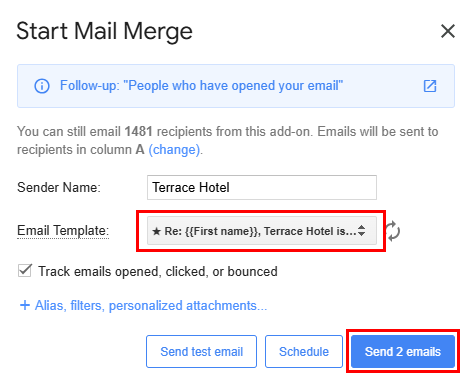
Select your follow-up draft as the email template and click Send emails.
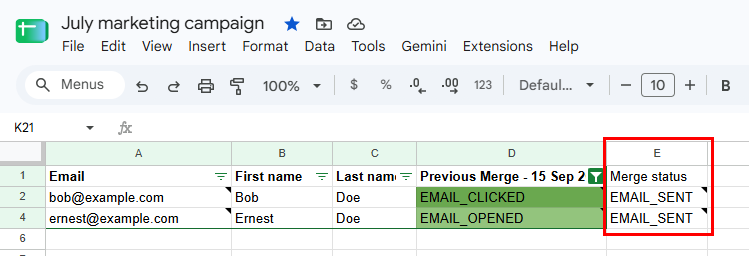
Each recipient who matches your audience receives the follow-up, and YAMM updates the Merge status column in your contact list spreadsheet to track it. For more information, see Where to run the follow-up.
Follow-up options
Choose your audience, how your recipients will receive the follow-up email, and whether to keep or replace your first campaign's tracking.
Who to target
Before you run the follow-up, you can see how many recipients match each option, so you know your audience size upfront.
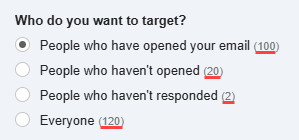
You can also preview exactly who the follow-up recipients are, as described in the following table. For more information about the tracking report's metrics, see About tracking.
| Option | Description | Preview |
|---|---|---|
| People who have opened your email | People who opened, clicked a link in, or replied to your first email. | In the tracking report, click Opened. |
| People who haven't opened | People who haven't opened your first email yet. This excludes anyone who opened, clicked, or replied. | In your contact list spreadsheet, filter the |
| People who haven't responded | People who haven't replied yet. This includes people who never opened your first email, and those who opened it without replying. | In your contact list spreadsheet, filter the |
| Everyone | Every recipient of your first email. | In the tracking report, click Delivered. |
Recipients whose email bounced or who unsubscribed never receive a follow-up, whichever option you pick.
Where to run the follow-up
YAMM tracks only the latest campaign run on a sheet. This option decides what happens to your first campaign's numbers:
-
In new sheet copies your contact list to a new sheet named
Follow-up on: <sheet name>, keeps only the targeted rows, and tracks the follow-up there. Your first campaign's sheet and tracking report stay intact. Choose this if you want to compare the two campaigns later. -
In same sheet tracks the follow-up in place of the first campaign. In your contact list spreadsheet:
-
YAMM renames the previous
Merge statuscolumn toPrevious Merge - <date>and tracks the follow-up in a newMerge statuscolumn. -
YAMM refreshes the YAMM IDs that link your contact list spreadsheet to the campaign.
-
Recipients who didn't receive the follow-up are filtered out, and their
Merge statuscell stays empty. Their status from the first campaign isn't lost — it's in thePrevious Merge - <date>column. To display these rows again, remove the filter on theMerge statuscolumn.

-
New or same threads
-
In new threads — the follow-up sends as a separate email, so you can use a new subject line.
-
In same threads — the follow-up sends as a reply under your first email, in the same Gmail thread.
Gmail groups emails into one thread only when they share the same subject and come from the same mailbox. YAMM can't override these rules, so check your follow-up draft before you send:
-
Same subject. Your follow-up draft must have the same subject line as your first campaign. Adding Re: or Fwd: at the beginning is fine. If your subject contains a merge field, keep it identical.
-
Same email account. Send the follow-up from the Google account that sent the first campaign. You can send from an alias of that account.
-
Same recipients. The follow-up goes to the same email addresses as the first campaign. You can add new addresses in cc.
-
No personalized attachments. YAMM can't send follow-ups in the same threads together with personalized attachments. Attach files to your draft instead, or send in new threads.
-
If your subject differs, or if you or your recipient permanently deleted the first email, the follow-up still goes out, but as a separate email in a new thread.
What's next
-
Re-run a mail merge to reuse your contact list or resend to specific people.
-
Track your campaign for opens, clicks, responses, bounces, unsubscribes.