Unsubscribe rate
YAMM tracks recipients who unsubscribe from your emails and automatically excludes them from future mail merges. This article covers how recipients unsubscribe, and how to manage your unsubscribe list.
To track unsubscribes, you first need to insert an unsubscribe link in your email template and enable tracking before sending.
How recipients unsubscribe
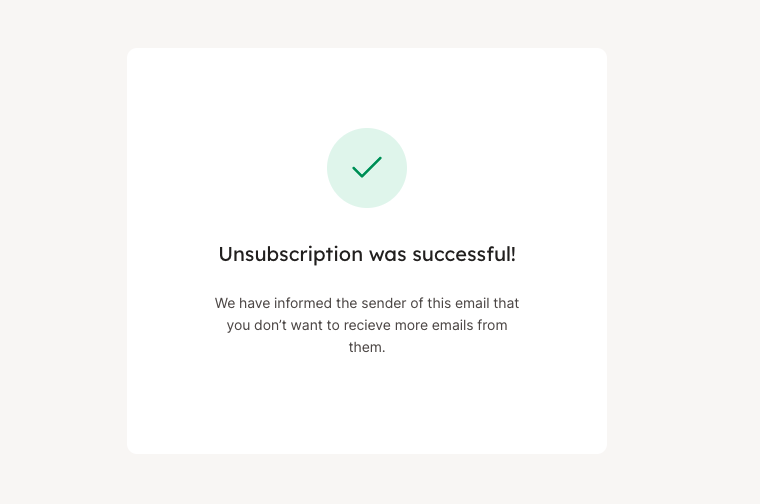
Recipients click the unsubscribe link. They're redirected to a confirmation page: Unsubscription was successful.
Manage your unsubscribe list
Each unsubscribe is added to your unsubscribe list. YAMM excludes those addresses from future mail merges unless you remove them manually.
Check unsubscribes in real time
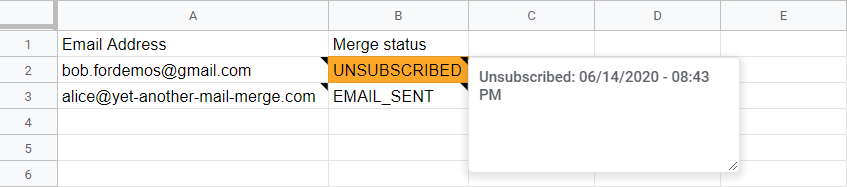
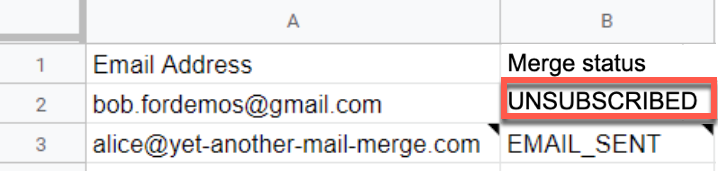
The Merge status column updates to UNSUBSCRIBED in real time. Hover over the cell to see the exact date and time.
Skip unsubscribes in all mail merges
When you start a new mail merge, YAMM detects any addresses in your sheet that appear in your unsubscribe list and asks whether to skip them.
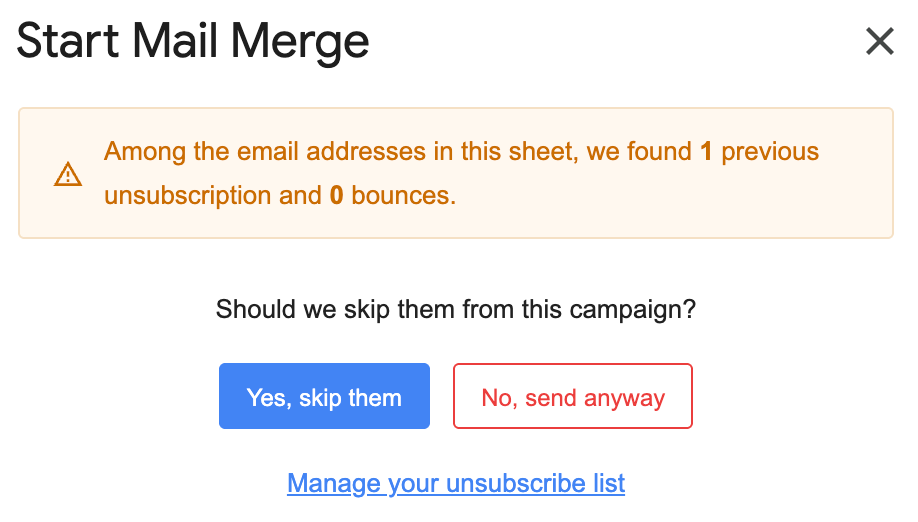
If you skip, YAMM excludes those addresses and displays UNSUBSCRIBED in the Merge status column.
Edit your unsubscribe list manually
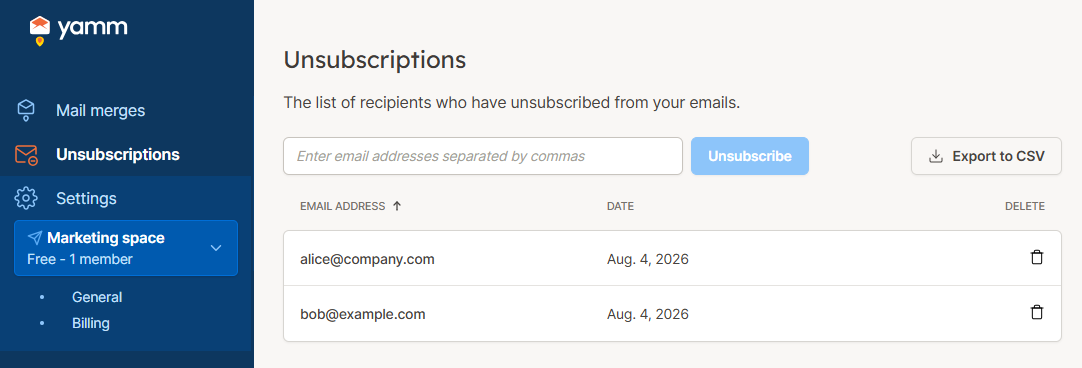
Go to the Unsubscriptions page in the YAMM web app to view and edit your unsubscribe list.
-
Add email addresses to the list.
-
Remove email addresses as needed.