Uninstall
How you remove YAMM depends on how it was installed:
- You installed it yourself: Uninstall it from Google Sheets.
- A Google Workspace admin installed it for the domain: Only an admin can remove it, from the Admin console.
Uninstall from your own account
-
Open a Google spreadsheet.
-
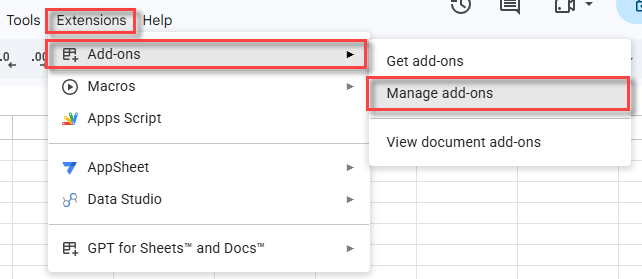
In the menu bar, select Extensions > Add-ons > Manage add-ons.
-
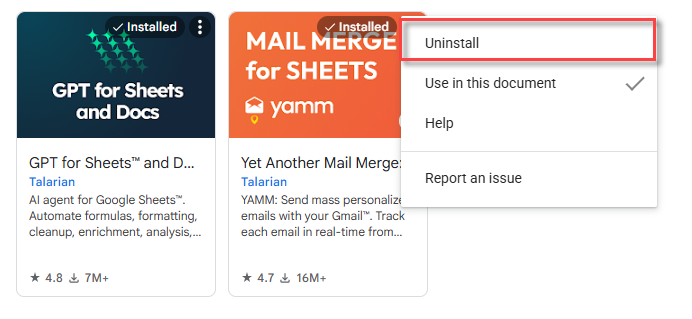
In the list of installed apps, find Yet Another Mail Merge and click its options button.
-
Select Uninstall.
-
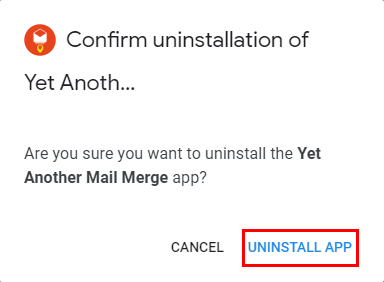
Click Uninstall app to confirm.
The YAMM add-on is removed from your Google account, and no longer appears in the Extensions menu of your spreadsheets.
Removing the add-on also removes its app access permissions from your Google account.
Uninstall from your whole domain
An app installed for the domain is removed from the Google Admin console, not from Google Sheets or the Google Workspace Marketplace listing — neither offers an Uninstall option for it.
Prerequisites
You have the Google Workspace Marketplace administrator privilege. Unlike the domain install, this doesn't require the Super Admin role.
-
Open the Google Apps list.
-
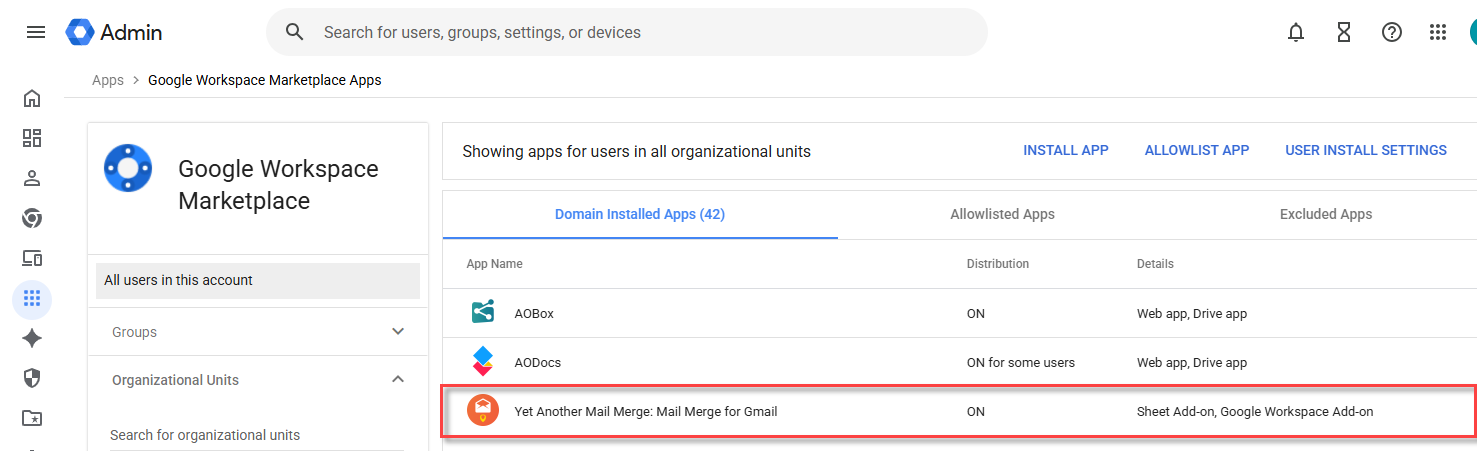
In the Domain Installed Apps list, select Yet Another Mail Merge: Mail Merge for Gmail.
-
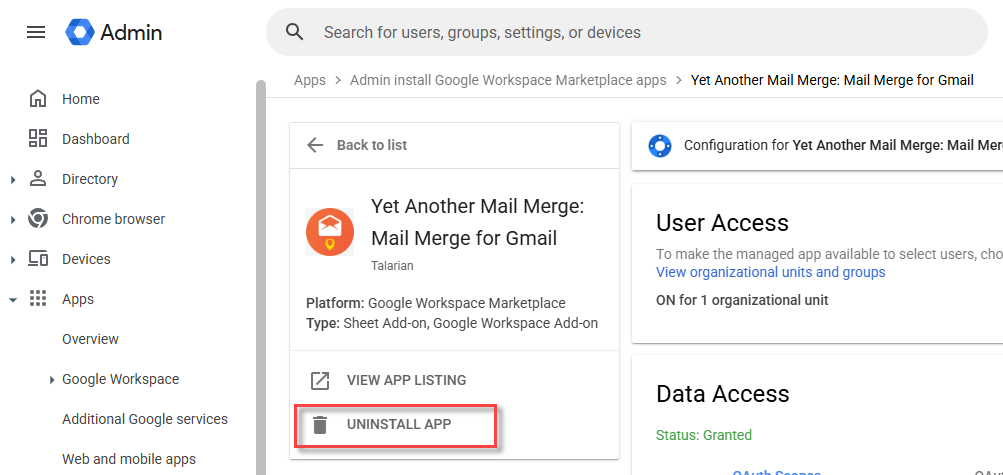
In the left sidebar, click Uninstall App.
-
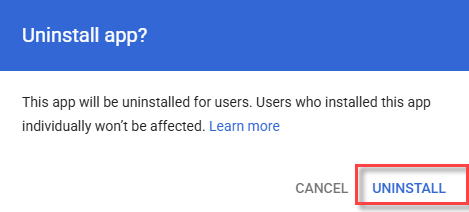
Click Uninstall to confirm.
YAMM is uninstalled for everyone in the organization. Allow up to 24 hours for the change to reach every user.
This removes only the domain-wide installation. Users who installed YAMM on their own account keep it and have to uninstall it themselves.