YAMM freezes without an error message or takes time to load
When you try to run YAMM on your Google Sheets, YAMM freezes, nothing appears in the pop-up, or nothing happens when you click on any button. Please try our following suggestions to troubleshoot this issue.
1. Try YAMM on another browser
Sometimes, due to an update from your browser (or for some reasons that we ignore), YAMM can be temporarily impacted.
If you are not able to use YAMM, please try to switch to another web browser. For example, if you are using Google Chrome, switch to Firefox or Safari.
2. Disable browser extensions
Some extensions, like ad blockers, can block scripts.
Please disable them in your browser. Here's how to do that on Google Chrome.
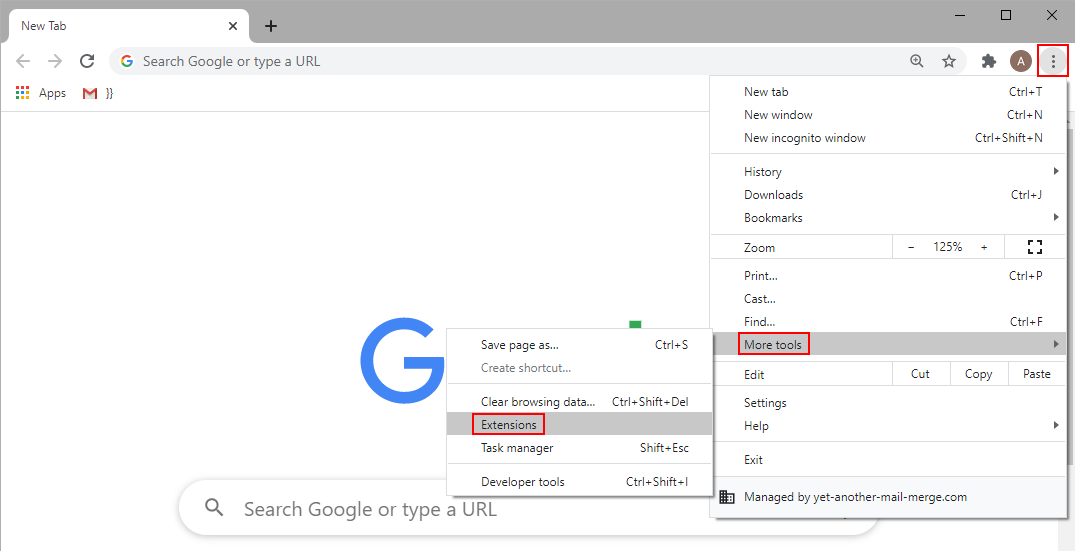
Click the 3 dots menu > More Tools > Extensions.
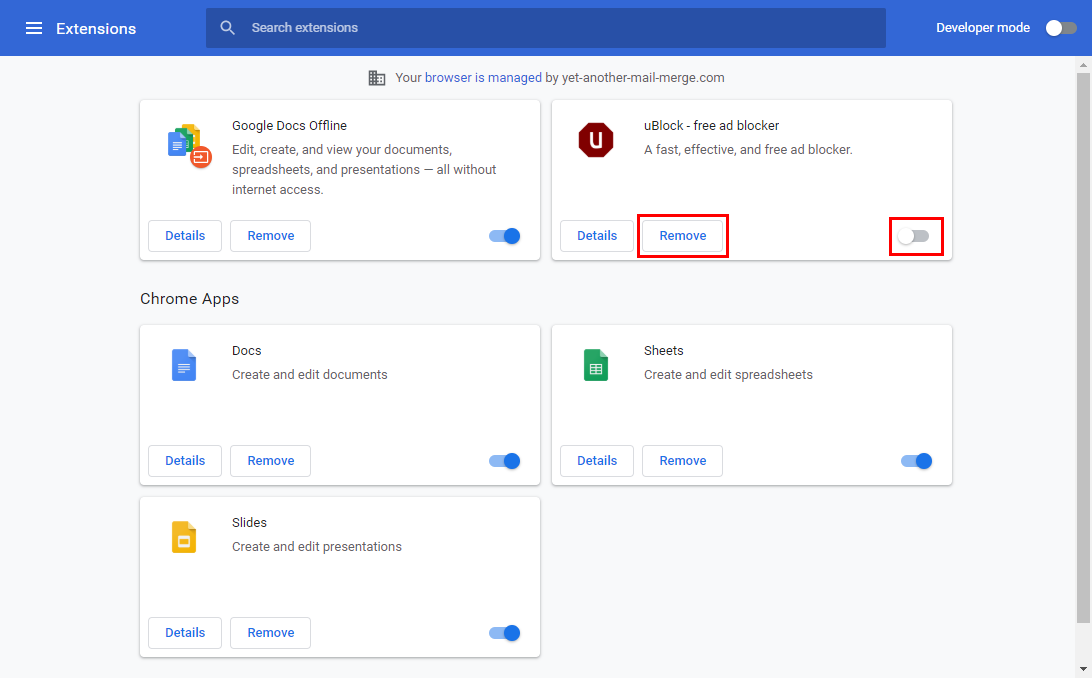
Then disable the extension (or click Remove if you don't use it anymore).
3. Sign out and log in with only one account
If you are logged in with multiple accounts in the same browser session, this can create conflict and cause issues to YAMM. Please make sure to correctly login in separate browser sessions.
The following article will help you correctly login to your browser: Send campaigns from / login with multiple accounts
4. Try to run YAMM under another network
If you are using YAMM at work, maybe your organization network is too restrictive, blocking thus access to YAMM.
You can try again from home. Please make sure not to use any proxy.
Specifically, if you are using a Google Workspace account, please contact your Google Workspace admins and ask them to whitelist the following domains:
-
yet-another-mail-merge.com
-
googleapis.com
-
gstatic.com
-
cloudflare.com
-
firebaseapp.com
5. Try YAMM in a new incognito window
Why can this help? With the incognito mode, you don't have any parameters like history, cache, temporary files stored, or extensions installed, and you are sure that you are not logged in with any others accounts. All these parameters can block access to YAMM.
To do so:
-
Open a new incognito window from your Chrome browser.
-
Login to Drive or Gmail with your account.
-
Run a test mail merge on this incognito window.
If YAMM works after trying in incognito mode, then the issue is from the user side, and you'll need to double-check all the parameters one by one (clear your cache, check your extensions etc.).
6. Open your browser console and send us a screenshot
Without any error message, sadly it's hard for us to find out the cause of your issue.
If all the suggestions described above didn't help, you could help us investigate your issue by opening your browser console, and sending us a screenshot of the errors.
Please follow those steps below:
1. Restart YAMM from your spreadsheet
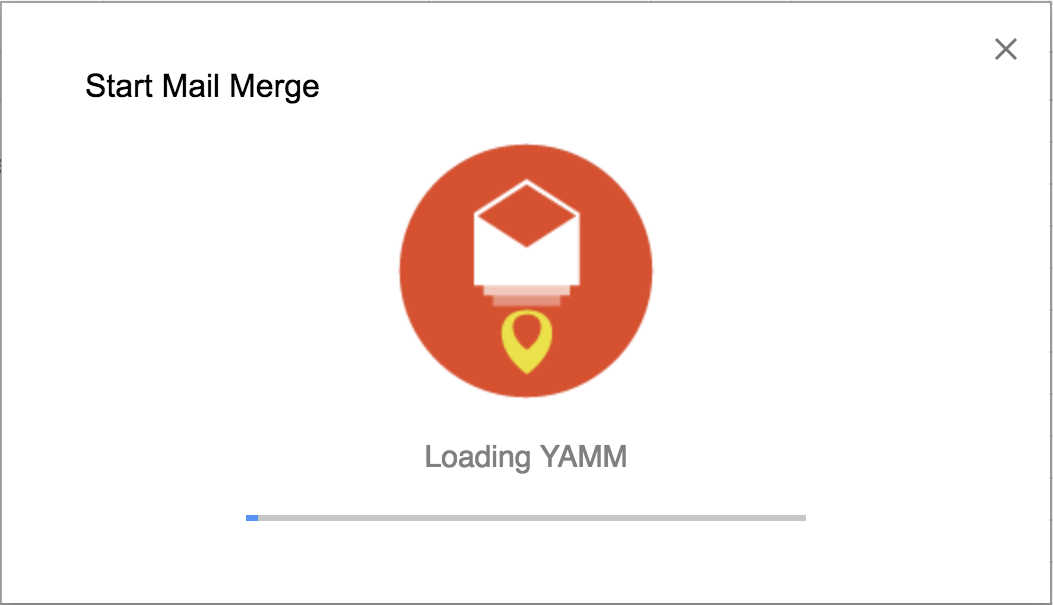
Go to Add-ons > Yet Another Mail Merge > Start Mail Merge.
2. Open your browser console
On the YAMM screen where you can see the issue (add-on freezing, or nothing happening ...), open your browser console. To do so:
2.1. On Google Chrome
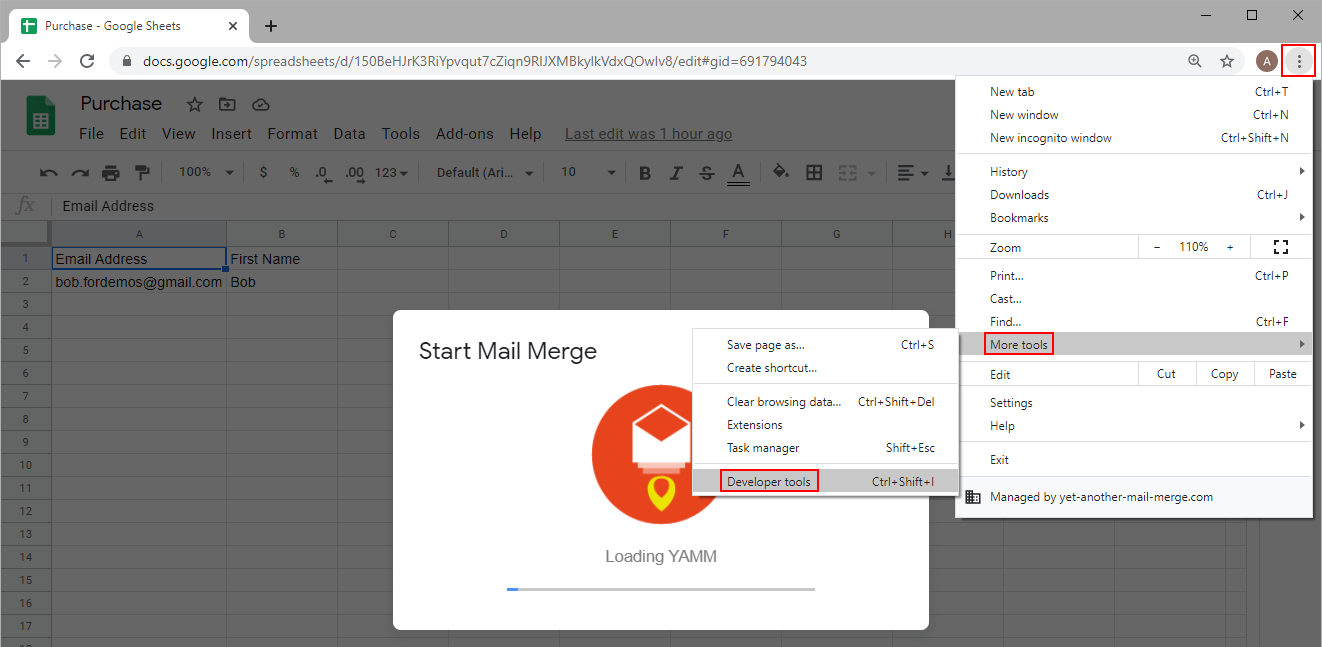
Go to your Chrome Menu > More Tools > Developer Tools.
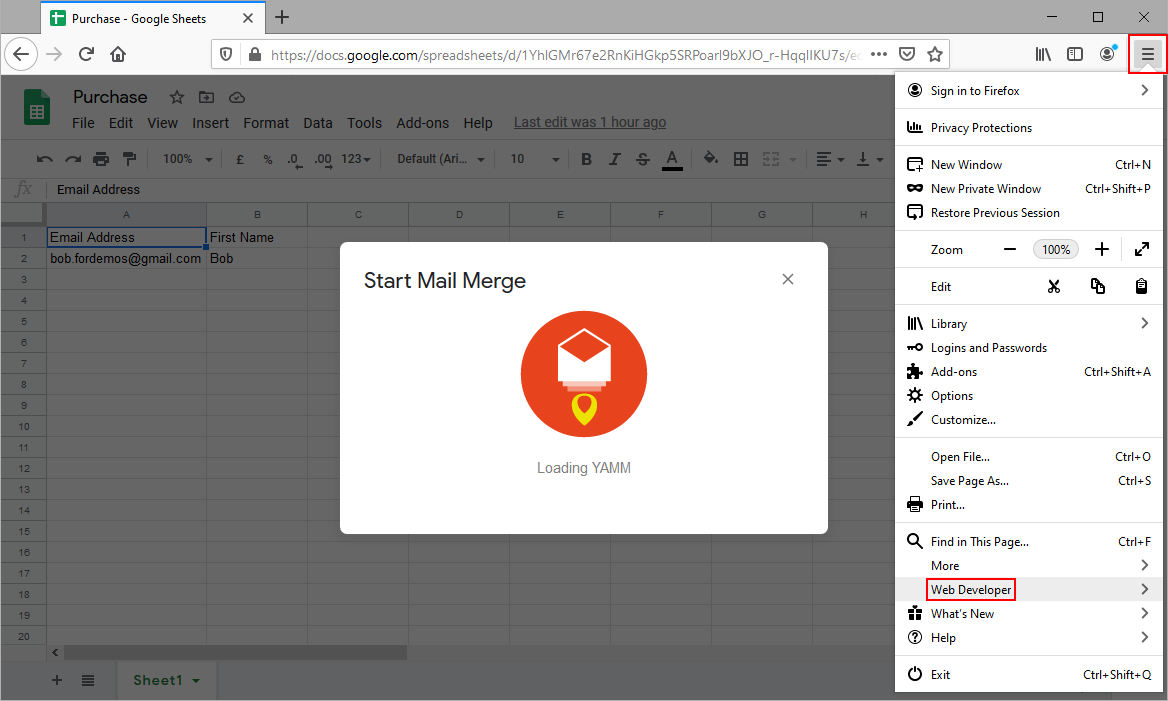
2.2. On Firefox
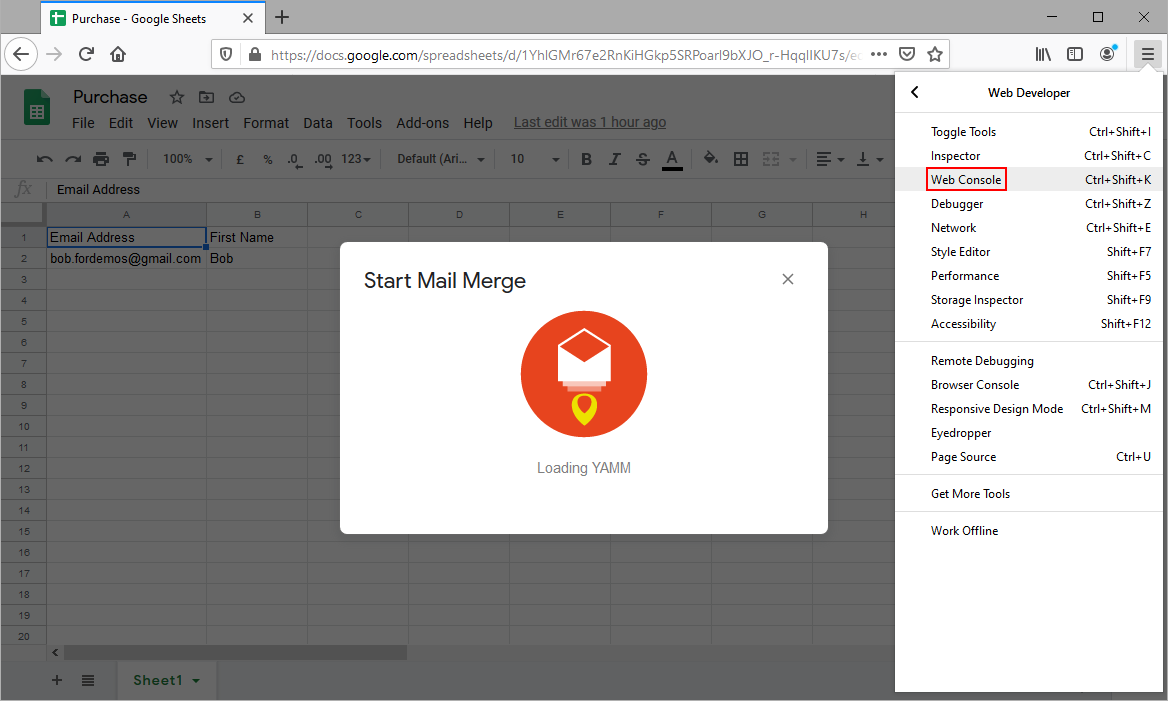
Click the menu icon > Web Developer.
And click Web Console.
2.3. On Safari
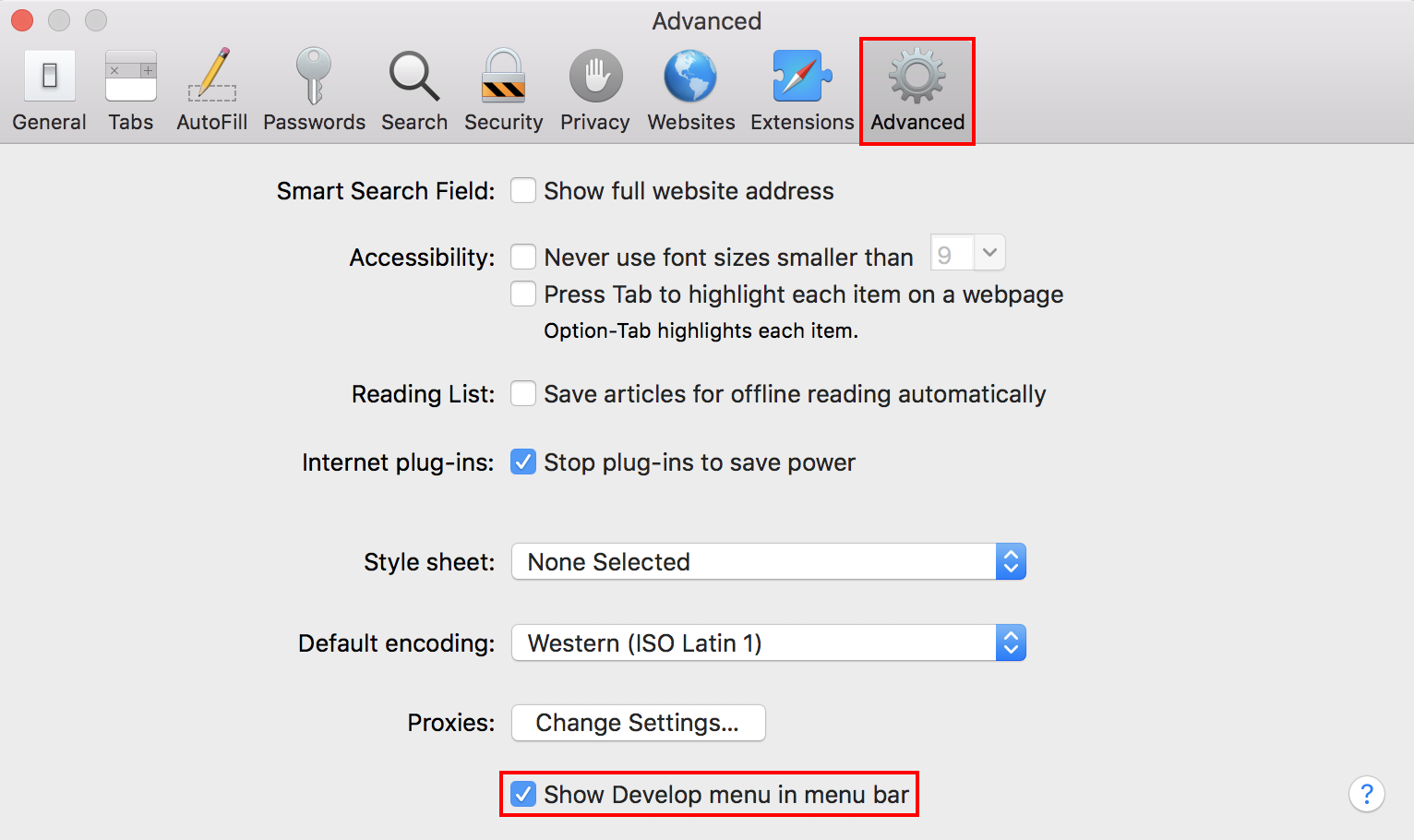
By default, the browser console is not directly available on Safari.
To display it, go first to Preferences > Advanced, then tick Show Develop menu in menu bar.
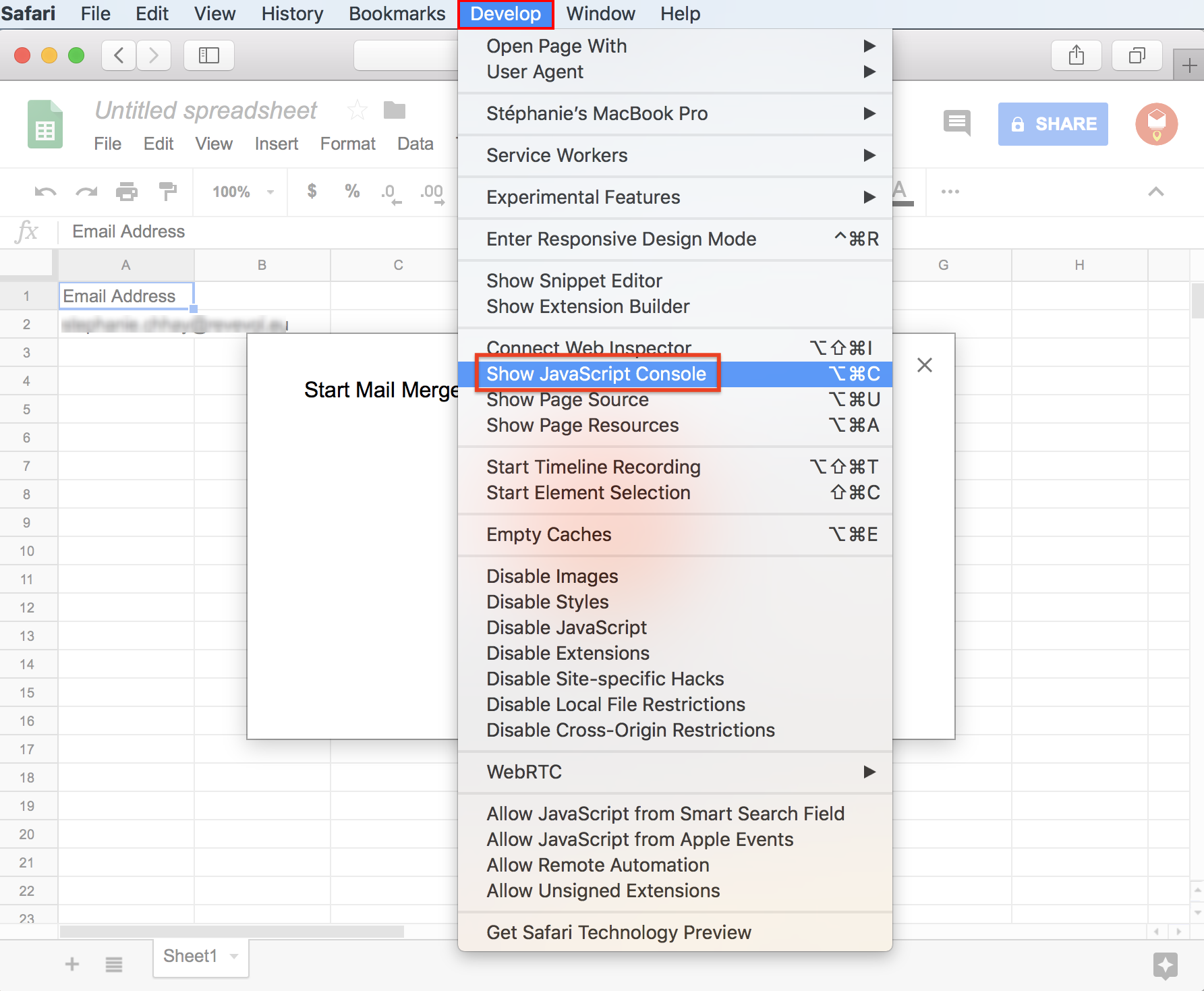
Then go back to your spreadsheet and start running YAMM. Click Develop > Show JavaScript Console.
Tip: You can also open your console by right clicking on YAMM UI, then Inspect or Inspect Element depending on your browser.
3. Open Console tab
If there are any JavaScript errors, you should see some red messages in this console.

4. Send a screenshot of the Console errors by filling this form
Please make sure you clicked on the Console tab (not Elements, or any other).