Send YAMM mail merges from multiple accounts
You can use multiple accounts to send your YAMM mail merges. This article shows how to use YAMM with multiple accounts.
Prerequisites
You have created a Chrome profile for each Google account you want to use YAMM with.
Procedure
-
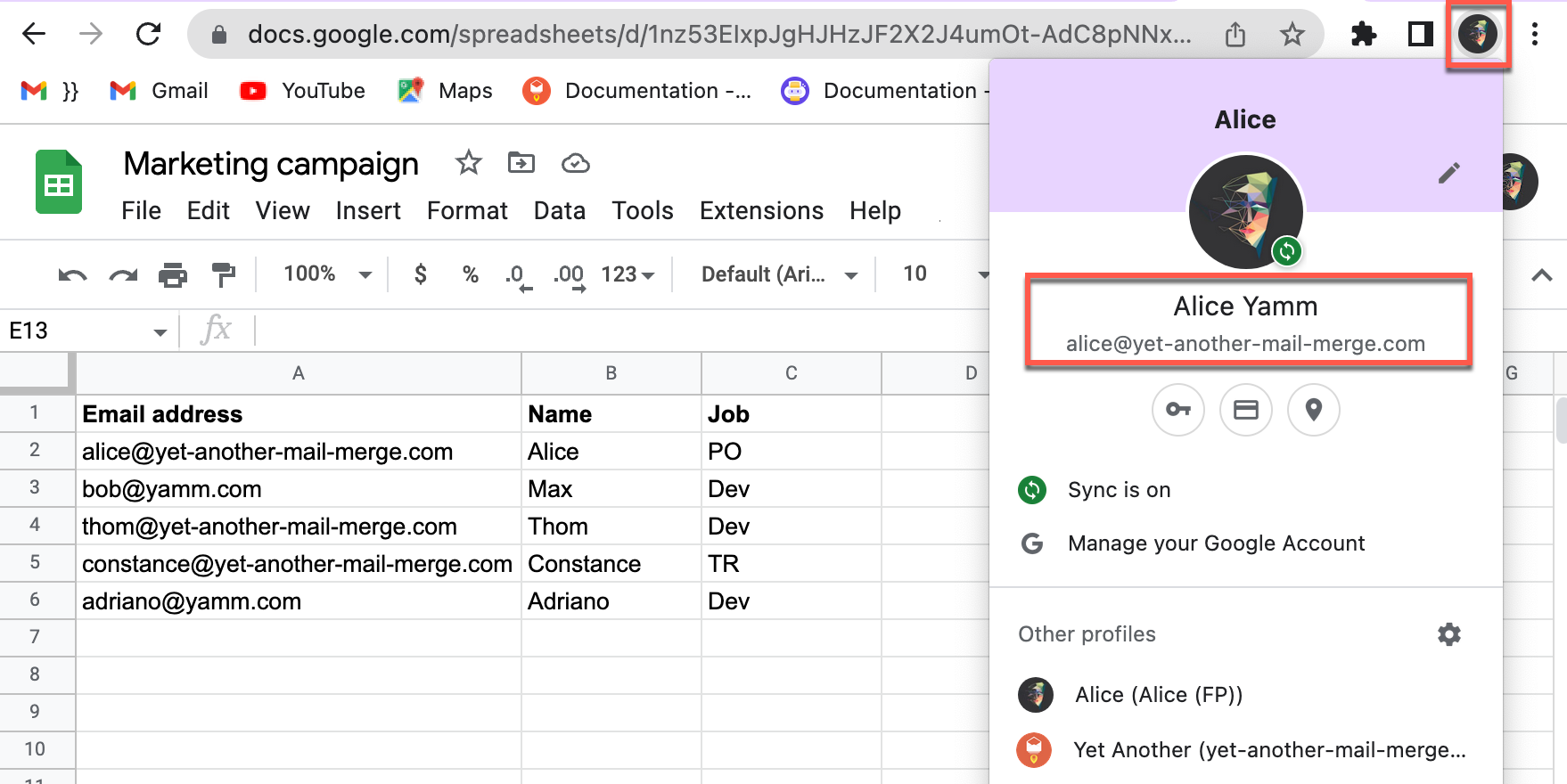
Access the Chrome profile associated with the Google account you want to send your mail merge.
-
In Google Sheets, open the spreadsheet with the contacts list.
-
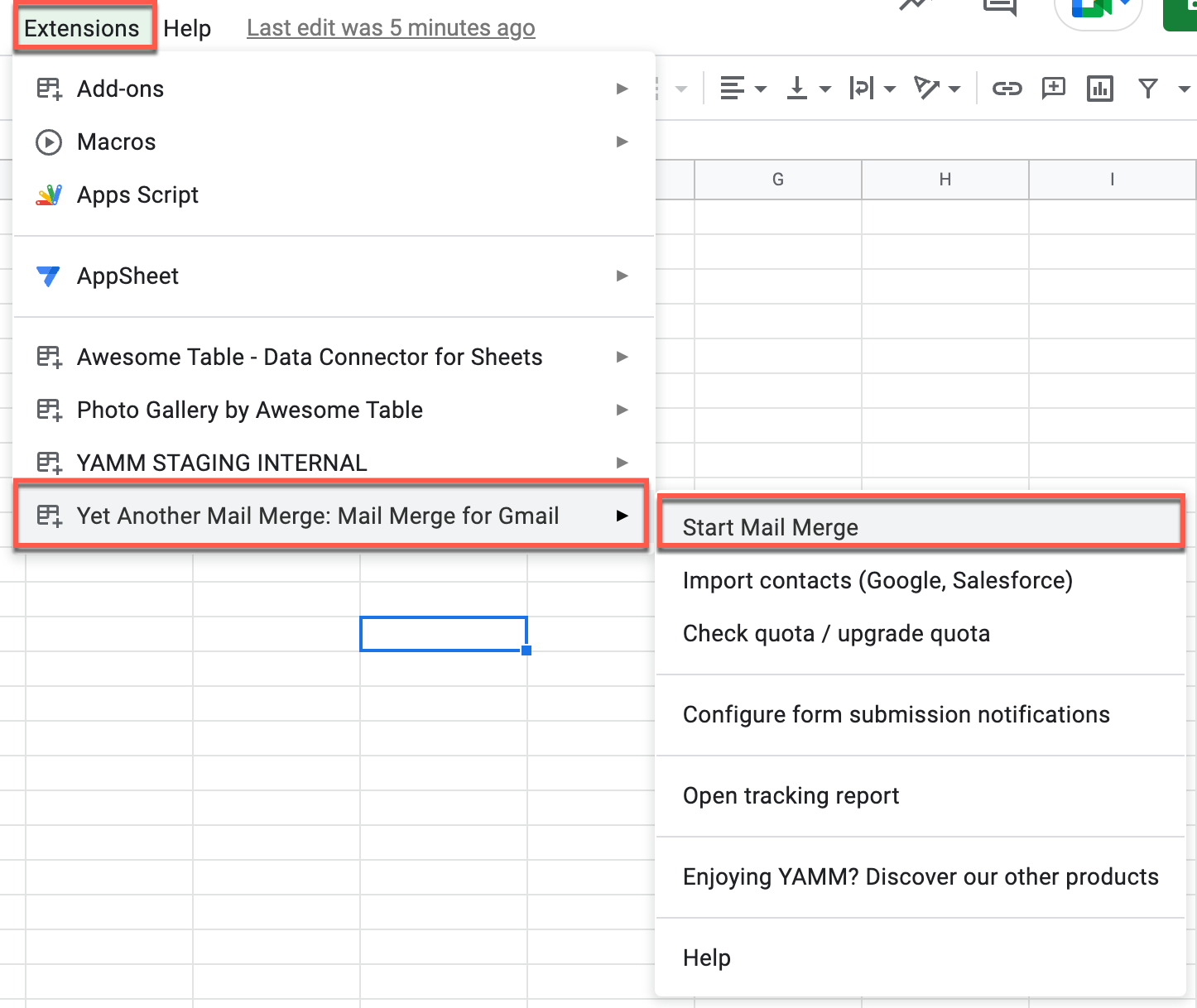
Select Extensions > Yet Another Mail Merge: Mail Merge for Gmail > Start Mail Merge.
-
In the Start Mail Merge window, configure the mail merge.
-
Once done, click the Send emails button to send the mail merge to all recipients in the Google spreadsheet.
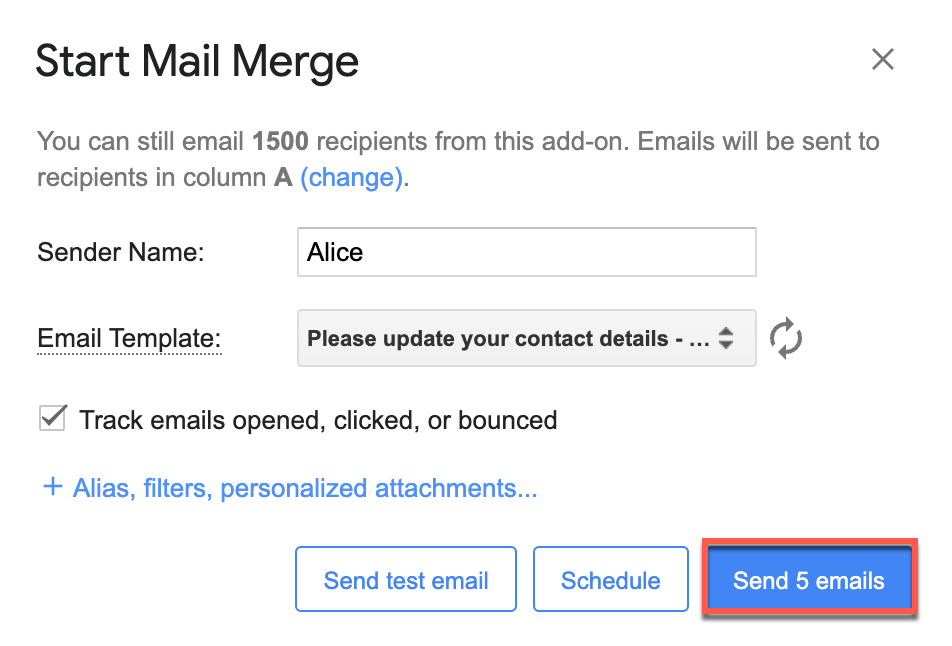
Your mail merge is sent with your Google account.
-
Switch to a different Chrome profile and repeat the previous steps.
You have sent YAMM mail merges from multiple Google accounts.