Share your draft
Want a colleague to launch the same campaign from their own Google account? You can't share a Gmail draft directly between accounts, but you can use a Gmail template to pass it along. Your colleague recreates it as a draft and sends it with YAMM like any other.
The preferred way to collaborate on a draft is to write it together in Google Docs — several people can co-edit the same document, then create a Gmail draft from it directly.
Save your draft as a Gmail template
Gmail's Templates feature lets you save your draft so you can reuse it in a new email.
-
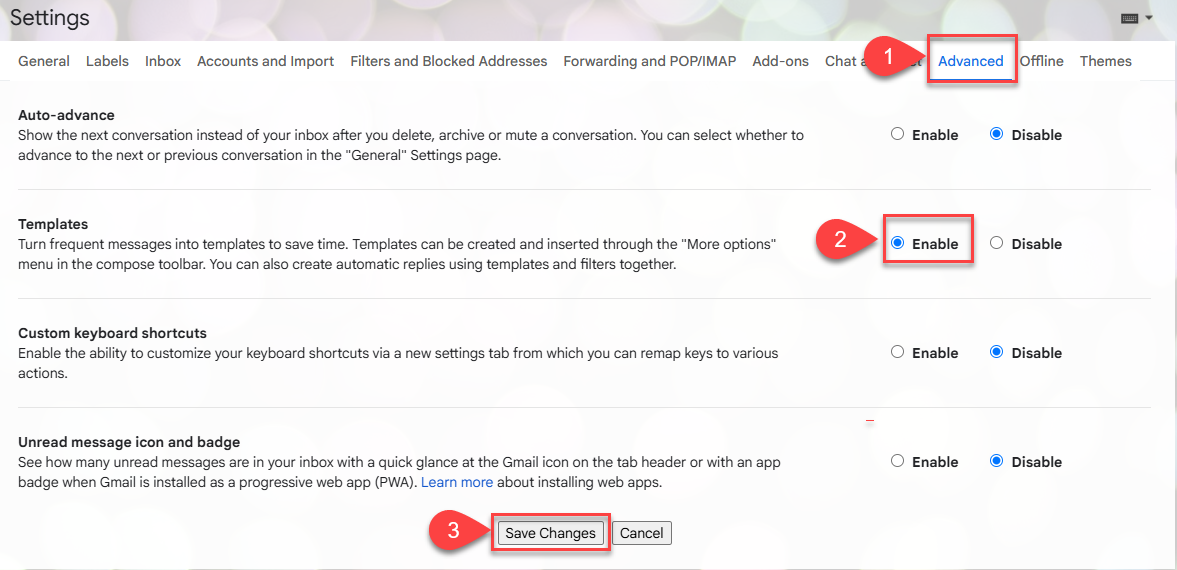
In Gmail, enable Templates: click the gear icon > See all settings > Advanced > Templates > Enable, then Save Changes.
-
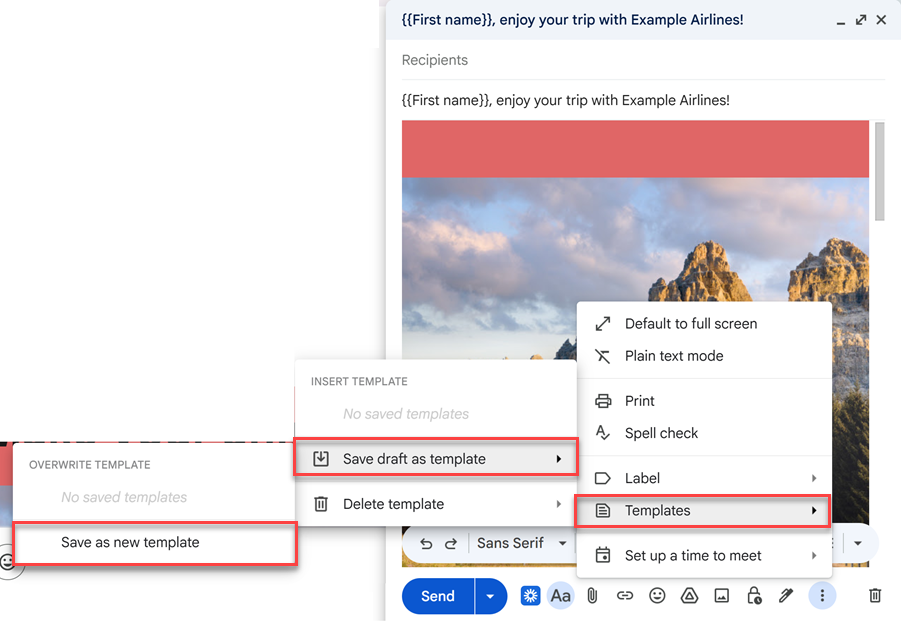
Compose your draft, then click the three dots (⋮) at the bottom of the window > Templates > Save draft as template > Save as new template.
-
Click Save.
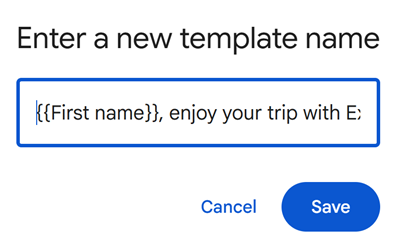
A template's name and its email subject line are one and the same — renaming the template also changes the subject line your recipients see.
Saved templates don't include attachments. We also recommend leaving your email signature out of the template to avoid duplication.
Send the template to your colleague
-
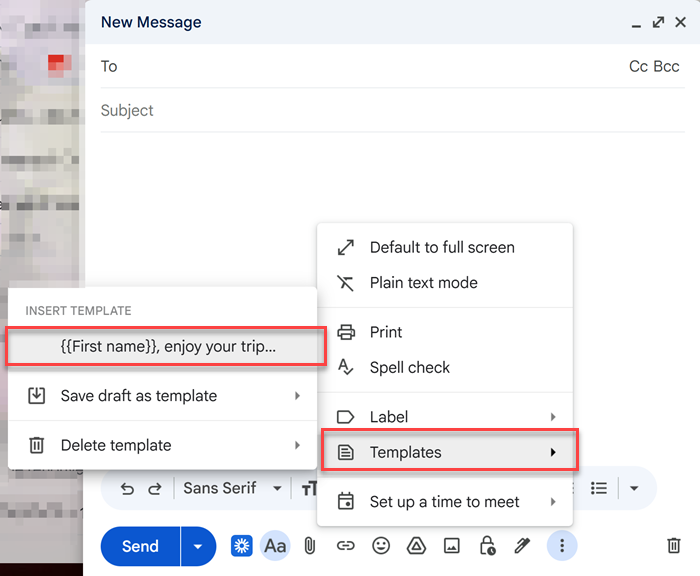
Compose a new email, then click the three dots (⋮) at the bottom of the window > Templates > your template.
-
Send it to your colleague.
-
Your colleague copies the subject line and the content of the email you sent them into a new email, leaving the To field empty.
-
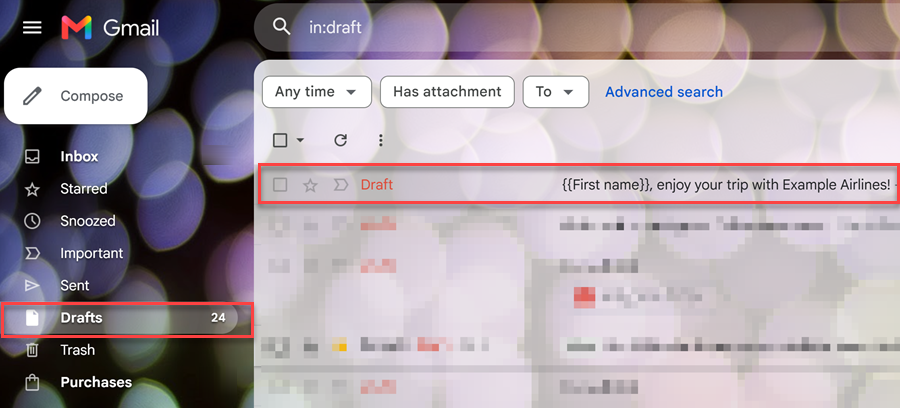
Gmail automatically saves it in your colleague's Drafts folder, ready to send with YAMM.
What's next
-
Send a test email to preview the email template.