Send a test email
Preview your email template by sending a test email before sending it to all your recipients.
Send a test email to yourself
Prerequisites
-
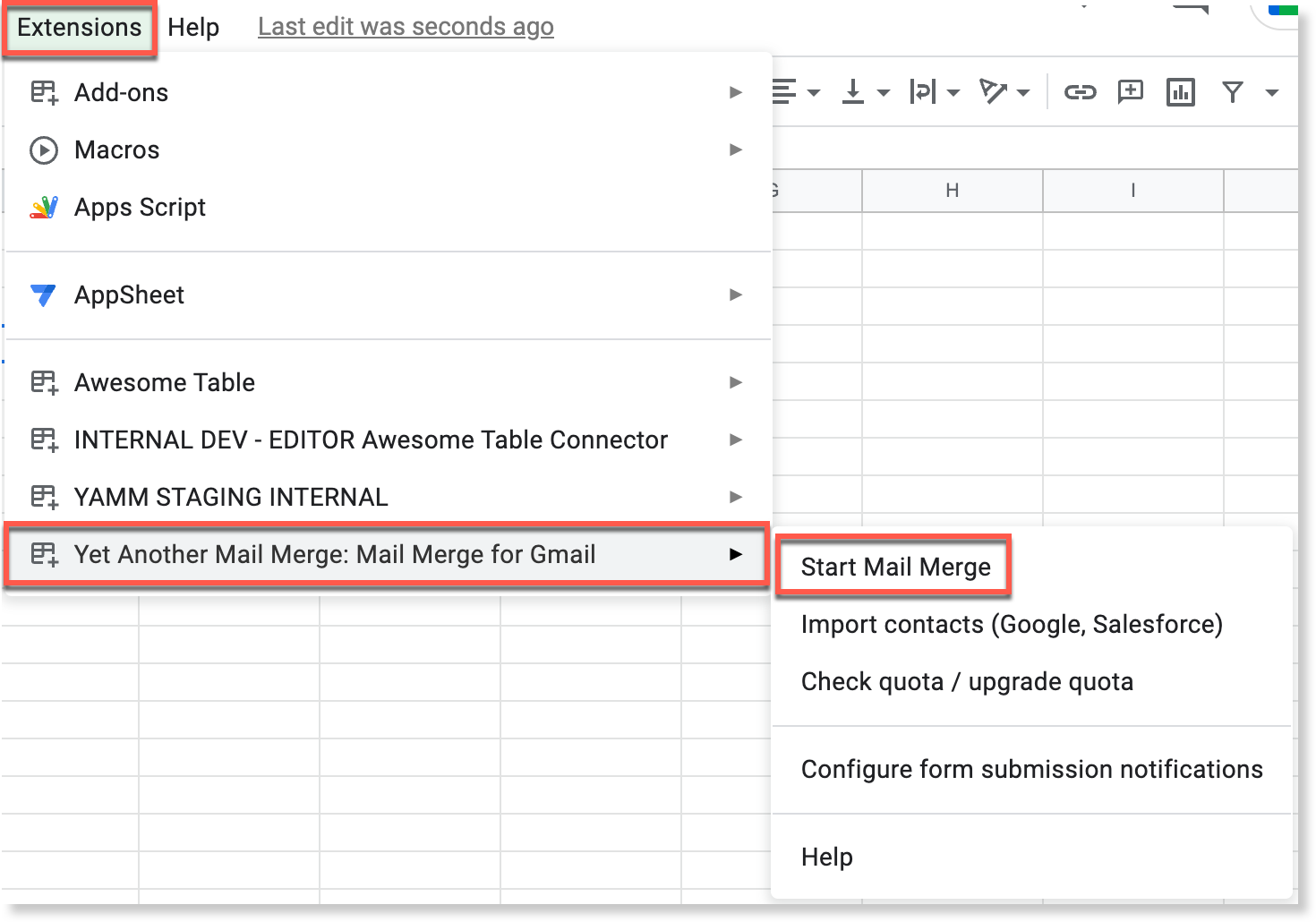
Select Extensions > Yet Another Mail Merge: Mail Merge for Gmail > Start Mail Merge.
-
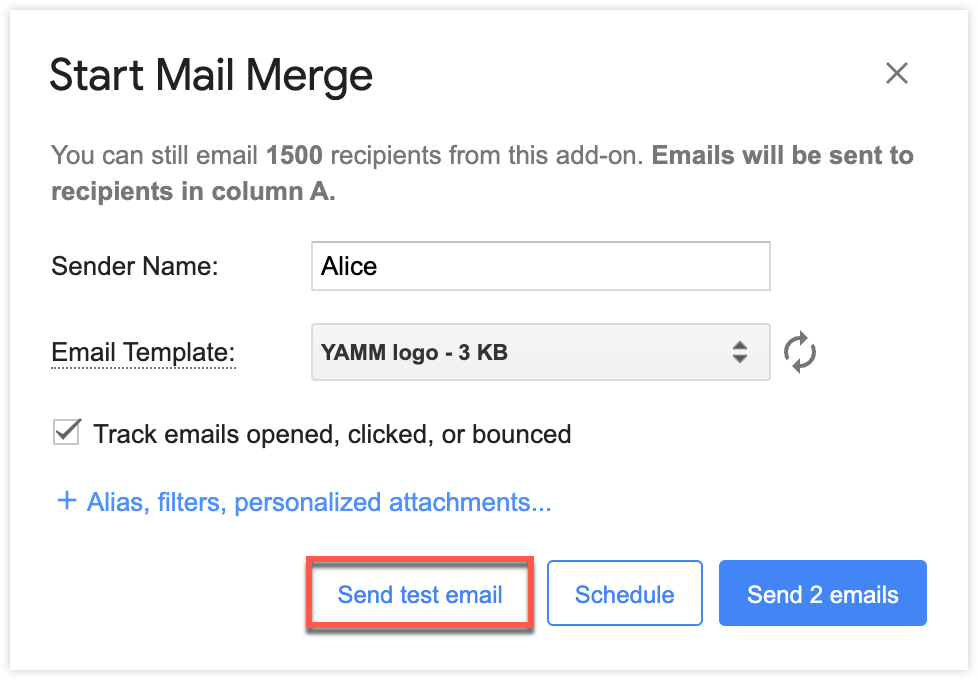
Select your template and click Send test email.
-
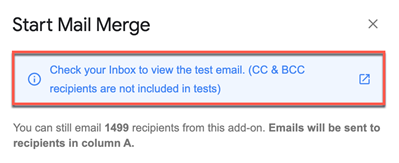
Click the blue banner to open the test email directly in your Gmail inbox.
 info
infoDelivery may take a few seconds to a minute, depending on the size of your template.
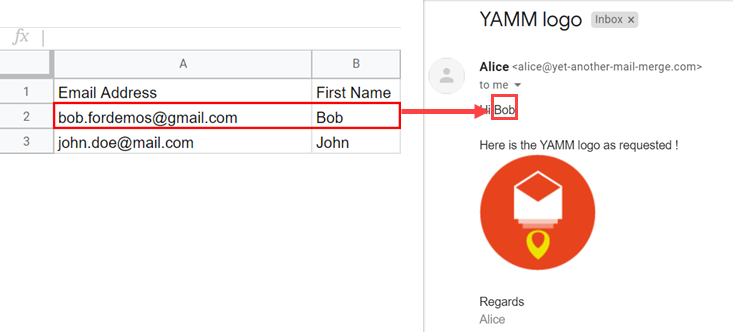
If you've personalized your template with markers, YAMM fills them in using data from the first visible row in your spreadsheet (row 2 by default, or the first unfiltered row if you've applied filters).
Limitations
The test email doesn't fully replicate a live send. The following features are deactivated:
-
Unsubscribe link: The link is personalized for each recipient only when you launch an actual campaign. For more information about the unsubscribe link, see Insert an unsubscribe link.
-
Tracking opt-out link: The link is personalized for each recipient only when you launch an actual campaign. For more information about the tracking opt-out link, see Insert a tracking opt-out link.
-
Custom reply-to: For more information about the reply-to address, see Set a reply-to address.
-
Alias picker: Gmail uses your primary account. For more information about aliases, see Set sender and reply-to addresses.
-
Cc/Bcc recipients in the spreadsheet: The test goes only to your own account. For more information about Cc and Bcc recipients, see Reach multiple recipients per row.
Also, links to Google Docs/Sheets/Slides are previewed at the bottom of the test email. Your recipients won't see this. For more information about links, see Personalize links and images.