Draft your template
YAMM uses a regular Gmail draft as the email template for your mail merge. You can create it in Gmail — as a plain email or a Gmail layout you can fine-tune with HTML/CSS — or design it in Google Docs, which is ideal for collaborating with your team and writing in a comfortable, full-page editor. Pick whichever approach fits your needs and skills.
Start from Gmail
With YAMM, creating an email template is easy: you just need a Gmail draft.
Prerequisites
-
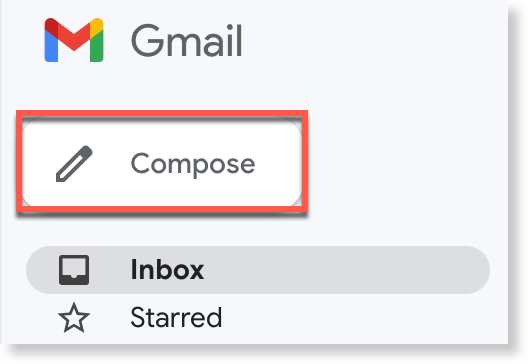
Open Gmail and click Compose.
-
In the New Message window:
-
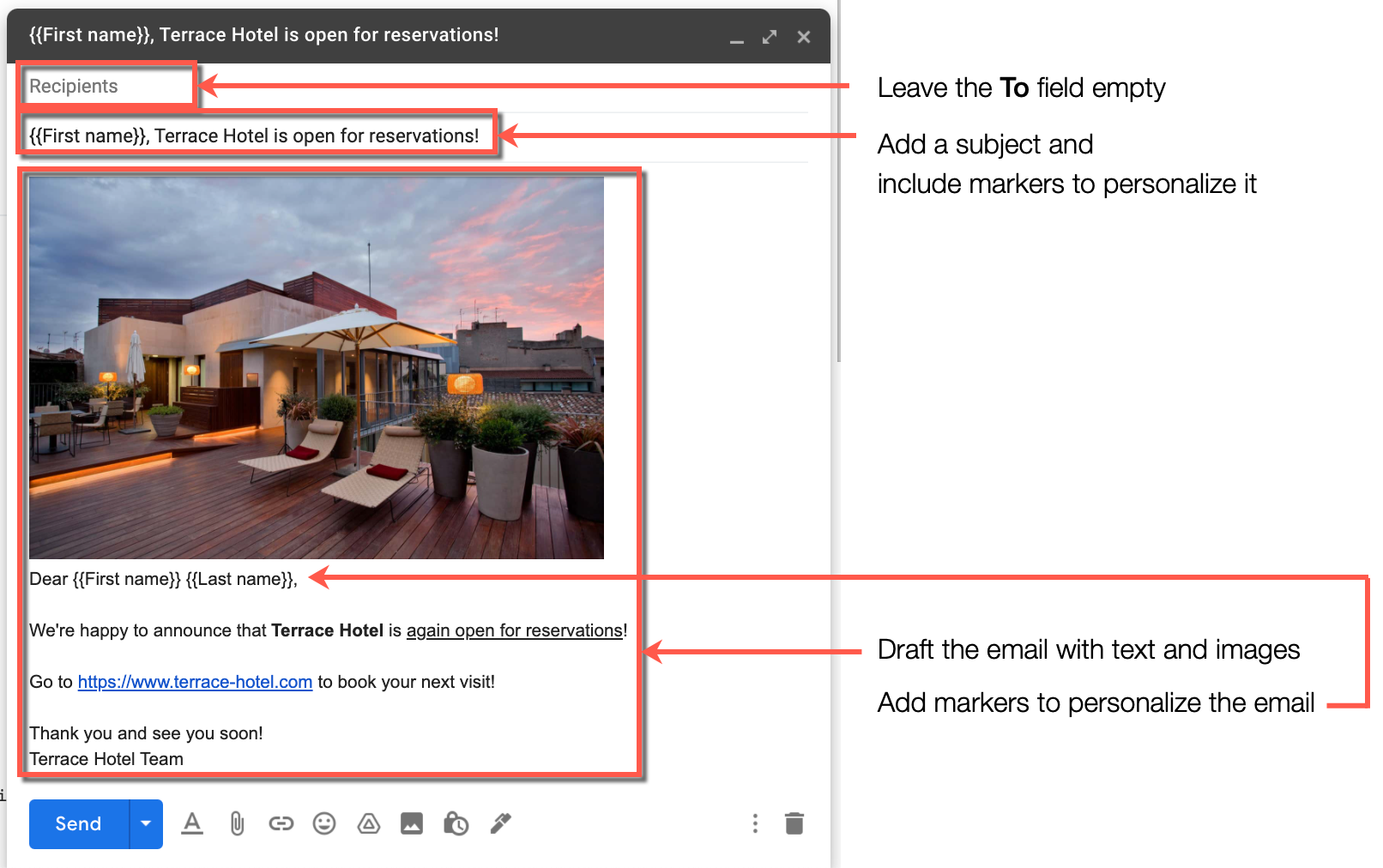
Leave the To field empty. YAMM fills it in from the
Emailcolumn when it sends. -
Add a subject. Use markers if you want to personalize it (
Hi {{First name}}, ...). -
Draft the body, again with markers (for example,
Dear {{First name}} {{Last name}},).
-
-
Close the draft. Gmail saves it automatically in your Drafts folder.
Don't delete your draft!
Your draft is ready to be used as a template for your email campaign. To give it a more designed look, you can optionally start from a Gmail layout, or fine-tune the HTML/CSS if you're comfortable with code.
Send professional-looking, mass-personalized emails by starting from a ready-made Gmail layout.
Prerequisites
-
In the New message window, select the layout icon.

-
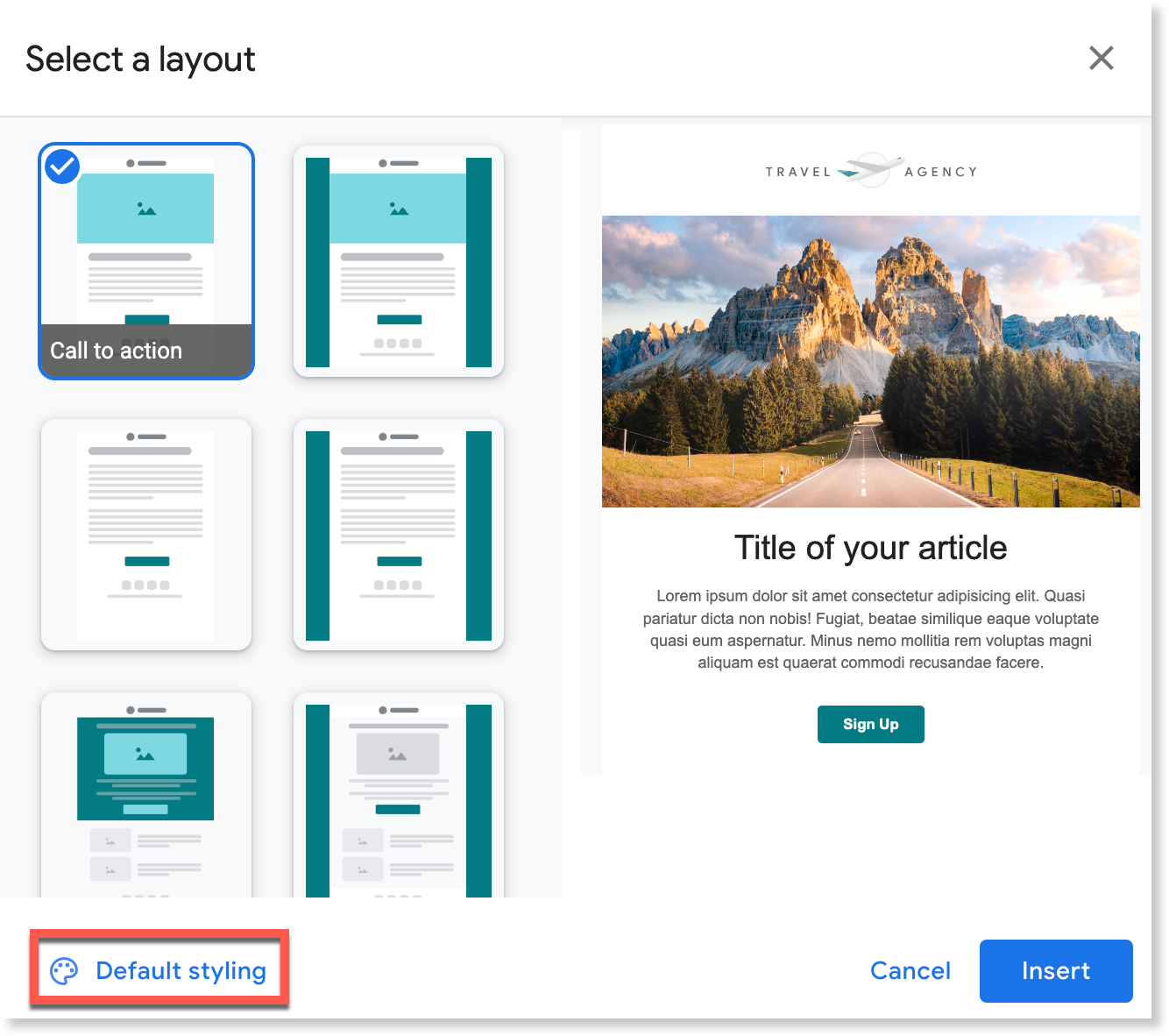
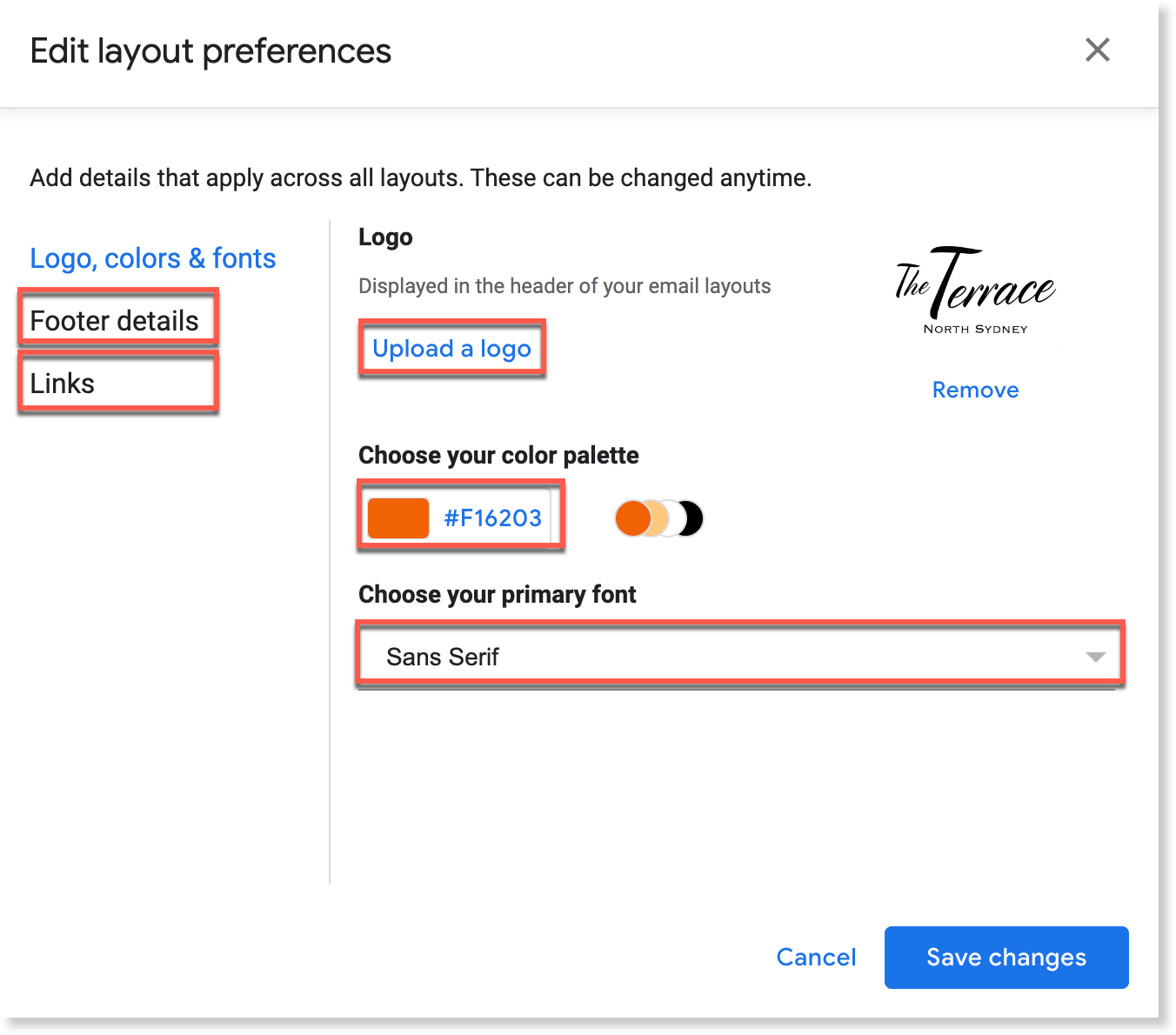
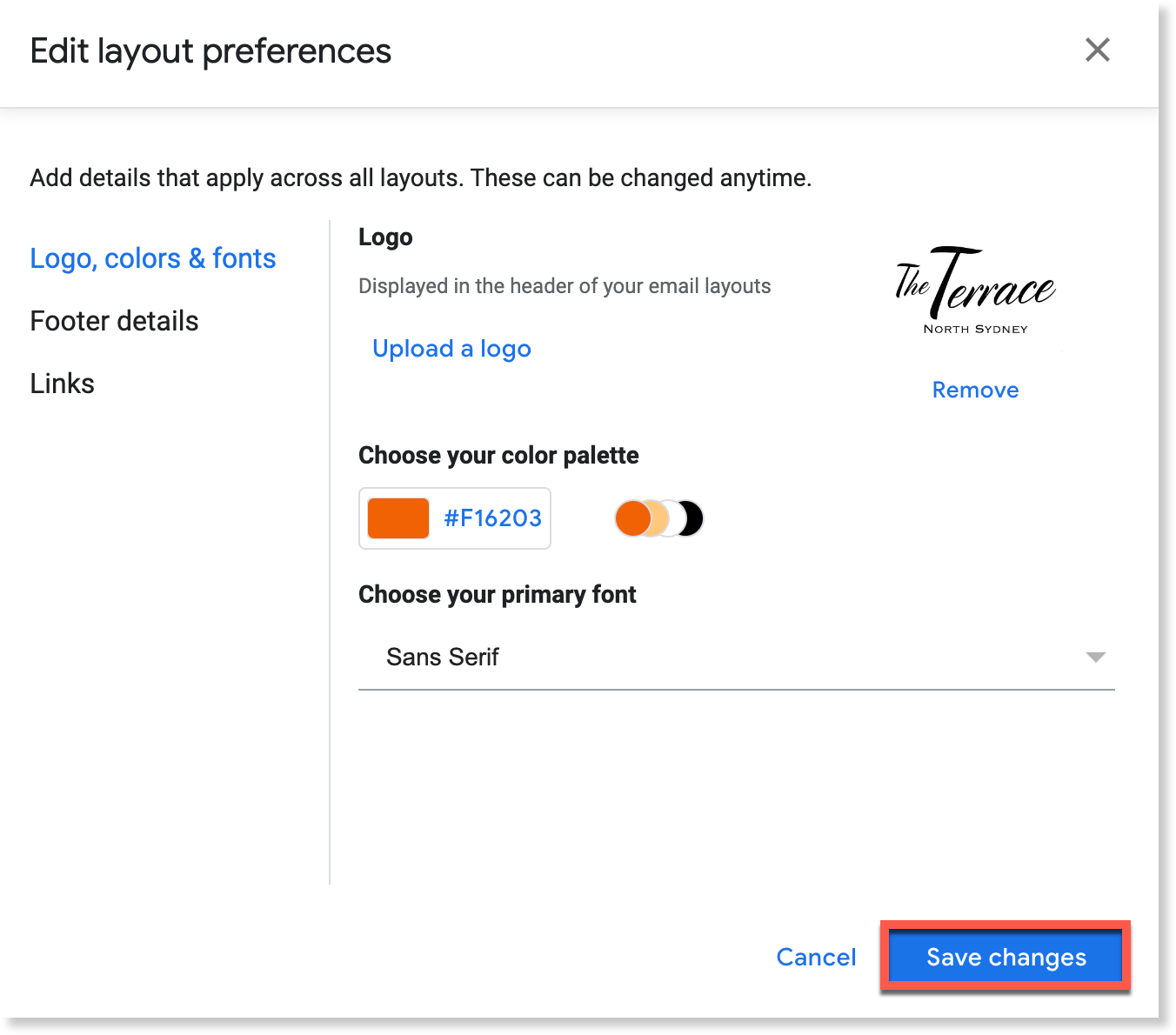
(Optional) To customize the default style, click Default styling and edit logos, colors, fonts, footer details, and links.
-
Click Save changes.
-
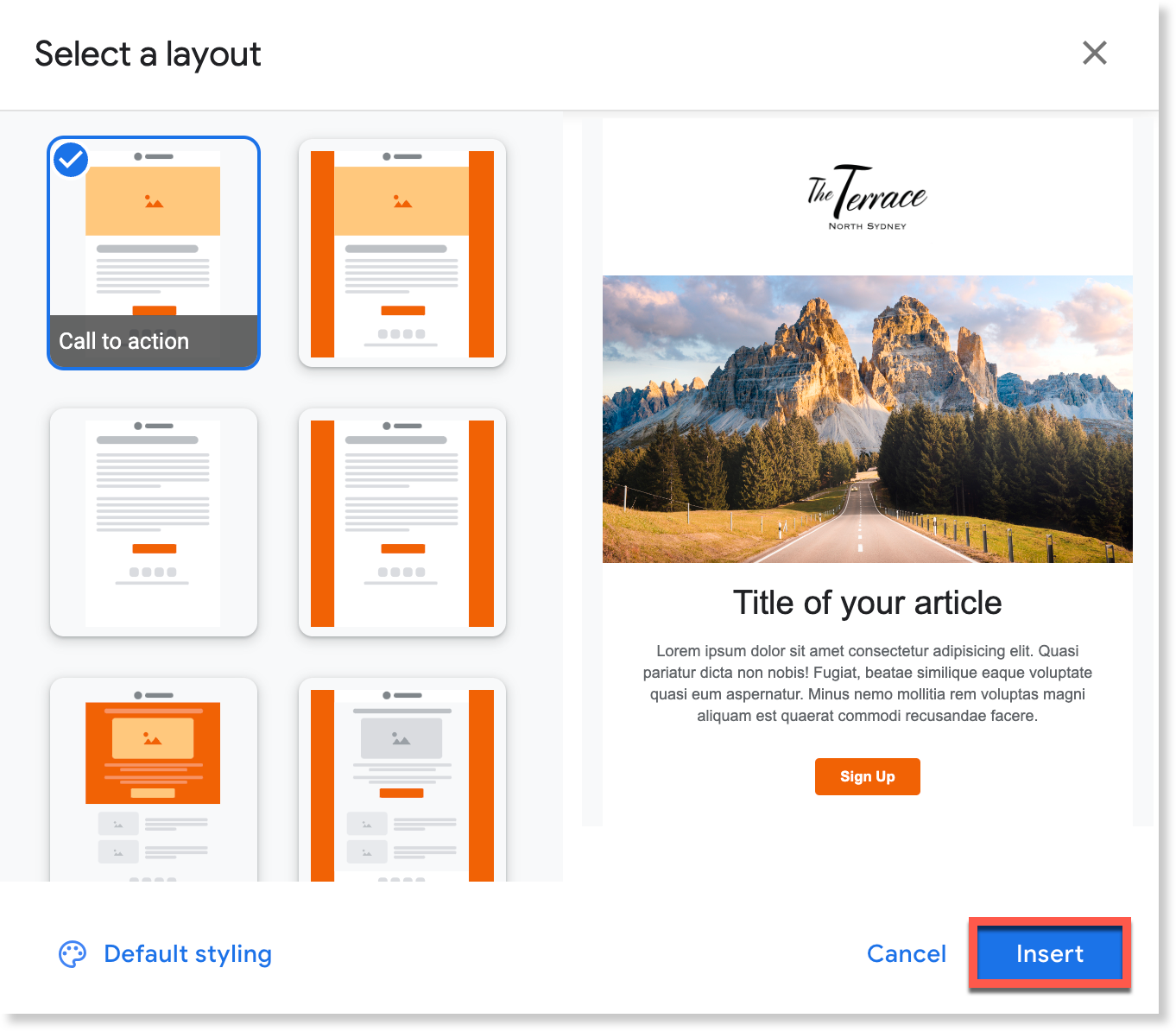
Select a layout and click Insert.
-
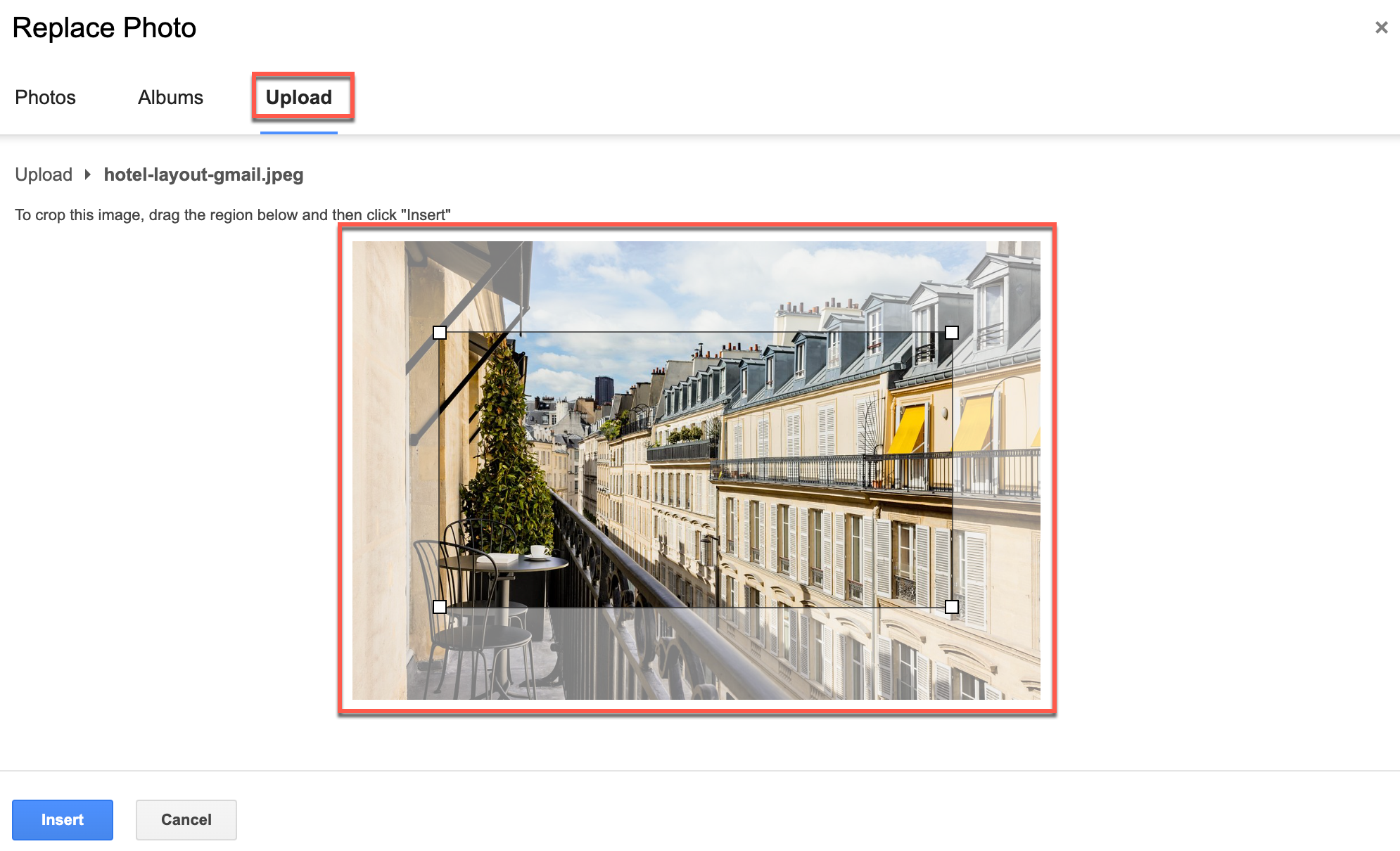
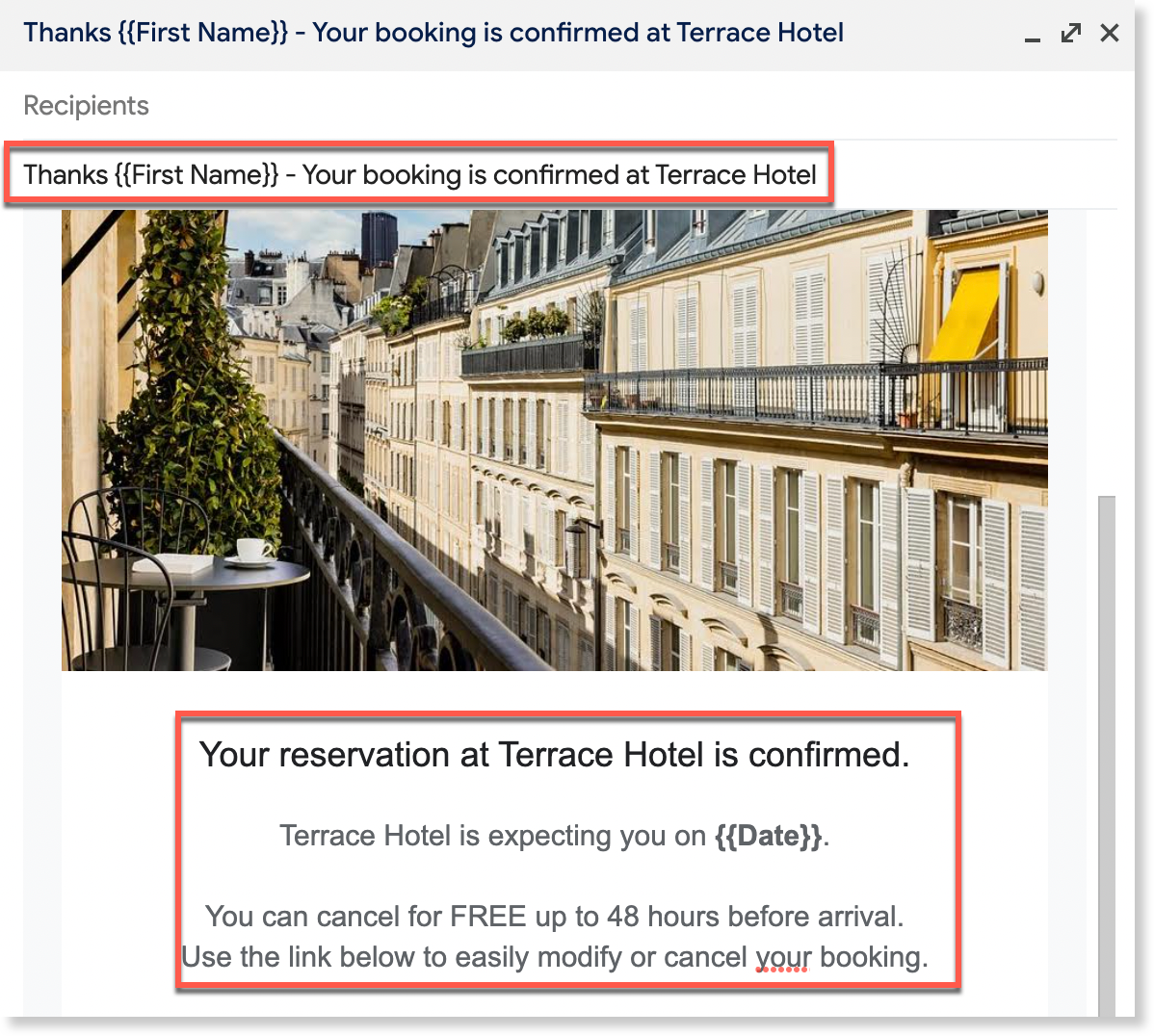
Change images, add alt text, add a subject and personalization markers, and set links on any buttons.
For finer control, edit the HTML/CSS of a draft directly in Gmail — for example, to tweak the colors or borders of a Gmail layout. Editing the rendered draft (rather than pasting raw code in plain-text mode) keeps YAMM's open and click tracking working.
With your browser's developer tools
-
Open your draft in Gmail, right-click it > Inspect, and click Elements.
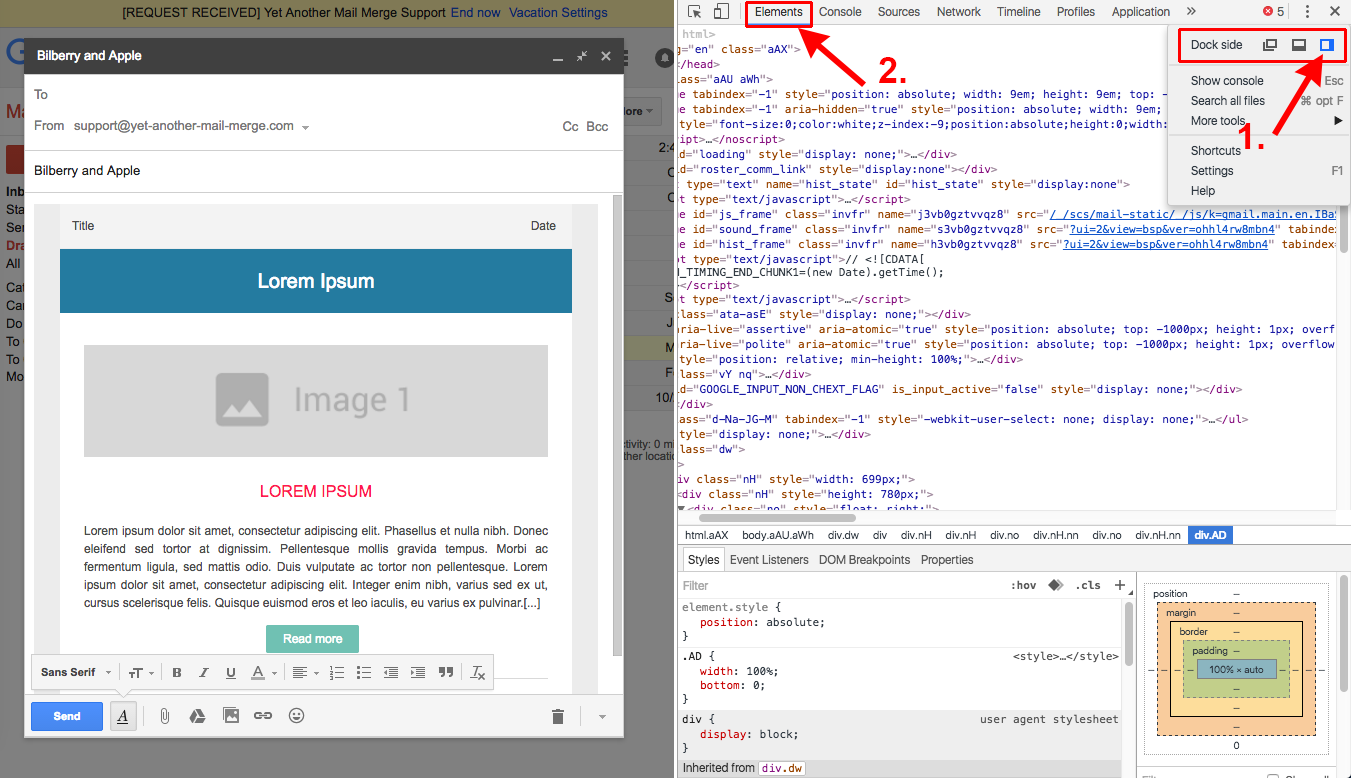
-
Click the inspect icon, then click the element you want to change (e.g., a header). The matching line is highlighted in the panel.
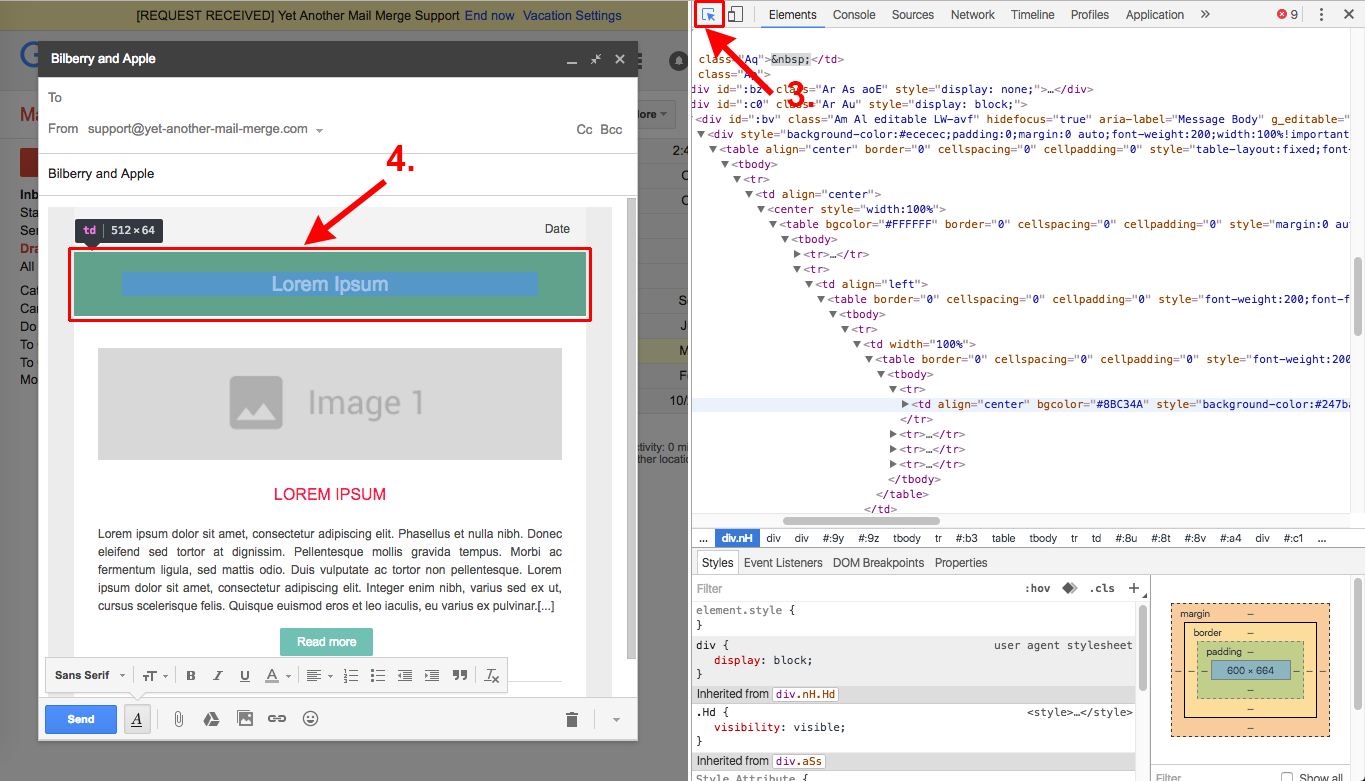
-
In the Styles panel, change the property you want (e.g.,
background-color), and repeat for any other elements.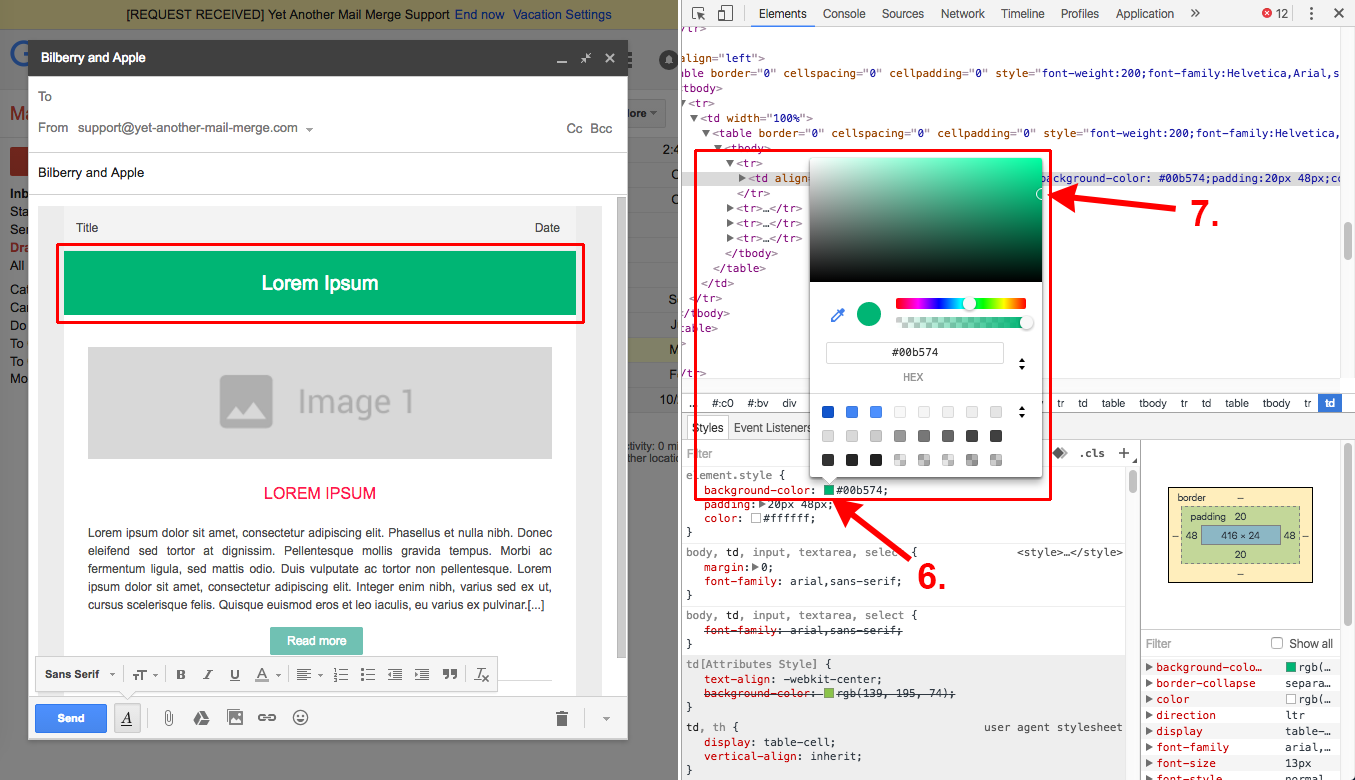
Your draft updates live:
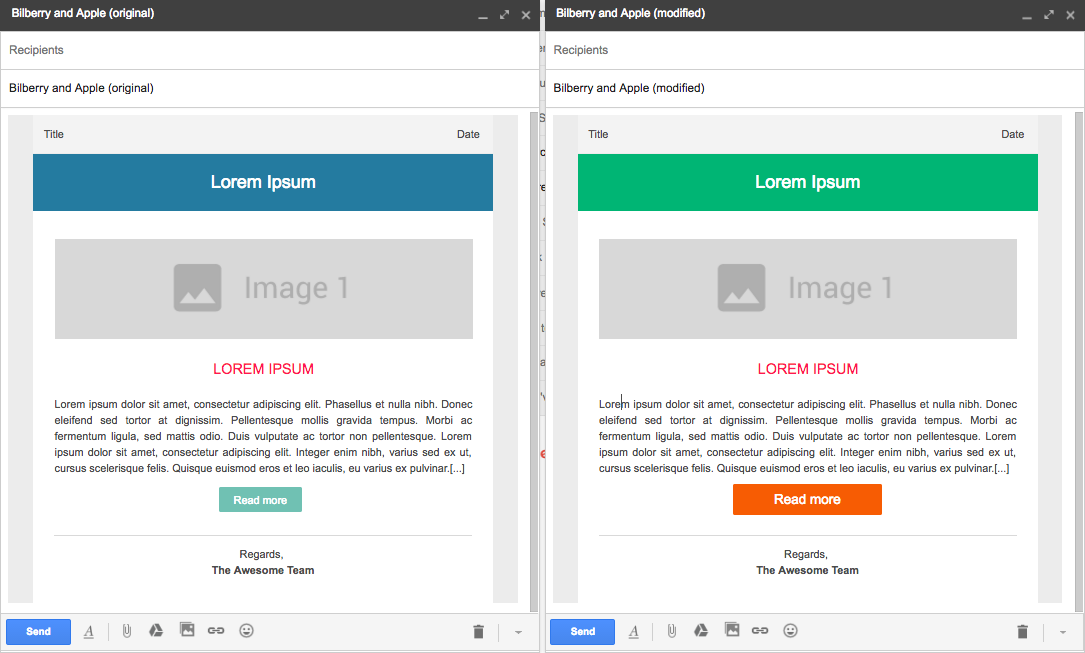
See also Google's developer tools docs and the CSS properties supported in Gmail.
With a Gmail HTML editor extension
If you'd rather not use developer tools, install a Gmail HTML editor extension such as HTML Editor for Gmail. It adds an HTML editor to your compose window, so you can paste and edit your code with clean rendering — and, unlike plain-text mode, your draft stays trackable in YAMM.
Start from Google Docs
Google Docs is the best option when you want to build an email together with your team — several people can co-edit the same document, leave comments, and suggest changes before anyone sends it. Google Docs turns your document into a Gmail draft for you, and YAMM uses that draft as the template.
-
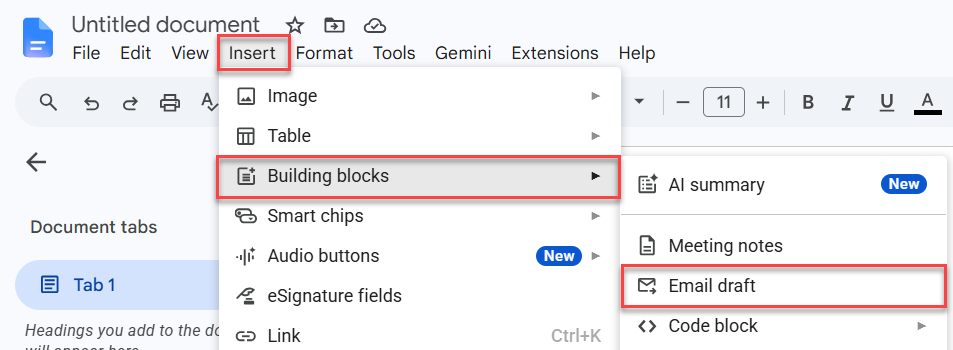
In the menu bar, select Insert > Building blocks > Email draft.
-
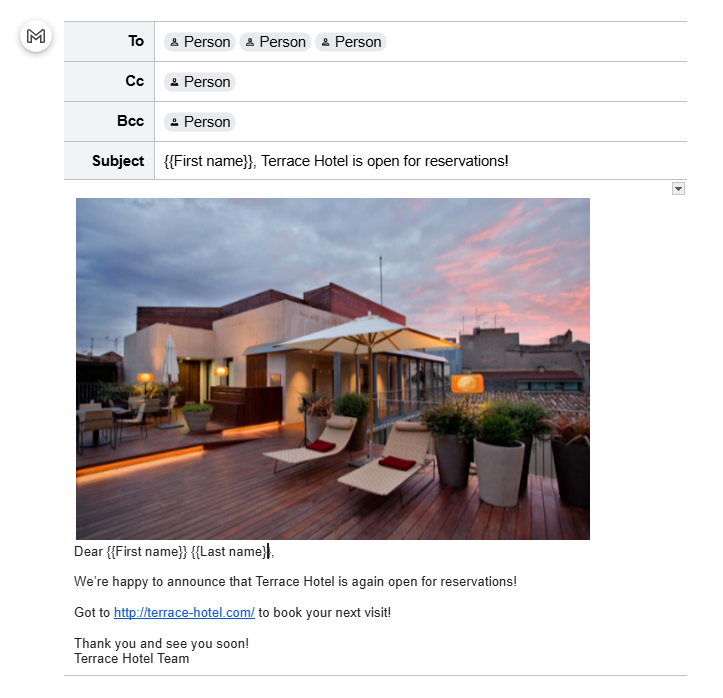
In the email draft block:
-
Leave the To field empty. YAMM fills it in from the
Emailcolumn when it sends. -
Add a subject. Use markers if you want to personalize it (
Hi {{First name}}, ...). -
Draft the body, again with markers (for example,
Dear {{First name}} {{Last name}},).
-
-
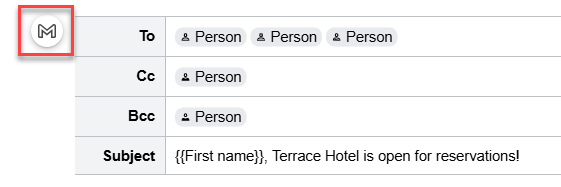
Click the Gmail icon. Google Docs creates the Gmail draft.
-
Close the Gmail preview window.
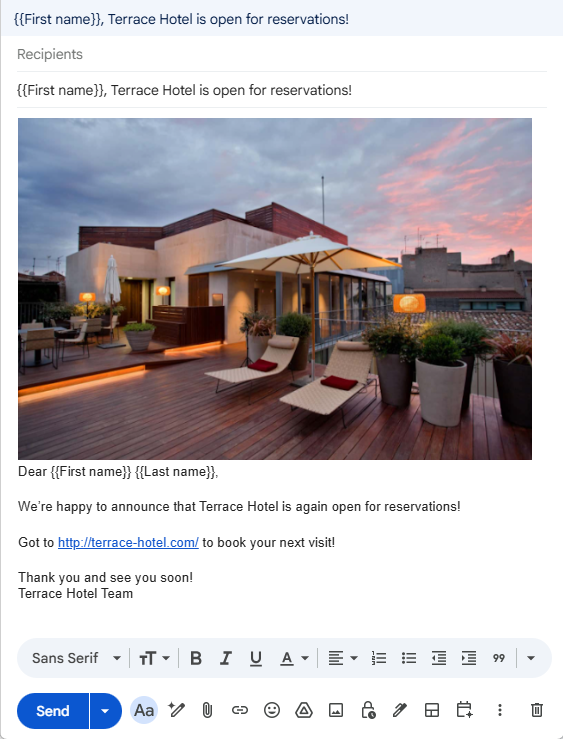
Gmail saves it automatically in your Drafts folder. The draft is saved and available in YAMM as an email template.
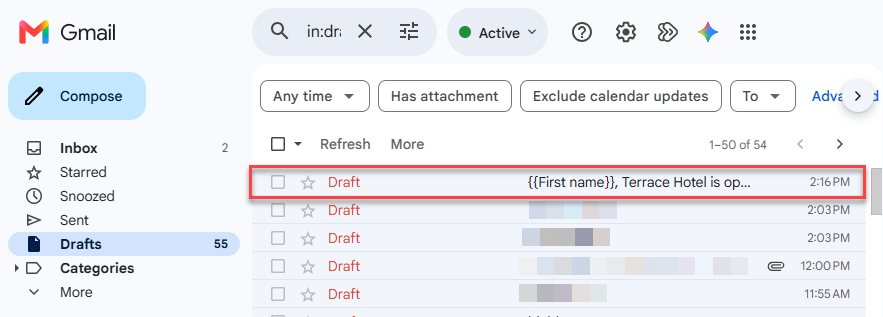
If you later edit your template in Google Docs, click the Gmail icon again to create a new Gmail draft.
Star your draft to find it faster
If you keep a lot of drafts, star the one you want to use as your template: in Gmail, go to your Drafts folder and click the star next to it.
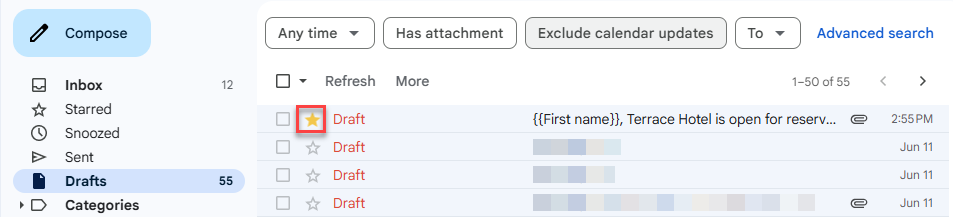
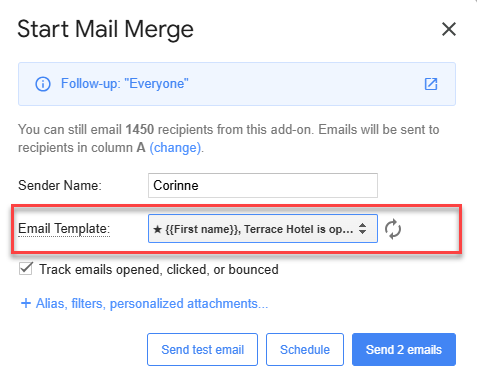
YAMM then lists starred drafts at the top of the Email Template dropdown, so it's quicker to find when you start your mail merge.
What's next
-
Personalize the email template content, attachments, or links and images.
-
Send a test email to preview your email template.