Send from multiple accounts
Run YAMM mail merges from several Google accounts — one account per browser profile, each with its own browser session. Send from the first account, switch profiles, then send from the next.
warning
Already signed in with several Google accounts in the same browser session? Log out from multiple accounts first — otherwise YAMM sends duplicated emails and runs into delivery, quota, and freezing issues.
Run mail merges from multiple accounts
Prerequisites
- You have created a browser profile for each Google account you want to use YAMM with.
-
In Google Sheets, open your contact list spreadsheet.
-
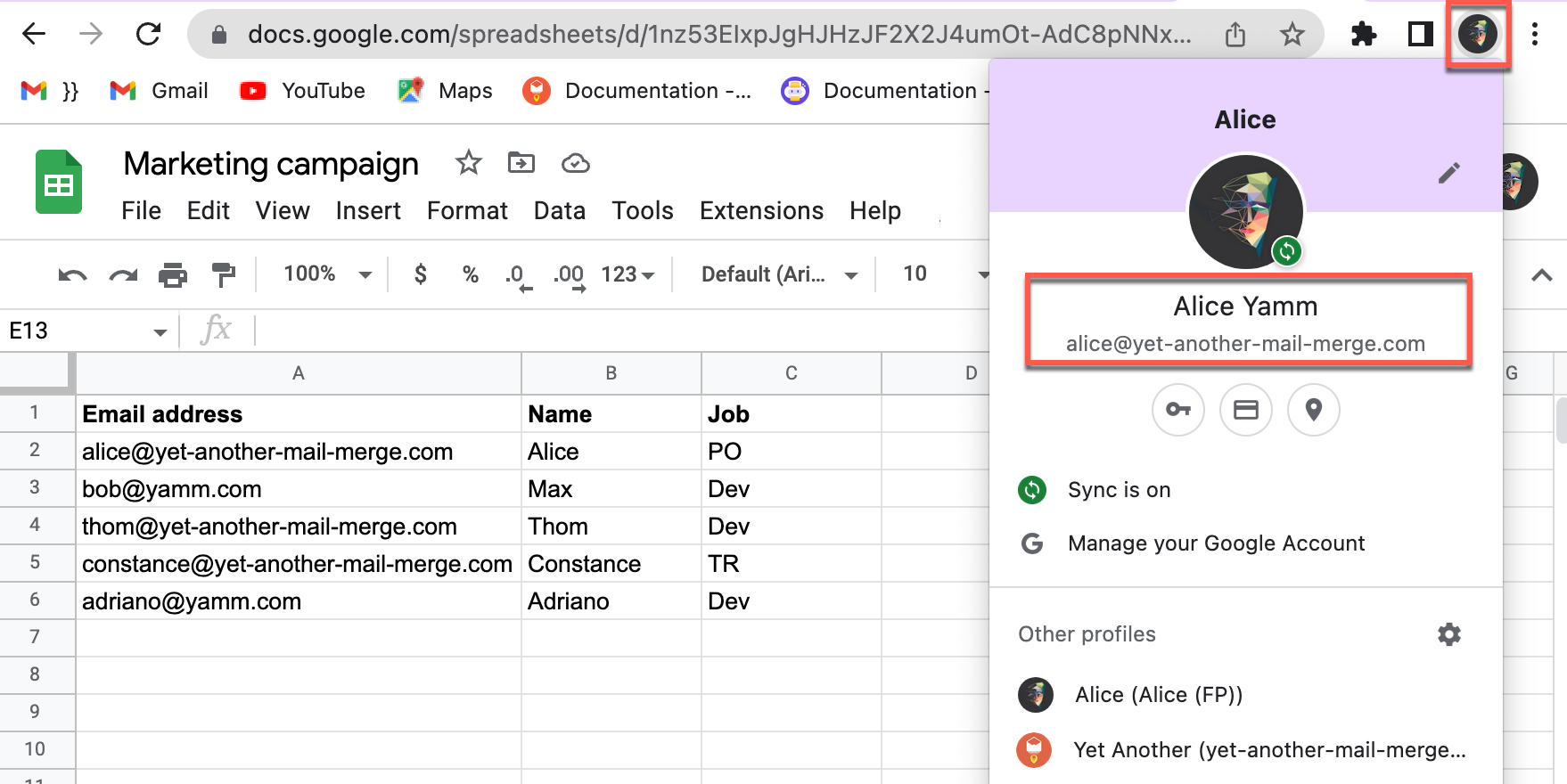
Access the browser profile associated with the Google account you want to send from.
-
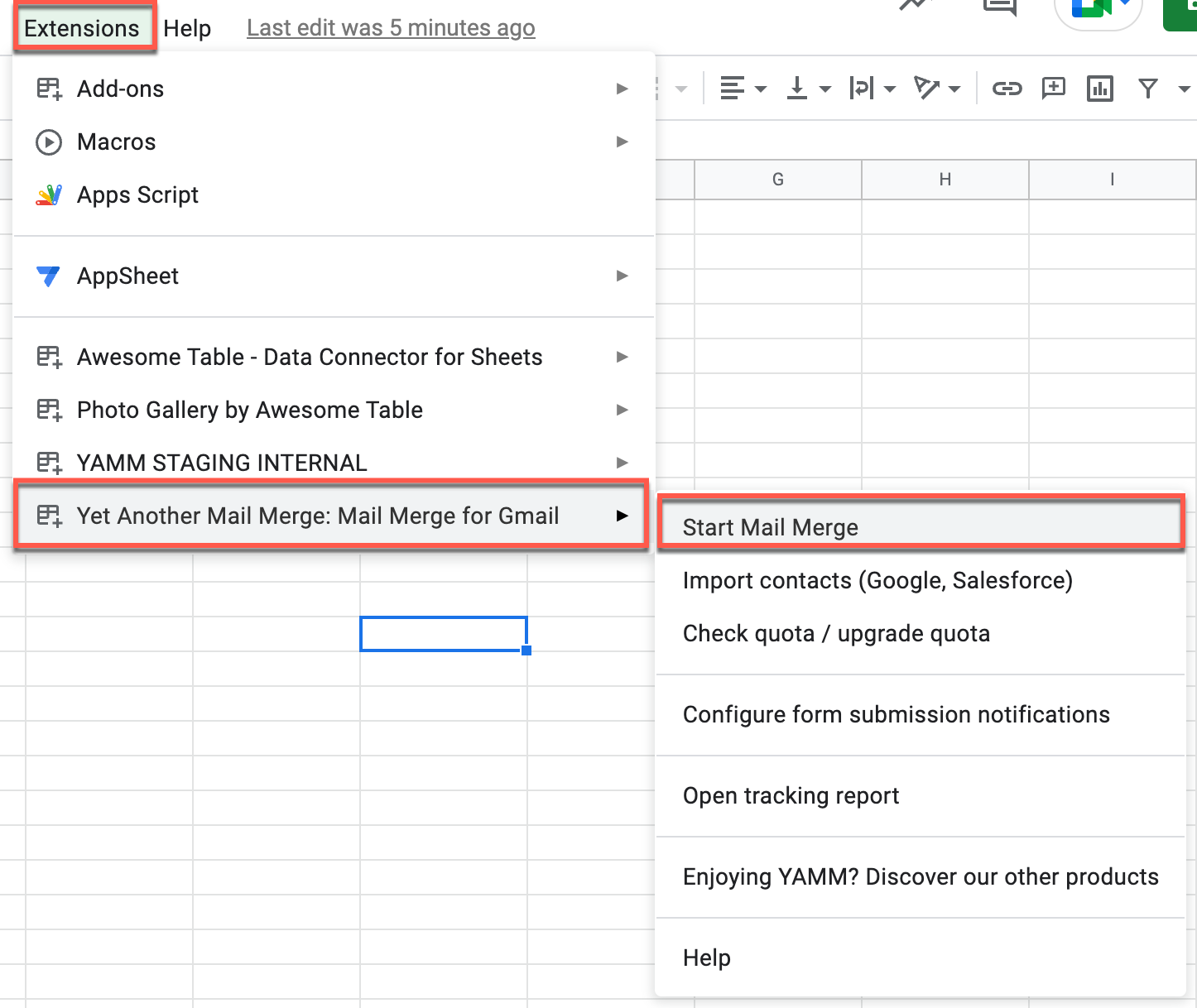
Select Extensions > Yet Another Mail Merge: Mail Merge for Gmail > Start Mail Merge.
-
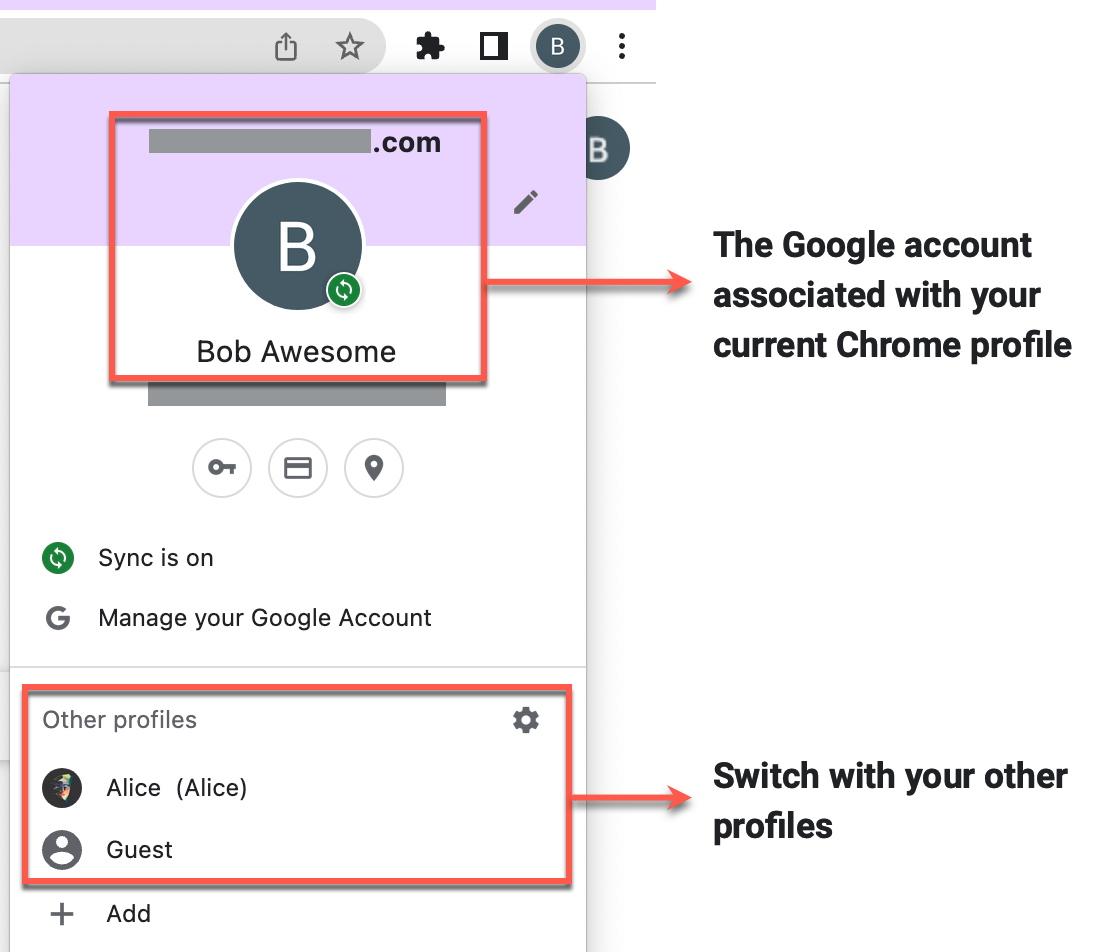
Click the user icon in the top-right corner of the browser and select a different profile.
What's next
- Track your campaigns for opens, clicks, responses, bounces, unsubscribes.