Account, delivery, scheduling
Account-, delivery-, and scheduling-level issues outside the in-app workflow — scheduled merges that didn't run, DMARC/DKIM, Google account blocks, the alias picker not working with test emails, and form notifications blocked after switching email domains.
Why are scheduled mail merges not being sent?
You scheduled your mail merge but the emails aren't sent yet. Possible reasons:
-
You deleted the draft or the contact list spreadsheet. YAMM can't deliver scheduled emails if either is gone.
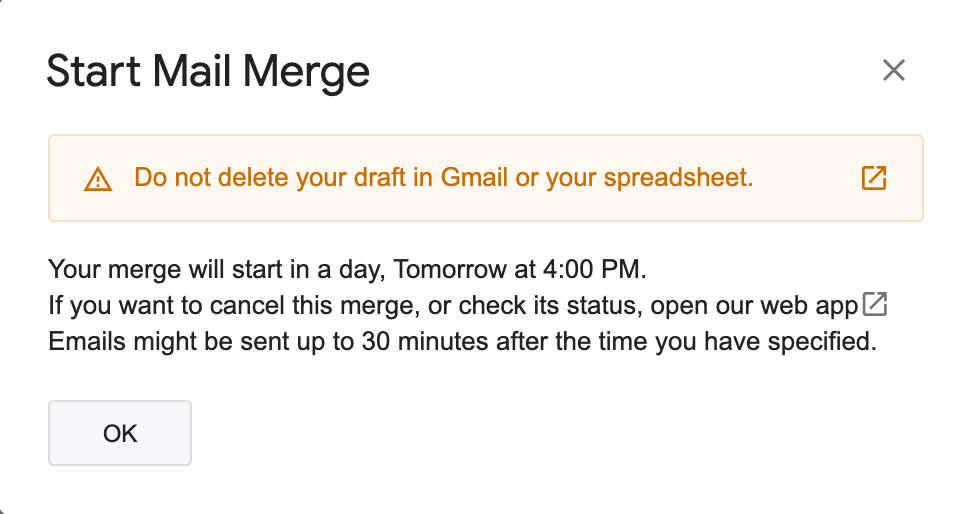
If you modify the draft before the scheduled time, YAMM sends the latest version.
-
The delivery time is approximate. The merge can be sent up to 30 minutes after the time you specified — see At what time is my mail merge sent?.
-
You ran out of quota. Example: 130 recipients remaining and a 200-recipient scheduled merge — YAMM sends 130 now and automatically schedules the remaining 70 for when your quota resets ~24 hours later.
How does YAMM handle DMARC and DKIM?
If DKIM and DMARC are set up on your domain, they apply to YAMM (which uses your Gmail account).
DKIM (DomainKeys Identified Mail) helps prevent spoofing on outgoing messages from your domain. See Set up DKIM.
DMARC (Domain-based Message Authentication, Reporting & Conformance) helps senders and receivers verify the sender's domain and defines what to do with suspicious messages. Set up SPF and DKIM before setting up DMARC.
Check your DNS records
If you have DKIM or DMARC enabled and have trouble sending through YAMM, check your configuration using Google's check-mx tool.

If anything is amiss, contact your Google Workspace admin, or send us a request.
Why did Google block your account?
YAMM has no control over Google accounts. If your Gmail or Google Workspace admin account has been blocked, contact Google directly.
Google temporarily disables accounts when it detects unusual activity:
- Sending many emails with a new Gmail or Google Workspace account. Google monitors new accounts carefully — warm up before sending many emails. See Anti-spam rules.
- Sending a large number of undeliverable messages. Many bounces look like abuse. See What are bounces?.
Google Workspace admins can unblock an account up to 5 times per year — see Restore a suspended Google Workspace account.
For a Gmail account, see Restore your account.
More: Your account is disabled.
Why can't you set notification rules after switching email domains?
If your Google Workspace admin switched your email account to a new domain (e.g., from @yet-another-mail-merge.com to @yamm.com), YAMM prevents you from changing the form notifications configuration with this error:
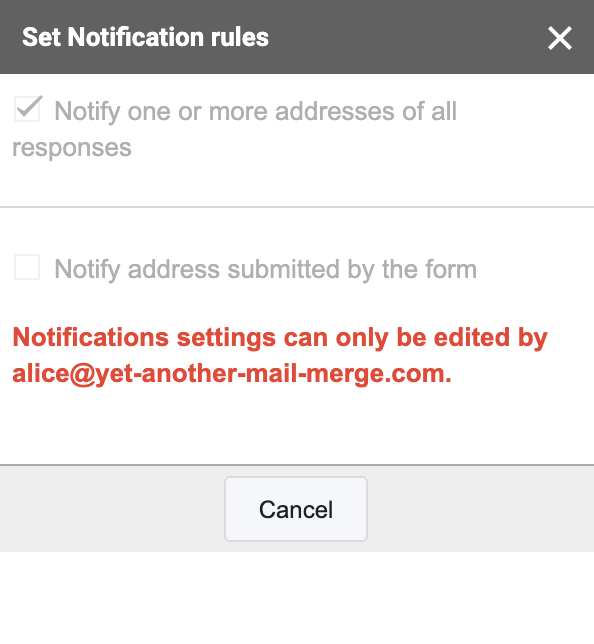
Fix: copy the responses spreadsheet under your new account, then link the copy to the form as its response destination.
Prerequisite: You're logged in as your new email account, with the shared responses spreadsheet open.
-
Select File > Make a copy.
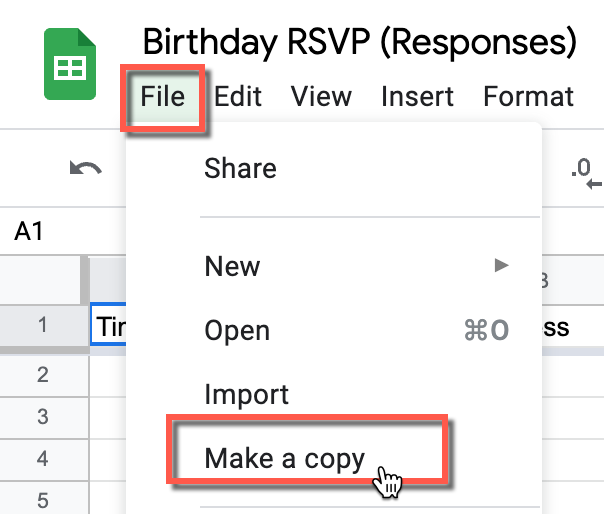
-
(Optional) Name the copy, then click OK.
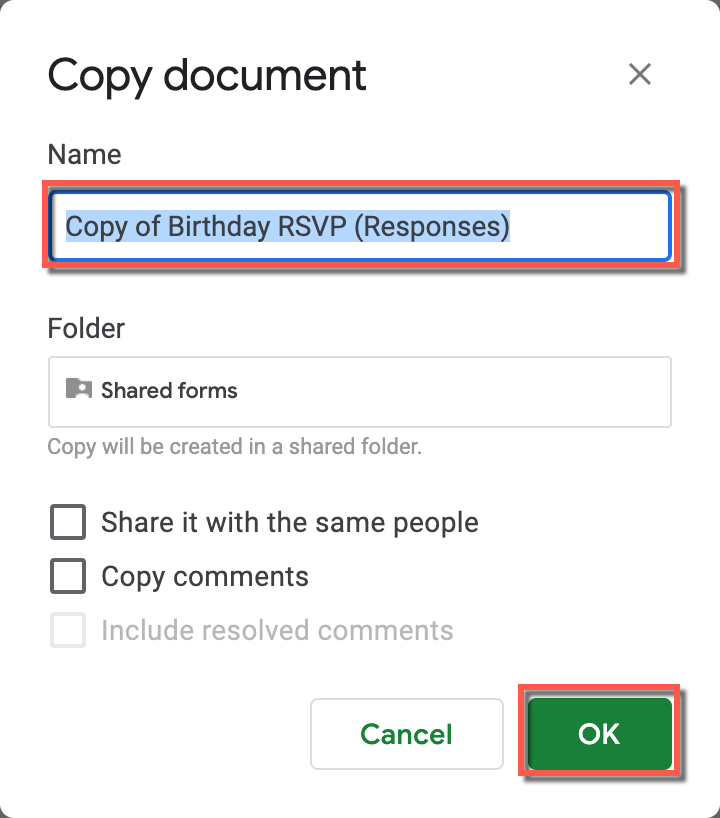
The new email account now owns a copy of the responses spreadsheet.
-
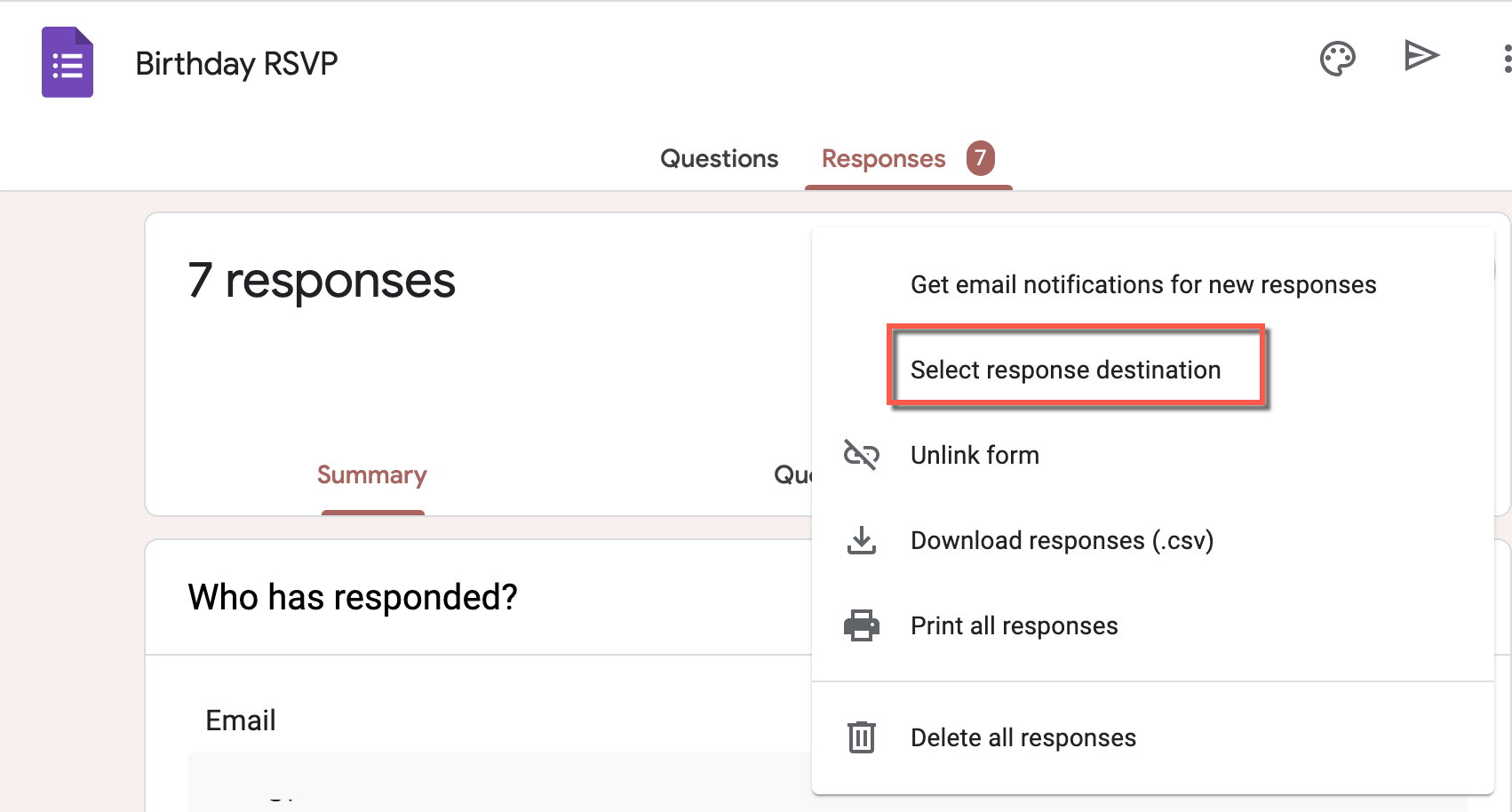
In the Google form, click the Responses tab.
-
Click More > Select response destination.
-
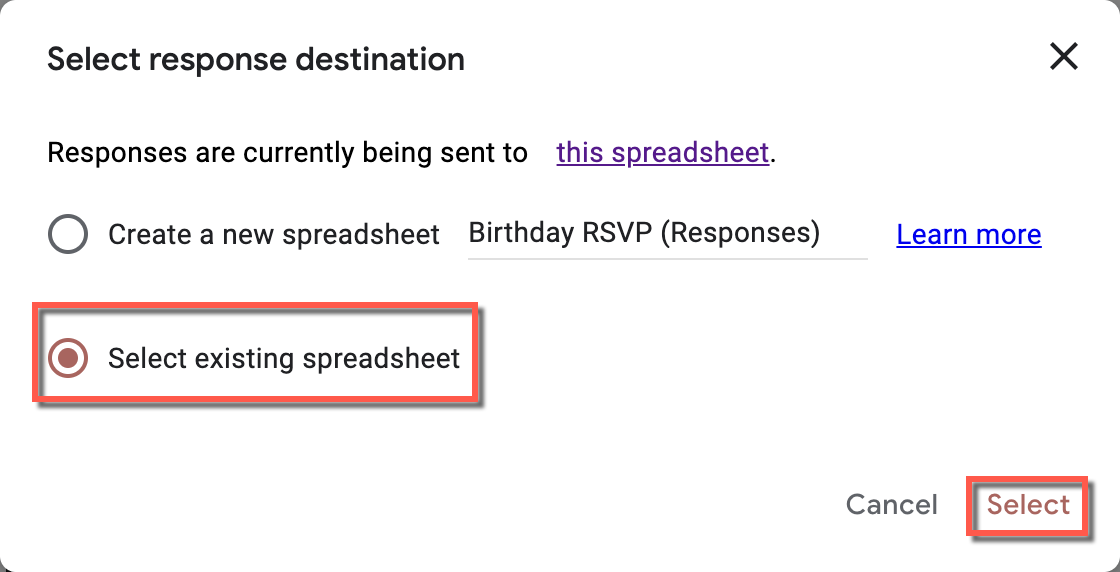
Select Select existing spreadsheet > Select.
-
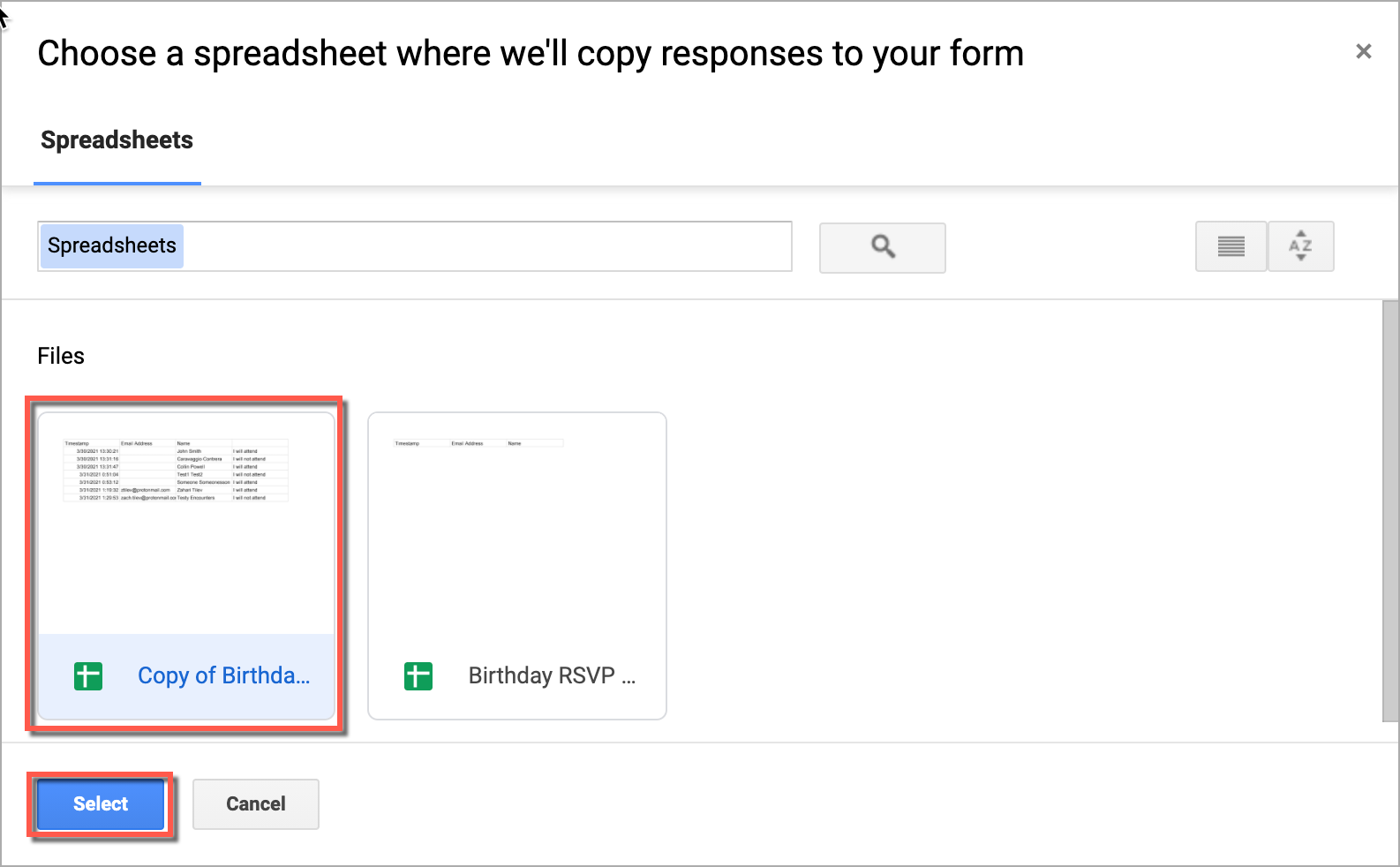
Select the copied spreadsheet, then click Select.
A new sheet, Form Responses 2, is created with a copy of the existing data. New responses now fill into Form Responses 2.
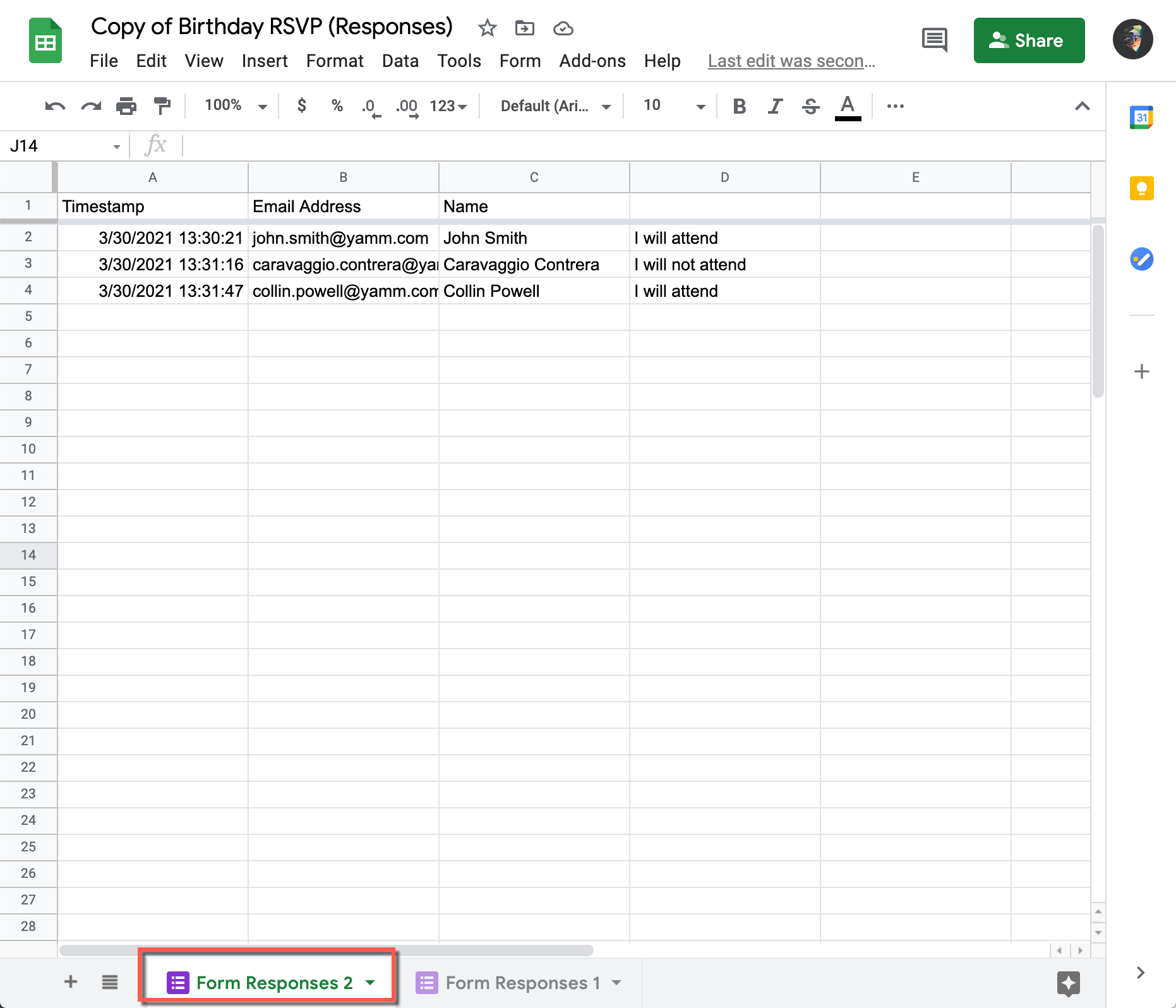
You can now configure your YAMM form submission notifications.
The 'Send from' field (alias picker) isn't working
You can't see your alias as the sender when sending a test email to yourself.
When sending to yourself, Gmail automatically skips the alias setting.
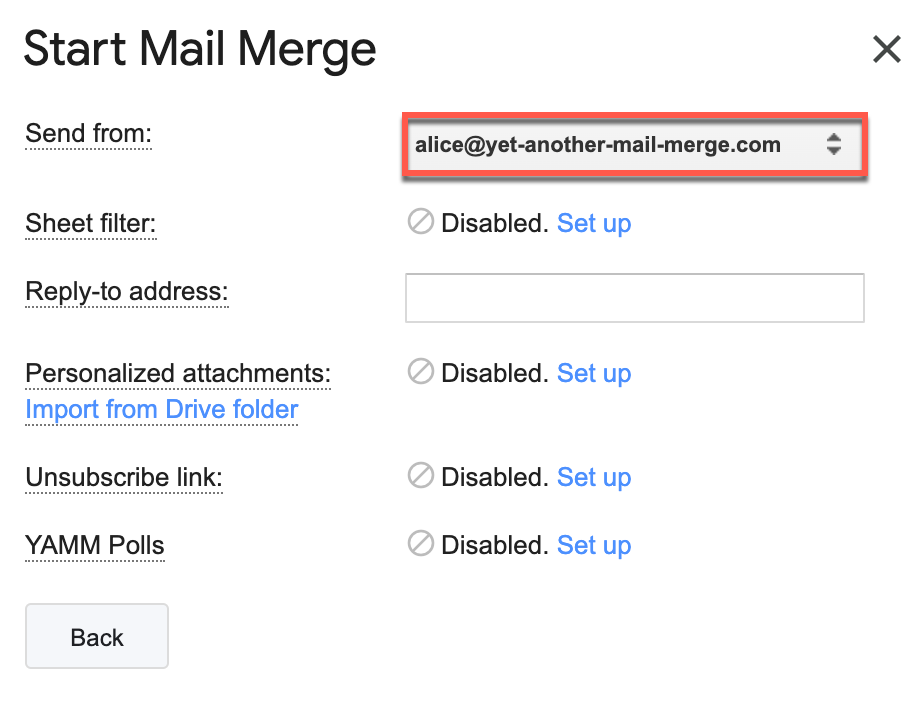
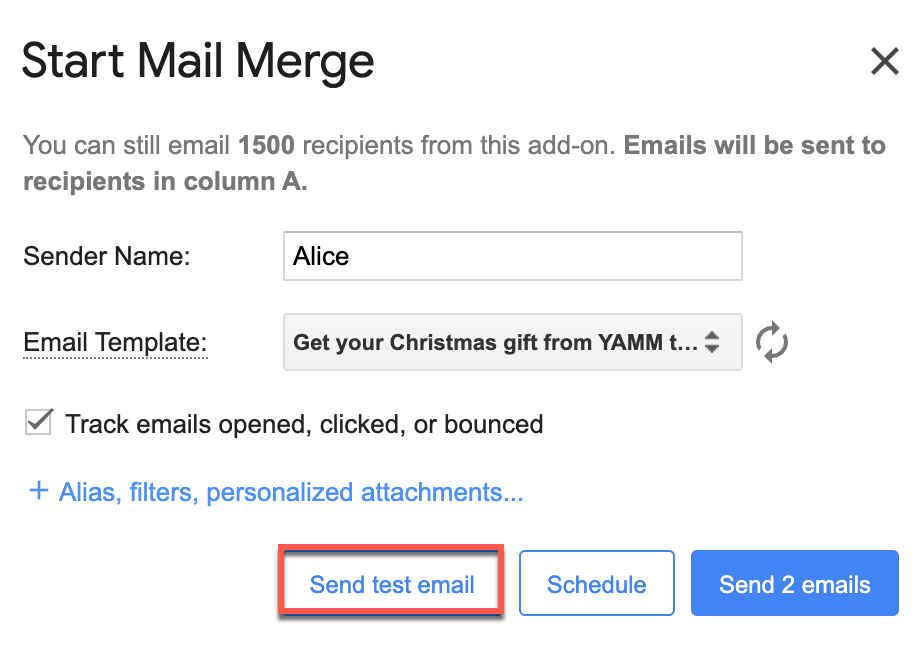
When you send to another email address (your real mail merge), the alias is honoured.