Start your mail merge
Start a mail merge from your contact list spreadsheet.
Prerequisites
- Your spreadsheet has an Email column and at least one recipient row. See Quickstart.
- You have a Gmail draft ready as the email template. See Draft your template.
- You have sent a test email and checked how to avoid spam.
-
In Google Sheets, open your contact list spreadsheet.
-
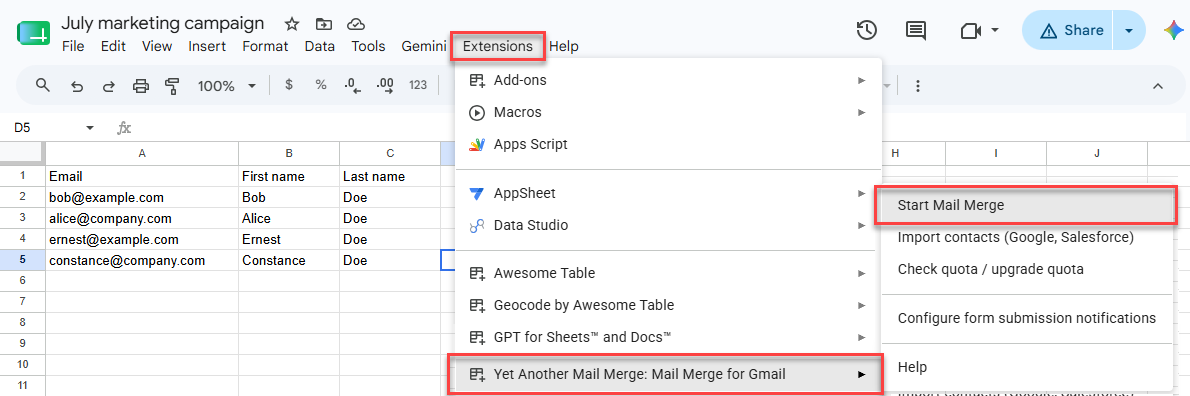
Select Extensions > Yet Another Mail Merge: Mail Merge for Gmail > Start Mail Merge.
-
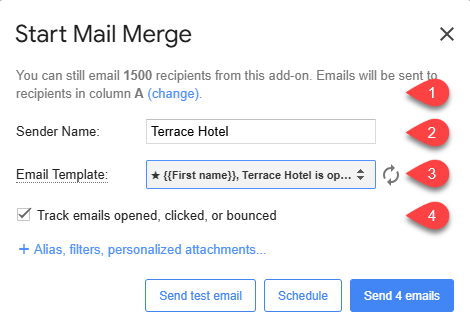
In the Start Mail Merge window:
-
Check that YAMM correctly detected the recipient column.
-
(Optional) Enter a Sender Name.
-
Select your Gmail draft from the Email Template dropdown. Click Refresh if your draft does not appear.
-
Select the tracking option to measure the performance of your campaign. If your template contains an unsubscribe link, tracking must be enabled for it to work.
-
-
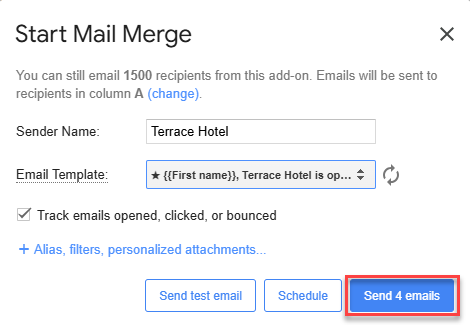
Click Send emails.
YAMM sends a personalized email to every recipient in your spreadsheet, except any you've filtered out, and writes the send status into a Merge status column. The tracking report opens.
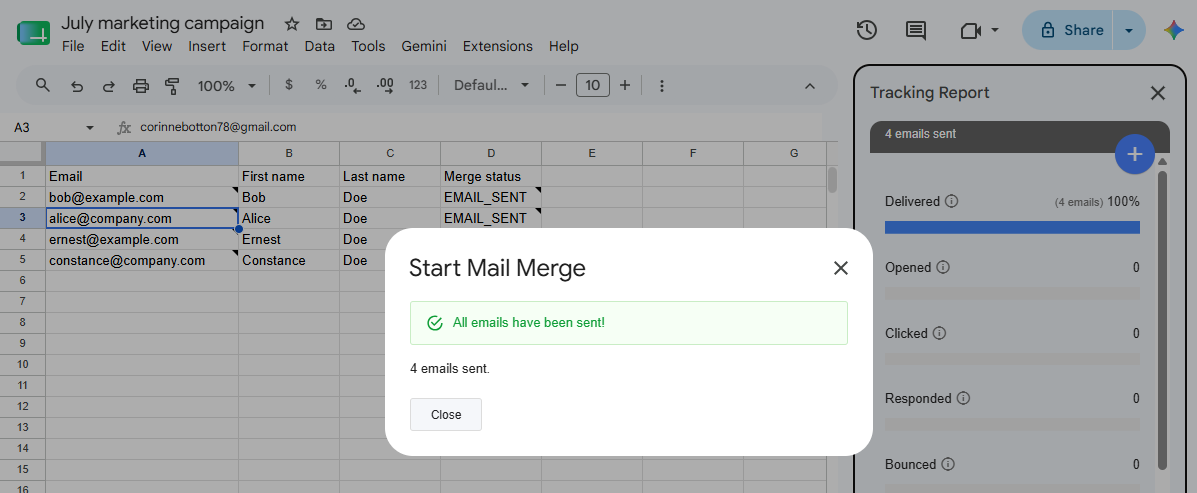
Closing the spreadsheet pauses the sending process. You can then reopen the spreadsheet at any time, and YAMM seamlessly resumes sending the mail merge from where it left off.
What's next
-
Track your campaign for opens, clicks, responses, bounces, unsubscribes.
-
Re-run a mail merge, or run a follow-up with non-openers or non-repliers.