Build your contact list
This article covers how to build your contact list, remove duplicate addresses, add extra recipients from your list or your Gmail draft, and send to only part of your list.
Create a contact list manually
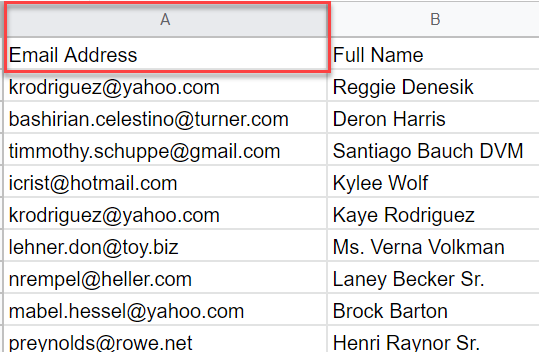
The simplest way to set up recipients is to create a spreadsheet and enter email addresses manually in an Email column.
-
In cell
A1, enterEmail. -
Add one email address per row, starting from row 2.
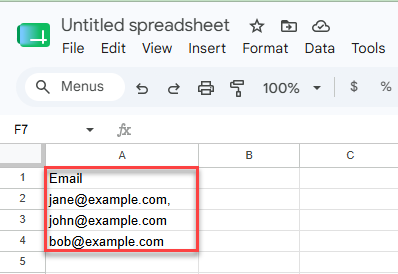
The column doesn't have to be named Email. YAMM detects any column that contains email addresses and lets you select it when you start a mail merge.
That's the minimum YAMM needs. You can add more columns — for personalization markers, cc/bcc recipients, or Google Groups — at any time.
Import your Google Contacts
Import email addresses from Google Contacts to create or expand your contact list.
-
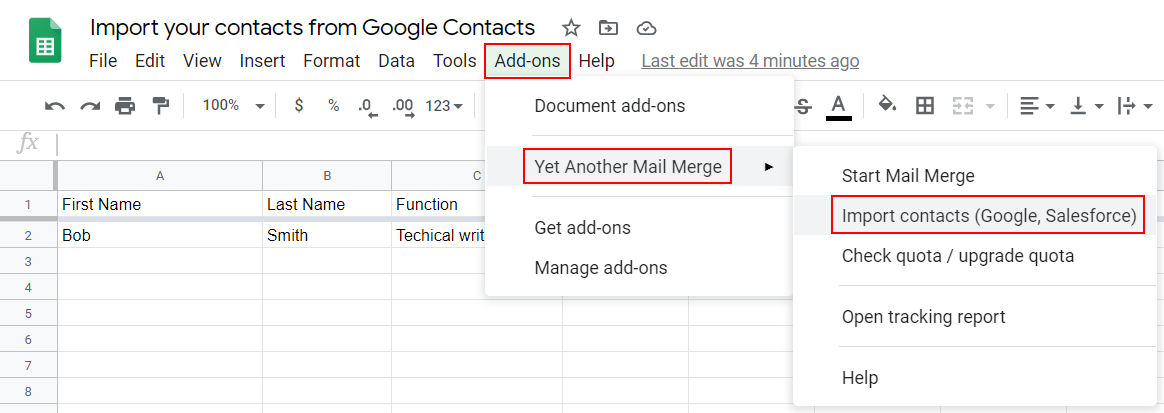
Select Extensions > Yet Another Mail Merge: Mail Merge for Gmail > Import contacts (Google, Salesforce).
-
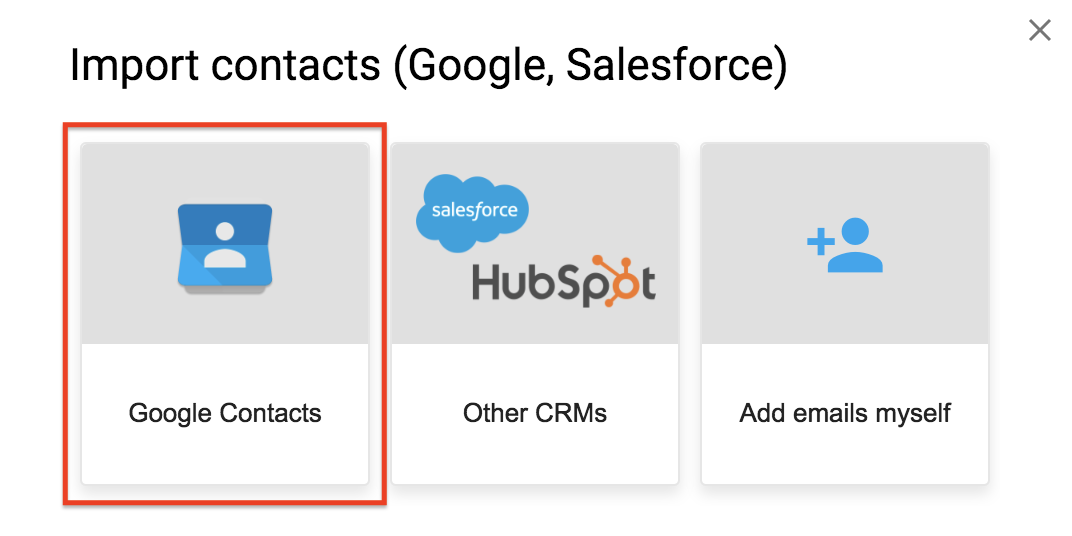
Click Google Contacts.
-
Select a group to import and click Import contacts.
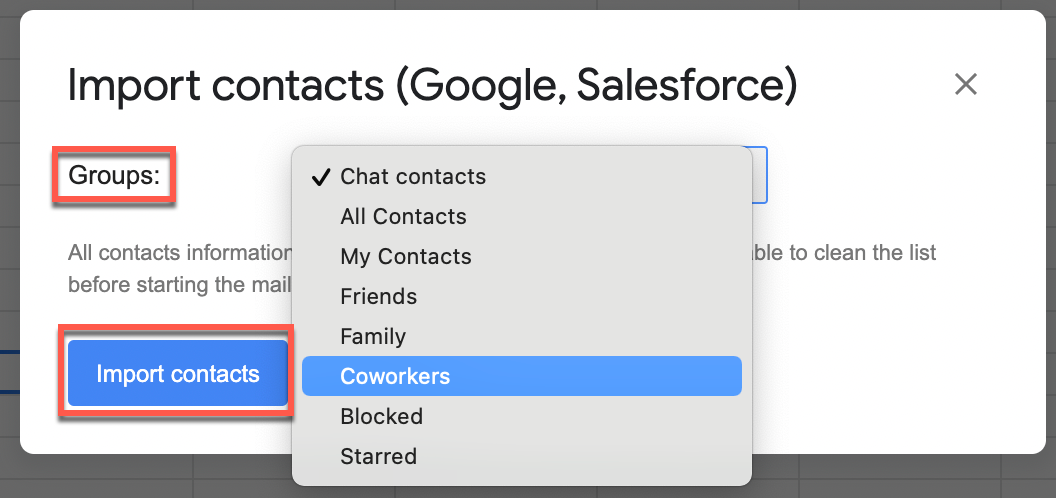
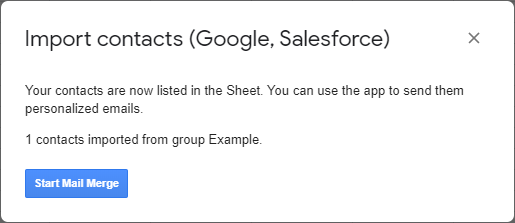
Your contacts are imported into your spreadsheet.
Remove duplicate addresses
Avoid sending the same message multiple times to the same recipient by removing duplicate email addresses before starting your mail merge.
Use Sheets' data cleanup
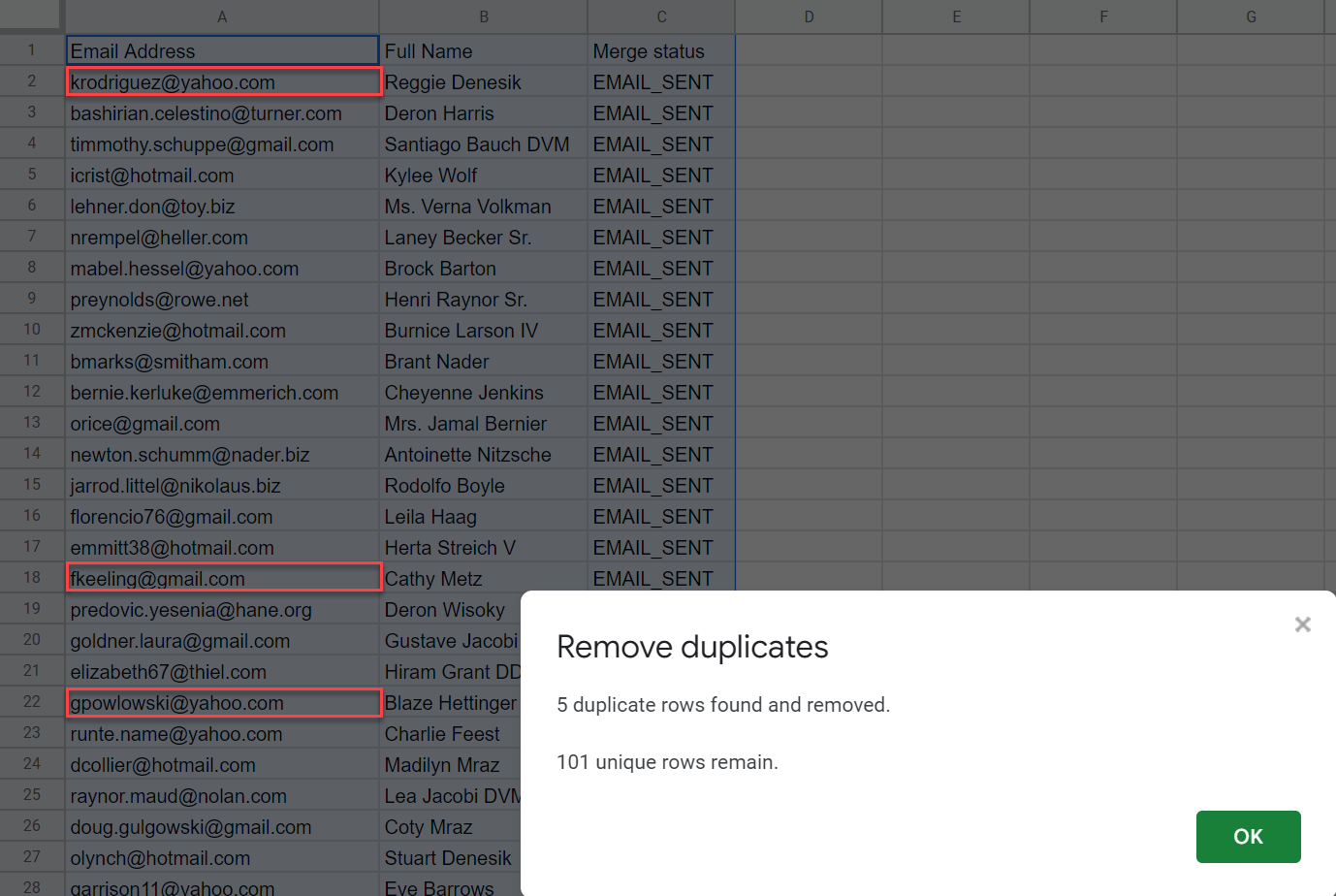
Google Sheets has a built-in data cleanup feature. It keeps the first occurrence of a value and removes subsequent duplicates.
-
Open your spreadsheet.
-
On the menu bar, go to Data > Data cleanup > Remove duplicates.
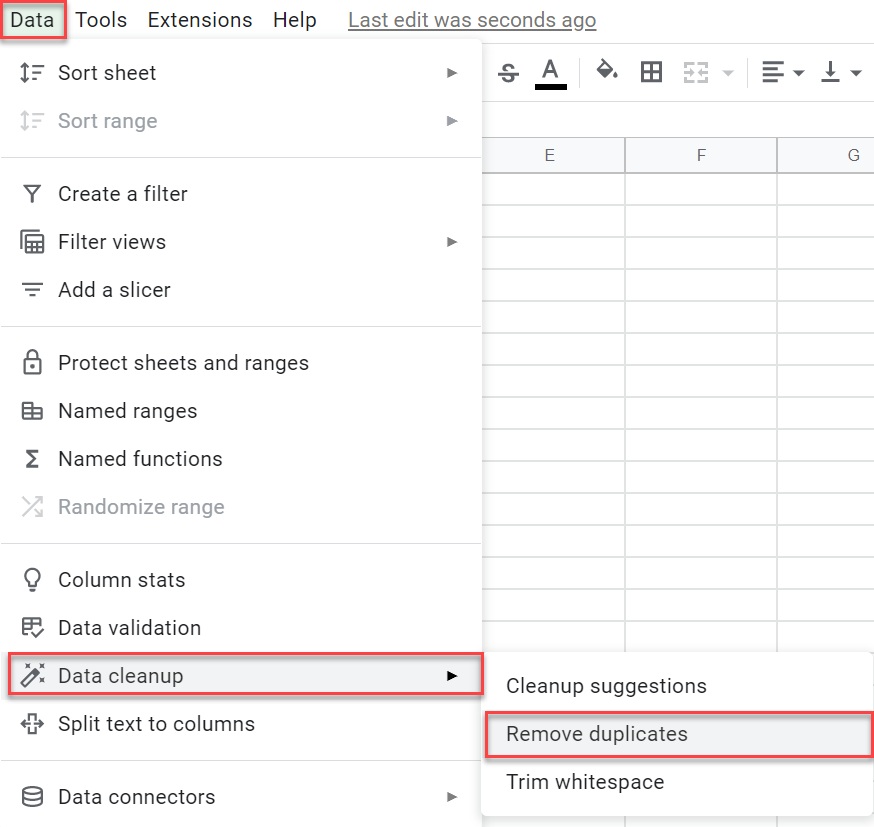
-
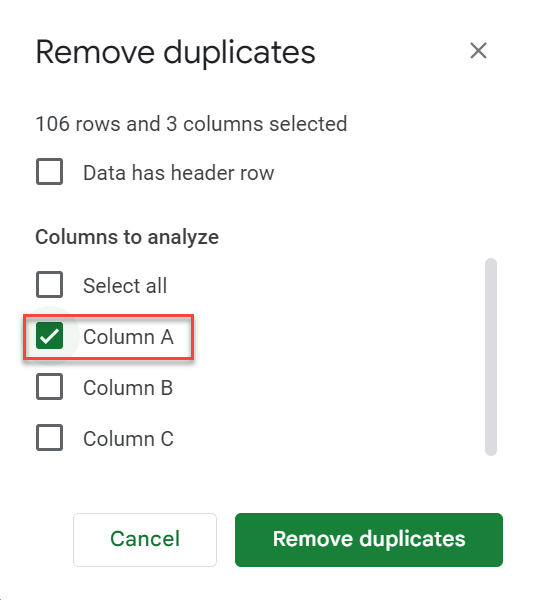
Choose the column to verify. For the email column, select Column A.
-
Click Remove duplicates.
Google Sheets scans the column and removes all subsequent occurrences.
Use conditional formatting
For more control, use conditional formatting to highlight duplicates so you can review and remove them yourself.
-
Open your spreadsheet.
-
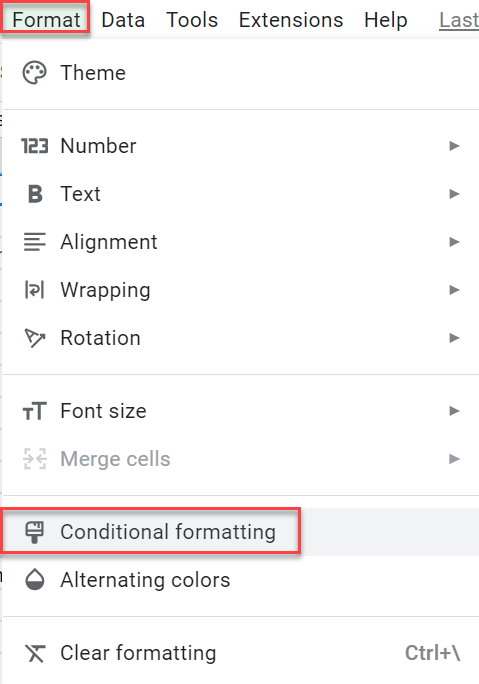
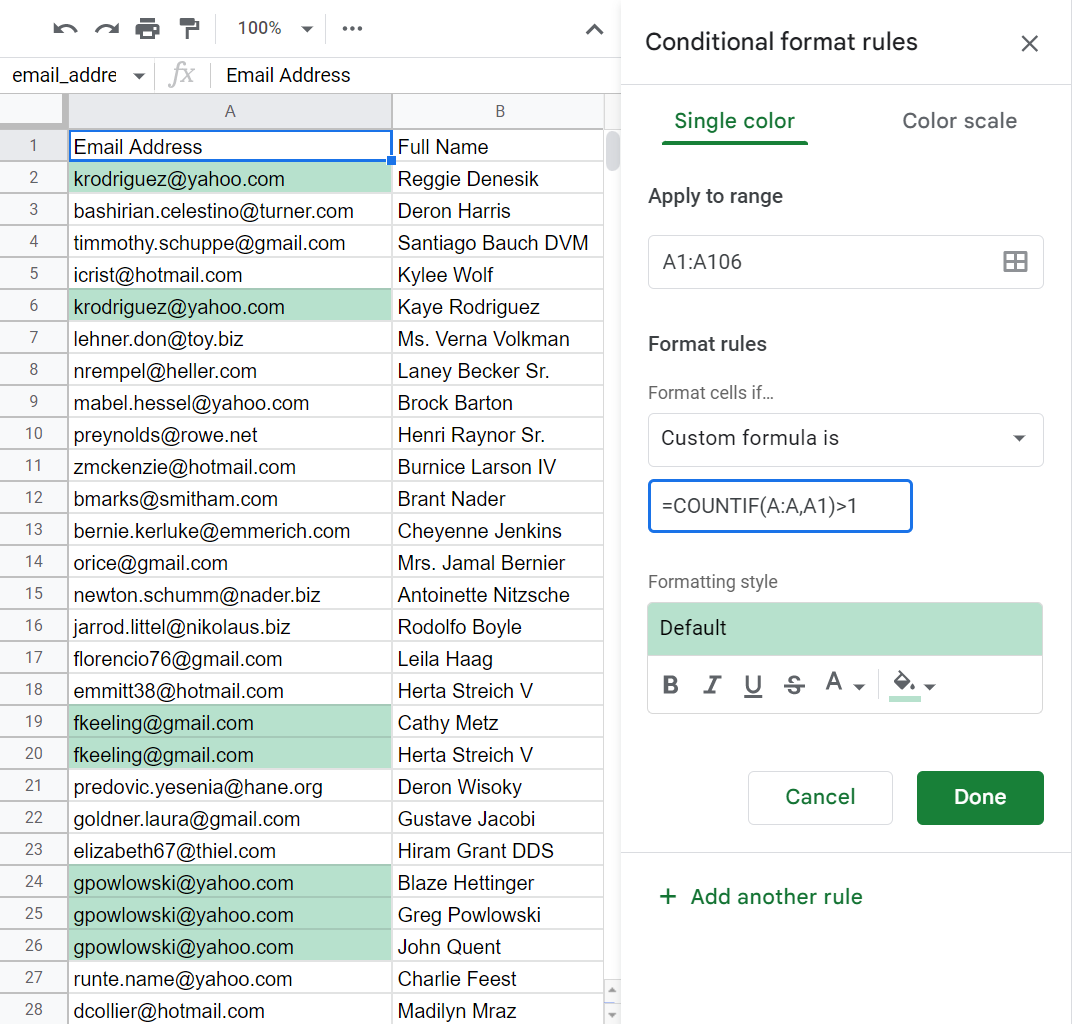
Select Format > Conditional formatting.
-
Enter the range — for example,
A1:A106for the email column.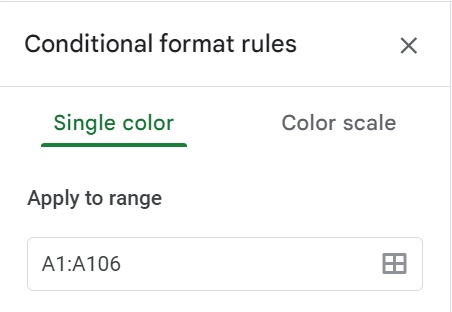
-
Open the Format cells if… drop-down and select Custom formula is.
-
Enter the formula:
=COUNTIF(A:A,A1)>1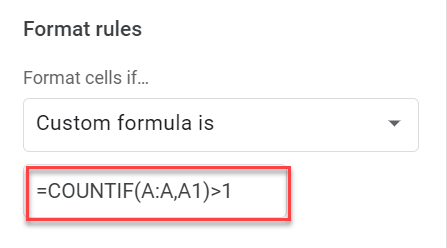
This highlights all duplicates in the range.
-
Click Done.
You can now see all the duplicates and manually remove them.
Reach multiple recipients per row
Beyond the standard one-recipient-per-row, YAMM supports several ways to reach more people from a single row. These methods can be combined.
| Case | Method | Quota impact |
|---|---|---|
Send the same email to several people | Add multiple addresses in the same cell of your contact list, separated by a comma, space, semicolon, or slash. 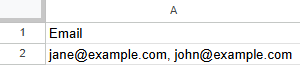 | 1 per address |
Send an email to a Google group | Add the group address in a 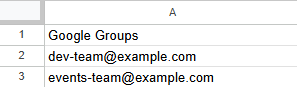 | 1 per group, regardless of member count |
Copy someone on all emails | Add the address in cc or bcc directly in your Gmail draft. 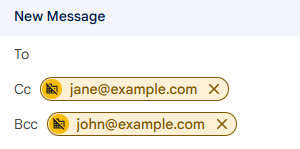 | 1 per address × number of rows sent |
Copy someone on a specific row | Add a 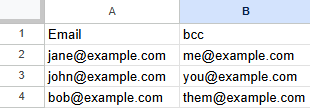 | 1 per address in the column |
Keep these limitations in mind when using multiple recipients:
-
YAMM can't send emails with only cc and/or bcc recipients — there must be at least one address in the
Emailcolumn. -
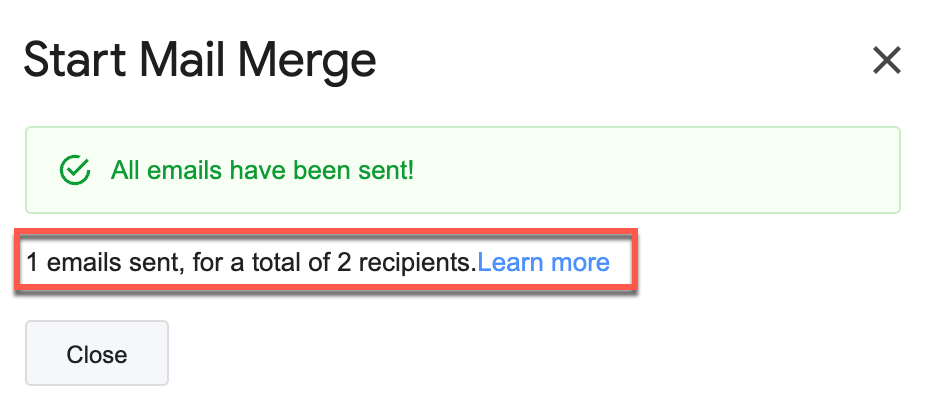
If one of the addresses in a cell is invalid, YAMM still sends to the valid ones — but it doesn't tell you which is bad. After the merge, you may see fewer sends than recipients in your spreadsheet.
-
When a cc/bcc recipient or group member opens your email, YAMM records it as
EMAIL_OPENEDbut can't identify who — see Open rate is unusually high.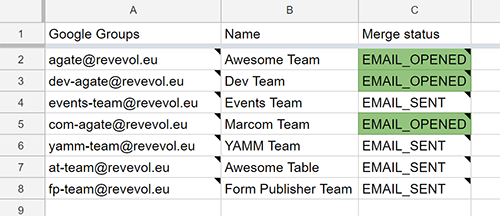
Filter out some recipients
Send to only some of the rows in your spreadsheet — for a specific segment, or to hold some recipients back until later. YAMM has three methods, and they all leave the rest of your list untouched for a later merge.
Apply a Google Sheets filter
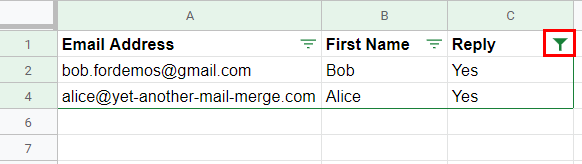
Best for large contact lists, where the rows to skip share a common value. YAMM sends only to the rows your filter displays.
-
Open your contact list spreadsheet.
-
Click cell
A1, then click the Filter button.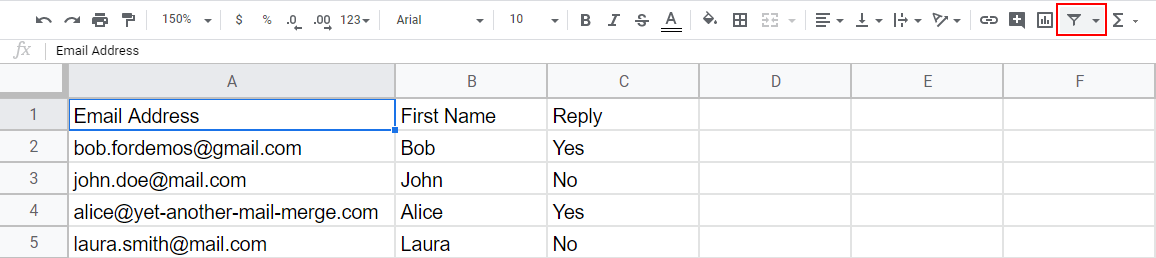
-
Set your filter — for example, only the people who replied to a previous campaign.
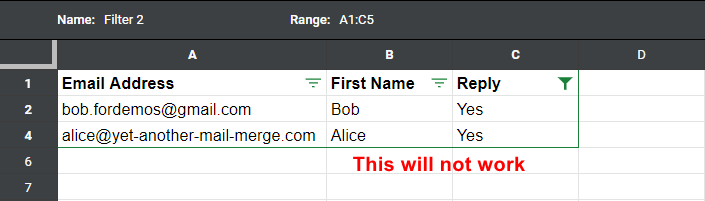
This doesn't work with filtered views: several people can create different views on the same sheet, and YAMM can't detect which one is active. Use a Google Sheets filter instead.
Hide the rows to skip
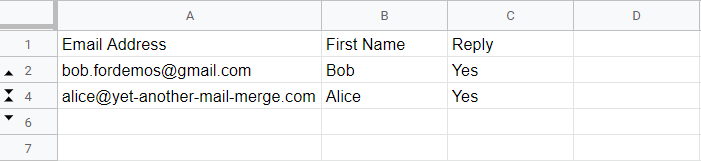
Best for smaller contact lists. YAMM skips hidden rows and sends only to the visible ones.
-
Open your contact list spreadsheet.
-
Select the rows to skip, right-click, and select Hide rows.
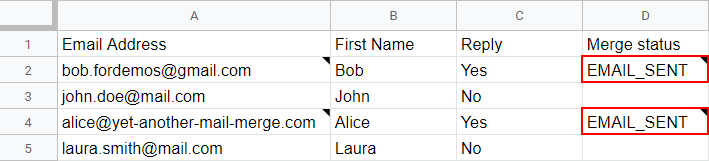
After the merge, only the rows that were visible have a merge status.
Enter 0 as a merge status
Best for skipping a few specific recipients, especially when they share no common value. Marking a row with 0 is a shortcut for filtering it out.
-
Open your contact list spreadsheet.
-
If your sheet doesn't have one, add a column named
Merge status. -
Enter
0(zero) in that column for every row to skip.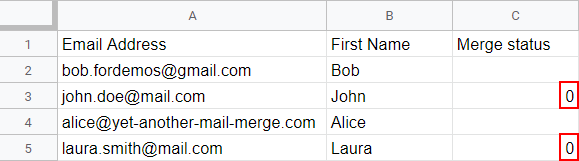
When you start the mail merge, YAMM filters those rows out of your spreadsheet. The recipients won't be emailed.
What's next
-
Send a test email to preview your email template.