Send upon Google form submission
Use YAMM to automatically send a personalized email every time someone submits a Google form — ideal for confirmations, acknowledgements, and onboarding sequences. The notification uses a standard Gmail draft as its email template, so you can add an alias, cc/bcc, attachments, inline images, and more.
Link a form to your spreadsheet
Ensure a Google form is linked to your spreadsheet.
-
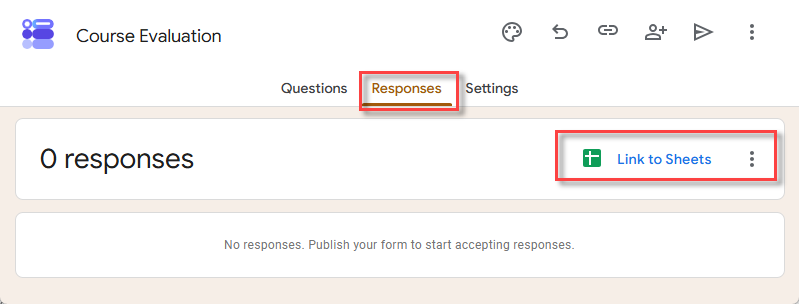
In your Google form, select Responses, then click Link to Sheets.
-
Select Create a new spreadsheet and click Create.
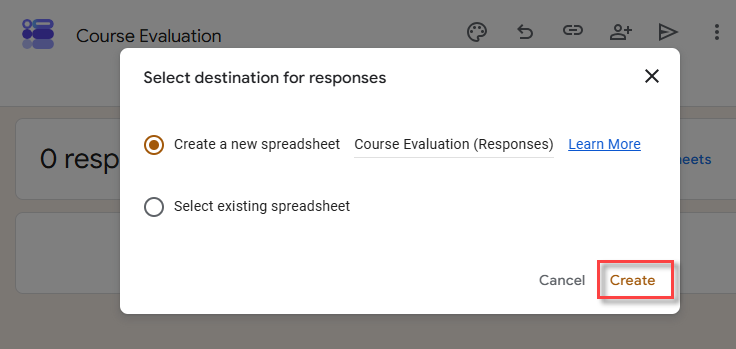
A response spreadsheet is created. You can start configuring YAMM from there.
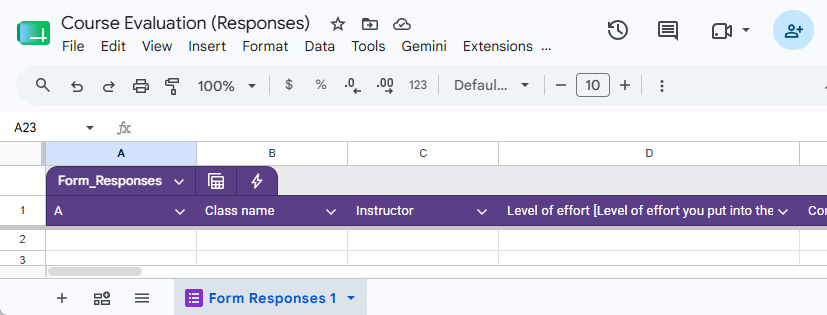
Form notifications are set up at the spreadsheet level, not the individual sheet level. The notification feature isn't available for spreadsheets with multiple forms.
Set the notification rules
-
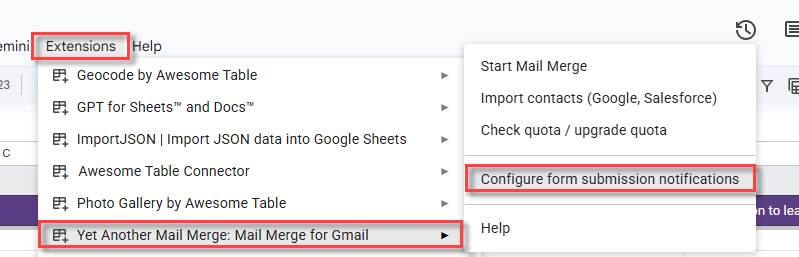
In the response spreadsheet, select Extensions > Yet Another Mail Merge: Mail Merge for Gmail > Configure form submission notifications. If the item isn't there, close and reopen your spreadsheet.
-
In the Set Notification rules sidebar, select:
-
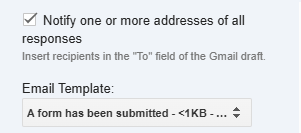
Notify one or more addresses of all responses: Each response is sent to the addresses in the recipient field of your Gmail draft selected under Email Template.
-
Notify address submitted by the form: Each response is sent to the address the respondent submitted. Select the Gmail draft under Email Template, then choose the column holding the addresses under Recipients column.
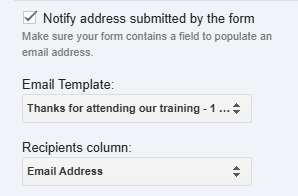
Select both rules to notify your own addresses and the respondent, each with its own email Template.
infoSwitched your email to a new domain? YAMM may block changes to this sidebar — see Why can't you set notification rules after switching email domains?
-
-
(Optional) Enter a Sender Name, and check Track emails opened, clicked or bounced to get tracking stats for the notifications.
-
Click Save.
Don't delete the Gmail drafts you selected as email templates — YAMM reuses them every time a notification is sent.
Delay until a specific column is filled
If a form submission triggers another script or add-on, you may want it to finish before YAMM sends the notification. For example, you can delay sending until:
-
A column value has finished calculating from the submitted data and other variables.
-
A file has been created so it can be attached.
This feature works only if the specific cell is automatically filled by a script or another add-on (like Form Publisher) after submission. It does not work if you manually fill in the data.
-
In the response spreadsheet, select Extensions > Yet Another Mail Merge: Mail Merge for Gmail > Configure form submission notifications. If the item isn't there, close and reopen your spreadsheet.
-
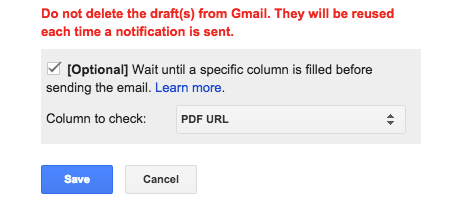
In the Set Notification rules sidebar, select Wait until a specific column is filled before sending the email.
-
Select the column to check.
-
Click Save.
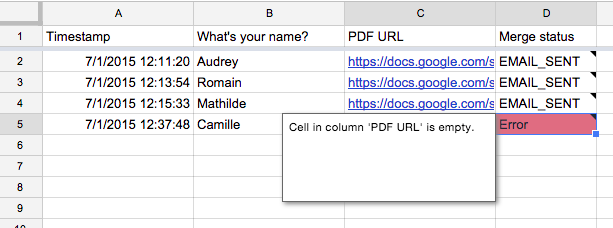
If the chosen column is still empty when the form is submitted, YAMM waits 60 seconds for the other process to finish.
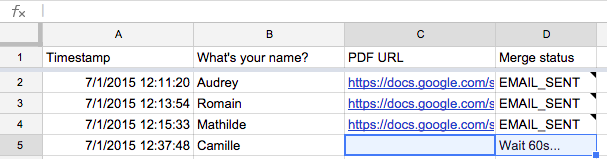
If the column is still empty after 60 seconds, YAMM tags the row with an error and sends no email. That row is retried on the next form submission.
Attach respondents' files
When your form has a File upload question, YAMM can send the files the respondent uploaded back out as email attachments. This is useful for confirming a submission with the documents attached, or for forwarding a signed form, an application, or a receipt to whoever reviews it.
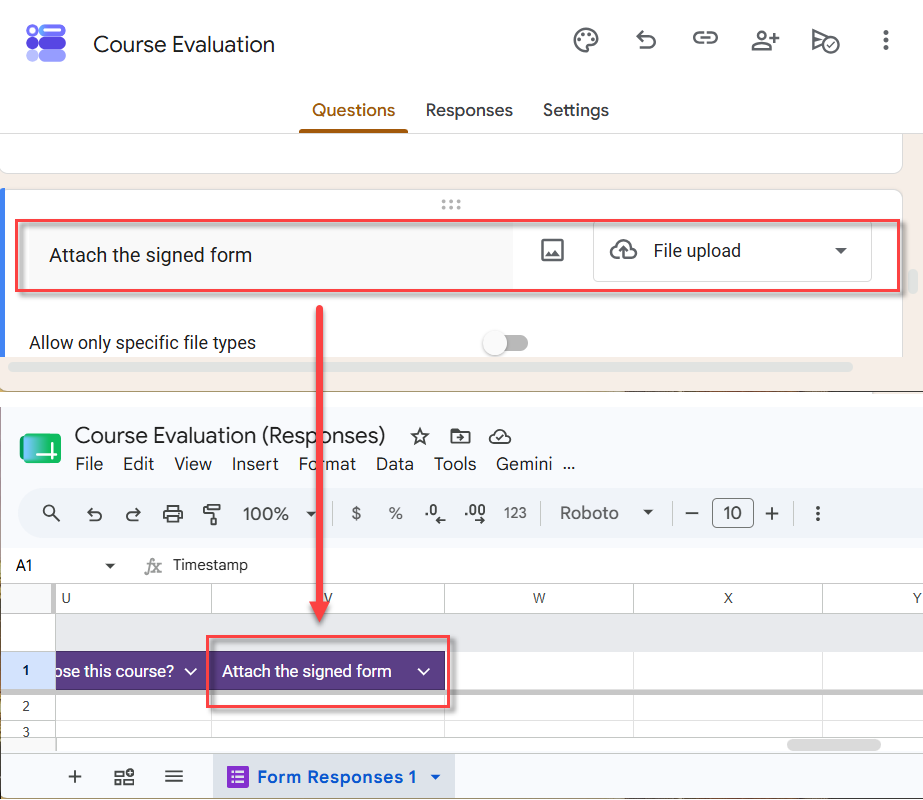
Rename the response column so YAMM attaches the uploaded files:
-
Open the spreadsheet linked to your form responses.
-
Locate the column corresponding to the File upload question.
-
Rename that column header to
AttachmentorAttachments. Unlike regular markers, this name is case-sensitive.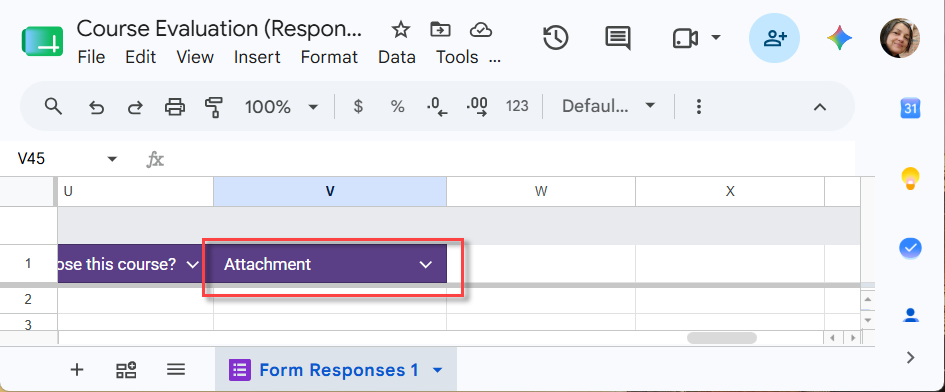 info
infoRename only the column in the response spreadsheet, not the form question itself.
-
In your Gmail draft, use the marker
{{Attachment}}or{{Attachments}}.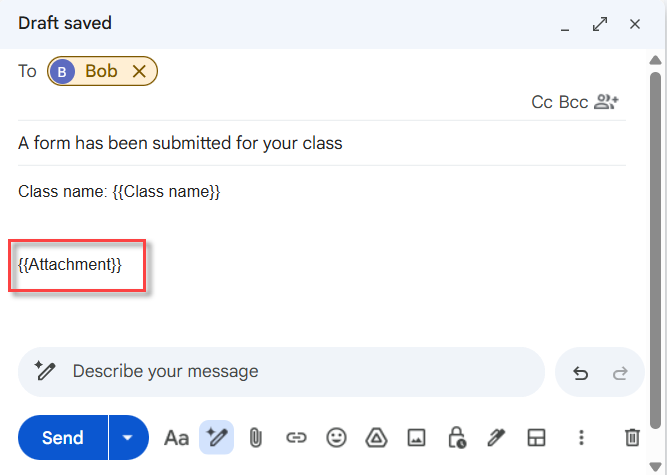
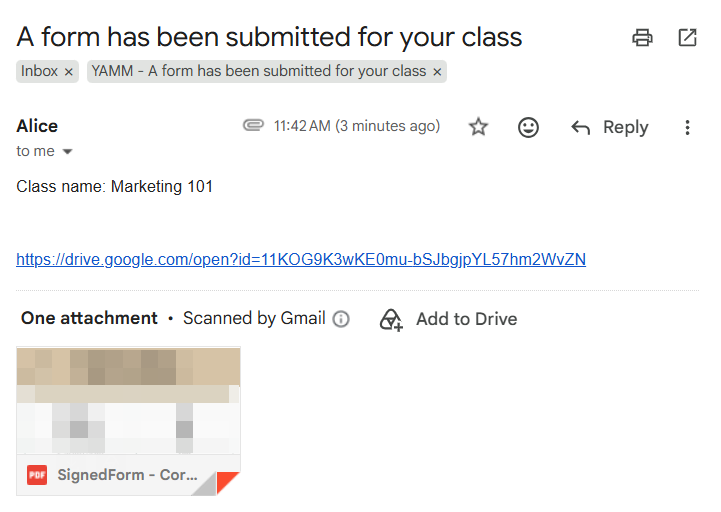
The files uploaded to the Google form question are attached to the notification email upon form submission.
Deactivate notifications
-
In the response spreadsheet, select Extensions > Yet Another Mail Merge: Mail Merge for Gmail > Configure form submission notifications.
-
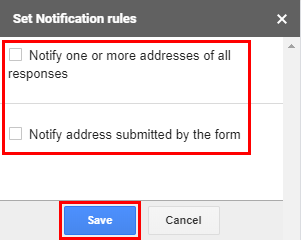
In the Set Notification rules sidebar, uncheck both options.
-
Click Save.
YAMM stops sending notifications for new form submissions.
What's next
-
Send each recipient a prefilled form link to ask them to verify or update their data.