Send personalized images to each recipient
Insert different images in your spreadsheet with the =Image() function in Google Sheets to send emails with personalized images to each recipient.
-
For each recipient row, add your image URL under a particular column, for example Picture URL.
 info
infoIn our example, we use imgur.com for hosting images, but you can use other cloud storage solutions for your image uploads. We do not recommend using Google Drive or Google Photos, as those services have restrictions that could affect the accessibility of your images for this particular case.
-
Add a column, for example, Product Picture, and use the =IMAGE() function as shown below.
=IMAGE(D2) info
infoTo insert the image along with its properties, such as alt text or size, combine the elements inside an HTML image tag. For an HTML tag like
<img src="https://i.imgur.com/1i0dsyL.jpg" alt="Tarva bed">with the image source in D2 and the alt text in E2, type:="<img src=""" & D2 & """ alt=""" & E2 & """>"
-
Add the marker {{Product Picture}} in your Gmail draft.
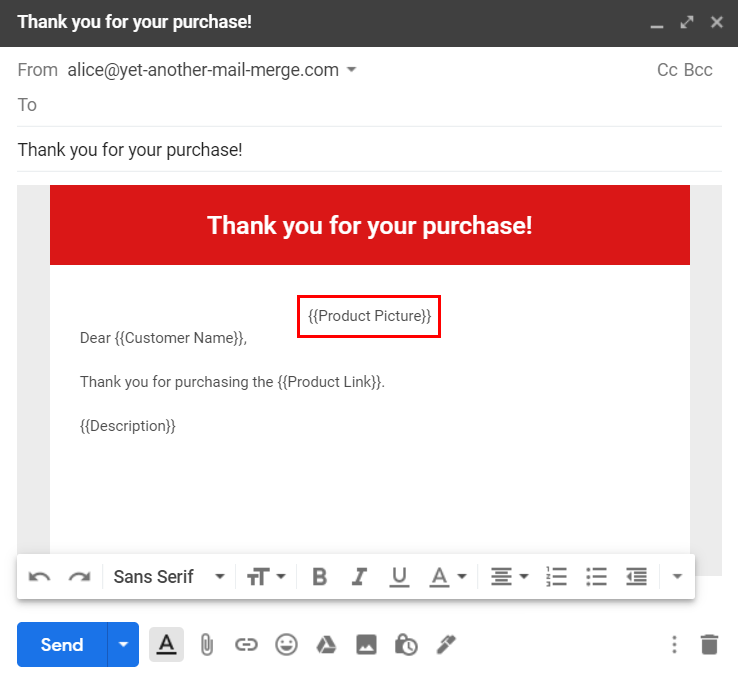
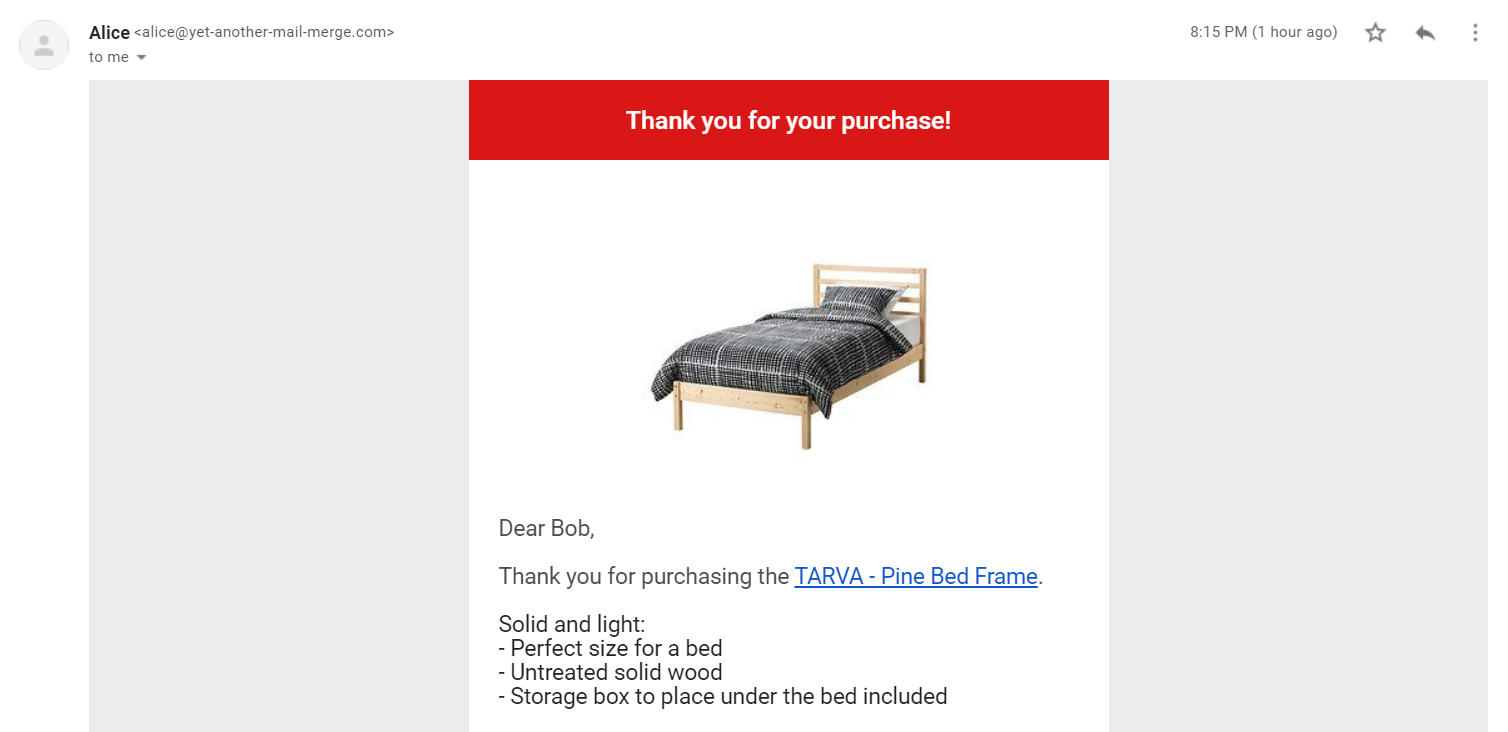
And that's it! You can do your mail merge as usual, and each recipient will receive the right picture.
Important notes about =IMAGE() formula:
Note that only the =IMAGE() formula is currently supported, you cannot use other formulas inside it.
For example, This will not work (concatenate function in image function).

However, this will work :
The value of column E is a valid image URL, and we can add in column F the image function =IMAGE(E2)
